> ## Documentation Index
> Fetch the complete documentation index at: https://docs.sapt.ai/llms.txt
> Use this file to discover all available pages before exploring further.
# Billing, your plan and Sapt credits
> See what you pay and when, update your card, buy Sapt credits, fix a failed payment, or cancel your plan on the web or your phone.
Your plan pays for Sapt each month. The shop plan is \$297 a month, with 30-day money back. Sapt credits pay for what you use, like texts and AI replies.
## Open billing
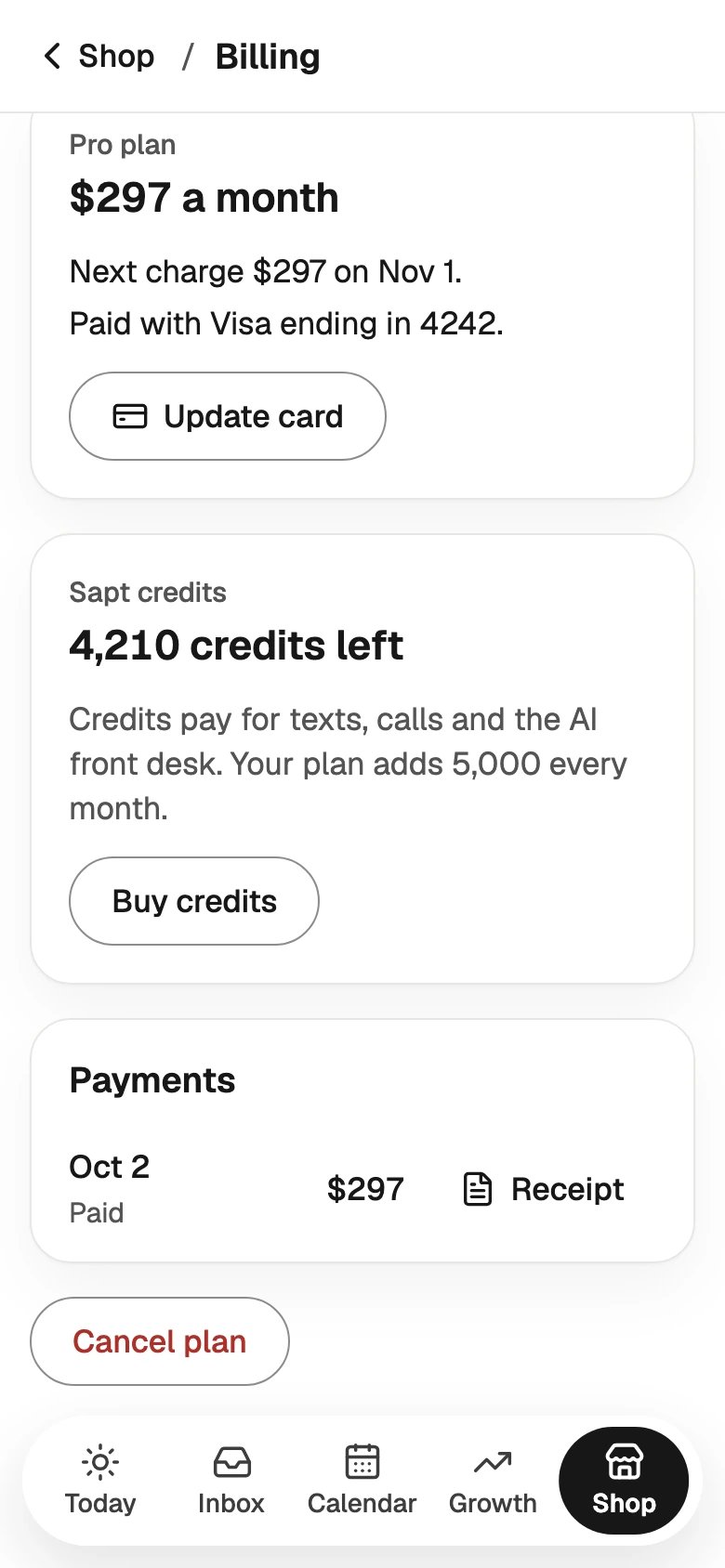
Open **Shop** and tap **Billing**. You see it only if your role can manage billing.
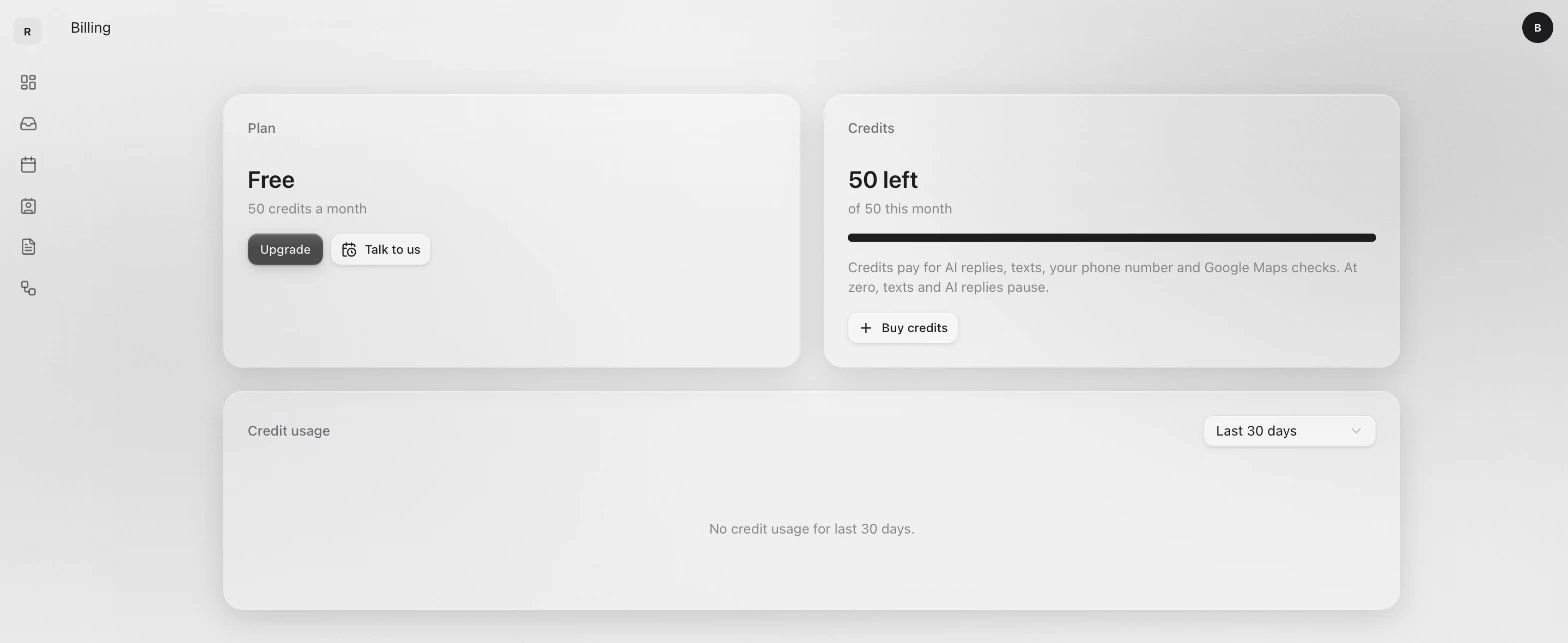
 Click **Billing** in the sidebar.
 ## Your plan
The plan card shows your plan's name and price, your next charge, and the card it comes from.
* **Update card** opens Stripe, the company that takes payments for Sapt, so you can change your card.
* **Payments** lists what you paid. Tap **Receipt** next to a payment to open it.
* If your shop has no plan yet, the card says what it costs and has a button to start it.
* **Manage subscription** on the **Plan** card opens Stripe. There you change your card, get receipts, or cancel.
* On the free plan, click **Upgrade** to open **Choose a plan**, or **Talk to us** to book a call with Sapt.
* **Change plan**, under the cards, shows only on the Pro plan.
## Sapt credits
Credits pay for AI replies, texts, your phone number and Google Maps checks. One credit is worth 1 cent. Your plan adds credits every month, and credits you buy stay until you use them.
At zero credits, texts and AI replies pause. Buy more before you run out.
On the web, the **Credits** card shows how many are left this month. **Credit usage** under it shows what used them each day.
### Buy credits
In **Billing**, tap **Buy credits**. Pick 1,000, 2,500 or 5,000 credits, then tap the buy button, like **Buy for \$10**. You pay on Stripe's secure page.
On the **Credits** card, click **Buy credits**. Type how many you want, at least 500. Sapt shows the total. Click **Continue to checkout** and pay on Stripe's page.
## If something needs you
You may see one of these in **Billing**:
| You see | What to do |
| - | - |
| **Your last payment didn't go through** | Tap or click **Update card** and add a card that works. If you do not manage billing, ask the account owner. |
| **Your plan ends** and a date (on your phone, **Ends**) | Your plan was cancelled. Everything works until that day. Tap or click **Keep my plan** to undo it. |
| **Billing paused until** a date (on your phone, **Paused until**) | Your site, number and data stay live. Click **Resume now** on the web, or tap **Turn billing back on** on your phone. |
| **Free trial ended** (on your phone, **Your free month ended**) | Start a plan from the **Plan** card. Until then, Sapt stays locked. |
## Cancel your plan
In **Billing**, scroll down and tap **Cancel plan**.
**Cancel your plan?** says the day your plan ends and what stops after it. You won't be charged again. Your customers, messages and bookings are kept.
Pick an answer under **Why are you leaving?** and tap **Cancel plan**.
Changed your mind before that day? Tap **Keep my plan**.
Click **Manage subscription** on the **Plan** card. You cancel on Stripe's page. Back in Sapt, **Keep my plan** undoes it until your plan ends.
Run several businesses under one parent account? The parent pays for all of them, so billing lives on the parent. See [Billing for agencies](/docs/mintlify/platform/billing).
## Common questions
**Where are my receipts?** On your phone, under **Payments**. On the web, in **Manage subscription**.
**Who can see billing?** Anyone whose role includes billing, like **Admin** or **Billing manager**. See [Your team](/docs/mintlify/account/team).
**Questions about a charge?** Email [hello@sapt.ai](mailto:hello@sapt.ai).
## Keep going
This documentation is built and hosted on [Mintlify](https://mintlify.com), a developer documentation platform.
## Your plan
The plan card shows your plan's name and price, your next charge, and the card it comes from.
* **Update card** opens Stripe, the company that takes payments for Sapt, so you can change your card.
* **Payments** lists what you paid. Tap **Receipt** next to a payment to open it.
* If your shop has no plan yet, the card says what it costs and has a button to start it.
* **Manage subscription** on the **Plan** card opens Stripe. There you change your card, get receipts, or cancel.
* On the free plan, click **Upgrade** to open **Choose a plan**, or **Talk to us** to book a call with Sapt.
* **Change plan**, under the cards, shows only on the Pro plan.
## Sapt credits
Credits pay for AI replies, texts, your phone number and Google Maps checks. One credit is worth 1 cent. Your plan adds credits every month, and credits you buy stay until you use them.
At zero credits, texts and AI replies pause. Buy more before you run out.
On the web, the **Credits** card shows how many are left this month. **Credit usage** under it shows what used them each day.
### Buy credits
In **Billing**, tap **Buy credits**. Pick 1,000, 2,500 or 5,000 credits, then tap the buy button, like **Buy for \$10**. You pay on Stripe's secure page.
On the **Credits** card, click **Buy credits**. Type how many you want, at least 500. Sapt shows the total. Click **Continue to checkout** and pay on Stripe's page.
## If something needs you
You may see one of these in **Billing**:
| You see | What to do |
| - | - |
| **Your last payment didn't go through** | Tap or click **Update card** and add a card that works. If you do not manage billing, ask the account owner. |
| **Your plan ends** and a date (on your phone, **Ends**) | Your plan was cancelled. Everything works until that day. Tap or click **Keep my plan** to undo it. |
| **Billing paused until** a date (on your phone, **Paused until**) | Your site, number and data stay live. Click **Resume now** on the web, or tap **Turn billing back on** on your phone. |
| **Free trial ended** (on your phone, **Your free month ended**) | Start a plan from the **Plan** card. Until then, Sapt stays locked. |
## Cancel your plan
In **Billing**, scroll down and tap **Cancel plan**.
**Cancel your plan?** says the day your plan ends and what stops after it. You won't be charged again. Your customers, messages and bookings are kept.
Pick an answer under **Why are you leaving?** and tap **Cancel plan**.
Changed your mind before that day? Tap **Keep my plan**.
Click **Manage subscription** on the **Plan** card. You cancel on Stripe's page. Back in Sapt, **Keep my plan** undoes it until your plan ends.
Run several businesses under one parent account? The parent pays for all of them, so billing lives on the parent. See [Billing for agencies](/docs/mintlify/platform/billing).
## Common questions
**Where are my receipts?** On your phone, under **Payments**. On the web, in **Manage subscription**.
**Who can see billing?** Anyone whose role includes billing, like **Admin** or **Billing manager**. See [Your team](/docs/mintlify/account/team).
**Questions about a charge?** Email [hello@sapt.ai](mailto:hello@sapt.ai).
## Keep going
This documentation is built and hosted on [Mintlify](https://mintlify.com), a developer documentation platform.