> ## Documentation Index
> Fetch the complete documentation index at: https://docs.sapt.ai/llms.txt
> Use this file to discover all available pages before exploring further.
# Add your team and choose what they see
> Invite the people who work at your shop, pick a role for each one, and change, remove or hand over the account when you need to.
Add the people who work with you so they can answer customers and see bookings. Each person's role decides which parts of Sapt they see and what they can change.
## Add a teammate
Open **Shop** and tap **Team**, then **Invite a teammate**.
Type it under **Their email**, like [maya@example.com](mailto:maya@example.com).
Under **What will they do?**, pick a role. Each one says what it lets them do.
Tap **Send invite**. Sapt emails them a link to join. It works for 2 days.
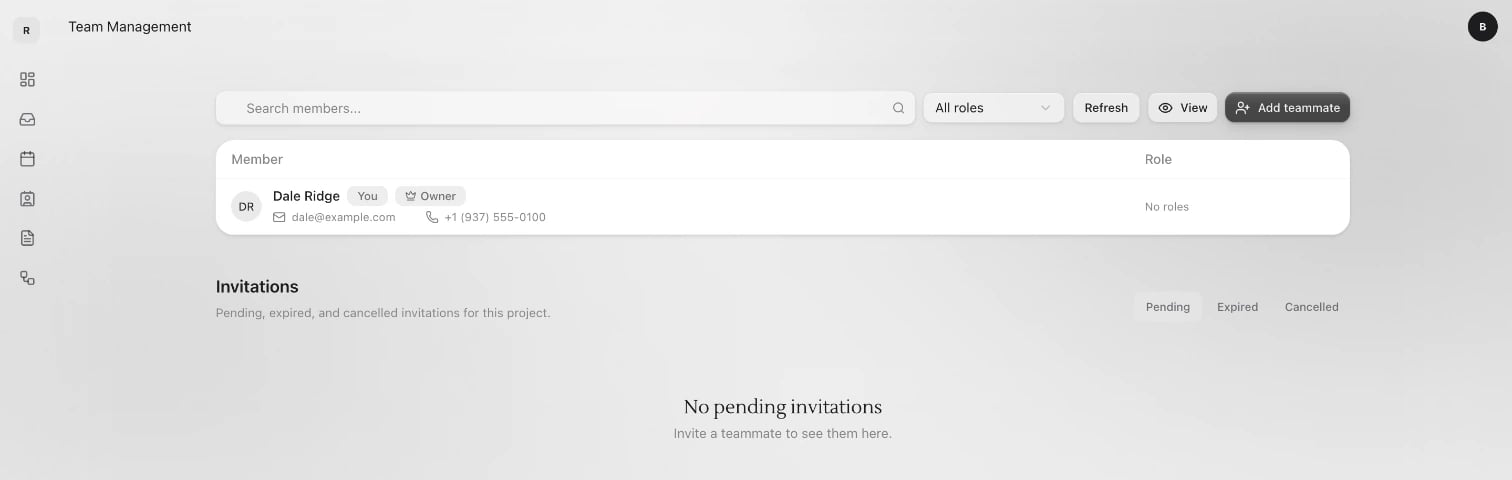
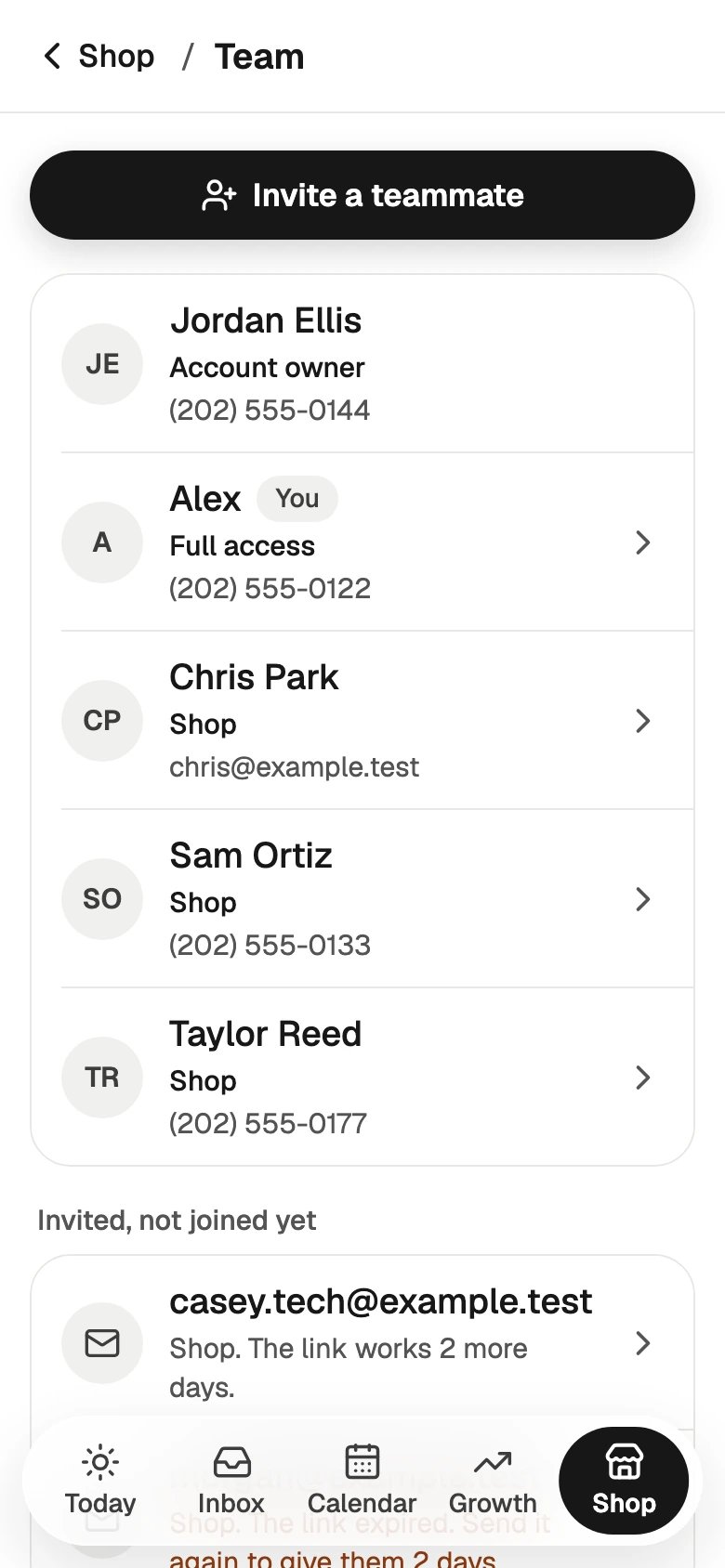 Click **Team** in the sidebar, then **Add teammate**.
 Type their email, like [maya@example.com](mailto:maya@example.com). If they are on another of your Sapt accounts, pick their name from the list instead.
Choose one under **Role**. It starts on **Admin**, which can see and change everything. Pick a smaller role if they should not.
Type their email, like [maya@example.com](mailto:maya@example.com). If they are on another of your Sapt accounts, pick their name from the list instead.
Choose one under **Role**. It starts on **Admin**, which can see and change everything. Pick a smaller role if they should not.
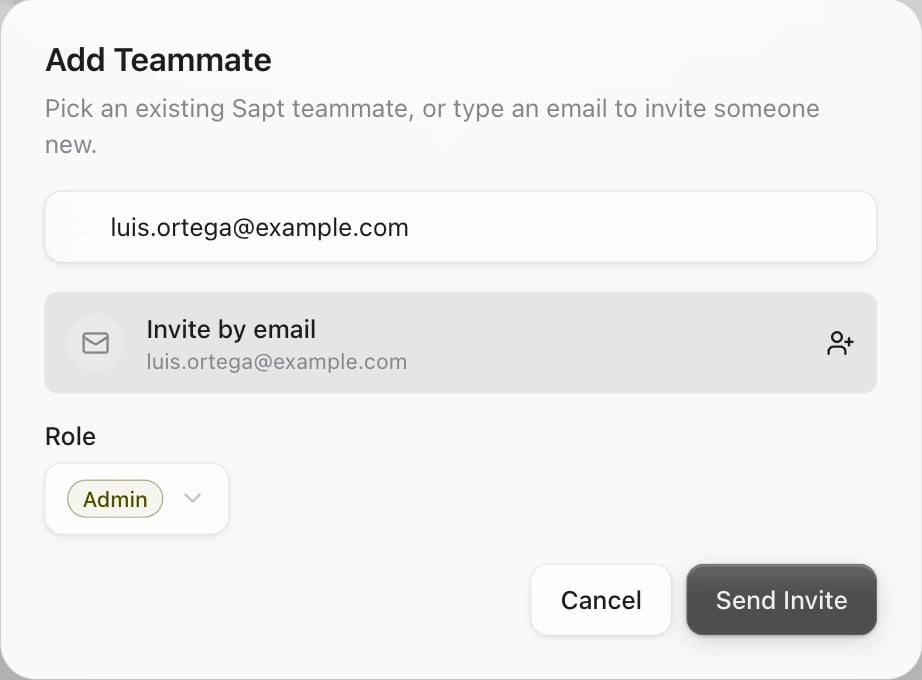 Click **Send Invite**. If you picked a name from the list, click **Add Teammate** and they are in right away.
## Invitations
An invite link works for 2 days. Until they join, the invite waits in a list.
Under **Invited, not joined yet**, tap the invite. Tap **Send the invite again** for a fresh 2 days, or **Cancel invite** to stop the link.
Under **Invitations**, click **Pending**, **Expired** or **Cancelled**. Open the **⋯** menu on an invite:
* **Copy invite link** to text it to them yourself.
* **Extend expiry…** to give them more time: pick **2 days**, **3 days**, **7 days** or **30 days**, then **Extend**. The same link keeps working.
* **Resend email (+48h)** to email the link again.
* **Cancel** to stop the link.
## Roles: who sees what
A role decides which parts of Sapt someone sees. If a role cannot see customers, that person does not see **Inbox**, **CRM** or **Workflows** at all. **Website**, **Team** and **Billing** each need their own access too.
| Role | What it lets them do |
| - | - |
| **Account owner** | Holds your shop's Sapt account. Can do everything. Cannot be removed. |
| **Admin** (on the phone, **Full access**) | Everything, including adding and removing people. |
| **Shop** | The inbox, customers, bookings and reviews. |
| **Billing manager** | Pays the Sapt bill. Nothing else. |
| **Member** | Can sign in only. No customers, texts or bookings. |
Your shop may not have every one of these, or may have others. The phone app says what each role lets someone do when you pick it.
### Change someone's role
In **Team**, tap the person. Pick a new role under **Their role** and tap **Save role**.
In **Team**, click the pencil next to their role. Under **Assign Roles**, check the roles they should have.
Nobody can change their own role. Ask the shop owner.
### Make your own role
On the web, open **Project Settings**, then **Permissions**, then **Roles**. Click **Create Role**, name it and check what it can do under **Permissions**. Open a role and click **View as this role** to see Sapt the way that person will.
## Hand over the account
Only the account owner can do this, on the web.
In **Team**, open the **⋯** menu on the person's row.
Click **Transfer ownership**, then **Transfer ownership** again to confirm. You stay on the team. They can hand it back any time.
## Remove someone
In **Team**, tap the person, for example Maya, then **Remove Maya from the shop**. Tap **Remove Maya** to confirm. She can no longer open your shop in Sapt. What she already did stays, and you can invite her again later.
In **Team**, open the **⋯** menu on their row and click **Remove**. Confirm.
The account owner cannot be removed. To leave a shop yourself, open your own name in **Team** on your phone and tap **Leave this shop**.
## Keep going
This documentation is built and hosted on [Mintlify](https://mintlify.com), a developer documentation platform.
Click **Send Invite**. If you picked a name from the list, click **Add Teammate** and they are in right away.
## Invitations
An invite link works for 2 days. Until they join, the invite waits in a list.
Under **Invited, not joined yet**, tap the invite. Tap **Send the invite again** for a fresh 2 days, or **Cancel invite** to stop the link.
Under **Invitations**, click **Pending**, **Expired** or **Cancelled**. Open the **⋯** menu on an invite:
* **Copy invite link** to text it to them yourself.
* **Extend expiry…** to give them more time: pick **2 days**, **3 days**, **7 days** or **30 days**, then **Extend**. The same link keeps working.
* **Resend email (+48h)** to email the link again.
* **Cancel** to stop the link.
## Roles: who sees what
A role decides which parts of Sapt someone sees. If a role cannot see customers, that person does not see **Inbox**, **CRM** or **Workflows** at all. **Website**, **Team** and **Billing** each need their own access too.
| Role | What it lets them do |
| - | - |
| **Account owner** | Holds your shop's Sapt account. Can do everything. Cannot be removed. |
| **Admin** (on the phone, **Full access**) | Everything, including adding and removing people. |
| **Shop** | The inbox, customers, bookings and reviews. |
| **Billing manager** | Pays the Sapt bill. Nothing else. |
| **Member** | Can sign in only. No customers, texts or bookings. |
Your shop may not have every one of these, or may have others. The phone app says what each role lets someone do when you pick it.
### Change someone's role
In **Team**, tap the person. Pick a new role under **Their role** and tap **Save role**.
In **Team**, click the pencil next to their role. Under **Assign Roles**, check the roles they should have.
Nobody can change their own role. Ask the shop owner.
### Make your own role
On the web, open **Project Settings**, then **Permissions**, then **Roles**. Click **Create Role**, name it and check what it can do under **Permissions**. Open a role and click **View as this role** to see Sapt the way that person will.
## Hand over the account
Only the account owner can do this, on the web.
In **Team**, open the **⋯** menu on the person's row.
Click **Transfer ownership**, then **Transfer ownership** again to confirm. You stay on the team. They can hand it back any time.
## Remove someone
In **Team**, tap the person, for example Maya, then **Remove Maya from the shop**. Tap **Remove Maya** to confirm. She can no longer open your shop in Sapt. What she already did stays, and you can invite her again later.
In **Team**, open the **⋯** menu on their row and click **Remove**. Confirm.
The account owner cannot be removed. To leave a shop yourself, open your own name in **Team** on your phone and tap **Leave this shop**.
## Keep going
This documentation is built and hosted on [Mintlify](https://mintlify.com), a developer documentation platform.