> ## Documentation Index
> Fetch the complete documentation index at: https://docs.sapt.ai/llms.txt
> Use this file to discover all available pages before exploring further.
# Automations and workflows
> See what Sapt does on its own, turn automations on or off, and build your own from a template on your phone or on the web.
An automation does one job by itself every time something happens, like texting back a missed call. The phone app calls them **Automations**. The web app calls them **Workflows**. They are the same thing.
Your shop starts with a set Sapt made for you: the missed call text back, texts to you about voicemails, website requests, bookings and bad reviews, a review request, and a Monday report. Change them or add your own. For ready-made ideas, see [Automation recipes](/docs/mintlify/automations/recipes).
## How an automation works
Every automation has three parts:
* **What starts it.** One thing that happens, like a missed call, a new website request or a job marked done.
* **Steps.** What Sapt does next, from top to bottom: text them, wait a day, text you.
* **Paths.** A step can split in two, like "they replied" and "they did not". Each path has its own steps.
 ## See your automations
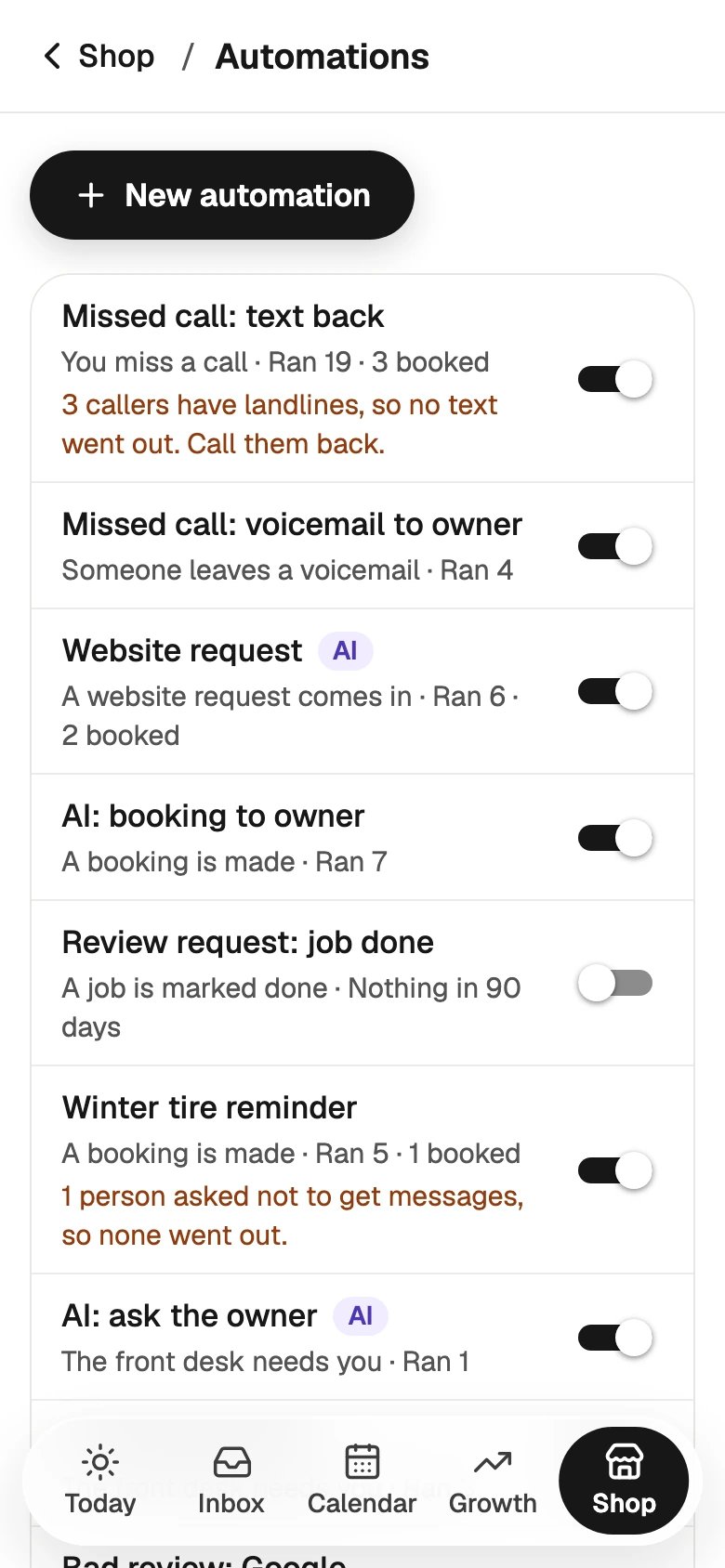
Open **Shop** and tap **Automations**. Each one shows what starts it and how many times it ran in the last 7 days. A note under it says when a text did not go out, and why.
## See your automations
Open **Shop** and tap **Automations**. Each one shows what starts it and how many times it ran in the last 7 days. A note under it says when a text did not go out, and why.
 Click **Workflows** in the sidebar. Use **Any status** to show only the ones that are **On**, **Off**, **Needs attention** or **Never run**. Click a row to open it.
 ## Turn one on or off
Flip the switch on its row. To turn one off, Sapt asks **Turn this off?** and says what stops. Tap **Turn off**. Anything it was about to send is cancelled.
Flip the switch on its row, or open it and click **Activate** (or **Resume**). Sapt checks that everything it needs is connected. Click **Activate workflow**. If something is missing, Sapt lists what to fix and turns nothing on.
To turn one off, click **Pause…**. If customers are part-way through, choose **Pause new entries only**, or the choice below it that also stops the ones in progress.
If you cannot turn automations on or off, your role does not allow it. Ask the shop owner. See [Your team](/docs/mintlify/account/team).
## Make an automation on your phone
In **Shop**, **Automations**, tap **New automation**. It starts off, so nothing goes out until you turn it on.
Under **Start from one of these**, pick **Missed call follow-up**, **Website request follow-up**, **Welcome first-time customers** or **Thank them after the job**.
Or under **Or start from scratch**, pick what starts it, like **A call is missed**, **A booking is made** or **A job is marked done**.
Tap **+** where the step goes. **Add a step** opens: **Text them**, **Email them**, **Wait**, **Wait for a reply**, **If…**, **Tell me**, **Tag them**, **Ask for a review** and **Stop**. More are under **More steps**.
Tap any step to change its words. **If…** splits the path on a question like **They replied**, **They booked** or **They’re a new customer**.
## Turn one on or off
Flip the switch on its row. To turn one off, Sapt asks **Turn this off?** and says what stops. Tap **Turn off**. Anything it was about to send is cancelled.
Flip the switch on its row, or open it and click **Activate** (or **Resume**). Sapt checks that everything it needs is connected. Click **Activate workflow**. If something is missing, Sapt lists what to fix and turns nothing on.
To turn one off, click **Pause…**. If customers are part-way through, choose **Pause new entries only**, or the choice below it that also stops the ones in progress.
If you cannot turn automations on or off, your role does not allow it. Ask the shop owner. See [Your team](/docs/mintlify/account/team).
## Make an automation on your phone
In **Shop**, **Automations**, tap **New automation**. It starts off, so nothing goes out until you turn it on.
Under **Start from one of these**, pick **Missed call follow-up**, **Website request follow-up**, **Welcome first-time customers** or **Thank them after the job**.
Or under **Or start from scratch**, pick what starts it, like **A call is missed**, **A booking is made** or **A job is marked done**.
Tap **+** where the step goes. **Add a step** opens: **Text them**, **Email them**, **Wait**, **Wait for a reply**, **If…**, **Tell me**, **Tag them**, **Ask for a review** and **Stop**. More are under **More steps**.
Tap any step to change its words. **If…** splits the path on a question like **They replied**, **They booked** or **They’re a new customer**.
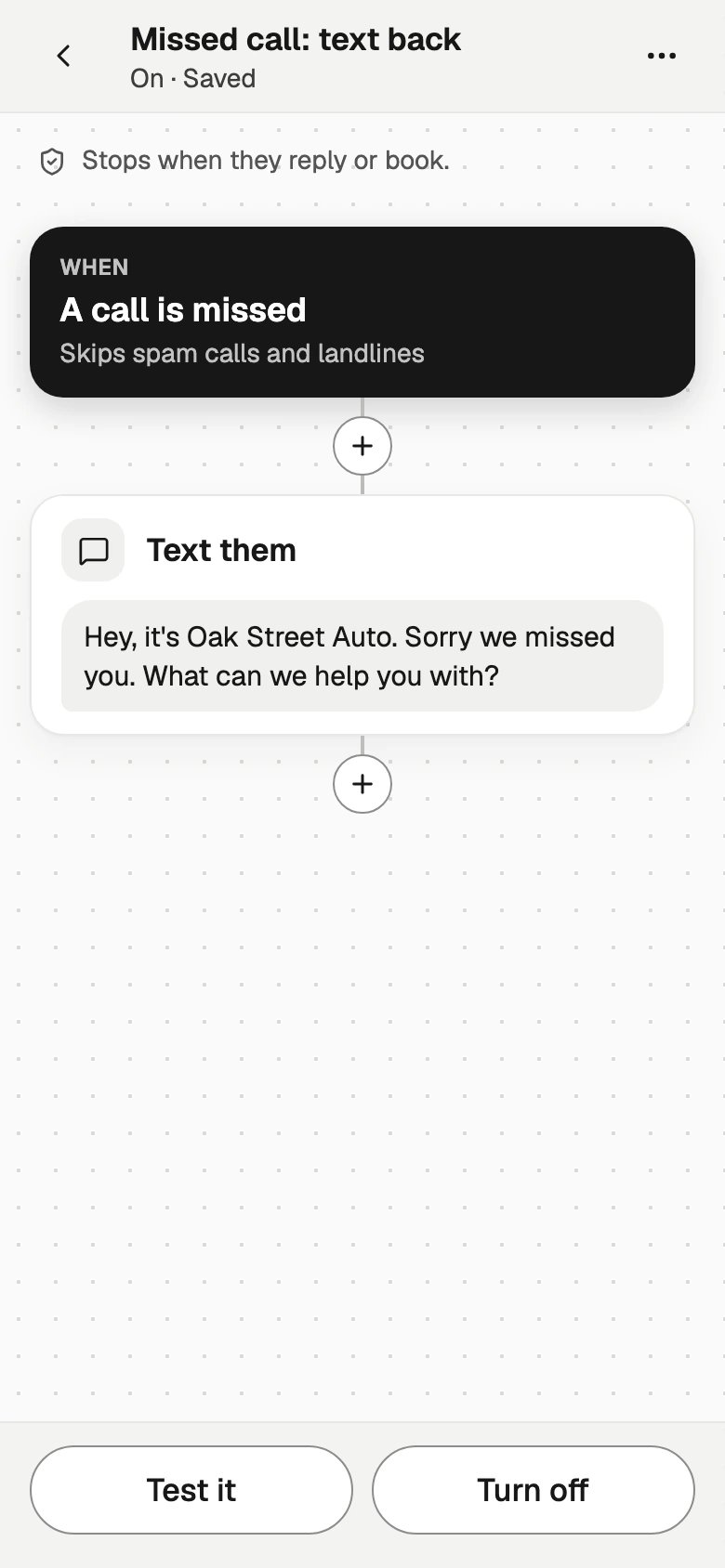 Tap **Save**. Then tap **Test it** (see [Test before you turn it on](#test-before-you-turn-it-on)) and **Turn on**.
## Make a workflow on the web
In **Workflows**, click **New**. If you have none yet, click **Create your first workflow**. A blank workflow opens, starting with **When a record is created**.
Tap **Save**. Then tap **Test it** (see [Test before you turn it on](#test-before-you-turn-it-on)) and **Turn on**.
## Make a workflow on the web
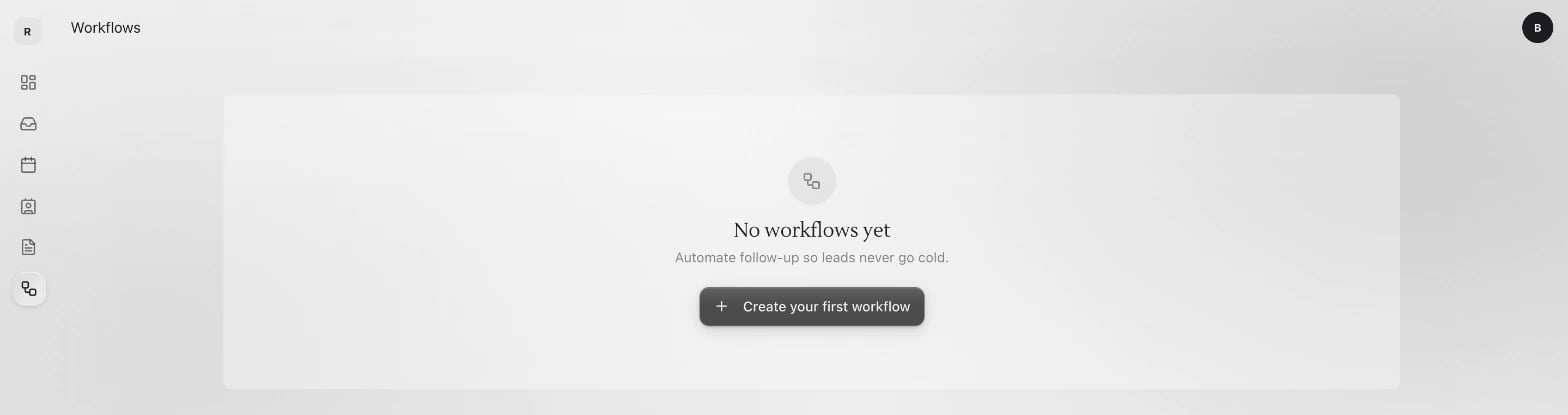
In **Workflows**, click **New**. If you have none yet, click **Create your first workflow**. A blank workflow opens, starting with **When a record is created**.
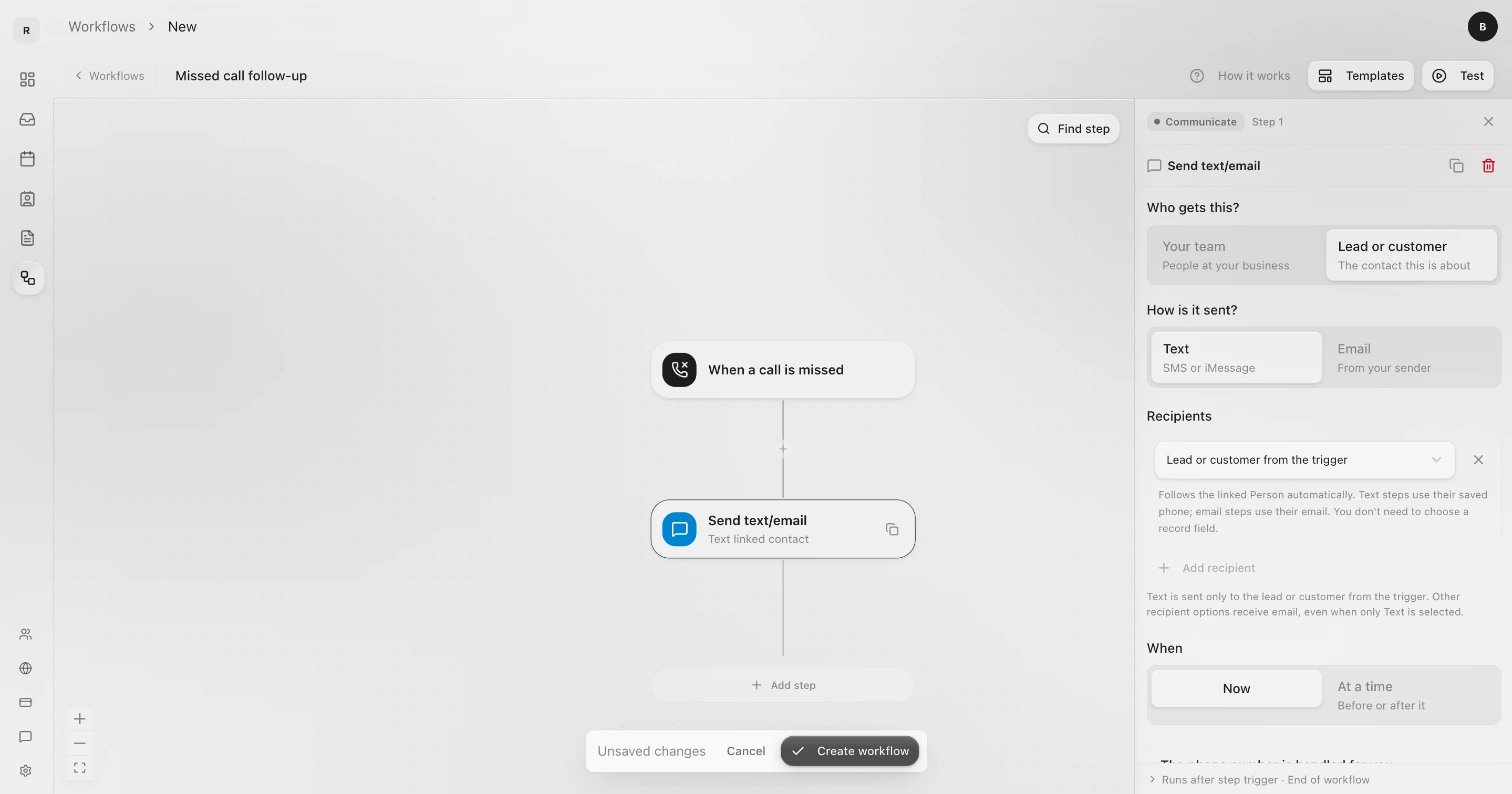
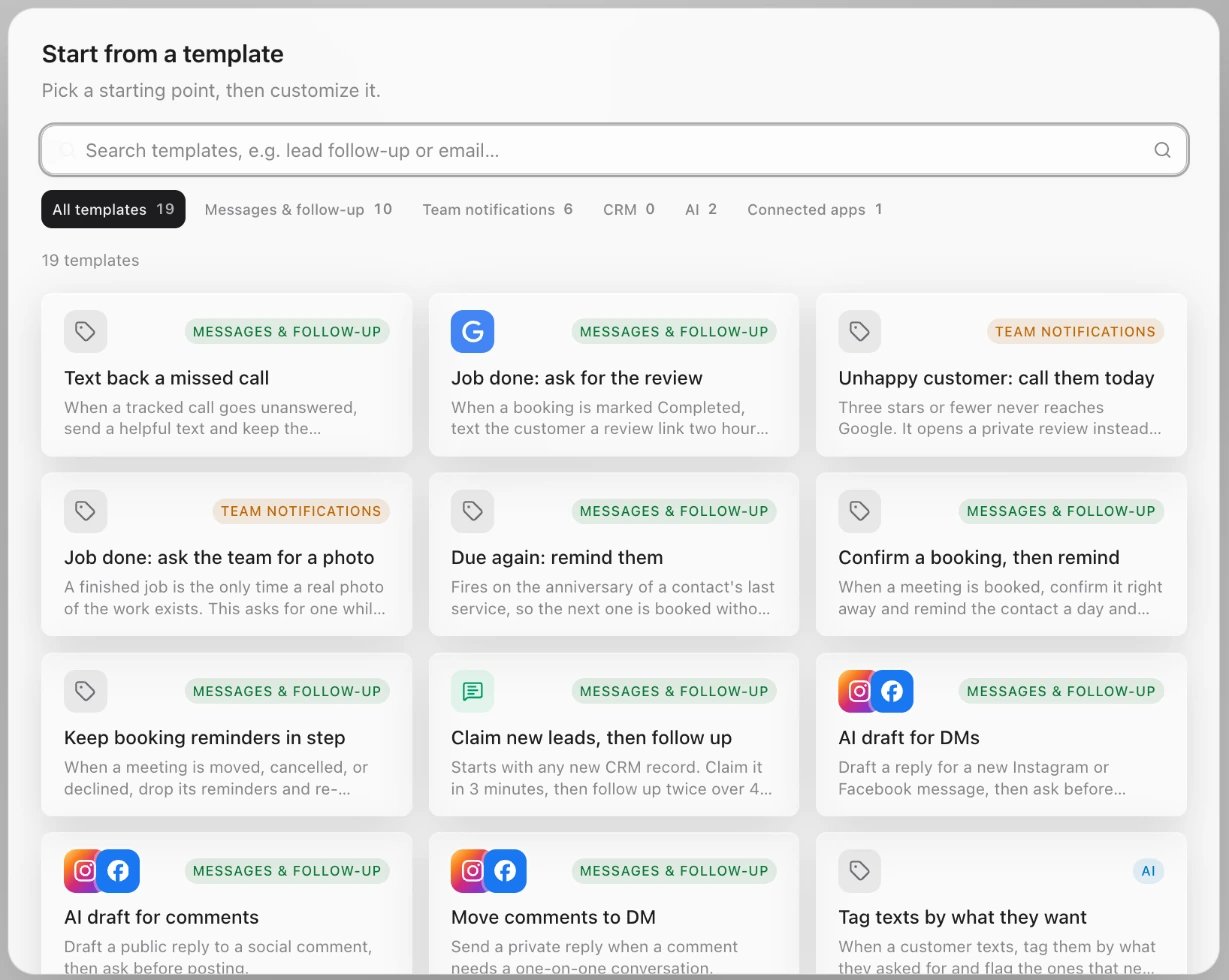
 Click **Templates** at the top and pick one, like **Text back a missed call**. Search, or narrow the list with **Messages & follow-up**, **Team notifications**, **AI** or **Connected apps**. A template replaces any trigger and steps you already added.
 Click the box at the top of the canvas. Under **Trigger**, open the list and pick one. Type in **Search triggers** to find it fast.
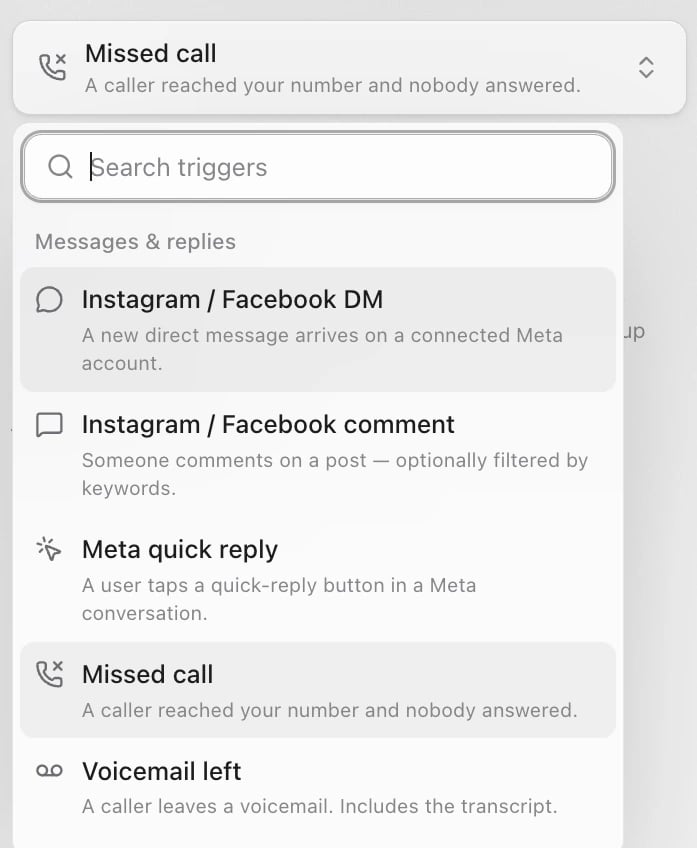 The list has these groups: **Messages & replies**, **Contacts & records**, **Payments**, **Time & schedule**, **Lists & audiences**, **Apps & webhooks** and **Custom**. The ones a shop uses most:
| Trigger | Starts when |
| - | - |
| **Missed call** | A caller reached your number and nobody answered. |
| **Voicemail left** | A caller leaves a voicemail. |
| **Text or message received** | A text, email or DM lands in your inbox. |
| **Agent needs you** | Your AI front desk held a reply, handed off or took a request. |
| **New Google review** | A customer leaves a review on your Google profile. |
| **New CRM record** | A record of the type you pick is created, like a website request or a booking. |
| **Moved to stage** | A record moves into a pipeline stage you pick. |
| **Tag added** | A tag you pick is added to a customer. |
| **On a schedule** | Every day, week or month at a set time. |
| **Manually enroll contacts** | You start it for customers you choose. |
Click **Add step** under the last step. Search, or pick from the list. Click any step to change it. The ones a shop uses most:
| Step | What it does |
| - | - |
| **Send text/email** | Texts or emails the customer (**Lead or customer**) or your people (**Your team**). |
| **Wait** | Waits a set time before the next step. |
| **Wait for reply** | Waits until the customer replies, up to a time limit. |
| **Choose a path** | Splits into two paths, for example on business hours. |
| **Ask me** | Asks a teammate by push and text, then goes on with the answer. |
| **Add a tag** | Tags the customer so you can find them later. |
| **Move to a stage** | Moves the record to a pipeline stage. |
| **Assign to a teammate** | Makes a teammate the owner of this customer. |
| **Reply to the Google review** | Posts your reply under a new Google review. |
Click **Create workflow**. Give it a name in **Workflow details** if Sapt asks, then click **Save**. New workflows are saved off. Test it, then turn it on.
Click **How it works** at the top of the builder for a short guide inside the app.
## Test before you turn it on
A test runs the automation on the last real event that matches, like your last missed call. Nothing is sent and nothing changes.
Open the automation and tap **Test it**. **Test with a customer** shows each step, who it would text, and which path it took. Tap **Run again** after a change, then **Done**.
If nothing has started it yet, there is no customer to test with. It works the same once one comes in.
Click **Test** at the top of the builder, then **Test workflow**. You see each step and its result.
A test cannot wait for a real reply, so a path that depends on a reply is not tested. Check those words with care.
## Start it for chosen customers
Some workflows start only when you pick the customers, like one that starts with **Manually enroll contacts**. Turn it on first, then:
In **Workflows**, click its row and click **Enroll contacts**.
Under **Existing contacts**, check up to 50 at a time. Or click **Add a contact** and enter a name and phone number.
Click **Enroll**. Customers already part-way through are skipped.
On your phone, automations that start with **You start it from a customer** run from the customer's card.
## See what it did
Open the automation, tap **More**, then **Runs**. You see who it ran for and whether it is **Done**, **Waiting**, **Did not finish** or **Stopped**. **More** also has **Make a copy** and **Delete this automation**.
Click the workflow's row. The top says what starts it and whether it is **Active**, **Paused**, **Draft** or **Blocked**. Below is everyone who entered it. Filter by **Active**, **Waiting**, **Failed**, **Completed** or **Stopped**. Switch to **Graph** to see the steps.
To stop everyone in progress, click **Stop all…**. Messages already sent stay in the history.
## Common questions
**Can I change an automation Sapt set up?** Yes. Open it, change the words or steps, and save. A change to one that is on applies to the next customer right away.
**Why did a customer get two texts?** Two automations started on the same thing, like a copy of **Missed call: text back** next to the original. Turn one off.
**Why is a workflow Blocked?** It needs something that is not set up yet, like a phone number or a connected app. Open it and click **Fix in the editor**.
## Keep going
This documentation is built and hosted on [Mintlify](https://mintlify.com), a developer documentation platform.
The list has these groups: **Messages & replies**, **Contacts & records**, **Payments**, **Time & schedule**, **Lists & audiences**, **Apps & webhooks** and **Custom**. The ones a shop uses most:
| Trigger | Starts when |
| - | - |
| **Missed call** | A caller reached your number and nobody answered. |
| **Voicemail left** | A caller leaves a voicemail. |
| **Text or message received** | A text, email or DM lands in your inbox. |
| **Agent needs you** | Your AI front desk held a reply, handed off or took a request. |
| **New Google review** | A customer leaves a review on your Google profile. |
| **New CRM record** | A record of the type you pick is created, like a website request or a booking. |
| **Moved to stage** | A record moves into a pipeline stage you pick. |
| **Tag added** | A tag you pick is added to a customer. |
| **On a schedule** | Every day, week or month at a set time. |
| **Manually enroll contacts** | You start it for customers you choose. |
Click **Add step** under the last step. Search, or pick from the list. Click any step to change it. The ones a shop uses most:
| Step | What it does |
| - | - |
| **Send text/email** | Texts or emails the customer (**Lead or customer**) or your people (**Your team**). |
| **Wait** | Waits a set time before the next step. |
| **Wait for reply** | Waits until the customer replies, up to a time limit. |
| **Choose a path** | Splits into two paths, for example on business hours. |
| **Ask me** | Asks a teammate by push and text, then goes on with the answer. |
| **Add a tag** | Tags the customer so you can find them later. |
| **Move to a stage** | Moves the record to a pipeline stage. |
| **Assign to a teammate** | Makes a teammate the owner of this customer. |
| **Reply to the Google review** | Posts your reply under a new Google review. |
Click **Create workflow**. Give it a name in **Workflow details** if Sapt asks, then click **Save**. New workflows are saved off. Test it, then turn it on.
Click **How it works** at the top of the builder for a short guide inside the app.
## Test before you turn it on
A test runs the automation on the last real event that matches, like your last missed call. Nothing is sent and nothing changes.
Open the automation and tap **Test it**. **Test with a customer** shows each step, who it would text, and which path it took. Tap **Run again** after a change, then **Done**.
If nothing has started it yet, there is no customer to test with. It works the same once one comes in.
Click **Test** at the top of the builder, then **Test workflow**. You see each step and its result.
A test cannot wait for a real reply, so a path that depends on a reply is not tested. Check those words with care.
## Start it for chosen customers
Some workflows start only when you pick the customers, like one that starts with **Manually enroll contacts**. Turn it on first, then:
In **Workflows**, click its row and click **Enroll contacts**.
Under **Existing contacts**, check up to 50 at a time. Or click **Add a contact** and enter a name and phone number.
Click **Enroll**. Customers already part-way through are skipped.
On your phone, automations that start with **You start it from a customer** run from the customer's card.
## See what it did
Open the automation, tap **More**, then **Runs**. You see who it ran for and whether it is **Done**, **Waiting**, **Did not finish** or **Stopped**. **More** also has **Make a copy** and **Delete this automation**.
Click the workflow's row. The top says what starts it and whether it is **Active**, **Paused**, **Draft** or **Blocked**. Below is everyone who entered it. Filter by **Active**, **Waiting**, **Failed**, **Completed** or **Stopped**. Switch to **Graph** to see the steps.
To stop everyone in progress, click **Stop all…**. Messages already sent stay in the history.
## Common questions
**Can I change an automation Sapt set up?** Yes. Open it, change the words or steps, and save. A change to one that is on applies to the next customer right away.
**Why did a customer get two texts?** Two automations started on the same thing, like a copy of **Missed call: text back** next to the original. Turn one off.
**Why is a workflow Blocked?** It needs something that is not set up yet, like a phone number or a connected app. Open it and click **Fix in the editor**.
## Keep going
This documentation is built and hosted on [Mintlify](https://mintlify.com), a developer documentation platform.