> ## Documentation Index
> Fetch the complete documentation index at: https://docs.sapt.ai/llms.txt
> Use this file to discover all available pages before exploring further.
# Organize your content in collections
> Make a collection for your services, FAQs, team or specials, choose the fields each item has, and connect collections to each other.
A collection holds content of one kind, like your services, your FAQs or your team. Each entry in it is an item. Your website reads some collections on its own, and you can show any other one with a few clicks.
Open **Content** in the sidebar. Your collections are on the left under **Content**. If you have a Sapt website, two are already there, **Pages** and **Website layout**. Your website keeps its pages and shared layout in them.
## Make a collection
Click **New collection** at the bottom of the list on the left.
Type a name in **Collection name**, like `Specials`.
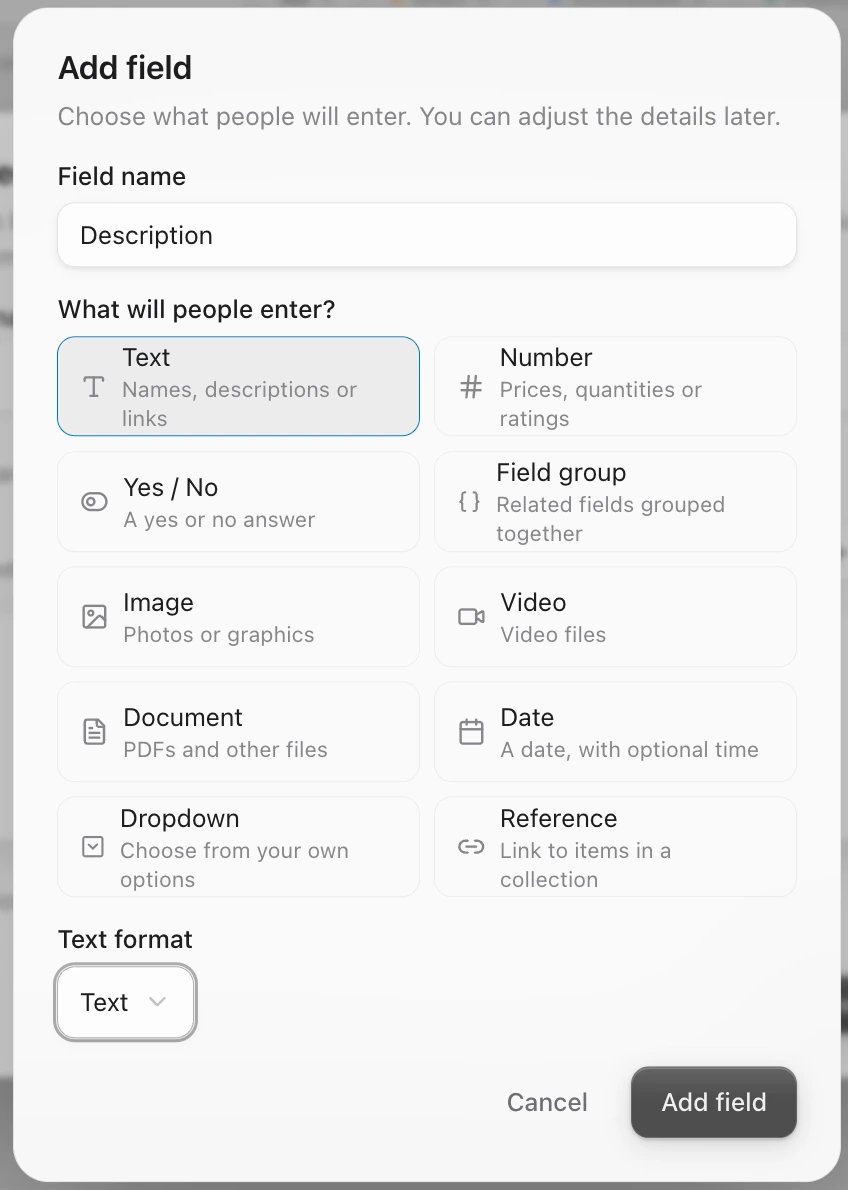
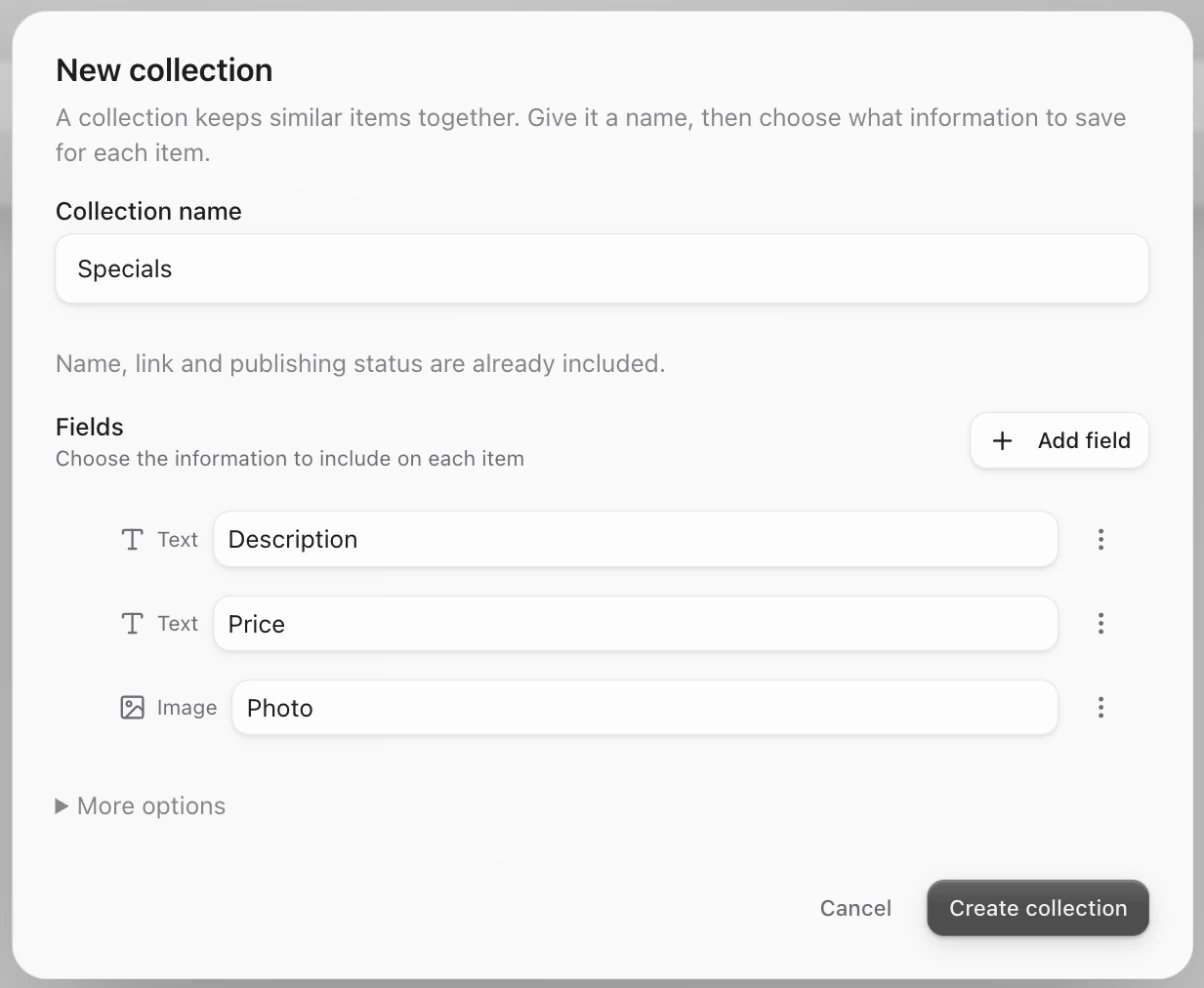 Click **Add field** for each piece of information an item needs. For specials that could be **Description** and **Price** (Text) and **Photo** (Image). Every item already has a name, a link and a publishing status, so you do not need fields for those.
 Click **Create collection**. It opens, ready for its first item.
**More options** in the same window holds a **Description** and the **Link name**, which Sapt makes from the collection name.
## Field types
| Type | Use it for |
| - | - |
| **Text** | Names, descriptions or links |
| **Number** | Prices, quantities or ratings |
| **Yes / No** | A yes or no answer |
| **Date** | A date, with an optional time |
| **Dropdown** | A choice from your own options |
| **Image**, **Video**, **Document** | Photos, videos and PDFs from [Files & photos](/docs/mintlify/cms/files-and-photos) |
| **Field group** | A few related fields kept together |
| **Reference** | Items from another collection, like the FAQs that go with a service |
## Change a collection
Click the sliders icon next to the **New** button in a collection, or open **Content settings** under **Library**. Content settings lists every collection with how many fields it has.
In a collection's settings you can change its name, description and fields. Click **Save changes** when you are done, or **Discard changes** to undo.
The **Internal name** under **Advanced** cannot be changed once the collection exists.
## Related content
Related content connects two collections, like a service and its FAQs. Each item then has a place to pick the items that go with it.
1. Open the collection's settings and find **Related content**.
2. Click **Add connection**.
3. Under **Connect to**, pick the other collection. Name each side, choose whether one item can link to many, and click **Create connection**.
On each item, the connection shows under **References**. Click **Choose item** to pick one.
## Archive or delete
* **Archive** a collection you do not use now. Set the menu at the top right of its settings from **Active** to **Archived** and click **Save changes**. It leaves the list on the left, stays in **Content settings**, and you can set it back to **Active** anytime.
* **Delete** works only on an empty collection. While it still has items, the **Delete** button stays greyed out: archive it instead, or delete its items first. Deleting cannot be undone.
## Keep going
This documentation is built and hosted on [Mintlify](https://mintlify.com), a developer documentation platform.
Click **Create collection**. It opens, ready for its first item.
**More options** in the same window holds a **Description** and the **Link name**, which Sapt makes from the collection name.
## Field types
| Type | Use it for |
| - | - |
| **Text** | Names, descriptions or links |
| **Number** | Prices, quantities or ratings |
| **Yes / No** | A yes or no answer |
| **Date** | A date, with an optional time |
| **Dropdown** | A choice from your own options |
| **Image**, **Video**, **Document** | Photos, videos and PDFs from [Files & photos](/docs/mintlify/cms/files-and-photos) |
| **Field group** | A few related fields kept together |
| **Reference** | Items from another collection, like the FAQs that go with a service |
## Change a collection
Click the sliders icon next to the **New** button in a collection, or open **Content settings** under **Library**. Content settings lists every collection with how many fields it has.
In a collection's settings you can change its name, description and fields. Click **Save changes** when you are done, or **Discard changes** to undo.
The **Internal name** under **Advanced** cannot be changed once the collection exists.
## Related content
Related content connects two collections, like a service and its FAQs. Each item then has a place to pick the items that go with it.
1. Open the collection's settings and find **Related content**.
2. Click **Add connection**.
3. Under **Connect to**, pick the other collection. Name each side, choose whether one item can link to many, and click **Create connection**.
On each item, the connection shows under **References**. Click **Choose item** to pick one.
## Archive or delete
* **Archive** a collection you do not use now. Set the menu at the top right of its settings from **Active** to **Archived** and click **Save changes**. It leaves the list on the left, stays in **Content settings**, and you can set it back to **Active** anytime.
* **Delete** works only on an empty collection. While it still has items, the **Delete** button stays greyed out: archive it instead, or delete its items first. Deleting cannot be undone.
## Keep going
This documentation is built and hosted on [Mintlify](https://mintlify.com), a developer documentation platform.