> ## Documentation Index
> Fetch the complete documentation index at: https://docs.sapt.ai/llms.txt
> Use this file to discover all available pages before exploring further.
# Show your content on your website
> See which Sapt content collections your website shows on its own, and add any other collection to a page with a Connected content section.
Your Sapt website is built from your content. Some collections it shows on its own. Any other collection you can add to a page in the website editor.
Only **published** items show. Drafts, scheduled and archived items stay off your site.
## What your website shows on its own
| Collection | Where it shows |
| - | - |
| **Pages** | Your extra pages, like About, each at its own address. The editor's **Pages** tab adds them here. |
| **Services** | Your services, each with its own page under `/services/`. With none published, your site lists the services from your Google profile. |
| **Articles** | Your blog posts under `/blog/`, newest first. |
| **FAQs** | The **Questions** section of your home page. |
| **Specials** | The **Offers** section of your home page. |
| **Prices** | Your **Prices** page, one card for each thing you sell at a set price. |
| **Website layout** | Your site's sections and settings. The website editor keeps this one up to date, so leave it alone. |
Your collections may have slightly different names, like "Service" instead of "Services". The website still finds them.
When you publish, update or delete an item in one of these, your website picks up the change on its own. Sapt checks the new version before it goes live, so give it a moment.
## Show any other collection
Made a collection of your own, like **Team members**? Add it to a page with a **Connected content** section.
Open **Website** and pick the page in the editor. Connected content works on your home page and on your pages, services and articles.
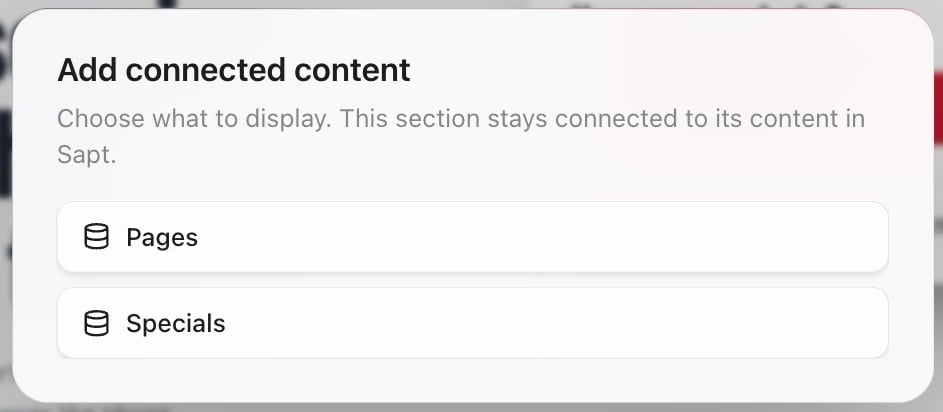
On the **Sections** tab, click **Connected content**. In **Add connected content**, pick the collection.
 The section's settings open on the right.
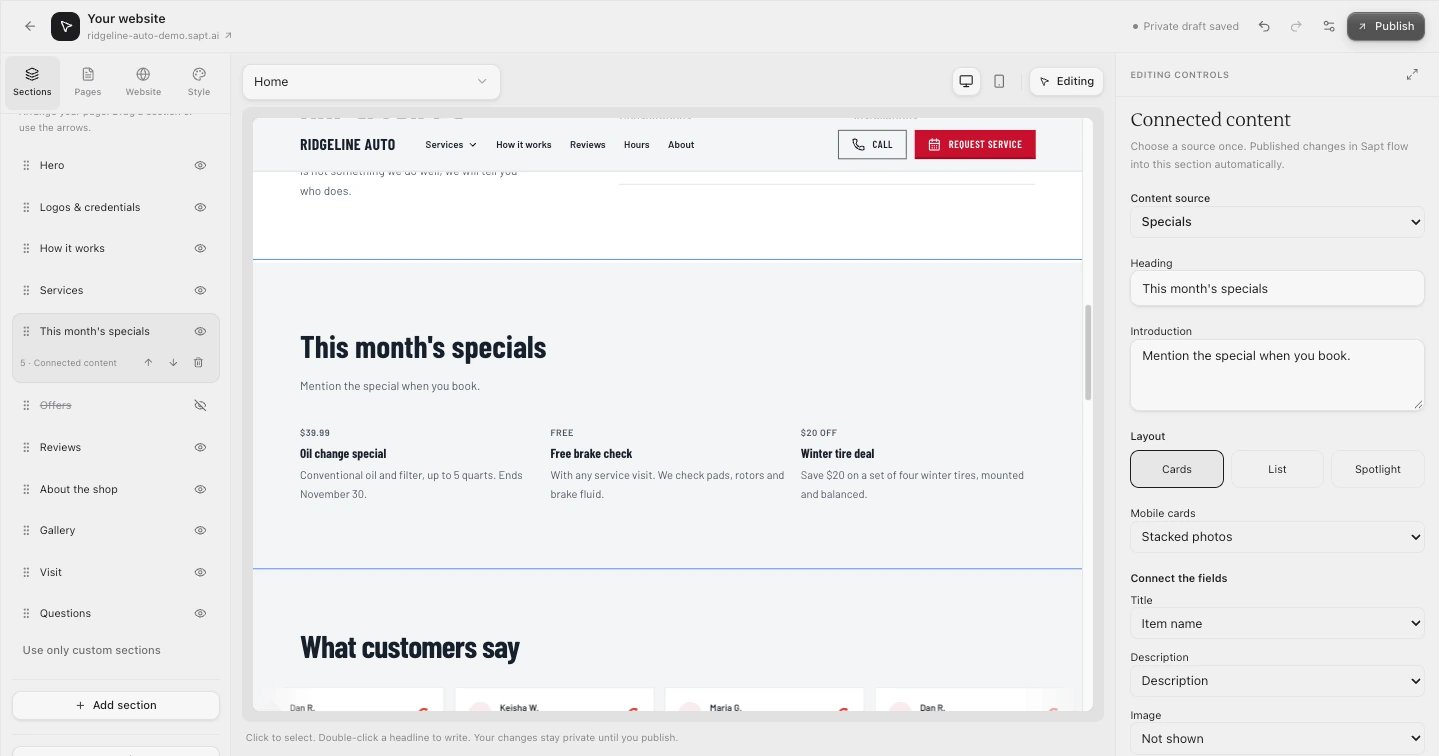 * **Heading** and **Introduction**: the words above the section.
* **Layout**: **Cards**, **List** or **Spotlight**. For cards, **Mobile cards** picks **Stacked photos** or **Compact photo rows** on phones.
* **Connect the fields**: which field fills the **Title**, **Description**, **Image** and **Small label**. **Image** does not offer your collection's photo field yet, so this section shows no photos. Leave it on **Not shown**.
* **Items to show**: up to 24.
The new section stays private until you publish the site. See [Pages and sections](/docs/mintlify/website/pages-and-sections).
* **Heading** and **Introduction**: the words above the section.
* **Layout**: **Cards**, **List** or **Spotlight**. For cards, **Mobile cards** picks **Stacked photos** or **Compact photo rows** on phones.
* **Connect the fields**: which field fills the **Title**, **Description**, **Image** and **Small label**. **Image** does not offer your collection's photo field yet, so this section shows no photos. Leave it on **Not shown**.
* **Items to show**: up to 24.
The new section stays private until you publish the site. See [Pages and sections](/docs/mintlify/website/pages-and-sections).
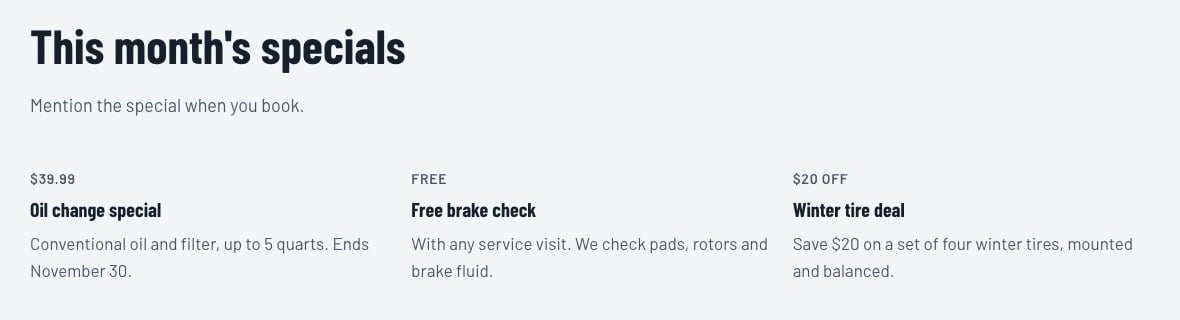 After that, the section stays connected. Publish a new team member in **Content** and it shows up in the section without touching the editor. To change the items themselves, use **Edit source content** in the section's settings, or **Add or manage content in Sapt** to open the collection. If you just changed something and do not see it in the editor, click **Refresh content**.
## Keep going
This documentation is built and hosted on [Mintlify](https://mintlify.com), a developer documentation platform.
After that, the section stays connected. Publish a new team member in **Content** and it shows up in the section without touching the editor. To change the items themselves, use **Edit source content** in the section's settings, or **Add or manage content in Sapt** to open the collection. If you just changed something and do not see it in the editor, click **Refresh content**.
## Keep going
This documentation is built and hosted on [Mintlify](https://mintlify.com), a developer documentation platform.