> ## Documentation Index
> Fetch the complete documentation index at: https://docs.sapt.ai/llms.txt
> Use this file to discover all available pages before exploring further.
# Upload and organize files and photos
> Keep your shop's photos, videos and documents in one library, bring them in from Google Drive, label them, and use them on your website.
Upload a photo once and use it anywhere in Sapt: on your website, in a service, or in a text to a customer.
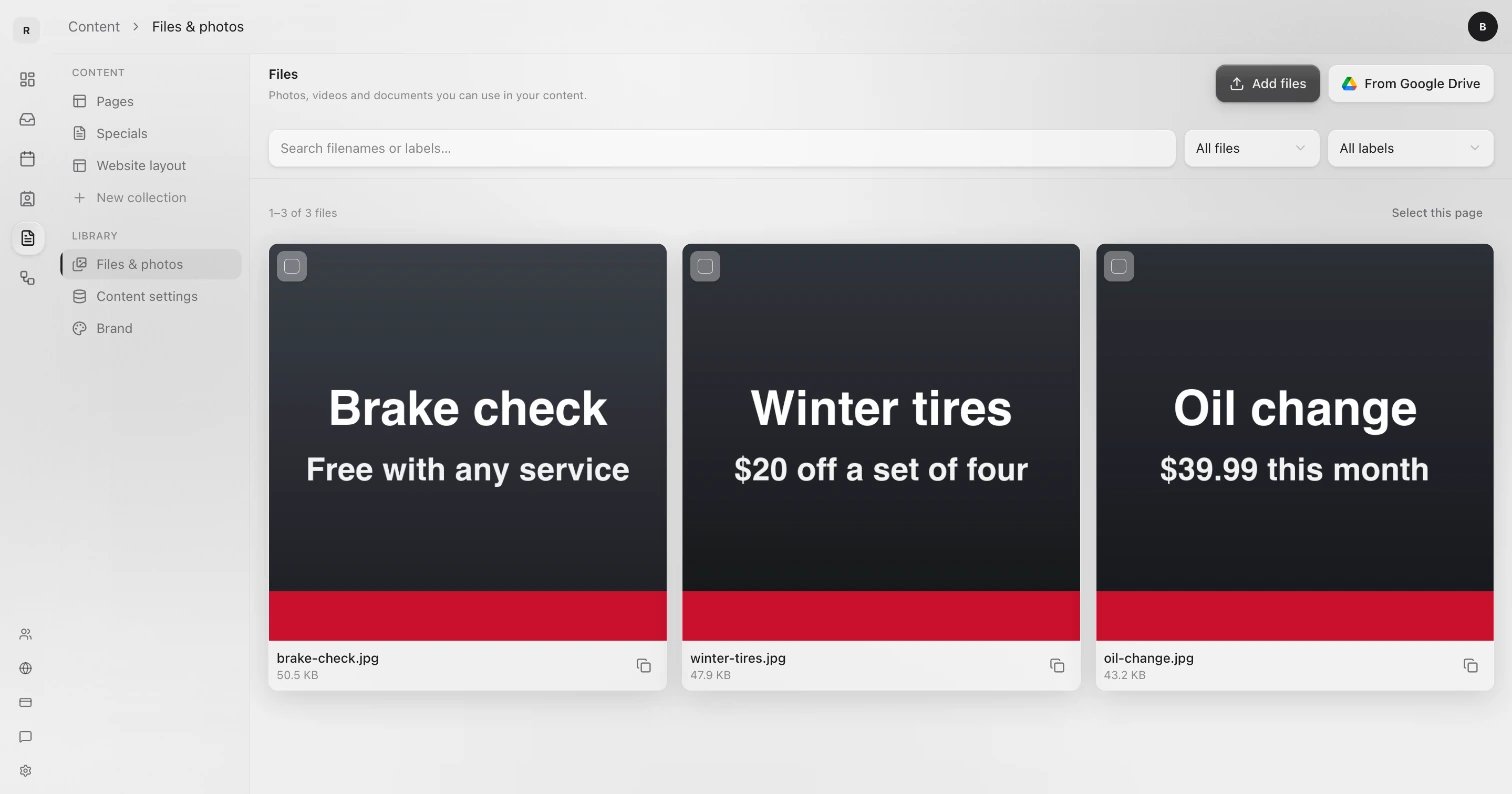
Open **Content**, then **Files & photos** under **Library**.
 ## Add files
Click **Add files** and choose up to 10 at a time. Images, videos, documents and audio all work.
## Bring files in from Google Drive
1. Click **From Google Drive**.
2. The first time, a window asks you to connect Google Drive. If your browser blocks it, allow pop-ups for Sapt and click again.
3. Pick the files in Google's window. They are copied into your library.
Only an admin can connect Google Drive. If you see "A project admin needs to connect Google Drive first", ask yours. More on [Google Drive](/docs/mintlify/integrations/google-drive).
## Labels
Labels work like folders. Give your shop photos one label, your before-and-after shots another.
* **Label one file:** click it, then **Labels**. Add or remove labels and click **Save labels**.
* **Label many at once:** tick them, then **Add labels** or **Remove labels**. Other labels stay as they are.
* **Find them later:** pick a label in the **All labels** menu. **Without labels** shows the rest.
You can also search with **Search filenames or labels…**, and use the **All files** menu to show only **Images**, **Videos**, **Documents** or **Audio**.
## Download, copy or delete
Click a file to open it. From there you can **Copy URL**, **Download** it, or delete it with the trash icon.
Deleting a file breaks it everywhere it is used, on your website and in messages. This cannot be undone.
Depending on your role, you may be able to change only the files you added.
## Use a file in your content
1. Open an item in a collection, like a service.
2. In its photo field, click **Select from library**.
3. In **Choose an image**, click the photo and click **Use image**.
The same field also has **Upload**, to add a new photo on the spot, and **URL**, to use a picture from another site.
1. Open a conversation in **Inbox** and tap the customer's name at the top.
2. Tap **Files and photos**.
3. Tap **Shop library** to see your shop's files, or **Conversation files** for what was sent in this chat.
4. Tap **Upload files** to add photos and documents, up to 25 MB each.
Files you upload on your phone use shareable links, so only upload files meant for customers.
## Keep going
This documentation is built and hosted on [Mintlify](https://mintlify.com), a developer documentation platform.
## Add files
Click **Add files** and choose up to 10 at a time. Images, videos, documents and audio all work.
## Bring files in from Google Drive
1. Click **From Google Drive**.
2. The first time, a window asks you to connect Google Drive. If your browser blocks it, allow pop-ups for Sapt and click again.
3. Pick the files in Google's window. They are copied into your library.
Only an admin can connect Google Drive. If you see "A project admin needs to connect Google Drive first", ask yours. More on [Google Drive](/docs/mintlify/integrations/google-drive).
## Labels
Labels work like folders. Give your shop photos one label, your before-and-after shots another.
* **Label one file:** click it, then **Labels**. Add or remove labels and click **Save labels**.
* **Label many at once:** tick them, then **Add labels** or **Remove labels**. Other labels stay as they are.
* **Find them later:** pick a label in the **All labels** menu. **Without labels** shows the rest.
You can also search with **Search filenames or labels…**, and use the **All files** menu to show only **Images**, **Videos**, **Documents** or **Audio**.
## Download, copy or delete
Click a file to open it. From there you can **Copy URL**, **Download** it, or delete it with the trash icon.
Deleting a file breaks it everywhere it is used, on your website and in messages. This cannot be undone.
Depending on your role, you may be able to change only the files you added.
## Use a file in your content
1. Open an item in a collection, like a service.
2. In its photo field, click **Select from library**.
3. In **Choose an image**, click the photo and click **Use image**.
The same field also has **Upload**, to add a new photo on the spot, and **URL**, to use a picture from another site.
1. Open a conversation in **Inbox** and tap the customer's name at the top.
2. Tap **Files and photos**.
3. Tap **Shop library** to see your shop's files, or **Conversation files** for what was sent in this chat.
4. Tap **Upload files** to add photos and documents, up to 25 MB each.
Files you upload on your phone use shareable links, so only upload files meant for customers.
## Keep going
This documentation is built and hosted on [Mintlify](https://mintlify.com), a developer documentation platform.