> ## Documentation Index
> Fetch the complete documentation index at: https://docs.sapt.ai/llms.txt
> Use this file to discover all available pages before exploring further.
# Add, publish and schedule content
> Add items to a Sapt content collection, keep them as drafts, publish them now or on a schedule, and put them in the order you want.
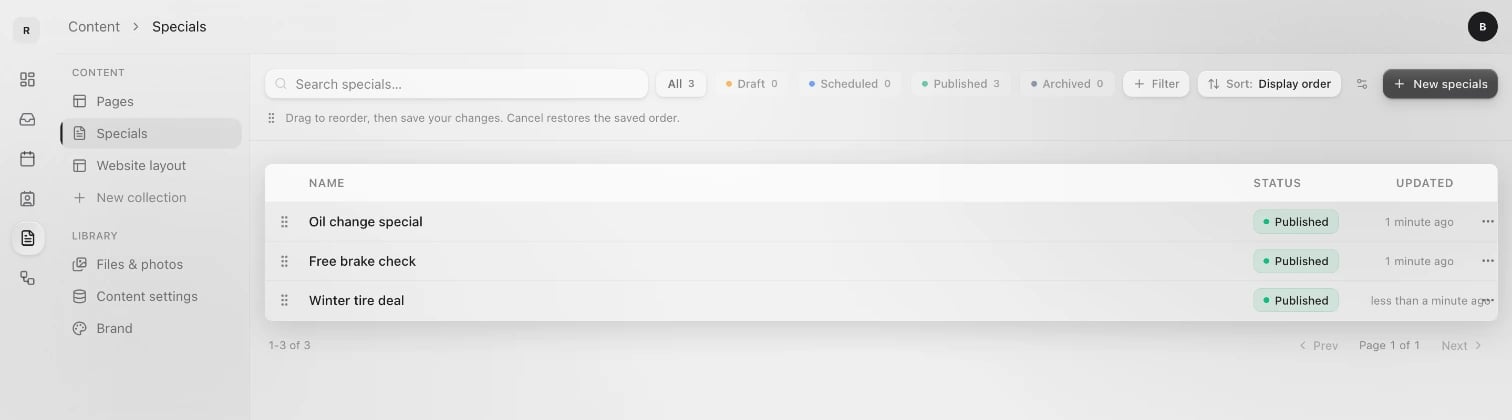
An item is one entry in a collection: one service, one FAQ, one team member. Your website shows only items that are published.
 ## Add an item
Open **Content** and pick the collection on the left.
Click the **New** button at the top right. It carries the collection's name, like **New specials**.
Type the **Name** and fill in the fields. For a special, that could be "Oil change special" with a price, a short description and a photo.
## Add an item
Open **Content** and pick the collection on the left.
Click the **New** button at the top right. It carries the collection's name, like **New specials**.
Type the **Name** and fill in the fields. For a special, that could be "Oil change special" with a price, a short description and a photo.
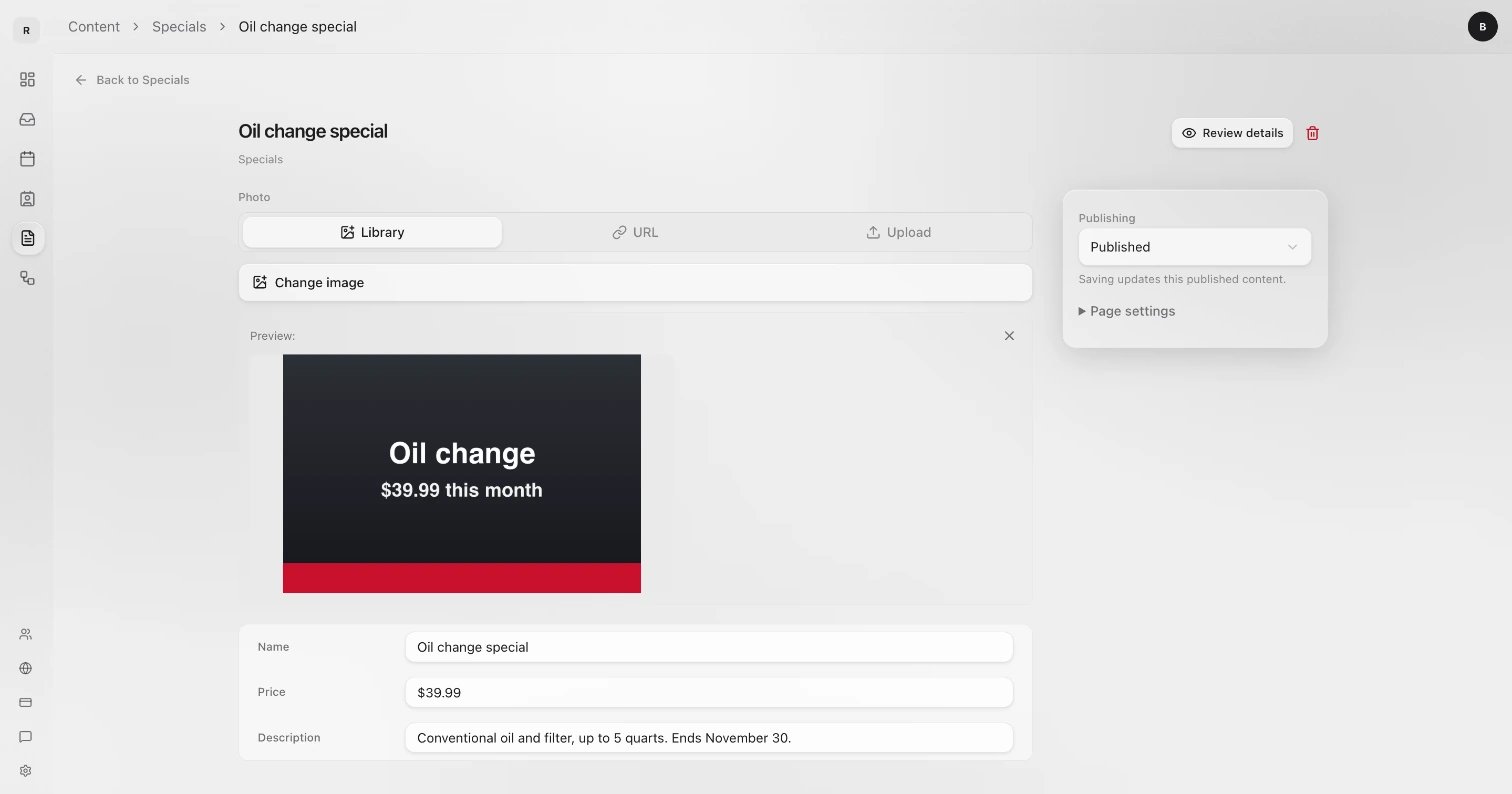 On the right, set **Publishing** (see below). Then click the button in the bar at the bottom. It reads **Save draft**, **Publish**, **Save schedule** or **Archive content**, to match.
## Statuses
| Status | What it means |
| - | - |
| **Draft** | Saved in Sapt. Not on your website yet. |
| **Scheduled** | Publishes on its own at the date and time you pick. |
| **Published** | Live. Saving a published item updates it on your website. |
| **Archived** | Off your website, kept in Sapt for later. |
The filters above the list (**All**, **Draft**, **Scheduled**, **Published**, **Archived**) show how many items are in each.
## Publish on a schedule
1. In the item, set **Publishing** to **Scheduled**.
2. Under **Publishes automatically**, pick the **Date**, **Time** and **Timezone**. Sapt shows when it goes live.
3. Click **Save schedule**.
**Timezone** starts on Eastern (ET). Change it if your shop is in another time zone.
You can also schedule from the list: click an item's status, click **Schedule**, pick the time and click **Schedule** again.
## Change the status from the list
Click an item's status in the list and pick another under **Move to**. No need to open it.
## Page settings
Open **Page settings** on the right of an item:
* **URL identifier** is the end of the item's web address, like `brake-inspection`. Sapt makes it from the name. Changing it later can break links people already have.
* **Tags** help you sort and filter items.
## Preview before you publish
Click **Review details** at the top of an item to check how it reads. Articles have **Preview article** instead. If the article is not live yet, the preview has **Publish now** (or **Save & publish** if you changed something) right there.
## Put items in order
1. Check that **Sort** shows **Display order**, as it does at first. If you sorted by something else, click **Reorder** above the list.
2. Drag items by their handle, or use the menu on a row for **Move to top** or **Move to bottom**.
3. Click **Save changes**, or **Cancel** to keep the old order.
Your website shows pages in this order.
## Delete an item
Open the item and click the trash icon at the top. Confirm with **Delete**. This cannot be undone. Photos it used stay in [Files & photos](/docs/mintlify/cms/files-and-photos).
To take something off your website but keep it, set it to **Archived** instead.
## Keep going
This documentation is built and hosted on [Mintlify](https://mintlify.com), a developer documentation platform.
On the right, set **Publishing** (see below). Then click the button in the bar at the bottom. It reads **Save draft**, **Publish**, **Save schedule** or **Archive content**, to match.
## Statuses
| Status | What it means |
| - | - |
| **Draft** | Saved in Sapt. Not on your website yet. |
| **Scheduled** | Publishes on its own at the date and time you pick. |
| **Published** | Live. Saving a published item updates it on your website. |
| **Archived** | Off your website, kept in Sapt for later. |
The filters above the list (**All**, **Draft**, **Scheduled**, **Published**, **Archived**) show how many items are in each.
## Publish on a schedule
1. In the item, set **Publishing** to **Scheduled**.
2. Under **Publishes automatically**, pick the **Date**, **Time** and **Timezone**. Sapt shows when it goes live.
3. Click **Save schedule**.
**Timezone** starts on Eastern (ET). Change it if your shop is in another time zone.
You can also schedule from the list: click an item's status, click **Schedule**, pick the time and click **Schedule** again.
## Change the status from the list
Click an item's status in the list and pick another under **Move to**. No need to open it.
## Page settings
Open **Page settings** on the right of an item:
* **URL identifier** is the end of the item's web address, like `brake-inspection`. Sapt makes it from the name. Changing it later can break links people already have.
* **Tags** help you sort and filter items.
## Preview before you publish
Click **Review details** at the top of an item to check how it reads. Articles have **Preview article** instead. If the article is not live yet, the preview has **Publish now** (or **Save & publish** if you changed something) right there.
## Put items in order
1. Check that **Sort** shows **Display order**, as it does at first. If you sorted by something else, click **Reorder** above the list.
2. Drag items by their handle, or use the menu on a row for **Move to top** or **Move to bottom**.
3. Click **Save changes**, or **Cancel** to keep the old order.
Your website shows pages in this order.
## Delete an item
Open the item and click the trash icon at the top. Confirm with **Delete**. This cannot be undone. Photos it used stay in [Files & photos](/docs/mintlify/cms/files-and-photos).
To take something off your website but keep it, set it to **Archived** instead.
## Keep going
This documentation is built and hosted on [Mintlify](https://mintlify.com), a developer documentation platform.