> ## Documentation Index
> Fetch the complete documentation index at: https://docs.sapt.ai/llms.txt
> Use this file to discover all available pages before exploring further.
# Manage your contacts
> Find, add and import your customers in Sapt, sort them with lists and tags, and see everything about one person in one place.
Every person who calls, texts or fills in a form becomes a contact. You can also add them by hand or bring them in from a spreadsheet.
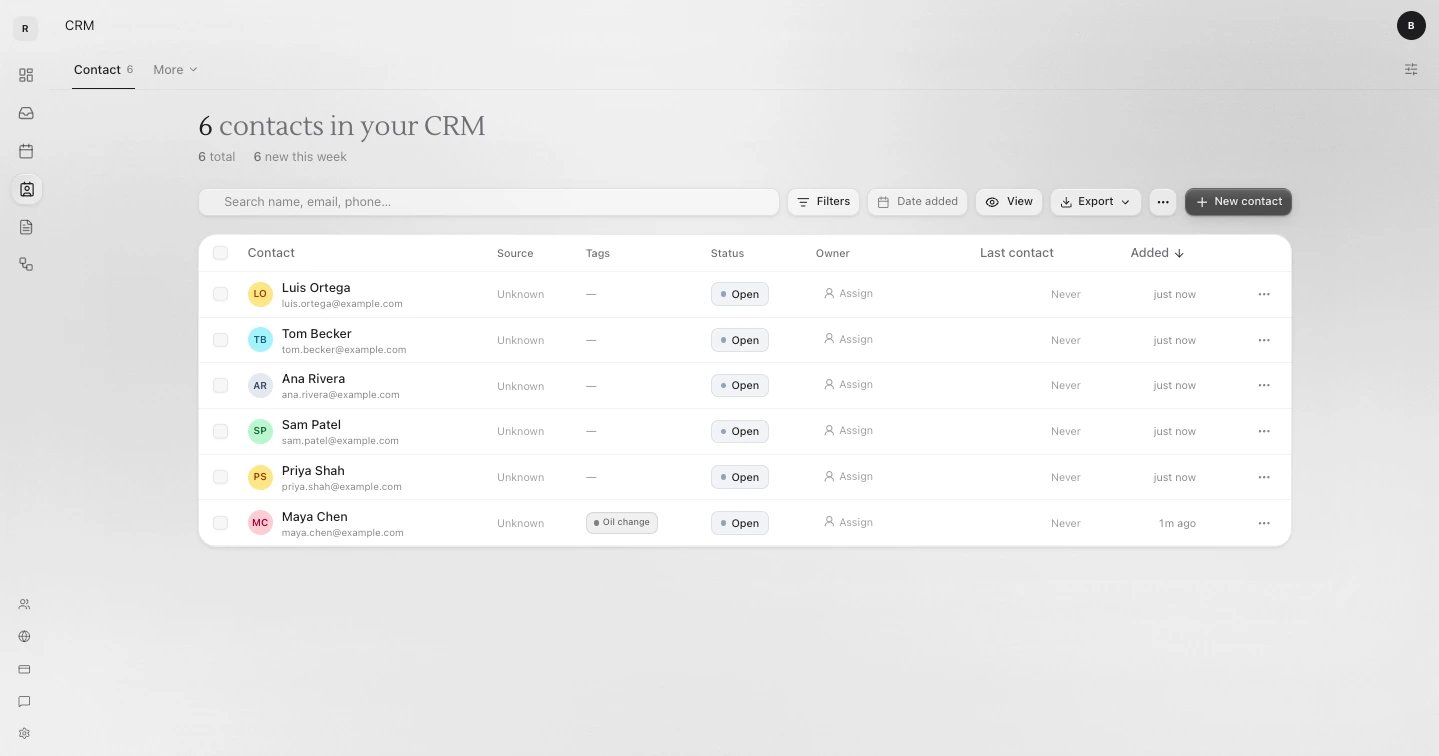
Open **CRM** in the sidebar. Your contacts open first.
 ## Find someone
Type in **Search name, email, phone…**. Click **Filters** to narrow the table by list, tag, stage or any field. Click a row to open that person.
## Add a contact
Click **New contact** at the top right. The **Create contact** window opens.
## Find someone
Type in **Search name, email, phone…**. Click **Filters** to narrow the table by list, tag, stage or any field. Click a row to open that person.
## Add a contact
Click **New contact** at the top right. The **Create contact** window opens.
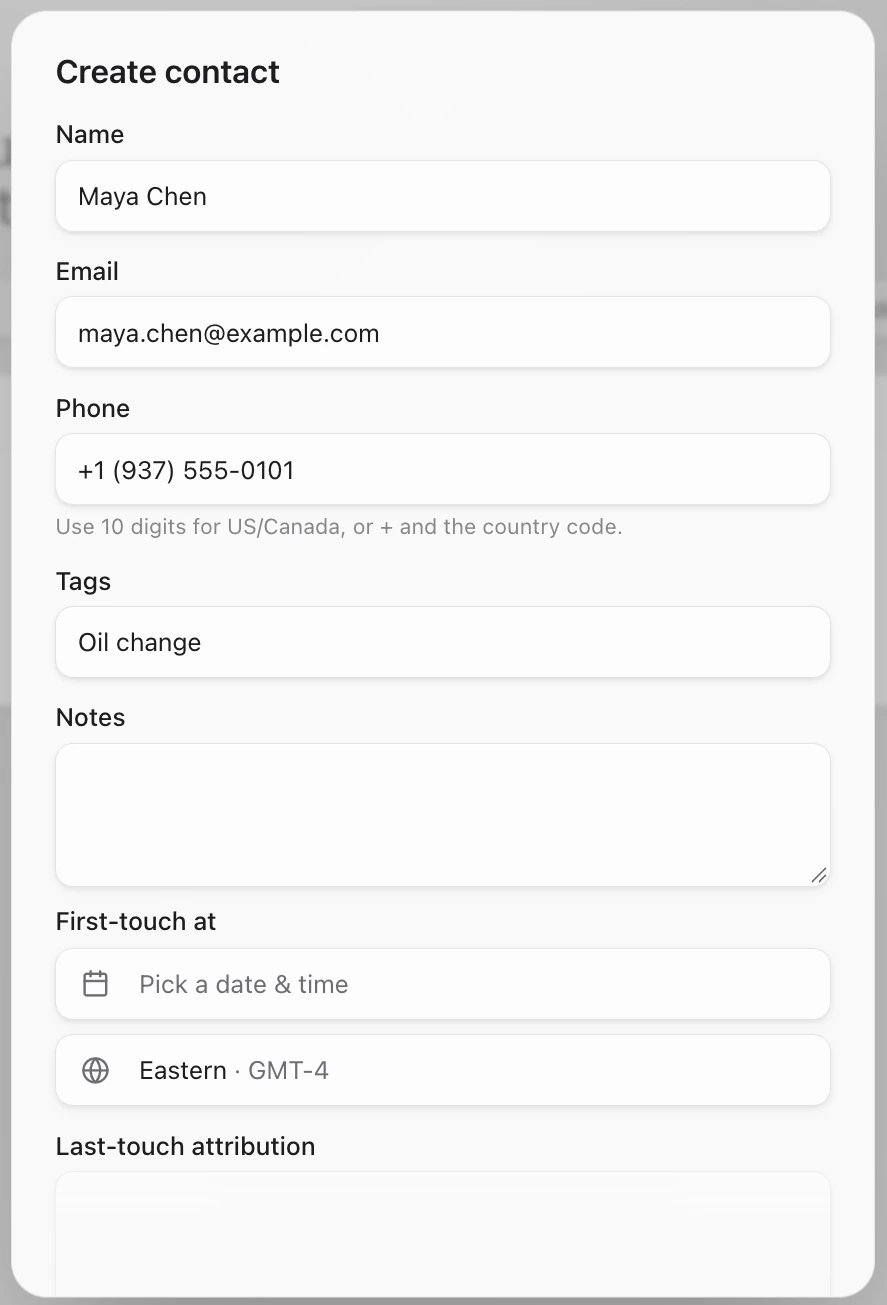 Add their name and a phone or email, for example Maya Chen and (937) 555-0101. For the phone, use 10 digits, or + and the country code. Click **Create**. Their record opens.
Leave **Tags** empty here. A tag typed in this window stops the contact from saving with "tags: Expected array". Add tags once the contact exists (see [Lists and tags](#lists-and-tags)).
## Import contacts from a spreadsheet
You can bring in a CSV or Excel file (.csv or .xlsx) with up to 5,000 rows at a time. Importing uses no credits.
Click the **More actions** button (three dots) next to **New contact**, then **Import contacts**.
Drop the file in the box, or click it to choose one. Sapt shows how many rows and columns it found.
Add their name and a phone or email, for example Maya Chen and (937) 555-0101. For the phone, use 10 digits, or + and the country code. Click **Create**. Their record opens.
Leave **Tags** empty here. A tag typed in this window stops the contact from saving with "tags: Expected array". Add tags once the contact exists (see [Lists and tags](#lists-and-tags)).
## Import contacts from a spreadsheet
You can bring in a CSV or Excel file (.csv or .xlsx) with up to 5,000 rows at a time. Importing uses no credits.
Click the **More actions** button (three dots) next to **New contact**, then **Import contacts**.
Drop the file in the box, or click it to choose one. Sapt shows how many rows and columns it found.
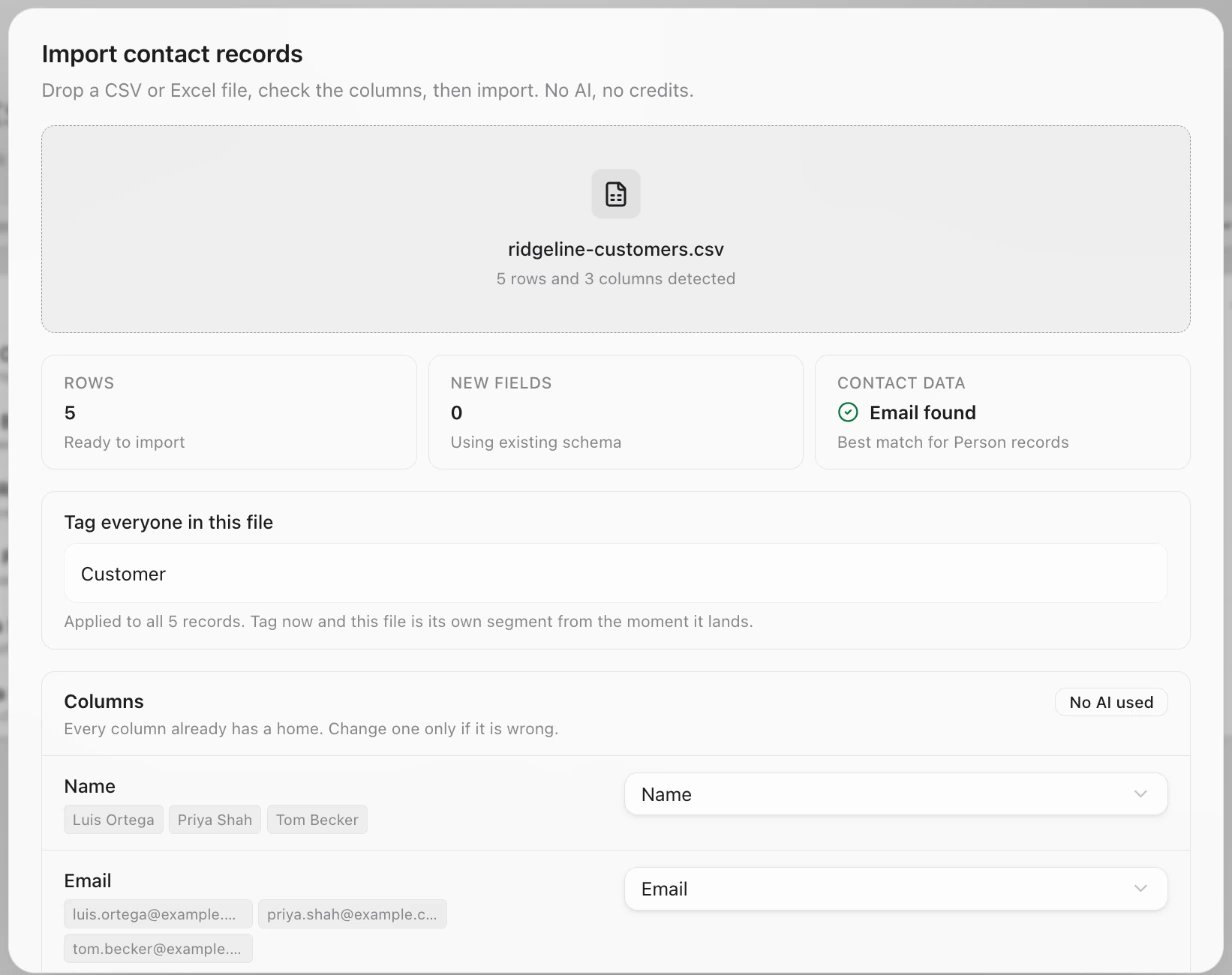 Under **Columns**, every column already has a place to go. Change one only if it is wrong: pick another field, **Create a new field**, or **Do not import**.
You can type a tag under **Tag everyone in this file**, like `referral`. Check the contacts after the import: if the tag is missing, tick them and click **Add tag**.
If the file has divider rows (a row with one word, like "Fleet customers"), Sapt offers to skip them. Leave that switch on.
Click **Import records**.
No column is required, but include a phone or email for each person. Texts, emails and the inbox find people by those.
**How Sapt reads your file**
* Columns named like a field you already have land in that field. So do common names such as **Customer Name**, **Phone Number** or **Email Address**.
* Rows with the same email become one contact. With no email, Sapt uses the phone, then the name.
* Import again later and a row with the same email (or phone) updates the contact from your earlier import instead of adding a second one.
* A value that does not fit its field, like "n/a" in an email column, is left blank. The rest of the row still comes in.
```csv theme={null}
Name,Phone,Email
Maya Chen,(937) 555-0123,maya@example.com
Luis Ortega,(937) 555-0188,luis@example.com
```
## Lists and tags
**Lists** group people you want to reach together, like everyone due for a spring tune-up. **Tags** are short labels, like `fleet` or `referral`.
* **Make a list:** click **More actions**, then **Manage lists**. Type a name and click **Create**. You can rename or delete lists there too.
* **Add people to a list:** tick them in the table and click **Add to list**.
* **Tag people:** tick them and click **Add tag**.
* **On one person:** open them and use **Tags** and **Lists** on the **Overview** tab, then click **Save changes**.
* **Suggested tags** (under **More actions**) sets the one-click tags your team sees in the inbox.
## Do things to many people at once
Tick the boxes on the left of the table. A bar appears at the bottom with:
* **Add to list** and **Add tag**
* **Assign**, to give them to a teammate
* **Call**, when calling is set up for your shop
* **Delete**
Deleting a contact cannot be undone. Their bookings and other records stay, but lose the link to them, and automations running for them stop.
To download your contacts, click **Export**, then pick all matching rows or only the ones you ticked.
## One person's record
Click a contact to open their record.
* At the top: their name, who has them, their phone and email, and **Text**, **Email**, **Call** and **Follow up**.
* **Overview**: **Outcome** (mark where the lead landed, like Qualified), **Notes**, **Tags** and **Lists**.
* **Activity**: their timeline. Texts and emails in and out, stage moves, forms and orders, newest first.
* **Records**: everything linked to them, like a website request or a vehicle.
* **Automations**: what is running for them.
Changes to notes, tags and lists wait until you click **Save changes**. The three-dot **Contact options** menu holds **Edit details**, **Merge duplicate** and **Delete contact**.
The phone app has no CRM tab. Each customer's card opens from their conversation: open it in **Inbox** and tap their name at the top.
Under **Columns**, every column already has a place to go. Change one only if it is wrong: pick another field, **Create a new field**, or **Do not import**.
You can type a tag under **Tag everyone in this file**, like `referral`. Check the contacts after the import: if the tag is missing, tick them and click **Add tag**.
If the file has divider rows (a row with one word, like "Fleet customers"), Sapt offers to skip them. Leave that switch on.
Click **Import records**.
No column is required, but include a phone or email for each person. Texts, emails and the inbox find people by those.
**How Sapt reads your file**
* Columns named like a field you already have land in that field. So do common names such as **Customer Name**, **Phone Number** or **Email Address**.
* Rows with the same email become one contact. With no email, Sapt uses the phone, then the name.
* Import again later and a row with the same email (or phone) updates the contact from your earlier import instead of adding a second one.
* A value that does not fit its field, like "n/a" in an email column, is left blank. The rest of the row still comes in.
```csv theme={null}
Name,Phone,Email
Maya Chen,(937) 555-0123,maya@example.com
Luis Ortega,(937) 555-0188,luis@example.com
```
## Lists and tags
**Lists** group people you want to reach together, like everyone due for a spring tune-up. **Tags** are short labels, like `fleet` or `referral`.
* **Make a list:** click **More actions**, then **Manage lists**. Type a name and click **Create**. You can rename or delete lists there too.
* **Add people to a list:** tick them in the table and click **Add to list**.
* **Tag people:** tick them and click **Add tag**.
* **On one person:** open them and use **Tags** and **Lists** on the **Overview** tab, then click **Save changes**.
* **Suggested tags** (under **More actions**) sets the one-click tags your team sees in the inbox.
## Do things to many people at once
Tick the boxes on the left of the table. A bar appears at the bottom with:
* **Add to list** and **Add tag**
* **Assign**, to give them to a teammate
* **Call**, when calling is set up for your shop
* **Delete**
Deleting a contact cannot be undone. Their bookings and other records stay, but lose the link to them, and automations running for them stop.
To download your contacts, click **Export**, then pick all matching rows or only the ones you ticked.
## One person's record
Click a contact to open their record.
* At the top: their name, who has them, their phone and email, and **Text**, **Email**, **Call** and **Follow up**.
* **Overview**: **Outcome** (mark where the lead landed, like Qualified), **Notes**, **Tags** and **Lists**.
* **Activity**: their timeline. Texts and emails in and out, stage moves, forms and orders, newest first.
* **Records**: everything linked to them, like a website request or a vehicle.
* **Automations**: what is running for them.
Changes to notes, tags and lists wait until you click **Save changes**. The three-dot **Contact options** menu holds **Edit details**, **Merge duplicate** and **Delete contact**.
The phone app has no CRM tab. Each customer's card opens from their conversation: open it in **Inbox** and tap their name at the top.
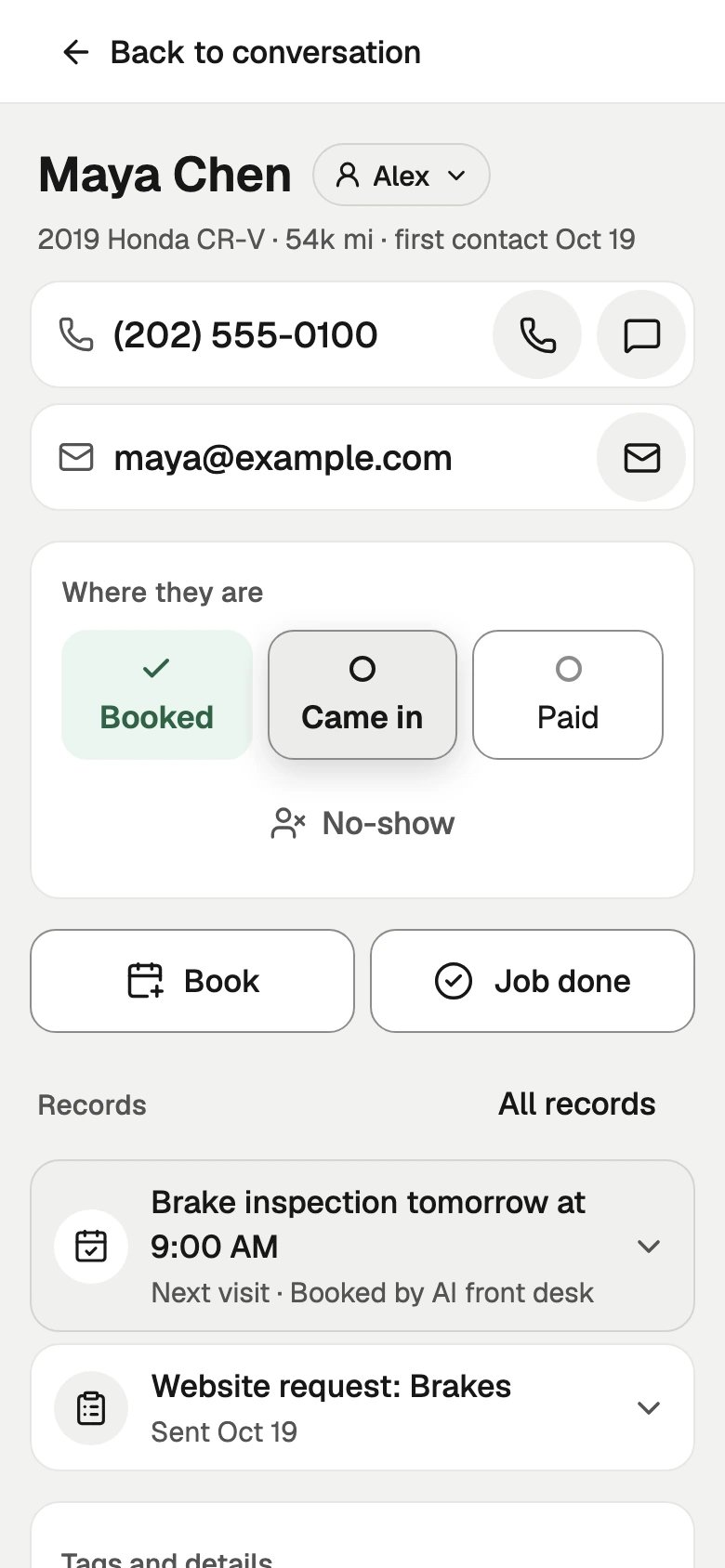 * Use the buttons beside their phone and email to call, text or email them. Tap the pencil to fix their name, phone or email.
* **Where they are** shows their steps. Tap one, like **Paid**, to mark it.
* **Book** and **Job done** sit under that, then their **Records** and **Activity**.
* **Merge or delete** is at the bottom.
## Keep going
This documentation is built and hosted on [Mintlify](https://mintlify.com), a developer documentation platform.
* Use the buttons beside their phone and email to call, text or email them. Tap the pencil to fix their name, phone or email.
* **Where they are** shows their steps. Tap one, like **Paid**, to mark it.
* **Book** and **Job done** sit under that, then their **Records** and **Activity**.
* **Merge or delete** is at the bottom.
## Keep going
This documentation is built and hosted on [Mintlify](https://mintlify.com), a developer documentation platform.