> ## Documentation Index
> Fetch the complete documentation index at: https://docs.sapt.ai/llms.txt
> Use this file to discover all available pages before exploring further.
# Set up stages for leads and jobs
> Give any CRM record type its own stages, move records across a board, and start an automation when a record reaches a stage.
Stages are the steps a record moves through, like Booked, In the bay and Paid for a repair job. Any record type can have them, and once it does you can see it as a board.
Your contacts already have three: **Open**, **Qualified** and **Not qualified**.
## Add stages to a record type
Open **CRM** and the record type's tab. Click the pencil next to its name. The **Edit type** panel opens.
Under **Stages**, click **Add first status**, then **Add status** for each one after that. Type a name in each box. Use the arrows on the left to put them in order.
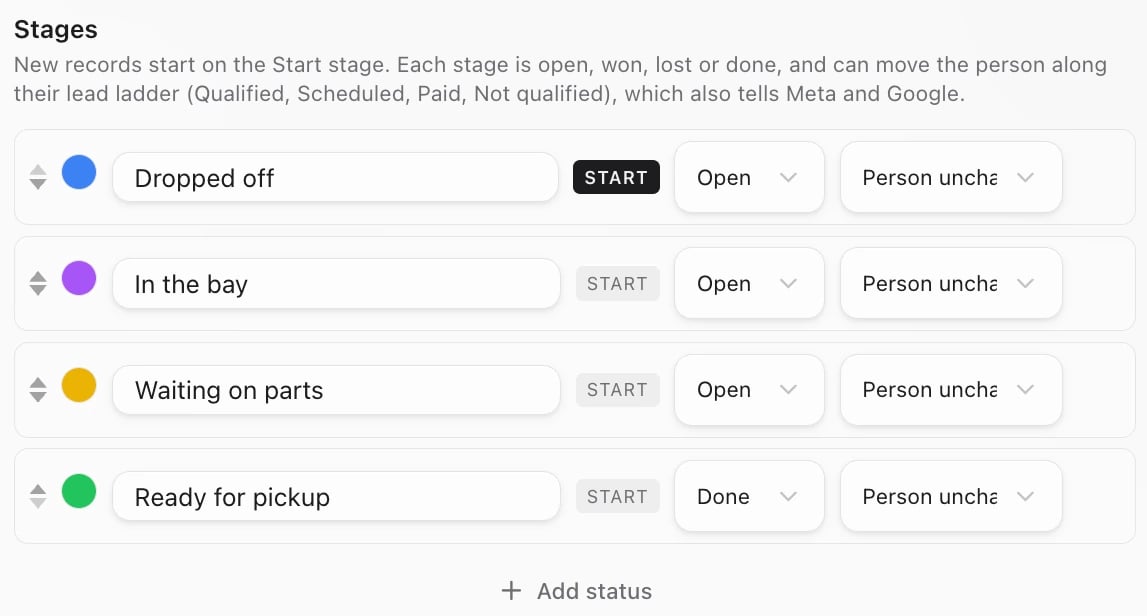 Click **Start** on the stage new records begin in. Only one stage can be the start.
The first menu on each row says how a record in that stage stands:
* **Open**: still in progress.
* **Won**: the job happened or the sale closed.
* **Lost**: cancelled, a no-show, or they went elsewhere.
* **Done**: finished, with no win or loss.
The second menu, **Person becomes**, moves the record's contact to a step of their lead ladder when the record reaches this stage: **Qualified**, **Scheduled**, **Paid**, **Not qualified**, **Showed** or **No-show**. If your Meta or Google ads are connected, Sapt tells them too. Leave it on **Person unchanged** to skip this.
Changes save as you go. To remove a stage, point at it and click the trash icon.
**Example: a repair job**
| Stage | Start | Ends as | Person becomes |
| - | - | - | - |
| Booked | Yes | Open | Scheduled |
| In the bay | | Open | Person unchanged |
| Paid | | Won | Paid |
| No-show | | Lost | No-show |
## Move records
Open the record type and switch to **Board**. Each stage is a column. Drag a card into the next column to move it.
Click **Start** on the stage new records begin in. Only one stage can be the start.
The first menu on each row says how a record in that stage stands:
* **Open**: still in progress.
* **Won**: the job happened or the sale closed.
* **Lost**: cancelled, a no-show, or they went elsewhere.
* **Done**: finished, with no win or loss.
The second menu, **Person becomes**, moves the record's contact to a step of their lead ladder when the record reaches this stage: **Qualified**, **Scheduled**, **Paid**, **Not qualified**, **Showed** or **No-show**. If your Meta or Google ads are connected, Sapt tells them too. Leave it on **Person unchanged** to skip this.
Changes save as you go. To remove a stage, point at it and click the trash icon.
**Example: a repair job**
| Stage | Start | Ends as | Person becomes |
| - | - | - | - |
| Booked | Yes | Open | Scheduled |
| In the bay | | Open | Person unchanged |
| Paid | | Won | Paid |
| No-show | | Lost | No-show |
## Move records
Open the record type and switch to **Board**. Each stage is a column. Drag a card into the next column to move it.
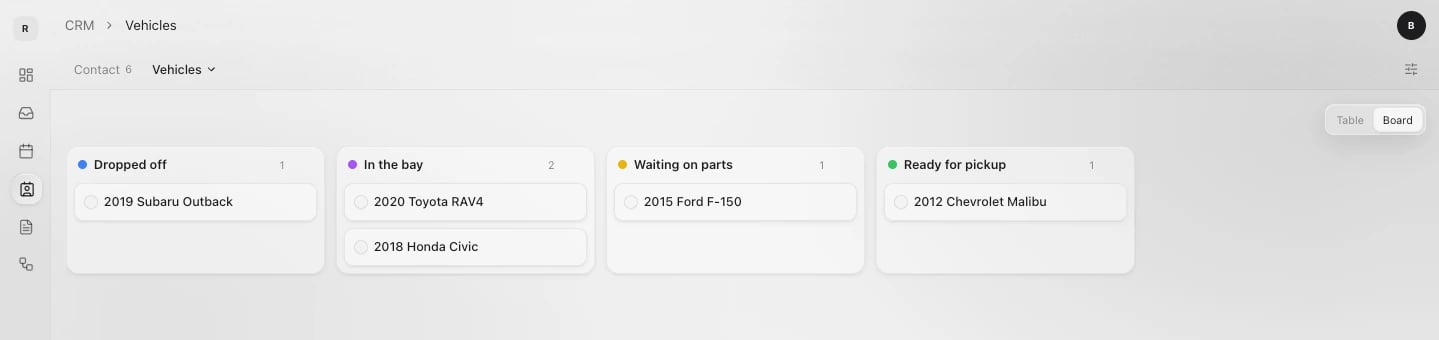 In **Table**, click a record's stage and pick a new one under **Move to**. You can do the same at the top of an open record.
## Start an automation when a record moves
A record reaching a stage can start a workflow, like texting the customer a review link when a job moves to Paid.
1. Open **Workflows** and start a new one.
2. Pick the trigger **Moved to stage**.
3. Choose the **Record type** and the **Stage**.
See [Workflows](/docs/mintlify/automations/workflows) for the rest. To run a workflow for records you pick by hand, tick them in the table and click **Start automation**.
## Keep going
This documentation is built and hosted on [Mintlify](https://mintlify.com), a developer documentation platform.
In **Table**, click a record's stage and pick a new one under **Move to**. You can do the same at the top of an open record.
## Start an automation when a record moves
A record reaching a stage can start a workflow, like texting the customer a review link when a job moves to Paid.
1. Open **Workflows** and start a new one.
2. Pick the trigger **Moved to stage**.
3. Choose the **Record type** and the **Stage**.
See [Workflows](/docs/mintlify/automations/workflows) for the rest. To run a workflow for records you pick by hand, tick them in the table and click **Start automation**.
## Keep going
This documentation is built and hosted on [Mintlify](https://mintlify.com), a developer documentation platform.