> ## Documentation Index
> Fetch the complete documentation index at: https://docs.sapt.ai/llms.txt
> Use this file to discover all available pages before exploring further.
# Connect Calendly
> Connect Calendly with a personal access token so your scheduled Calendly events show on your Sapt calendar. Sapt only reads them and never changes your events.
Connect Calendly and your scheduled Calendly events show on your Sapt calendar. Sapt only reads them. It never changes or cancels anything in Calendly.
## What you get
* Your scheduled Calendly events on your Sapt **Calendar**.
* The **Check for booking** workflow step: it checks whether a lead booked, so the workflow can treat people who booked differently.
## Before you start
* A Calendly account. Reading events through Calendly's API works on any Calendly plan. [Calendly's API overview](https://calendly.com/help/calendly-api-overview).
## Connect Calendly
Log in to Calendly and open the [Integrations page](https://calendly.com/integrations). Choose **API & Webhooks**. Click **Get a token now**, or **Generate new token** if you have made one before. Name it "Sapt". [Calendly's steps](https://developer.calendly.com/docs/authentication/how-to-authenticate-with-personal-access-tokens.md).
When Calendly asks which scopes the token gets, choose `users:read` and `scheduled_events:read`. Without both, no events load. Click **Create Token**, then **Copy token**. Calendly shows it only once.
In Sapt on the web, open **Project Settings**, then **Connected apps**. Under **Other**, find **Calendly** and click **Connect**.
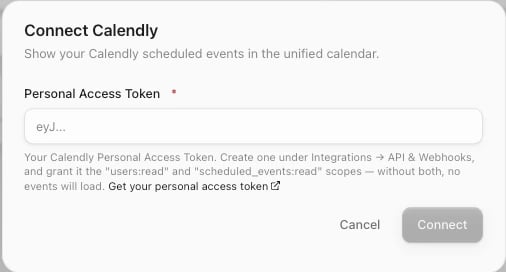
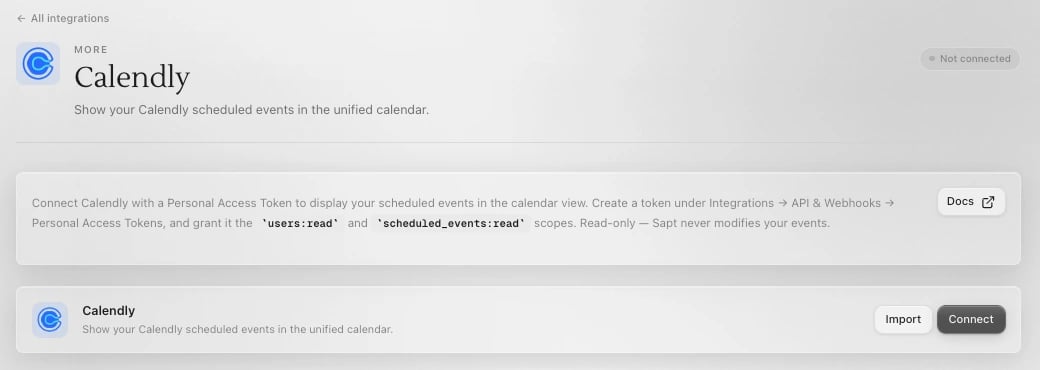 Click **Connect** on the Calendly page. Paste the token into **Personal Access Token** and click **Connect**.
 Open **Calendar** in Sapt. Your upcoming Calendly events are there.
## If something looks wrong
Sapt does not test the token when you save it. If no Calendly events show on your calendar, make a new token with both scopes. On the Calendly page in Sapt, open the **...** menu, click **Reconnect** and paste the new token.
## Disconnect
On the Calendly page in Sapt, open the **...** menu and click **Disconnect**. Sapt stops reading your Calendly events.
## Keep going
This documentation is built and hosted on [Mintlify](https://mintlify.com), a developer documentation platform.
Open **Calendar** in Sapt. Your upcoming Calendly events are there.
## If something looks wrong
Sapt does not test the token when you save it. If no Calendly events show on your calendar, make a new token with both scopes. On the Calendly page in Sapt, open the **...** menu, click **Reconnect** and paste the new token.
## Disconnect
On the Calendly page in Sapt, open the **...** menu and click **Disconnect**. Sapt stops reading your Calendly events.
## Keep going
This documentation is built and hosted on [Mintlify](https://mintlify.com), a developer documentation platform.