> ## Documentation Index
> Fetch the complete documentation index at: https://docs.sapt.ai/llms.txt
> Use this file to discover all available pages before exploring further.
# Connect Content Rewards
> Connect your Content Rewards account with an email code so you can find clipping campaigns and send your posted clips from Clips in Sapt.
Content Rewards runs campaigns where brands pay creators for posting clips. Connect your account and work on those campaigns from Clips in Sapt.
## What you get
* Your Content Rewards account in Sapt: verified social accounts, campaign applications and payouts received.
* Content Rewards campaigns you can search and save in Clips, with their rules and payout terms.
* Your published clips sent to Content Rewards as submissions, with the receipt saved in Sapt.
## Before you start
* A Content Rewards account and the email you sign in with.
* Permission to manage integrations in Sapt.
## Connect Content Rewards
In Sapt, open **Project Settings** and then **Connected apps**. Find **Content Rewards** under **Marketing** and click **Connect**.
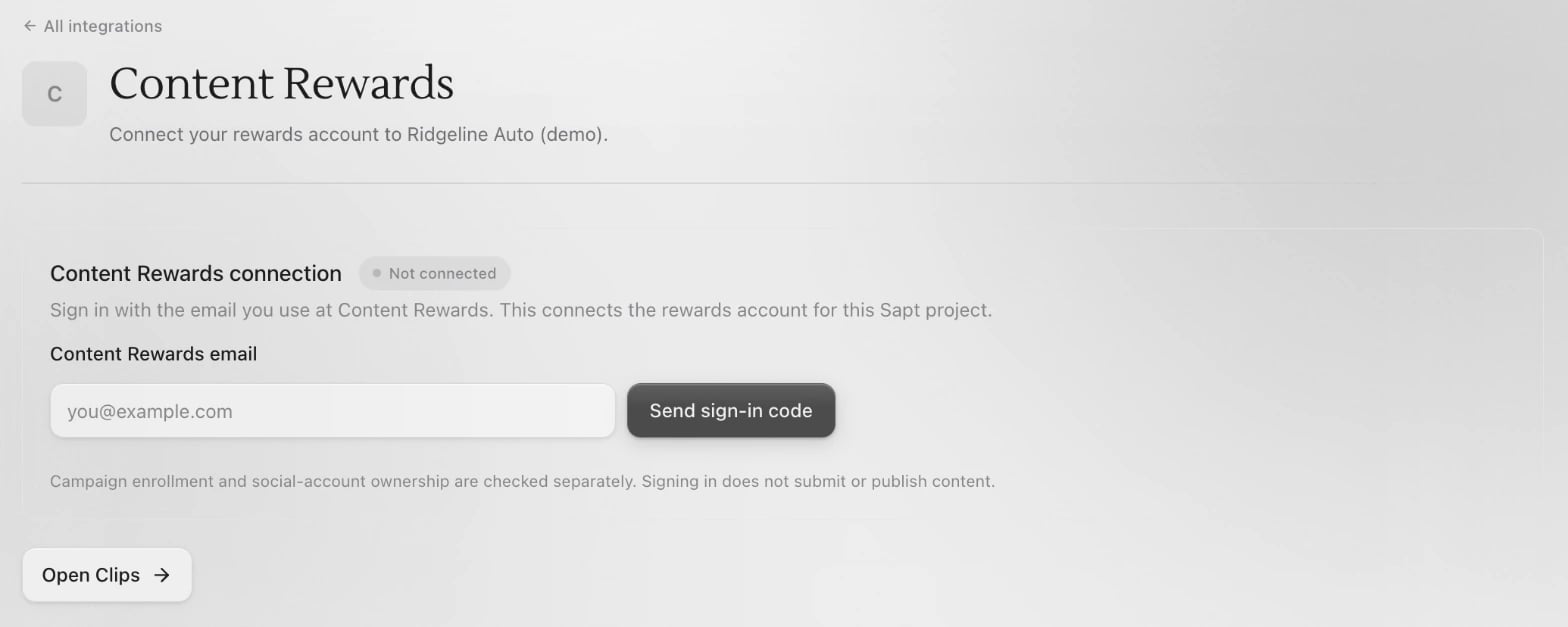 Type your **Content Rewards email** and click **Send sign-in code**.
Type the six-digit code from the email and click **Verify code**. Codes expire after 10 minutes. If it has not arrived, check your spam folder or click **Resend code**.
The card says your sign-in is saved. Click **Open Clips** to start.
## What Sapt does and does not do
* Signing in does not submit or publish anything.
* Campaign enrollment and social-account ownership are checked separately, in Content Rewards.
* Creator onboarding and payment setup happen in Content Rewards. If you still need them, the card links you there.
* A submission receipt confirms Content Rewards got your clip. It does not confirm a payout.
## Disconnect
On the Content Rewards page in Sapt, click **Disconnect**. To sign in with another email, click **Reconnect**. Your current connection stays on until the new code is verified.
## Keep going
Link the Whop account behind your reward campaigns.
See what else you can connect.
This documentation is built and hosted on [Mintlify](https://mintlify.com), a developer documentation platform.
Type your **Content Rewards email** and click **Send sign-in code**.
Type the six-digit code from the email and click **Verify code**. Codes expire after 10 minutes. If it has not arrived, check your spam folder or click **Resend code**.
The card says your sign-in is saved. Click **Open Clips** to start.
## What Sapt does and does not do
* Signing in does not submit or publish anything.
* Campaign enrollment and social-account ownership are checked separately, in Content Rewards.
* Creator onboarding and payment setup happen in Content Rewards. If you still need them, the card links you there.
* A submission receipt confirms Content Rewards got your clip. It does not confirm a payout.
## Disconnect
On the Content Rewards page in Sapt, click **Disconnect**. To sign in with another email, click **Reconnect**. Your current connection stays on until the new code is verified.
## Keep going
Link the Whop account behind your reward campaigns.
See what else you can connect.
This documentation is built and hosted on [Mintlify](https://mintlify.com), a developer documentation platform.