> ## Documentation Index
> Fetch the complete documentation index at: https://docs.sapt.ai/llms.txt
> Use this file to discover all available pages before exploring further.
# Connect Gmail
> Connect Gmail to email customers from your own address in Sapt, bring their replies into your Inbox, and set safe hours and limits for outreach emails.
Connect Gmail and the emails Sapt sends come from your own address, with replies landing back in Sapt.
## What you get
* **Email from the Inbox**: write to a customer from their conversation, sent from your Gmail.
* **Replies in Sapt**: new mail in the mailbox shows up in your **Inbox**, on the sender's conversation.
* **Emails from workflows**: the **Send an outreach email** step sends from a mailbox you pick.
* **AI agents**: an agent can answer email on this mailbox when you pick it under **Answers on**.
* **Settings on the Gmail page**: your name and signature, sending hours and daily limits, reply labels and a do-not-email list.
## Before you start
* A Gmail or Google Workspace mailbox.
* If your company uses Google Workspace, your admin may need to allow Sapt. See Google's guide to [controlling app access](https://support.google.com/a/answer/13152743).
* A Sapt role that can manage integrations. Without it, the Gmail page has no **Connect Gmail** button.
## Connect Gmail
Click **Project Settings**, then **Connected apps**. Under **Google**, click **Connect** on Gmail.
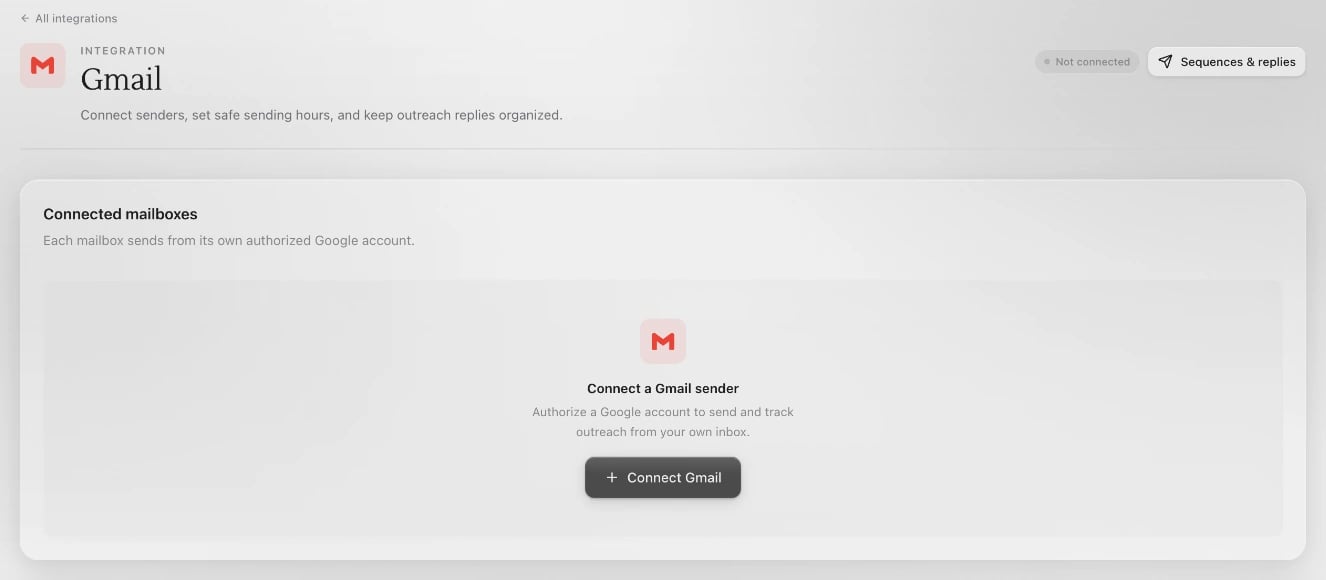
Under **Connect a Gmail sender**, click **Connect Gmail**. A Google window opens.
 Pick the account you send from, then allow what Google asks:
* **Send email on your behalf**, so Sapt can send the emails you and your workflows write.
* **View your email messages and settings**, so replies show up in Sapt.
* Your email address, so Sapt knows which mailbox is connected.
The mailbox now shows under **Connected mailboxes**.
Click the arrow next to the mailbox (**Name and signature**). Fill in **Display name**, like **Maya at Ridgeline Auto**, and **Signature**, then click **Save**. Click the send icon (**Send test email**) to check how it looks.
Another mailbox? Click **Add mailbox**.
## The Gmail page's settings
These apply to outreach emails, like the ones a workflow sends.
* **Outreach sending schedule**: set **Start sending at**, **Stop sending at**, **Sending days** and **Timezone**. **Daily limit per mailbox** starts at 30, with a top of 40. **Minimum seconds between emails** starts at 60. Click **Save schedule**.
* **AI reply classifier**: turn on **Label new replies automatically** and Sapt labels replies as interested, not interested, bounced or out of office.
* **Sequence templates**: email sequences your team saved to reuse.
* **Do-not-email list**: type an address, like **[jordan@example.com](mailto:jordan@example.com)**, and click **Add**. People on the list get no outreach from Sapt.
Sending cold outreach? The Gmail page's advice: use a separate domain, not the one your team uses for customer email, and start slowly.
## What Sapt does and does not do
* It sends only what you, your workflows or your AI agents write.
* It reads new mail that arrives in this mailbox and brings it into Sapt. Connect the mailbox you use for customers, not your personal one.
* Outreach emails go out only inside your sending schedule and daily limit.
## Disconnect
On the Gmail page, click the unplug icon (**Disconnect mailbox**) next to the mailbox and confirm. Sapt stops sending from it and stops bringing in its mail.
## Keep going
Answer emails, texts and messages in one place.
Send emails automatically.
This documentation is built and hosted on [Mintlify](https://mintlify.com), a developer documentation platform.
Pick the account you send from, then allow what Google asks:
* **Send email on your behalf**, so Sapt can send the emails you and your workflows write.
* **View your email messages and settings**, so replies show up in Sapt.
* Your email address, so Sapt knows which mailbox is connected.
The mailbox now shows under **Connected mailboxes**.
Click the arrow next to the mailbox (**Name and signature**). Fill in **Display name**, like **Maya at Ridgeline Auto**, and **Signature**, then click **Save**. Click the send icon (**Send test email**) to check how it looks.
Another mailbox? Click **Add mailbox**.
## The Gmail page's settings
These apply to outreach emails, like the ones a workflow sends.
* **Outreach sending schedule**: set **Start sending at**, **Stop sending at**, **Sending days** and **Timezone**. **Daily limit per mailbox** starts at 30, with a top of 40. **Minimum seconds between emails** starts at 60. Click **Save schedule**.
* **AI reply classifier**: turn on **Label new replies automatically** and Sapt labels replies as interested, not interested, bounced or out of office.
* **Sequence templates**: email sequences your team saved to reuse.
* **Do-not-email list**: type an address, like **[jordan@example.com](mailto:jordan@example.com)**, and click **Add**. People on the list get no outreach from Sapt.
Sending cold outreach? The Gmail page's advice: use a separate domain, not the one your team uses for customer email, and start slowly.
## What Sapt does and does not do
* It sends only what you, your workflows or your AI agents write.
* It reads new mail that arrives in this mailbox and brings it into Sapt. Connect the mailbox you use for customers, not your personal one.
* Outreach emails go out only inside your sending schedule and daily limit.
## Disconnect
On the Gmail page, click the unplug icon (**Disconnect mailbox**) next to the mailbox and confirm. Sapt stops sending from it and stops bringing in its mail.
## Keep going
Answer emails, texts and messages in one place.
Send emails automatically.
This documentation is built and hosted on [Mintlify](https://mintlify.com), a developer documentation platform.