> ## Documentation Index
> Fetch the complete documentation index at: https://docs.sapt.ai/llms.txt
> Use this file to discover all available pages before exploring further.
# Move from GoHighLevel to Sapt
> Connect your GoHighLevel agency with read-only access, import each sub-account into Sapt, and send new leads to a client's GoHighLevel.
Agencies moving off GoHighLevel can bring each client sub-account into Sapt. You can also send new leads from Sapt into a client's GoHighLevel.
## What you get
* Each GoHighLevel sub-account imported into its own Sapt project, or into a project you pick.
* Contacts, opportunities, conversations and notes come across.
* A count of what will come over, and about how long it takes, before you start.
* Imports run in the background, so you can close the tab and come back.
* A workflow step, **Send lead to GoHighLevel**, that hands a new lead to a client's GoHighLevel.
## Before you start
* A GoHighLevel login at the agency level. You authorize once for the whole agency.
* Allow pop-ups for app.sapt.ai. GoHighLevel opens in a small window.
## Import your sub-accounts
In Sapt, open **Project Settings** and then **Connected apps**. Find **GoHighLevel** under **Your shop system** and click **Connect**. The **Migrate from GoHighLevel** page opens.
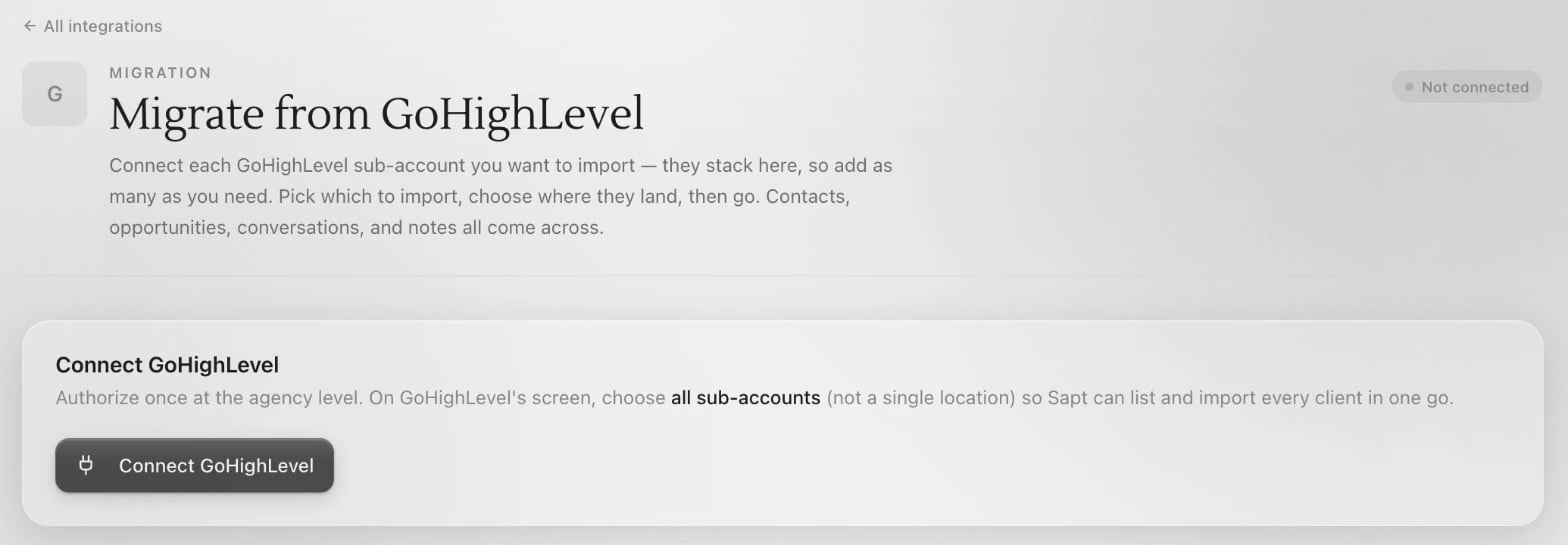 Click **Connect GoHighLevel** and sign in to GoHighLevel. On GoHighLevel's screen, choose all the sub-accounts you want to bring over, not a single location.
Back in Sapt, the page lists your sub-accounts. To add more later, click **Connect sub-account**. New ones stack on the same page.
Each sub-account has an **Import destination**. Choose **New project**, this project (shown with its name), or another project you own.
Under each sub-account, Sapt shows how many contacts, opportunities and conversations it found, and about how many minutes the import takes.
Click **Start import** on one sub-account, or **Import all** for every one. Sapt shows each part as it comes in: contacts, opportunities, conversations, then notes.
If an import fails, click **Retry**. To stop one, click **Cancel**.
## Send leads to a client's GoHighLevel
Use this when a client still works in GoHighLevel and wants your leads there. You do not need their GoHighLevel login.
In the client's GoHighLevel, they open a workflow and choose the **Inbound Webhook** trigger. GoHighLevel shows a URL. They copy it and send it to you. GoHighLevel explains this in its [Inbound Webhook guide](https://help.gohighlevel.com/support/solutions/articles/155000003147-workflow-trigger-inbound-webhook).
In your Sapt workflow, add the **Send lead to GoHighLevel** step. Give it a **Destination name**, like the client's shop name, so you can tell clients apart. Paste the URL into **Inbound webhook URL** and click **Save**.
Sapt stores the URL encrypted and never shows it again. Anyone with that URL can write into the client's CRM.
Name, email, phone, source, campaign and first-touch attribution go over on their own. To send more, click **Add field** under **Extra fields (optional)**.
In their GoHighLevel workflow, the client maps these fields with a **Create/Update Contact** step.
The **Leads sent out** card on the GoHighLevel page lists every lead this project sent, newest first. If any failed, click **Show failed** to see them.
## What Sapt does and does not do
* Sapt asks GoHighLevel for read-only access to your sub-accounts, contacts, opportunities and conversations, plus the access it needs to open each sub-account.
* Sapt never changes or deletes anything in GoHighLevel.
* Importing does not message anyone.
* Importing the same sub-account again updates what came over before. It does not make duplicates.
* A new project made from a sub-account sits under your agency's project. It shares that project's billing and credits, and your agency's owner owns it.
## Disconnect
On the **Migrate from GoHighLevel** page, open the **...** menu and choose **Disconnect GoHighLevel**, then **Disconnect**. Records and projects you already imported stay. You can reconnect any time to import more.
## Keep going
Build the workflow that sends leads on.
Find the people you imported.
See what else you can connect.
This documentation is built and hosted on [Mintlify](https://mintlify.com), a developer documentation platform.
Click **Connect GoHighLevel** and sign in to GoHighLevel. On GoHighLevel's screen, choose all the sub-accounts you want to bring over, not a single location.
Back in Sapt, the page lists your sub-accounts. To add more later, click **Connect sub-account**. New ones stack on the same page.
Each sub-account has an **Import destination**. Choose **New project**, this project (shown with its name), or another project you own.
Under each sub-account, Sapt shows how many contacts, opportunities and conversations it found, and about how many minutes the import takes.
Click **Start import** on one sub-account, or **Import all** for every one. Sapt shows each part as it comes in: contacts, opportunities, conversations, then notes.
If an import fails, click **Retry**. To stop one, click **Cancel**.
## Send leads to a client's GoHighLevel
Use this when a client still works in GoHighLevel and wants your leads there. You do not need their GoHighLevel login.
In the client's GoHighLevel, they open a workflow and choose the **Inbound Webhook** trigger. GoHighLevel shows a URL. They copy it and send it to you. GoHighLevel explains this in its [Inbound Webhook guide](https://help.gohighlevel.com/support/solutions/articles/155000003147-workflow-trigger-inbound-webhook).
In your Sapt workflow, add the **Send lead to GoHighLevel** step. Give it a **Destination name**, like the client's shop name, so you can tell clients apart. Paste the URL into **Inbound webhook URL** and click **Save**.
Sapt stores the URL encrypted and never shows it again. Anyone with that URL can write into the client's CRM.
Name, email, phone, source, campaign and first-touch attribution go over on their own. To send more, click **Add field** under **Extra fields (optional)**.
In their GoHighLevel workflow, the client maps these fields with a **Create/Update Contact** step.
The **Leads sent out** card on the GoHighLevel page lists every lead this project sent, newest first. If any failed, click **Show failed** to see them.
## What Sapt does and does not do
* Sapt asks GoHighLevel for read-only access to your sub-accounts, contacts, opportunities and conversations, plus the access it needs to open each sub-account.
* Sapt never changes or deletes anything in GoHighLevel.
* Importing does not message anyone.
* Importing the same sub-account again updates what came over before. It does not make duplicates.
* A new project made from a sub-account sits under your agency's project. It shares that project's billing and credits, and your agency's owner owns it.
## Disconnect
On the **Migrate from GoHighLevel** page, open the **...** menu and choose **Disconnect GoHighLevel**, then **Disconnect**. Records and projects you already imported stay. You can reconnect any time to import more.
## Keep going
Build the workflow that sends leads on.
Find the people you imported.
See what else you can connect.
This documentation is built and hosted on [Mintlify](https://mintlify.com), a developer documentation platform.