> ## Documentation Index
> Fetch the complete documentation index at: https://docs.sapt.ai/llms.txt
> Use this file to discover all available pages before exploring further.
# Connect Google Ads
> Connect Google Ads to see your campaigns, spend and Local Services leads in Sapt, pause or turn on campaigns, and send your leads back to Google.
Connect Google Ads and you can see what your ads cost and bring in, next to your leads.
## What you get
* **Your campaigns**: campaigns, ad groups, ads, keywords and the search terms people typed, with spend and results.
* **Pause or turn on** a campaign from Sapt. Sapt asks you to confirm first.
* **Optimization center**: Google's suggestions for your account, to apply or dismiss.
* **Local Services**: your Local Services leads and spend.
* **Conversions**: Sapt can send your leads back to Google Ads, so Google finds more people like them.
* **Manager accounts**: if you use a manager account, Sapt finds the client accounts under it.
## Before you start
* A Google login with access to your Google Ads account. Read-only access is enough to see numbers. To pause campaigns or apply suggestions, you need Standard or Admin access. See Google's [access levels](https://support.google.com/google-ads/answer/9978556).
* In Sapt, a role with Google Ads access to open the Ads pages, and one that can manage integrations to connect.
## Connect Google Ads
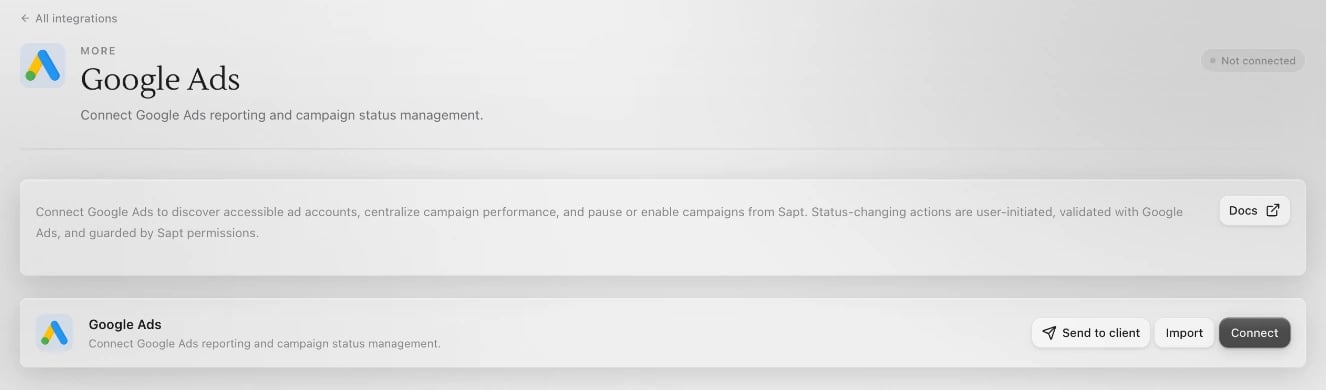
Click **Project Settings**, then **Connected apps**. Under **Google**, click **Connect** on Google Ads. You can also click **Performance**, then **Ads**, choose **Google** and click **Connect Google Ads**.
 A Google window opens.
Pick the login you use for Google Ads, then allow what Google asks:
* **See, edit, create, and delete your Google Ads accounts and data**, so Sapt can show your numbers and make the changes you ask for.
* Your customer data in Google Ads, so Sapt can send your leads back as conversions.
* Your email address, so Sapt knows which login is connected.
The window says **Account Connected** and closes. Sapt adds every Google Ads account that login can see.
Ads for different clients behind different logins? Click **Add account** and sign in with the next one. Sapt keeps them all.
Agencies can click **Send to client** to let a client connect their own account. See [Connect a client's account](/docs/mintlify/integrations/overview#connect-a-clients-account).
## Send your leads back to Google
Connecting is step one. To send conversions, click **Performance**, then **Attribution**, then **Setup**. Open **Meta & Google**, and under **Conversions API (Google)** choose your ad account and the conversion action to use. Once both are set, Sapt sends conversions on its own.
## What Sapt does and does not do
* It reads your accounts, campaigns and results.
* It changes your account only when someone on your team does it in Sapt: pausing or turning on a campaign, applying a suggestion, or changing Local Services settings.
* Once you set up conversions, it sends them to Google automatically.
* If you connected before conversions were added to Sapt, click **Reconnect** in the **...** menu before setting them up.
## Disconnect
In **Project Settings**, **Connected apps**, click **Configure** on Google Ads. Open the **...** menu and click **Disconnect all**. Your Google Ads account and campaigns stay as they are.
## Keep going
See what people search to find you.
Answer reviews and keep your hours right.
This documentation is built and hosted on [Mintlify](https://mintlify.com), a developer documentation platform.
A Google window opens.
Pick the login you use for Google Ads, then allow what Google asks:
* **See, edit, create, and delete your Google Ads accounts and data**, so Sapt can show your numbers and make the changes you ask for.
* Your customer data in Google Ads, so Sapt can send your leads back as conversions.
* Your email address, so Sapt knows which login is connected.
The window says **Account Connected** and closes. Sapt adds every Google Ads account that login can see.
Ads for different clients behind different logins? Click **Add account** and sign in with the next one. Sapt keeps them all.
Agencies can click **Send to client** to let a client connect their own account. See [Connect a client's account](/docs/mintlify/integrations/overview#connect-a-clients-account).
## Send your leads back to Google
Connecting is step one. To send conversions, click **Performance**, then **Attribution**, then **Setup**. Open **Meta & Google**, and under **Conversions API (Google)** choose your ad account and the conversion action to use. Once both are set, Sapt sends conversions on its own.
## What Sapt does and does not do
* It reads your accounts, campaigns and results.
* It changes your account only when someone on your team does it in Sapt: pausing or turning on a campaign, applying a suggestion, or changing Local Services settings.
* Once you set up conversions, it sends them to Google automatically.
* If you connected before conversions were added to Sapt, click **Reconnect** in the **...** menu before setting them up.
## Disconnect
In **Project Settings**, **Connected apps**, click **Configure** on Google Ads. Open the **...** menu and click **Disconnect all**. Your Google Ads account and campaigns stay as they are.
## Keep going
See what people search to find you.
Answer reviews and keep your hours right.
This documentation is built and hosted on [Mintlify](https://mintlify.com), a developer documentation platform.