> ## Documentation Index
> Fetch the complete documentation index at: https://docs.sapt.ai/llms.txt
> Use this file to discover all available pages before exploring further.
# Connect Google Drive
> Connect Google Drive to bring photos, videos and documents into Sapt, and to add a row to a Google Sheet from a workflow. Sapt sees only the files you pick.
Connect Google Drive to use your Drive files in Sapt without downloading them first.
## What you get
* **Import from Drive**: bring photos, videos and documents into **Content**, **Files & photos**, to use in your content.
* **Google Sheets in workflows**: the **Add row to Google Sheets** step adds a row to a sheet you choose each time a workflow runs.
* **Only what you pick**: Sapt can open only the files you choose. It can't see the rest of your Drive.
## Before you start
* A Google account with the files you want.
* The first time, someone with a Sapt role that can manage integrations connects Drive. Otherwise Sapt says **A project admin needs to connect Google Drive first.**
## Connect Google Drive
Click **Content**, then **Files & photos**, then **From Google Drive**. You can also go to **Project Settings**, **Connected apps** and click **Connect** on Google Drive.
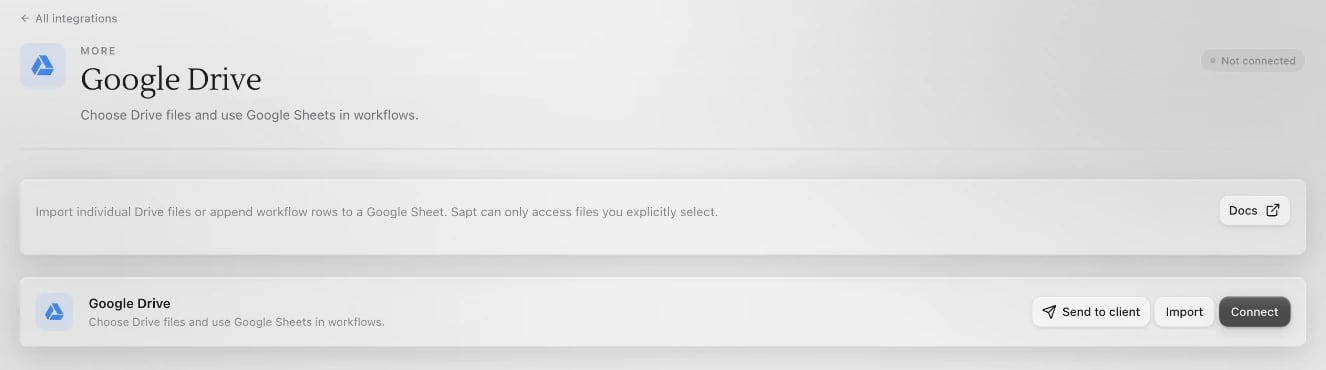 A Google window opens. Pick your account and allow what Google asks:
* **See, edit, create, and delete only the specific Google Drive files you use with this app**. That means only files you choose in Sapt.
* Your email address, so Sapt knows which account is connected.
Google's file picker opens. Choose one or more files. Sapt imports them and says, for example, **3 files imported from Google Drive**.
## Add a row to a Google Sheet
In Google Sheets, put your column headers in the first row, like **Name**, **Phone** and **Car**.
In a workflow, add the **Add row to Google Sheets** step. Click **Choose sheet…** and pick the spreadsheet.
Type the **Sheet tab** name, like **Sheet1**. Under **Columns**, give each column the same header as your sheet, in the same order, and pick its **Value**. Click **Add column** for more.
Each run adds one row, written as plain text.
## What Sapt does and does not do
* It opens only files you pick in Google's picker.
* It copies imported files into Sapt. The files in Drive don't change.
* In the sheet you chose, it only adds new rows.
## Disconnect
In **Project Settings**, **Connected apps**, click **Configure** on Google Drive. Open the **...** menu and click **Disconnect**. Files you already imported stay in Sapt. Workflows with an **Add row to Google Sheets** step can't add rows until you connect again.
## Keep going
Organize what you import.
Build the workflow that fills your sheet.
This documentation is built and hosted on [Mintlify](https://mintlify.com), a developer documentation platform.
A Google window opens. Pick your account and allow what Google asks:
* **See, edit, create, and delete only the specific Google Drive files you use with this app**. That means only files you choose in Sapt.
* Your email address, so Sapt knows which account is connected.
Google's file picker opens. Choose one or more files. Sapt imports them and says, for example, **3 files imported from Google Drive**.
## Add a row to a Google Sheet
In Google Sheets, put your column headers in the first row, like **Name**, **Phone** and **Car**.
In a workflow, add the **Add row to Google Sheets** step. Click **Choose sheet…** and pick the spreadsheet.
Type the **Sheet tab** name, like **Sheet1**. Under **Columns**, give each column the same header as your sheet, in the same order, and pick its **Value**. Click **Add column** for more.
Each run adds one row, written as plain text.
## What Sapt does and does not do
* It opens only files you pick in Google's picker.
* It copies imported files into Sapt. The files in Drive don't change.
* In the sheet you chose, it only adds new rows.
## Disconnect
In **Project Settings**, **Connected apps**, click **Configure** on Google Drive. Open the **...** menu and click **Disconnect**. Files you already imported stay in Sapt. Workflows with an **Add row to Google Sheets** step can't add rows until you connect again.
## Keep going
Organize what you import.
Build the workflow that fills your sheet.
This documentation is built and hosted on [Mintlify](https://mintlify.com), a developer documentation platform.