> ## Documentation Index
> Fetch the complete documentation index at: https://docs.sapt.ai/llms.txt
> Use this file to discover all available pages before exploring further.
# Connect Facebook and Instagram
> Connect Meta to post to your Facebook Page and Instagram, answer messages and comments in the Inbox, and see your Meta ads and lead forms in Sapt.
Connect Meta once and Sapt can post for your shop, answer Facebook and Instagram messages from the Inbox, and show what your Meta ads bring in.
## What you get
* **Posts.** Publish and schedule posts to your Facebook Pages and Instagram accounts.
* **Messages and comments.** Facebook and Instagram messages and comments land in your [Inbox](/docs/mintlify/leads/inbox), next to your texts and calls.
* **Insights.** Followers, reach and engagement for each Page and Instagram account.
* **Ads.** Your Meta ad spend and results on **Performance**, and your campaigns under **Ads**.
* **Lead forms.** Leads from your Facebook and Instagram instant forms come into your CRM as **Meta Lead** records. The **Meta lead form submitted** trigger can start a [workflow](/docs/mintlify/automations/workflows) for each one.
* **Conversions.** Sapt sends your website leads back to Meta, so Meta learns which ads work. Meta calls this the Conversions API.
## Before you start
* **A Facebook Page you manage.** You need full control of the Page, or task access to it. [How Page access works](https://www.facebook.com/help/289207354498410).
* **For Instagram, a professional account connected to that Page.** Sapt finds your Instagram account through the Page. [Switch to a professional account](https://help.instagram.com/502981923235522), then [connect it to your Page](https://www.facebook.com/help/1148909221857370).
* **For Instagram messages,** turn on **Allow Access to Messages** in the Instagram app: **Settings**, **Messages and story replies**, **Message controls**, **Connected Tools**. [Meta's note on this](https://developers.facebook.com/documentation/business-messaging/instagram-messaging/get-started).
* **For ads,** access to your ad account in Meta.
## Connect Meta
In Sapt on the web, open **Project Settings**, then **Connected apps**. Under **Marketing**, find **Meta (Facebook & Instagram)** and click **Connect**.
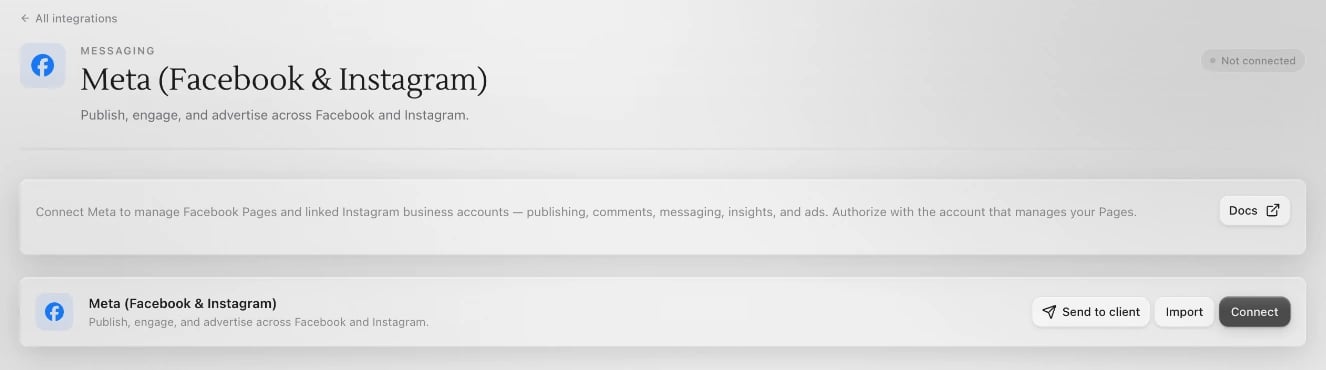 Click **Connect** on the Meta page. Facebook opens in a new window. Sign in with the profile that manages your Page, choose the Pages, Instagram accounts and ad accounts Sapt may use, and allow every permission it asks for.
If no window opens, your browser blocked it. Allow pop-ups for app.sapt.ai and click **Connect** again.
Back in Sapt, your Pages, Instagram accounts and ad accounts are listed under **Connected accounts**. If you add a Page in Facebook later, click **Refresh accounts**.
You can also connect from **Performance**: open **Social**, then **Connected accounts**, and click **Connect with Meta** on the **Meta Business Suite** card. If someone sent you a Sapt setup link, its **Connect Meta** step does the same thing.
## What Sapt sets up when you connect
* Sapt asks Facebook to send it new messages, comments and lead form entries from each Page as they happen.
* If Sapt finds exactly one Meta pixel on your ad accounts, it turns on the Conversions API for that pixel. If you have none or several, choose one yourself: on **Performance**, open **Attribution**, then **Setup**, and pick it under **Meta & Google**.
* To choose which ad account **Performance** counts, click the gear on **Performance** and pick it under **Meta ad account**.
## What Sapt does and does not do
* Sapt posts and replies only when you or your team do, or when you turn on an [agent](/docs/mintlify/leads/ai-front-desk) or workflow that does it for you.
* Meta lets a business reply to a message for 24 hours after the customer's last one. [Meta's rule](https://developers.facebook.com/documentation/business-messaging/messenger-platform/send-messages).
* Sapt does not work with Threads.
* To stop using one Page or ad account, click **Remove** next to it under **Connected accounts**. Everything else stays connected.
## If something looks wrong
* **Missing permissions** shows on the Meta page: click **Reconnect to grant** and allow every permission Facebook asks for.
* Your Instagram account is missing: check it is a professional account connected to your Page, then click **Refresh accounts**.
* The card says **Reconnect required**: the Facebook login expired. Click **Reconnect** and sign in again.
## Disconnect
On the Meta page in Sapt, open the **...** menu and click **Disconnect all**. Sapt stops using every Page, Instagram account and ad account from that login.
To take Sapt off your Facebook profile as well, open **Settings & privacy**, then **Settings**, then **Business Integrations**. Select Sapt, click **Remove**, then **Remove** again. [Meta's steps](https://www.facebook.com/help/405094243235242).
## Keep going
This documentation is built and hosted on [Mintlify](https://mintlify.com), a developer documentation platform.
Click **Connect** on the Meta page. Facebook opens in a new window. Sign in with the profile that manages your Page, choose the Pages, Instagram accounts and ad accounts Sapt may use, and allow every permission it asks for.
If no window opens, your browser blocked it. Allow pop-ups for app.sapt.ai and click **Connect** again.
Back in Sapt, your Pages, Instagram accounts and ad accounts are listed under **Connected accounts**. If you add a Page in Facebook later, click **Refresh accounts**.
You can also connect from **Performance**: open **Social**, then **Connected accounts**, and click **Connect with Meta** on the **Meta Business Suite** card. If someone sent you a Sapt setup link, its **Connect Meta** step does the same thing.
## What Sapt sets up when you connect
* Sapt asks Facebook to send it new messages, comments and lead form entries from each Page as they happen.
* If Sapt finds exactly one Meta pixel on your ad accounts, it turns on the Conversions API for that pixel. If you have none or several, choose one yourself: on **Performance**, open **Attribution**, then **Setup**, and pick it under **Meta & Google**.
* To choose which ad account **Performance** counts, click the gear on **Performance** and pick it under **Meta ad account**.
## What Sapt does and does not do
* Sapt posts and replies only when you or your team do, or when you turn on an [agent](/docs/mintlify/leads/ai-front-desk) or workflow that does it for you.
* Meta lets a business reply to a message for 24 hours after the customer's last one. [Meta's rule](https://developers.facebook.com/documentation/business-messaging/messenger-platform/send-messages).
* Sapt does not work with Threads.
* To stop using one Page or ad account, click **Remove** next to it under **Connected accounts**. Everything else stays connected.
## If something looks wrong
* **Missing permissions** shows on the Meta page: click **Reconnect to grant** and allow every permission Facebook asks for.
* Your Instagram account is missing: check it is a professional account connected to your Page, then click **Refresh accounts**.
* The card says **Reconnect required**: the Facebook login expired. Click **Reconnect** and sign in again.
## Disconnect
On the Meta page in Sapt, open the **...** menu and click **Disconnect all**. Sapt stops using every Page, Instagram account and ad account from that login.
To take Sapt off your Facebook profile as well, open **Settings & privacy**, then **Settings**, then **Business Integrations**. Select Sapt, click **Remove**, then **Remove** again. [Meta's steps](https://www.facebook.com/help/405094243235242).
## Keep going
This documentation is built and hosted on [Mintlify](https://mintlify.com), a developer documentation platform.