> ## Documentation Index
> Fetch the complete documentation index at: https://docs.sapt.ai/llms.txt
> Use this file to discover all available pages before exploring further.
# Connect QuickBooks Online
> Connect QuickBooks Online to Sapt. See what Sapt reads from your company file today, how it uses it, and what it does not do yet.
Connecting QuickBooks Online works today. Right now Sapt uses it for one thing: the dollar amount in your weekly text.
## What you get
* Your Monday morning text from Sapt adds what you invoiced in QuickBooks over the last seven days. It reads like this:
> This week at Ridgeline Auto: 42 calls answered, 6 junk calls blocked before your phone rang, 9 jobs booked, \$4,250 on the books. Reply with any question.
* The Sapt team turns this weekly text on for your shop. A number that is zero is left out, and a week with no calls sends no text.
For most shops, that is all Sapt does with QuickBooks today. Your invoices do not show anywhere else in Sapt yet.
## Before you start
* An admin login for your QuickBooks Online company. Intuit lets only admin users connect and manage apps. See Intuit's [app help](https://quickbooks.intuit.com/learn-support/en-us/help-articles/disconnecting-an-app/00/261548).
* Allow pop-ups for app.sapt.ai. Intuit opens in a small window.
## Connect QuickBooks
In Sapt, open **Project Settings** and then **Connected apps**. Find **QuickBooks Online** under **Money** and click **Connect**. On the QuickBooks Online page, click **Connect** again.
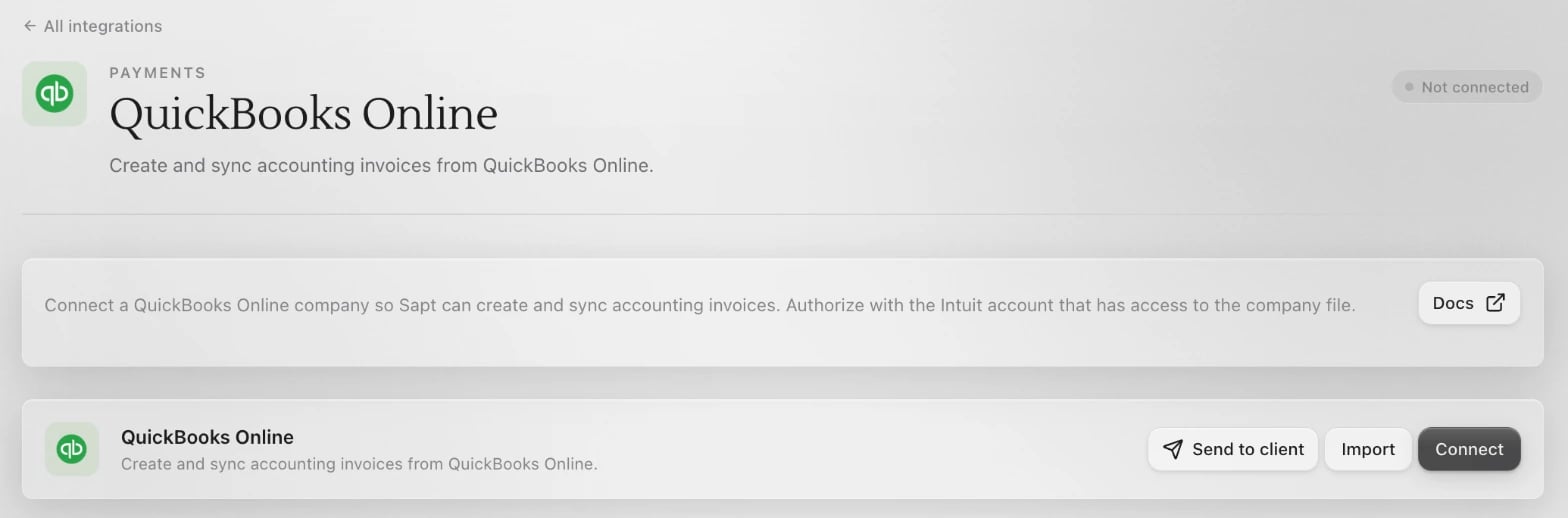 Sign in to Intuit in the window that opens, choose your company and approve Sapt.
Back in Sapt, the QuickBooks Online card shows **Connected**.
## What Sapt does and does not do
* Sapt reads the invoices in your company file and adds up their totals by invoice date.
* Sapt does not create, change or delete anything in QuickBooks for your shop.
* Sapt keeps the connection fresh on its own. If it ever lapses, your weekly text still goes out without the dollar amount. Choose **Reconnect** on the QuickBooks Online card to fix it.
## Disconnect
On the QuickBooks Online page in Sapt, open the **...** menu and choose **Disconnect**.
To remove Sapt on the QuickBooks side too, follow Intuit's [disconnect steps](https://quickbooks.intuit.com/learn-support/en-us/help-articles/disconnecting-an-app/00/261548): open the Integrations icon, choose **Manage integrations**, find Sapt, select the more icon and choose **Disconnect**.
## Keep going
See what else you can connect.
See your payments and customers in Sapt.
This documentation is built and hosted on [Mintlify](https://mintlify.com), a developer documentation platform.
Sign in to Intuit in the window that opens, choose your company and approve Sapt.
Back in Sapt, the QuickBooks Online card shows **Connected**.
## What Sapt does and does not do
* Sapt reads the invoices in your company file and adds up their totals by invoice date.
* Sapt does not create, change or delete anything in QuickBooks for your shop.
* Sapt keeps the connection fresh on its own. If it ever lapses, your weekly text still goes out without the dollar amount. Choose **Reconnect** on the QuickBooks Online card to fix it.
## Disconnect
On the QuickBooks Online page in Sapt, open the **...** menu and choose **Disconnect**.
To remove Sapt on the QuickBooks side too, follow Intuit's [disconnect steps](https://quickbooks.intuit.com/learn-support/en-us/help-articles/disconnecting-an-app/00/261548): open the Integrations icon, choose **Manage integrations**, find Sapt, select the more icon and choose **Disconnect**.
## Keep going
See what else you can connect.
See your payments and customers in Sapt.
This documentation is built and hosted on [Mintlify](https://mintlify.com), a developer documentation platform.