> ## Documentation Index
> Fetch the complete documentation index at: https://docs.sapt.ai/llms.txt
> Use this file to discover all available pages before exploring further.
# Connect Shopify
> Send your Shopify orders to Sapt so every buyer lands in your contacts with their orders, and start workflows when an order comes in.
Connect Shopify and every order lands on the buyer's contact in Sapt.
Shopify changed custom apps on January 1, 2026. Sapt needs an Admin API access token that does not expire. Shopify gives you one only from a custom app made in your Shopify admin before that date. Apps made in Shopify's Dev Dashboard since then use a token that lasts 24 hours, and Sapt cannot renew it yet. If you have no older custom app, talk to the Sapt team before you start.
## What you get
* Each new, updated or paid order saved as an order on the buyer's contact. New buyers are added to your contacts and tagged Customer.
* Shipping updates added to the order when Shopify sends fulfillment events.
* Workflows that start on any Shopify webhook, with the **Webhook received** trigger.
* The **Manage a Shopify order** workflow step, which can create, update and complete draft orders in your store.
## Before you start
* A custom app made in your Shopify admin before January 1, 2026, installed on your store, and its Admin API access token. It starts with `shpat_`. Shopify lets you reveal the token only once.
* Your store's `myshopify.com` address. Shopify lists it on the **Domains** page in your settings.
## Connect Shopify
In Sapt, open **Project Settings** and then **Connected apps**. Find **Shopify** under **Money** and click **Connect**.
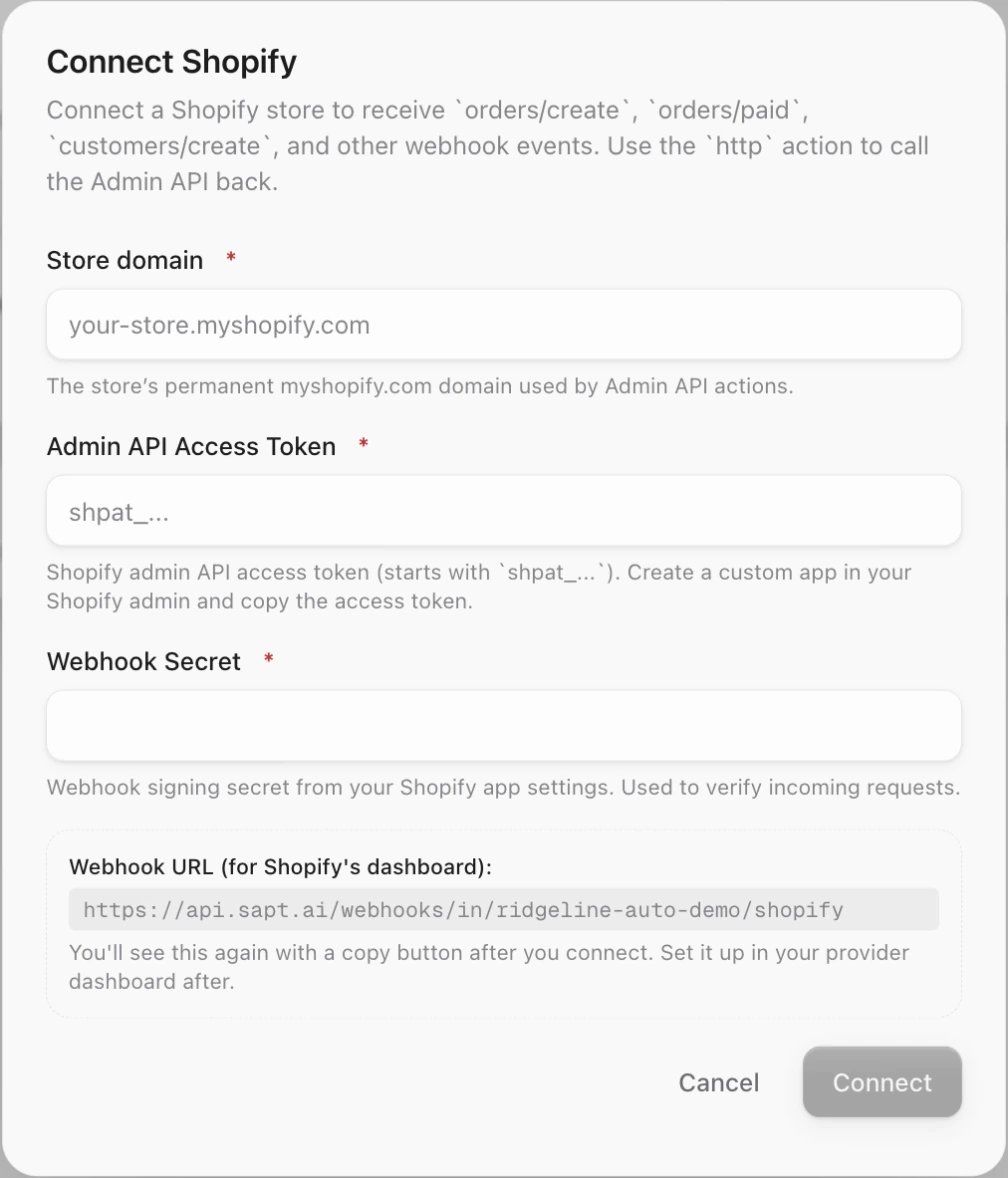
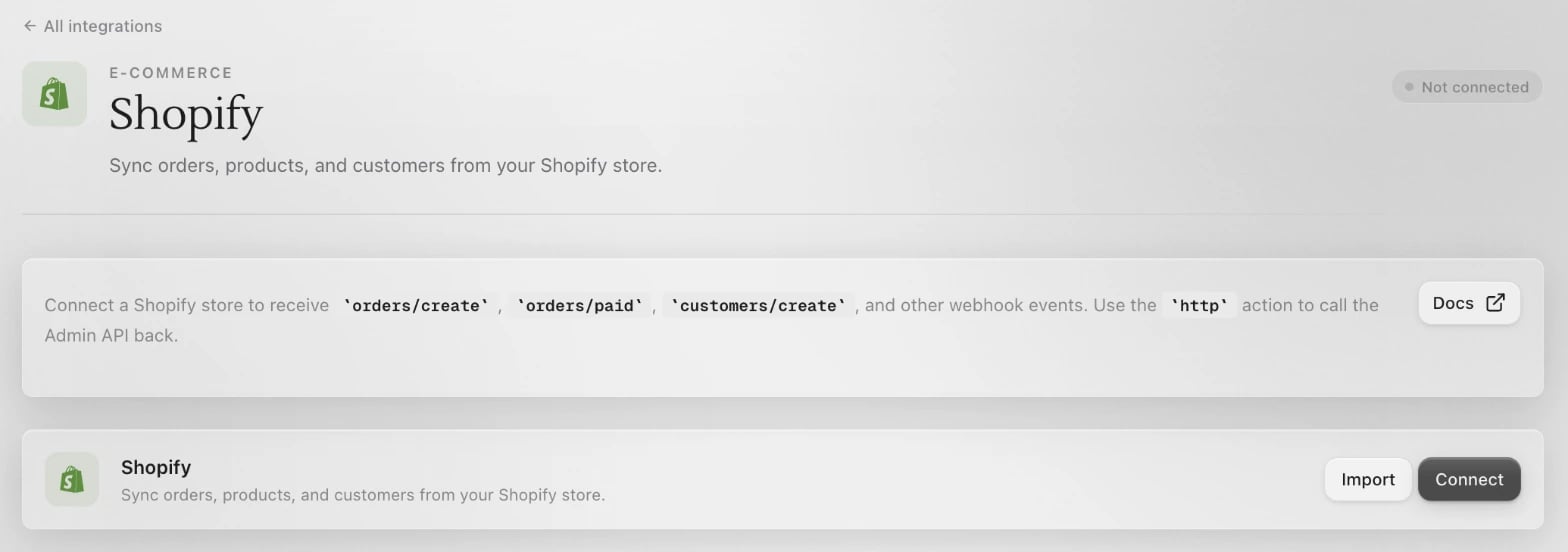 Click **Connect** on the Shopify page. At the bottom of the **Connect Shopify** box, under **Webhook URL (for Shopify's dashboard)**, copy the address.
 In your Shopify admin, go to **Settings** > **Notifications** and click **Webhooks**. Then:
1. Click **Create webhook**.
2. For **Event**, choose **Order creation**.
3. For **Format**, choose **JSON**.
4. Paste the Sapt address into **URL**.
5. Pick a **Webhook API version** and click **Save**.
Do the same for **Order payment**. If you want order changes and shipping updates in Sapt too, add webhooks for those events the same way. Shopify's steps are in its [webhooks guide](https://help.shopify.com/en/manual/fulfillment/setup/notifications/webhooks).
Shopify signs these webhooks with a key that is unique to your store. Copy the key Shopify shows with your webhooks.
Use the token you saved when you first revealed it. Your custom app is under **Settings** > **Apps** > **Develop apps** in your Shopify admin.
If you lost the token, Shopify's fix is to uninstall and reinstall the app, which also removes that app's webhooks. Shopify explains this in its [custom app guide](https://help.shopify.com/en/manual/apps/install-setup-apps).
In the **Connect Shopify** box, fill in:
* **Store domain**, like `ridgeline-auto.myshopify.com`
* **Admin API Access Token**
* **Webhook Secret**, the signing key from Shopify
Click **Connect**. Sapt shows the webhook address again. You already added it, so click **Done**.
## What Sapt does and does not do
* Sapt sees orders from the moment your webhooks are on. It does not bring in older orders.
* Connecting does not make the webhooks in Shopify. You add them yourself.
* Sapt adds a contact for each buyer in your order webhooks. It does not copy your whole customer list.
* Sapt uses your access token only in workflow steps you add, like **Manage a Shopify order**. It never changes your store on its own.
## Disconnect
On the Shopify page in Sapt, open the **...** menu on the Shopify card and choose **Disconnect**. Then delete the Sapt webhooks in Shopify under **Settings** > **Notifications** > **Webhooks**.
## Keep going
See each buyer's orders on their contact.
Start a workflow when an order comes in.
See what else you can connect.
This documentation is built and hosted on [Mintlify](https://mintlify.com), a developer documentation platform.
In your Shopify admin, go to **Settings** > **Notifications** and click **Webhooks**. Then:
1. Click **Create webhook**.
2. For **Event**, choose **Order creation**.
3. For **Format**, choose **JSON**.
4. Paste the Sapt address into **URL**.
5. Pick a **Webhook API version** and click **Save**.
Do the same for **Order payment**. If you want order changes and shipping updates in Sapt too, add webhooks for those events the same way. Shopify's steps are in its [webhooks guide](https://help.shopify.com/en/manual/fulfillment/setup/notifications/webhooks).
Shopify signs these webhooks with a key that is unique to your store. Copy the key Shopify shows with your webhooks.
Use the token you saved when you first revealed it. Your custom app is under **Settings** > **Apps** > **Develop apps** in your Shopify admin.
If you lost the token, Shopify's fix is to uninstall and reinstall the app, which also removes that app's webhooks. Shopify explains this in its [custom app guide](https://help.shopify.com/en/manual/apps/install-setup-apps).
In the **Connect Shopify** box, fill in:
* **Store domain**, like `ridgeline-auto.myshopify.com`
* **Admin API Access Token**
* **Webhook Secret**, the signing key from Shopify
Click **Connect**. Sapt shows the webhook address again. You already added it, so click **Done**.
## What Sapt does and does not do
* Sapt sees orders from the moment your webhooks are on. It does not bring in older orders.
* Connecting does not make the webhooks in Shopify. You add them yourself.
* Sapt adds a contact for each buyer in your order webhooks. It does not copy your whole customer list.
* Sapt uses your access token only in workflow steps you add, like **Manage a Shopify order**. It never changes your store on its own.
## Disconnect
On the Shopify page in Sapt, open the **...** menu on the Shopify card and choose **Disconnect**. Then delete the Sapt webhooks in Shopify under **Settings** > **Notifications** > **Webhooks**.
## Keep going
See each buyer's orders on their contact.
Start a workflow when an order comes in.
See what else you can connect.
This documentation is built and hosted on [Mintlify](https://mintlify.com), a developer documentation platform.