> ## Documentation Index
> Fetch the complete documentation index at: https://docs.sapt.ai/llms.txt
> Use this file to discover all available pages before exploring further.
# Connect Slack
> Connect Slack so your Sapt workflows can post to your team's channels, like a new lead or a booked job, with the Send a Slack message step.
Connect Slack and your [workflows](/docs/mintlify/automations/workflows) can post to your team's channels, for example when a new lead comes in.
## What you get
* The **Send a Slack message** workflow step. It posts to the channel you pick, with details like the customer's name filled in.
Sapt only posts. It does not read your Slack messages.
## Before you start
* A Slack workspace where you can add apps. By default any member can. If your workspace needs approval, ask a Workspace Owner. [Slack's guide](https://slack.com/help/articles/202035138-Add-apps-to-your-Slack-workspace).
## Connect Slack
In Sapt on the web, open **Project Settings**, then **Connected apps**. Under **Other**, find **Slack** and click **Connect**.
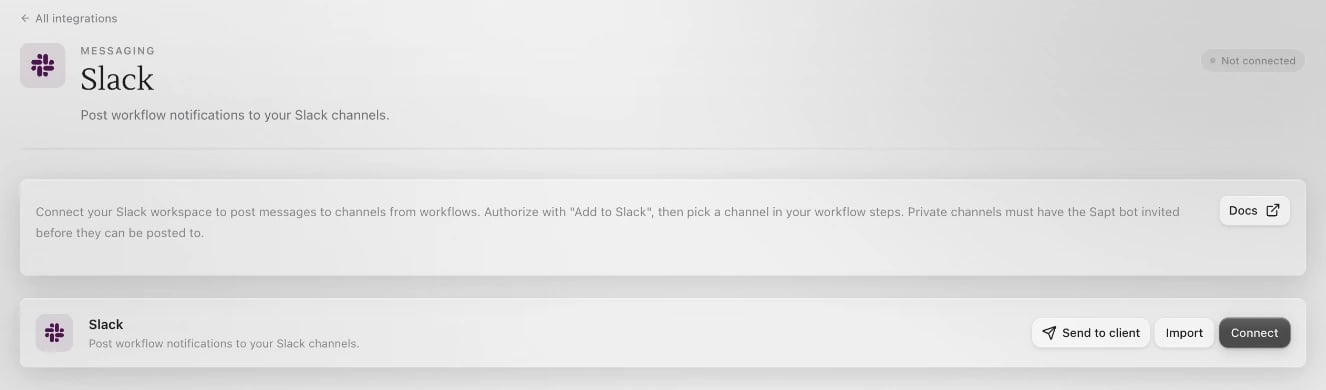 Click **Connect** on the Slack page. Slack opens in a new window. Pick your workspace and allow access.
Back in Sapt, your workspace's channels are listed under **Connected accounts**.
## Post from a workflow
Open a workflow, click **Add step** and choose **Send a Slack message**.
If Slack is not connected yet, the step says **No Slack channel connected** and shows only **Message**. **Connect Slack** takes you to your connected apps.
Click **Connect** on the Slack page. Slack opens in a new window. Pick your workspace and allow access.
Back in Sapt, your workspace's channels are listed under **Connected accounts**.
## Post from a workflow
Open a workflow, click **Add step** and choose **Send a Slack message**.
If Slack is not connected yet, the step says **No Slack channel connected** and shows only **Message**. **Connect Slack** takes you to your connected apps.
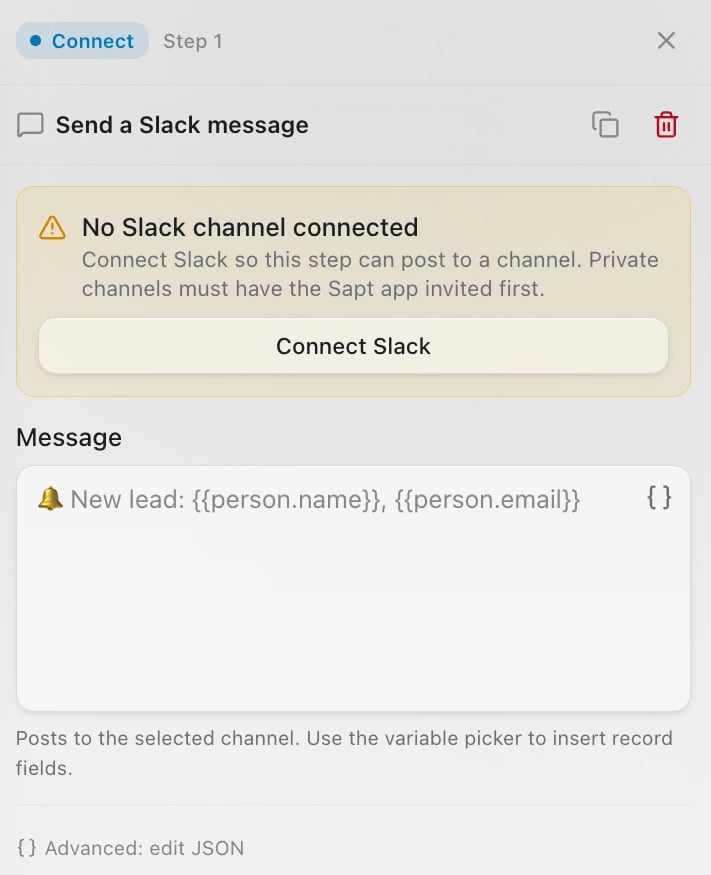 Once Slack is connected, a **Channel** box appears above **Message**. Choose the channel. Write the **Message**, and use the variable picker to add details like the customer's name. For example: "New lead: Maya Chen, (937) 555-0123".
Click **Save changes**, or **Create workflow** if it is new. From now on the step posts each time the workflow runs.
## Private channels
Sapt can post to any public channel. For a private channel, add Sapt to it first: in the channel, type `/invite @Sapt`, or click the channel name and add Sapt on the **Agents & apps** tab. [Slack's guide](https://slack.com/help/articles/360001537467-Guide-to-apps-in-Slack). Then click **Refresh accounts** on the Slack page in Sapt so the channel shows up.
## Disconnect
On the Slack page in Sapt, open the **...** menu and click **Disconnect**. Sapt signs itself out of your workspace, and **Send a Slack message** steps stop posting.
To hide one channel instead, click **Remove** next to it under **Connected accounts**.
## Keep going
This documentation is built and hosted on [Mintlify](https://mintlify.com), a developer documentation platform.
Once Slack is connected, a **Channel** box appears above **Message**. Choose the channel. Write the **Message**, and use the variable picker to add details like the customer's name. For example: "New lead: Maya Chen, (937) 555-0123".
Click **Save changes**, or **Create workflow** if it is new. From now on the step posts each time the workflow runs.
## Private channels
Sapt can post to any public channel. For a private channel, add Sapt to it first: in the channel, type `/invite @Sapt`, or click the channel name and add Sapt on the **Agents & apps** tab. [Slack's guide](https://slack.com/help/articles/360001537467-Guide-to-apps-in-Slack). Then click **Refresh accounts** on the Slack page in Sapt so the channel shows up.
## Disconnect
On the Slack page in Sapt, open the **...** menu and click **Disconnect**. Sapt signs itself out of your workspace, and **Send a Slack message** steps stop posting.
To hide one channel instead, click **Remove** next to it under **Connected accounts**.
## Keep going
This documentation is built and hosted on [Mintlify](https://mintlify.com), a developer documentation platform.