> ## Documentation Index
> Fetch the complete documentation index at: https://docs.sapt.ai/llms.txt
> Use this file to discover all available pages before exploring further.
# Connect Stripe
> Connect your Stripe account to see payments, customers and subscriptions in Sapt, send invoices, and start workflows when a payment comes in.
Connect Stripe and your payments, customers and subscriptions show up in Sapt, linked to your contacts. It takes about 10 minutes.
## What you get
* A Stripe page in Sapt with **Overview**, **Customers**, **Subscriptions**, **Invoices**, **Discounts & products** and **Activity**.
* Money in for the period, your top customers and recent payments, on **Overview**.
* Work you can do from Sapt: **New invoice**, **New subscription**, **New product** and **New discount**. You can also void an invoice, cancel a subscription and archive a product.
* Payments and invoices Stripe sends land on the matching contact in your CRM. If the payer is new, Sapt adds them.
* Workflows that start on a payment. Pick the **Stripe payment or invoice** trigger and choose **Invoice paid**, **Payment succeeded**, **Checkout completed**, **Invoice payment failed**, **Invoice voided** or **Invoice marked uncollectible**.
* Weekly workflows per subscriber, with the **Stripe: fan out subscription cycles** step and the **Stripe subscription week** trigger.
## Before you start
* Access to your Stripe Dashboard, where you can make API keys and webhooks.
* This is your own Stripe account. It has nothing to do with how you pay Sapt.
## Connect Stripe
In Sapt, open **Project Settings** and then **Connected apps**. Find **Stripe** under **Money** and click **Connect**.
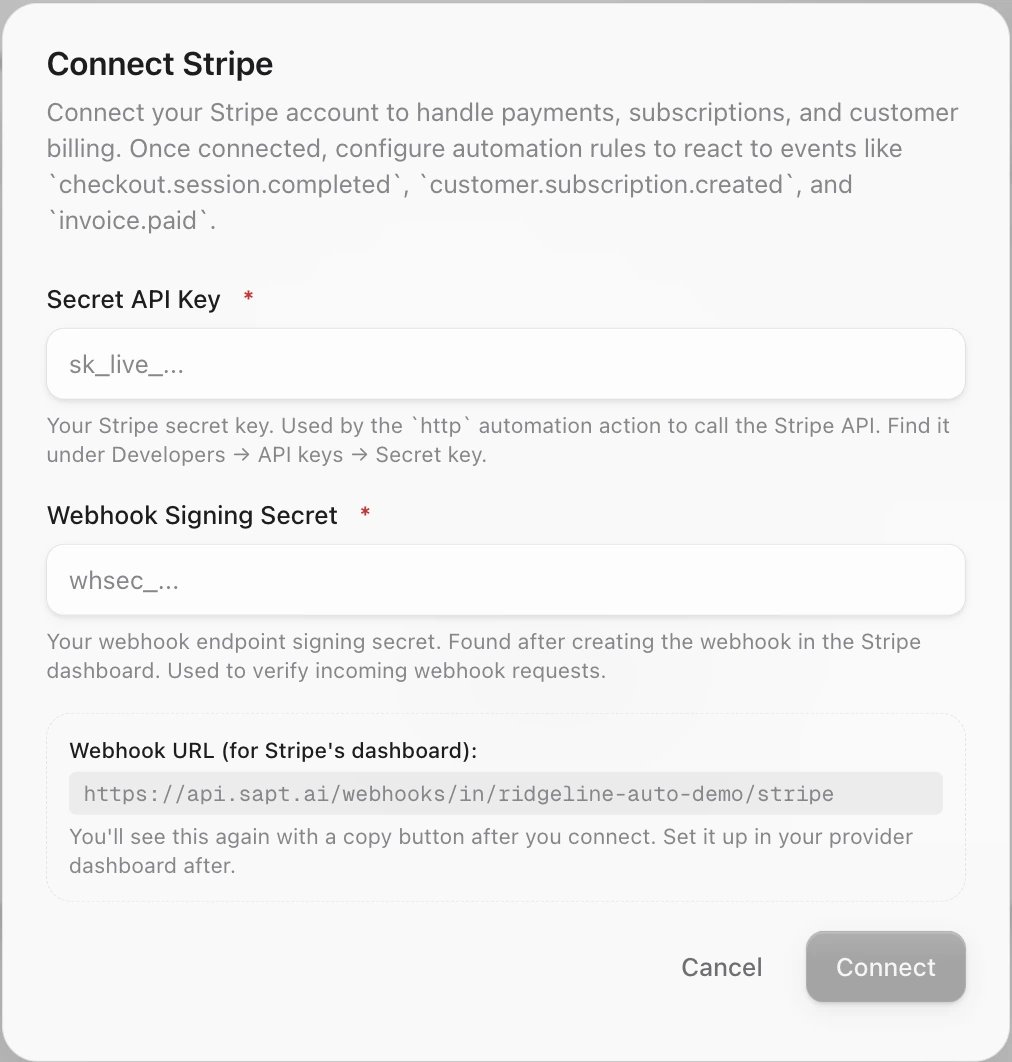
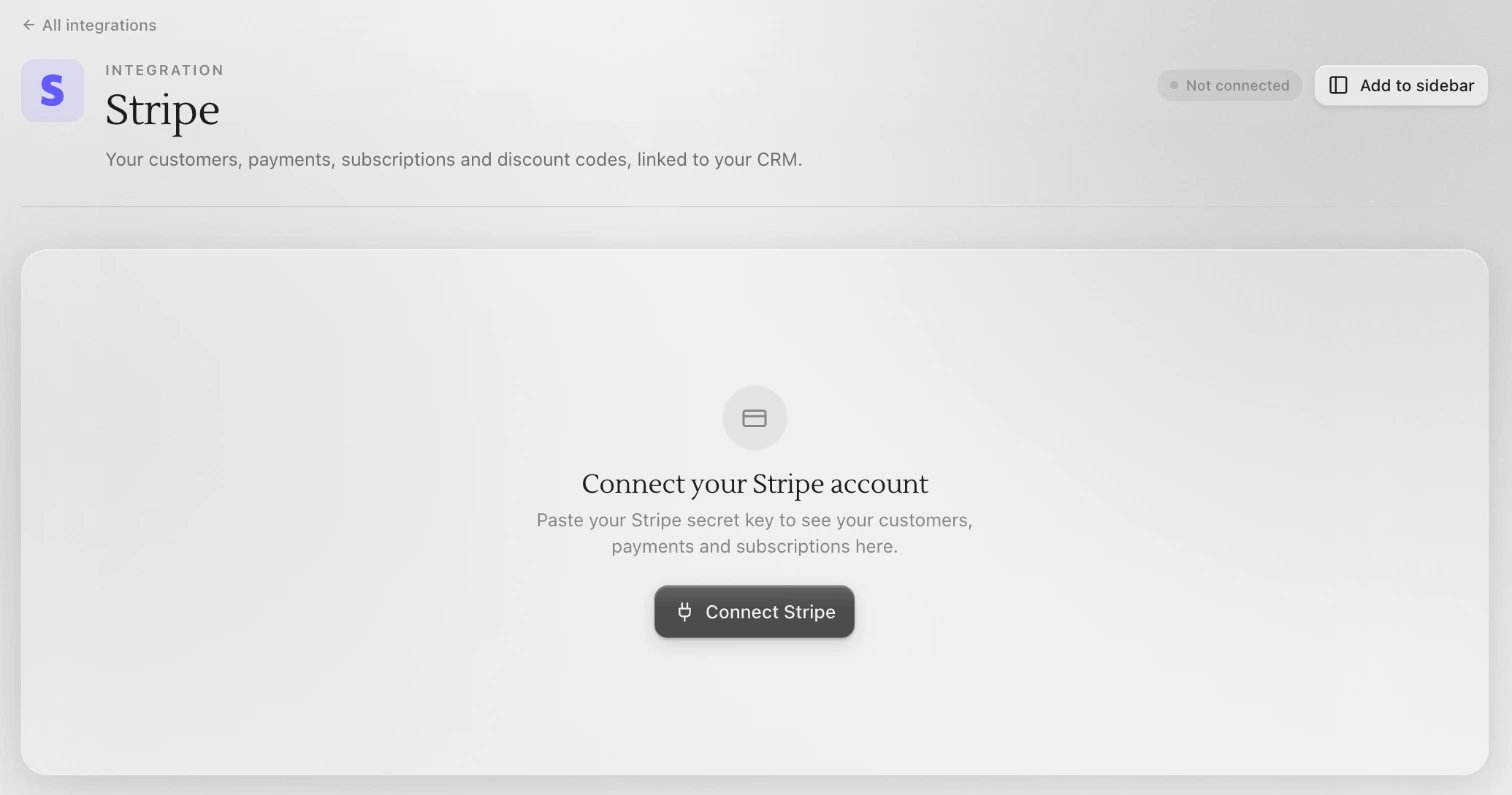 Under **Connect your Stripe account**, click **Connect Stripe**. At the bottom of the **Connect Stripe** box, under **Webhook URL (for Stripe's dashboard)**, copy the address. You paste it into Stripe in a moment.
 Stripe recommends a restricted key, which can do only what you allow. Sapt works with one. On Stripe's [API keys](https://dashboard.stripe.com/apikeys) page, click **Create restricted key** and name it **Sapt**.
Set **Read** on what you want to see in Sapt: your balance, customers, payments (charges), Checkout Sessions, invoices, subscriptions, products and prices, coupons and promotion codes. Set **Write** on what you want to do from Sapt, like customers, invoices, subscriptions, products, prices, coupons and promotion codes. Then click **Create key** and copy it. Stripe shows it only once.
Stripe walks through this in its [restricted keys guide](https://docs.stripe.com/keys/restricted-api-keys).
Sapt reads your balance every time you open the Stripe page. If the key cannot read it, the page says **Couldn't reach Stripe**. A full secret key (it starts with `sk_live_`) also works, but it can do anything in your Stripe account.
Open the [Webhooks](https://dashboard.stripe.com/webhooks) tab in Stripe Workbench and click **Create an event destination**. Then:
1. Select **Your account**.
2. For the payload, choose **Snapshot**, not Thin. Sapt reads the full event.
3. Select these events:
* `invoice.paid`
* `payment_intent.succeeded`
* `checkout.session.completed`
* `invoice.payment_failed`
* `invoice.voided`
* `invoice.marked_uncollectible`
* `customer.subscription.created`
* `customer.subscription.updated`
* `customer.subscription.deleted`
4. Select **Continue**, then **Webhook endpoint**, then **Continue**.
5. Paste the Sapt address into **Endpoint URL** and save the destination.
On the destination's page, click **Reveal secret** and copy the signing secret. It starts with `whsec_`. Stripe's steps are in its [webhooks guide](https://docs.stripe.com/webhooks).
In the **Connect Stripe** box, paste the key into **Secret API Key** and the signing secret into **Webhook Signing Secret**. Click **Connect**.
Sapt shows the webhook address again with a copy button. You already added it, so click **Done**.
Open the **Activity** view. The line at the top says when Stripe's last event arrived, and **What Stripe sent** lists each event with its customer and amount. It stays empty until Stripe sends the first one.
If you used test keys, the page shows **Test mode**.
## What Sapt does and does not do
* Sapt reads from Stripe when you open the Stripe page.
* Sapt changes something in Stripe only when you do it from Sapt, or when a workflow step you added does it.
* Connecting does not make the webhook in Stripe. You add it yourself. Until you do, Stripe workflows never start and **Activity** says **No events received yet**.
* **Activity** hides routine events by default. Turn on **Show routine events** to see everything.
## Disconnect
The Stripe page has no Disconnect button yet. To stop Sapt from using your Stripe account:
1. On Stripe's [API keys](https://dashboard.stripe.com/apikeys) page, open the **...** menu next to the Sapt key and choose **Expire key**.
2. On Stripe's [Webhooks](https://dashboard.stripe.com/webhooks) tab, delete the Sapt event destination.
Then ask the Sapt team to remove the saved key from your project.
## Keep going
Start a workflow when a payment comes in.
See each payer's payments on their contact.
See what else you can connect.
This documentation is built and hosted on [Mintlify](https://mintlify.com), a developer documentation platform.
Stripe recommends a restricted key, which can do only what you allow. Sapt works with one. On Stripe's [API keys](https://dashboard.stripe.com/apikeys) page, click **Create restricted key** and name it **Sapt**.
Set **Read** on what you want to see in Sapt: your balance, customers, payments (charges), Checkout Sessions, invoices, subscriptions, products and prices, coupons and promotion codes. Set **Write** on what you want to do from Sapt, like customers, invoices, subscriptions, products, prices, coupons and promotion codes. Then click **Create key** and copy it. Stripe shows it only once.
Stripe walks through this in its [restricted keys guide](https://docs.stripe.com/keys/restricted-api-keys).
Sapt reads your balance every time you open the Stripe page. If the key cannot read it, the page says **Couldn't reach Stripe**. A full secret key (it starts with `sk_live_`) also works, but it can do anything in your Stripe account.
Open the [Webhooks](https://dashboard.stripe.com/webhooks) tab in Stripe Workbench and click **Create an event destination**. Then:
1. Select **Your account**.
2. For the payload, choose **Snapshot**, not Thin. Sapt reads the full event.
3. Select these events:
* `invoice.paid`
* `payment_intent.succeeded`
* `checkout.session.completed`
* `invoice.payment_failed`
* `invoice.voided`
* `invoice.marked_uncollectible`
* `customer.subscription.created`
* `customer.subscription.updated`
* `customer.subscription.deleted`
4. Select **Continue**, then **Webhook endpoint**, then **Continue**.
5. Paste the Sapt address into **Endpoint URL** and save the destination.
On the destination's page, click **Reveal secret** and copy the signing secret. It starts with `whsec_`. Stripe's steps are in its [webhooks guide](https://docs.stripe.com/webhooks).
In the **Connect Stripe** box, paste the key into **Secret API Key** and the signing secret into **Webhook Signing Secret**. Click **Connect**.
Sapt shows the webhook address again with a copy button. You already added it, so click **Done**.
Open the **Activity** view. The line at the top says when Stripe's last event arrived, and **What Stripe sent** lists each event with its customer and amount. It stays empty until Stripe sends the first one.
If you used test keys, the page shows **Test mode**.
## What Sapt does and does not do
* Sapt reads from Stripe when you open the Stripe page.
* Sapt changes something in Stripe only when you do it from Sapt, or when a workflow step you added does it.
* Connecting does not make the webhook in Stripe. You add it yourself. Until you do, Stripe workflows never start and **Activity** says **No events received yet**.
* **Activity** hides routine events by default. Turn on **Show routine events** to see everything.
## Disconnect
The Stripe page has no Disconnect button yet. To stop Sapt from using your Stripe account:
1. On Stripe's [API keys](https://dashboard.stripe.com/apikeys) page, open the **...** menu next to the Sapt key and choose **Expire key**.
2. On Stripe's [Webhooks](https://dashboard.stripe.com/webhooks) tab, delete the Sapt event destination.
Then ask the Sapt team to remove the saved key from your project.
## Keep going
Start a workflow when a payment comes in.
See each payer's payments on their contact.
See what else you can connect.
This documentation is built and hosted on [Mintlify](https://mintlify.com), a developer documentation platform.