> ## Documentation Index
> Fetch the complete documentation index at: https://docs.sapt.ai/llms.txt
> Use this file to discover all available pages before exploring further.
# Use your own Telnyx account
> Most shops use a number Sapt sets up. If your number already lives in your own Telnyx account, connect it so Sapt can text and answer calls on it.
Sapt texts and takes calls on your number through Telnyx, a phone company.
## Do you need this?
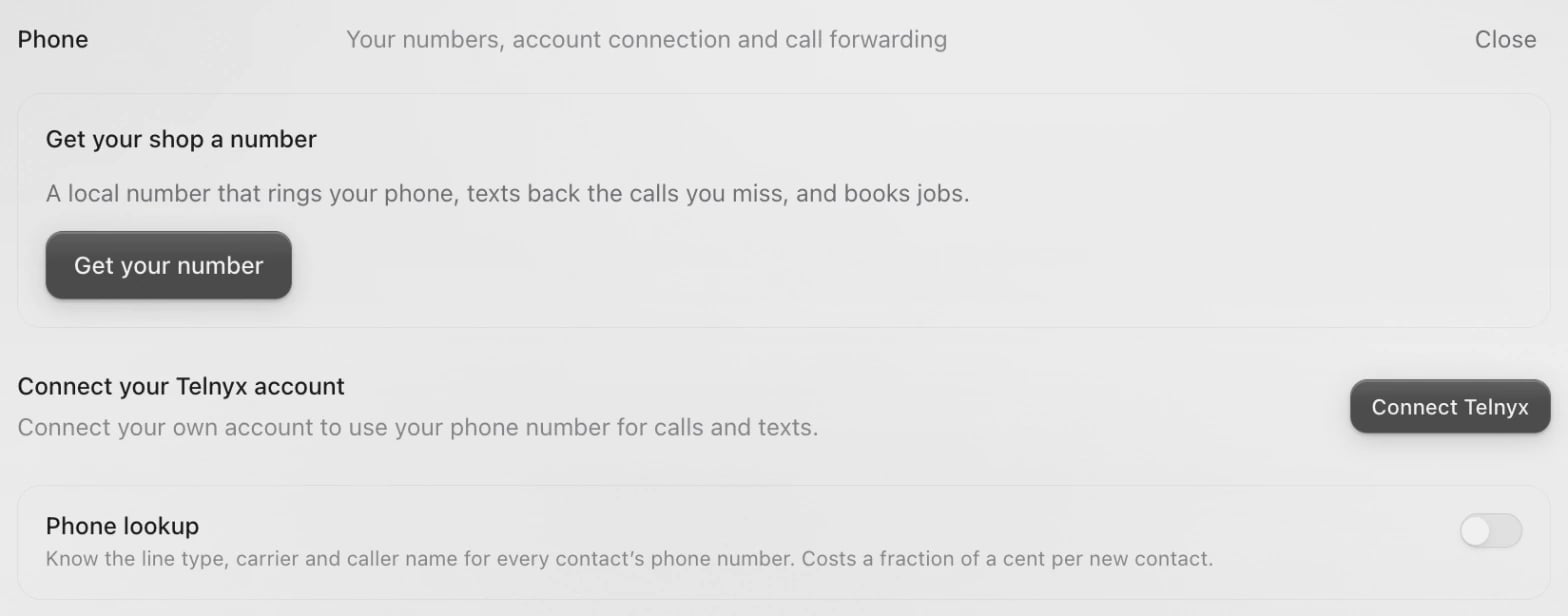
Most shops do not. Sapt can give your shop a local number in a few minutes and run it for you: open **Project Settings**, then **Phone**, and click **Get your number**. See [Get your number](/docs/mintlify/owners/get-started#your-number). A number Sapt runs shows as **Sapt managed**, with nothing to set up.
This page is for a shop whose number already lives in its own Telnyx account.
## What you get
* Texts and calls on your own Telnyx number, in your [Inbox](/docs/mintlify/leads/inbox).
* [Missed-call text back](/docs/mintlify/leads/missed-call-text-back) and your AI front desk on that number.
* The texting registration your number already has in Telnyx, read straight from your account.
Telnyx bills your account for phone service. AI replies use your Sapt credits.
## Before you start
* Your login for the Telnyx portal, with your number on the account.
* Permission to manage integrations in Sapt. If you do not have it, Sapt says to ask a project admin.
When you connect, Sapt makes a messaging profile in Telnyx named after your project, ending in "via Sapt", and moves every number on that Telnyx account onto it. Use a Telnyx account that only holds numbers you want on Sapt.
## Get your keys from Telnyx
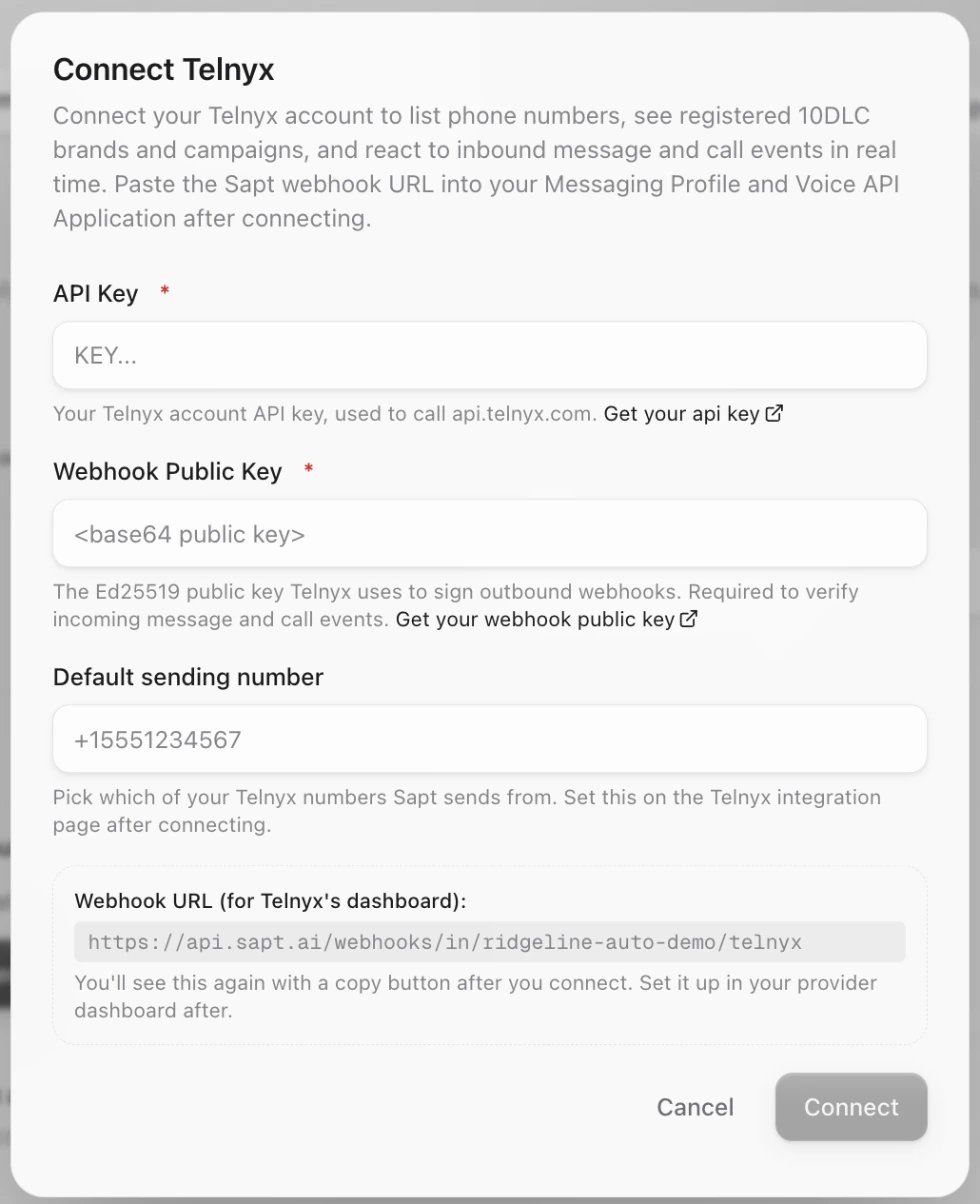
In the [Telnyx portal](https://portal.telnyx.com/), click your account icon at the top right, then **Account Settings**, then **API Keys**. Click **Create API Key** and copy it. Telnyx shows it only once. [Telnyx's guide](https://support.telnyx.com/en/articles/4305158-api-keys-and-how-to-use-them).
In **Account Settings**, open **Keys & Credentials**, then the **Public Key** tab, and copy the key. Sapt uses it to check that messages really come from Telnyx. [Telnyx's guide](https://support.telnyx.com/en/articles/4334722-how-to-leverage-webhooks).
## Connect Telnyx in Sapt
In Sapt on the web, open **Project Settings**, then **Phone**. Under **Connect your Telnyx account**, click **Connect Telnyx**. Choosing **Telnyx** in **Connected apps** opens the same place.
 Paste the API key into **API Key** and the public key into **Webhook Public Key**. You can leave **Default sending number** empty. Click **Connect**.
 Sapt then shows a webhook URL. You do not need to paste it anywhere: Sapt points your messaging profile at it for you. Click **Done**.
If your Telnyx account has more than one number, find the one this shop texts from under **Your numbers** and click **Text from this one**. With one number, skip this step.
Click **Set up or repair calls and texts**. Sapt checks four things and marks each one: **Project number**, **Sending number**, **Incoming text routing** and **Calling connection**. Then call your number once and answer, and once more and let it ring out, to test both.
## What Sapt sets up for you
* The messaging profile in your Telnyx account that sends texts to Sapt.
* Your chosen number as the number Sapt texts from.
* The connection that sends calls on your number to Sapt, so Sapt can text back the calls you miss.
* If your number already has a texting registration in Telnyx, Sapt finds it and shows its status.
## Texting registration
US carriers want to know who is behind a number before they deliver its texts. This is called 10DLC registration. [Telnyx explains it](https://support.telnyx.com/en/articles/3679260-frequently-asked-questions-about-10dlc).
Look under **Texting registration** on the **Phone** page:
* **Already registered in Telnyx:** Sapt shows what the carriers said. There is nothing to do.
* **Not registered yet:** click **Register my business** and fill in your details. A person at Sapt checks them and sends them to the carriers, usually within a day. Carriers usually approve within a few days.
## Disconnect
Sapt has no Disconnect button for Telnyx yet. To stop Sapt using your account, turn off the API key you made for Sapt under **API Keys** in Telnyx, then message us from **Support** in Sapt. Your numbers stay on the "via Sapt" messaging profile until you move them in Telnyx.
## Keep going
This documentation is built and hosted on [Mintlify](https://mintlify.com), a developer documentation platform.
Sapt then shows a webhook URL. You do not need to paste it anywhere: Sapt points your messaging profile at it for you. Click **Done**.
If your Telnyx account has more than one number, find the one this shop texts from under **Your numbers** and click **Text from this one**. With one number, skip this step.
Click **Set up or repair calls and texts**. Sapt checks four things and marks each one: **Project number**, **Sending number**, **Incoming text routing** and **Calling connection**. Then call your number once and answer, and once more and let it ring out, to test both.
## What Sapt sets up for you
* The messaging profile in your Telnyx account that sends texts to Sapt.
* Your chosen number as the number Sapt texts from.
* The connection that sends calls on your number to Sapt, so Sapt can text back the calls you miss.
* If your number already has a texting registration in Telnyx, Sapt finds it and shows its status.
## Texting registration
US carriers want to know who is behind a number before they deliver its texts. This is called 10DLC registration. [Telnyx explains it](https://support.telnyx.com/en/articles/3679260-frequently-asked-questions-about-10dlc).
Look under **Texting registration** on the **Phone** page:
* **Already registered in Telnyx:** Sapt shows what the carriers said. There is nothing to do.
* **Not registered yet:** click **Register my business** and fill in your details. A person at Sapt checks them and sends them to the carriers, usually within a day. Carriers usually approve within a few days.
## Disconnect
Sapt has no Disconnect button for Telnyx yet. To stop Sapt using your account, turn off the API key you made for Sapt under **API Keys** in Telnyx, then message us from **Support** in Sapt. Your numbers stay on the "via Sapt" messaging profile until you move them in Telnyx.
## Keep going
This documentation is built and hosted on [Mintlify](https://mintlify.com), a developer documentation platform.