> ## Documentation Index
> Fetch the complete documentation index at: https://docs.sapt.ai/llms.txt
> Use this file to discover all available pages before exploring further.
# Connect TikTok Ads
> Connect TikTok Ads Manager to see your TikTok ad spend and campaign results on Performance, next to your other channels. Sapt only reads your reports.
Connect TikTok Ads and your TikTok ad spend shows up on **Performance**, next to Google, Meta and your other channels.
This page is about ads. To post videos to your TikTok account, connect [TikTok](/docs/mintlify/integrations/tiktok).
## What you get
* Your TikTok ad spend and campaign results on **Performance**.
* Each advertiser account your login can reach, listed in Sapt.
## Before you start
* A TikTok Ads Manager login that can see your ad account's reports. [TikTok's account roles](https://ads.tiktok.com/resources/help/article/about-assets-and-asset-level-permissions).
## Connect TikTok Ads
In Sapt on the web, open **Project Settings**, then **Connected apps**. Under **Marketing**, find **TikTok Ads** and click **Connect**.
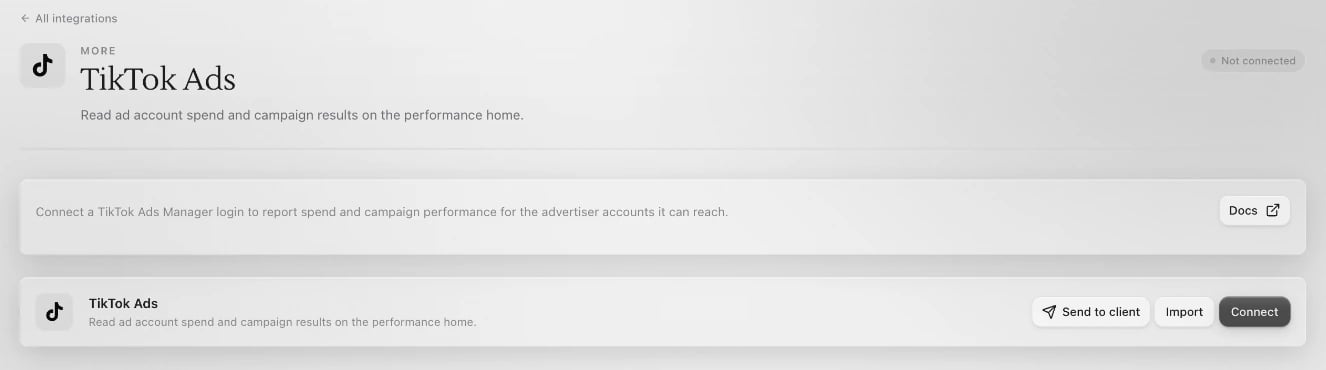 Click **Connect** on the TikTok Ads page. TikTok opens in a new window. Sign in with the login that sees your ad account and approve access.
Back in Sapt, your advertiser accounts are listed under **Connected accounts**.
If someone sent you a Sapt setup link, its **Connect TikTok** step under ads does the same thing.
## Choose the account Performance reports on
* **One advertiser account:** Sapt reports on it on its own. Nothing to do.
* **More than one:** **Performance** shows "Choose the TikTok Ads account to report on". Sapt has no picker for TikTok accounts yet. Click **Remove** next to each account you do not want under **Connected accounts**. Once one is left, Sapt reports on that one.
## What Sapt does and does not do
* Sapt only reads your reports. It never creates, pauses or edits TikTok campaigns, and never touches your budgets.
* Removing an advertiser account in Sapt only hides it in Sapt. Nothing changes in TikTok.
## Disconnect
On the TikTok Ads page in Sapt, open the **...** menu and click **Disconnect all**. **Performance** stops showing your TikTok spend.
## Keep going
This documentation is built and hosted on [Mintlify](https://mintlify.com), a developer documentation platform.
Click **Connect** on the TikTok Ads page. TikTok opens in a new window. Sign in with the login that sees your ad account and approve access.
Back in Sapt, your advertiser accounts are listed under **Connected accounts**.
If someone sent you a Sapt setup link, its **Connect TikTok** step under ads does the same thing.
## Choose the account Performance reports on
* **One advertiser account:** Sapt reports on it on its own. Nothing to do.
* **More than one:** **Performance** shows "Choose the TikTok Ads account to report on". Sapt has no picker for TikTok accounts yet. Click **Remove** next to each account you do not want under **Connected accounts**. Once one is left, Sapt reports on that one.
## What Sapt does and does not do
* Sapt only reads your reports. It never creates, pauses or edits TikTok campaigns, and never touches your budgets.
* Removing an advertiser account in Sapt only hides it in Sapt. Nothing changes in TikTok.
## Disconnect
On the TikTok Ads page in Sapt, open the **...** menu and click **Disconnect all**. **Performance** stops showing your TikTok spend.
## Keep going
This documentation is built and hosted on [Mintlify](https://mintlify.com), a developer documentation platform.