> ## Documentation Index
> Fetch the complete documentation index at: https://docs.sapt.ai/llms.txt
> Use this file to discover all available pages before exploring further.
# Connect WhatsApp
> Connect your WhatsApp Business number so customer messages land in the Sapt Inbox, where you or your AI front desk can answer them.
Connect the WhatsApp number your customers message. Their messages land in your Inbox next to texts and calls, and you can answer from Sapt on the web or on your phone.
## What you get
* **WhatsApp in your Inbox.** Messages land in your [Inbox](/docs/mintlify/leads/inbox). To see only these, filter the Inbox to **WhatsApp**.
* **Your AI front desk can answer.** If exactly one [agent](/docs/mintlify/leads/ai-front-desk) answers your texts, Sapt puts the new number on that agent and tells you it now answers WhatsApp. Otherwise, pick an agent for the number on the **Agents** page.
* **Keep the app on your phone.** A number on the WhatsApp Business app keeps working there. When you connect, Sapt also brings in up to six months of your chats, marked done, so the past never looks like it is waiting on you.
## Before you start
* **A Facebook login.** During signup you choose your Meta business portfolio, or create one.
* **Your number, in one of two ways:**
* **On the WhatsApp Business app:** keep it there. Update the app first. Meta asks for version 2.24.17 or later. [Meta's requirements](https://developers.facebook.com/documentation/business-messaging/whatsapp/embedded-signup/onboarding-business-app-users).
* **Not on WhatsApp at all:** it must be able to get a text or a call, so Meta can check it is yours. [Meta's number rules](https://developers.facebook.com/documentation/business-messaging/whatsapp/business-phone-numbers/phone-numbers).
* **On regular WhatsApp?** Move the number to the WhatsApp Business app on your phone first. Your chats come with it.
* **Cost.** Meta bills your business for WhatsApp, not Sapt. Each number gets 1,000 free replies a month. [Meta's pricing](https://developers.facebook.com/docs/whatsapp/pricing).
## Connect WhatsApp
In Sapt on the web, open **Project Settings**, then **Connected apps**. Under **Other**, find **WhatsApp** and click **Connect**.
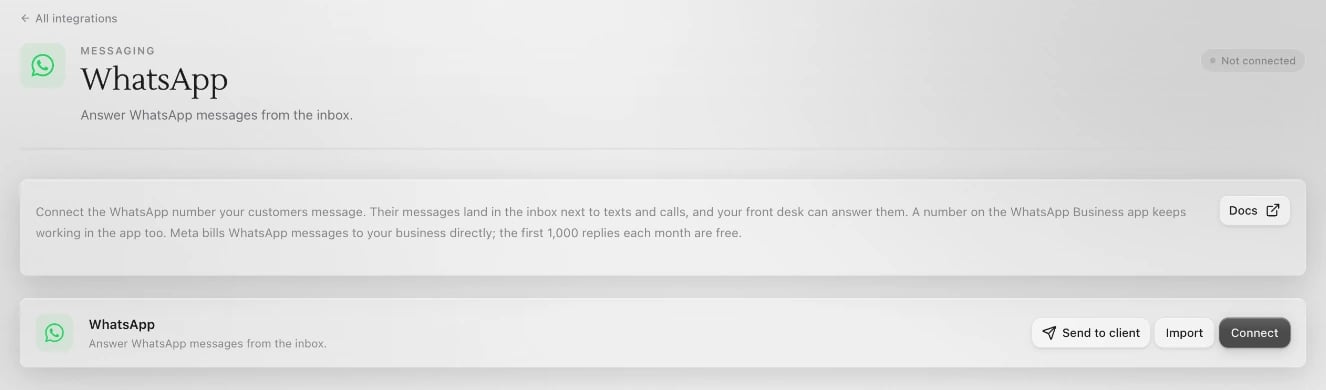 Click **Connect** on the WhatsApp page. A **Connect WhatsApp** window opens.
* Number on the WhatsApp Business app: click **Continue with Facebook**.
* Number not on WhatsApp: click **Use a number not on WhatsApp**.
Click **Connect** on the WhatsApp page. A **Connect WhatsApp** window opens.
* Number on the WhatsApp Business app: click **Continue with Facebook**.
* Number not on WhatsApp: click **Use a number not on WhatsApp**.
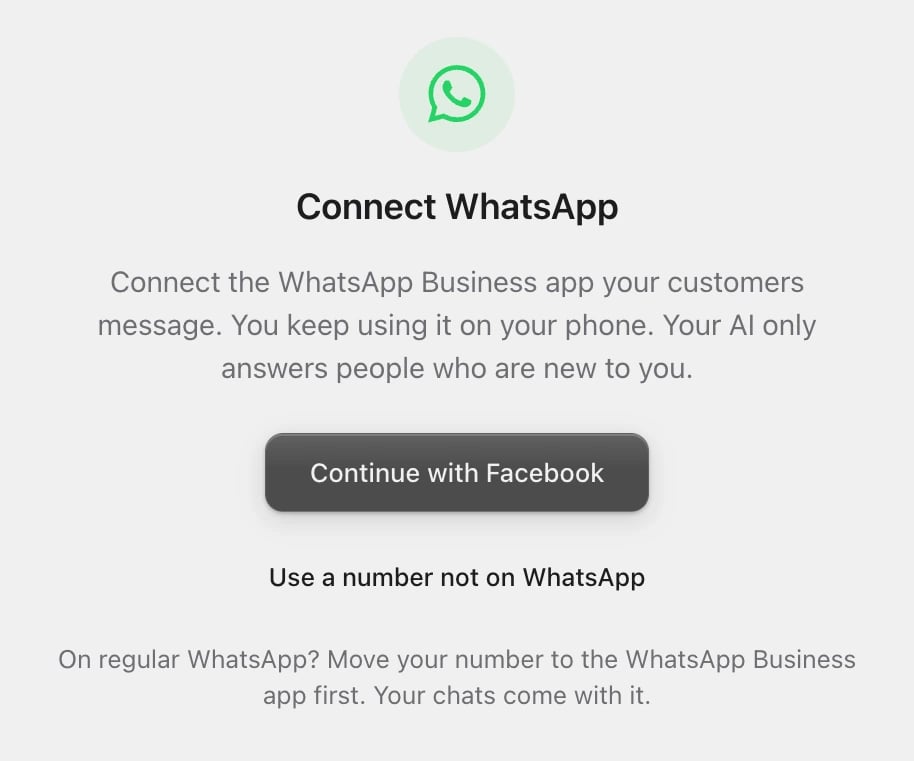 Follow the steps Meta shows: sign in to Facebook, choose your business portfolio, and choose or add your number.
Back in Sapt, your number is listed under **Connected accounts**. Each WhatsApp number is its own account, so you can connect more than one.
## Replies and the 24-hour window
* **The customer writes first.** Sapt cannot start a WhatsApp conversation.
* **You have 24 hours to reply** after their last message. That is Meta's rule. After that, the reply box reads **WhatsApp reply window closed**. [Meta's rule](https://developers.facebook.com/documentation/business-messaging/whatsapp/messages/send-messages).
* **Window closed?** Text them instead. If your number is on the WhatsApp Business app, you can still answer from the app on your phone.
## What Sapt does and does not do
* Sapt does not send WhatsApp templates or marketing messages.
* Chats Sapt brings in from the app never wake your AI or send you alerts.
* Group chats do not come into Sapt.
* To stop using one number, click **Remove** next to it under **Connected accounts**.
## If something looks wrong
The **Connect WhatsApp** window says what went wrong. The common ones:
* **"This number is not on WhatsApp Business yet."** Move it to the WhatsApp Business app on your phone, then try again.
* **"This number is connected to another service."** In WhatsApp Business, open **Settings**, then **Account**, then **Business Platform**, and disconnect it. Wait 15 minutes, then try again.
* **"Update WhatsApp Business on your phone."** Update the app, then try again.
* **"Facebook did not load."** Turn off your ad blocker for the page, or check your connection, and click **Try again**.
## Disconnect
On the WhatsApp page in Sapt, open the **...** menu and click **Disconnect all**. New WhatsApp messages stop coming into Sapt. Your past conversations stay in the Inbox.
## Keep going
This documentation is built and hosted on [Mintlify](https://mintlify.com), a developer documentation platform.
Follow the steps Meta shows: sign in to Facebook, choose your business portfolio, and choose or add your number.
Back in Sapt, your number is listed under **Connected accounts**. Each WhatsApp number is its own account, so you can connect more than one.
## Replies and the 24-hour window
* **The customer writes first.** Sapt cannot start a WhatsApp conversation.
* **You have 24 hours to reply** after their last message. That is Meta's rule. After that, the reply box reads **WhatsApp reply window closed**. [Meta's rule](https://developers.facebook.com/documentation/business-messaging/whatsapp/messages/send-messages).
* **Window closed?** Text them instead. If your number is on the WhatsApp Business app, you can still answer from the app on your phone.
## What Sapt does and does not do
* Sapt does not send WhatsApp templates or marketing messages.
* Chats Sapt brings in from the app never wake your AI or send you alerts.
* Group chats do not come into Sapt.
* To stop using one number, click **Remove** next to it under **Connected accounts**.
## If something looks wrong
The **Connect WhatsApp** window says what went wrong. The common ones:
* **"This number is not on WhatsApp Business yet."** Move it to the WhatsApp Business app on your phone, then try again.
* **"This number is connected to another service."** In WhatsApp Business, open **Settings**, then **Account**, then **Business Platform**, and disconnect it. Wait 15 minutes, then try again.
* **"Update WhatsApp Business on your phone."** Update the app, then try again.
* **"Facebook did not load."** Turn off your ad blocker for the page, or check your connection, and click **Try again**.
## Disconnect
On the WhatsApp page in Sapt, open the **...** menu and click **Disconnect all**. New WhatsApp messages stop coming into Sapt. Your past conversations stay in the Inbox.
## Keep going
This documentation is built and hosted on [Mintlify](https://mintlify.com), a developer documentation platform.