> ## Documentation Index
> Fetch the complete documentation index at: https://docs.sapt.ai/llms.txt
> Use this file to discover all available pages before exploring further.
# Connect YouTube
> Connect your YouTube channel to schedule and publish videos and Shorts from Sapt, see how your channel does, and answer comments on your videos.
Connect YouTube and you can post to your channel from the same place you plan the rest of your posts.
## What you get
* **Publish videos and Shorts**: now or on a schedule. A vertical video up to 3 minutes posts as a Short.
* **Your numbers**: how your channel and each video are doing.
* **Comments**: read and answer comments on your videos.
## Before you start
You need a YouTube channel and the Google account that owns or manages it. No channel yet? See Google's [Create a YouTube channel](https://support.google.com/youtube/answer/1646861).
## Connect YouTube
Click **Project Settings**, then **Connected apps**. Under **Google**, click **Connect** on YouTube. You can also click **Performance**, then **Social**, then **Connected accounts**, and click **Connect with Google** on YouTube.
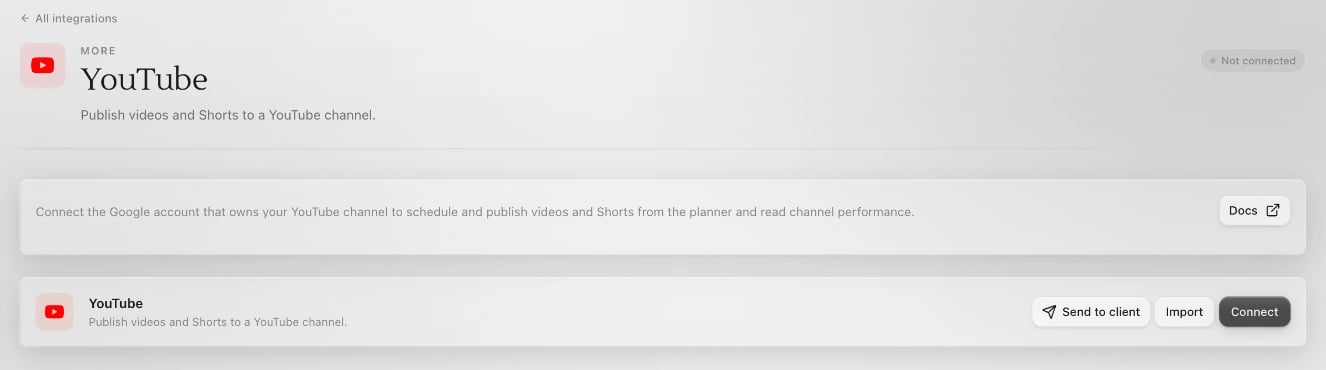 Click **Connect** on the YouTube page. A Google window opens. Pick the account, and if it has more than one channel, pick the one Sapt should post to.
Google asks to:
* **Manage your YouTube videos**, so Sapt can upload what you schedule.
* **View your YouTube account**, so Sapt can list your channel and videos.
* **See, edit, and permanently delete your YouTube videos, ratings, comments and captions**, so Sapt can read and answer comments.
* **View YouTube Analytics reports for your YouTube content**, for your numbers.
* Your name and email address, so Sapt knows which account is connected.
The window says **Account Connected** and closes.
More than one channel? Click **Add account** and connect each one the same way.
## What Sapt does and does not do
* It posts only what you publish or schedule.
* It answers a comment only when you or a workflow you set up does it.
* If you connected YouTube before comments came to Sapt, click **Reconnect** in the **...** menu to turn them on.
## Disconnect
In **Project Settings**, **Connected apps**, click **Configure** on YouTube. Open the **...** menu and click **Disconnect all**. Videos already on YouTube stay there.
## Keep going
Post to Facebook and Instagram too.
Post to TikTok from the same place.
This documentation is built and hosted on [Mintlify](https://mintlify.com), a developer documentation platform.
Click **Connect** on the YouTube page. A Google window opens. Pick the account, and if it has more than one channel, pick the one Sapt should post to.
Google asks to:
* **Manage your YouTube videos**, so Sapt can upload what you schedule.
* **View your YouTube account**, so Sapt can list your channel and videos.
* **See, edit, and permanently delete your YouTube videos, ratings, comments and captions**, so Sapt can read and answer comments.
* **View YouTube Analytics reports for your YouTube content**, for your numbers.
* Your name and email address, so Sapt knows which account is connected.
The window says **Account Connected** and closes.
More than one channel? Click **Add account** and connect each one the same way.
## What Sapt does and does not do
* It posts only what you publish or schedule.
* It answers a comment only when you or a workflow you set up does it.
* If you connected YouTube before comments came to Sapt, click **Reconnect** in the **...** menu to turn them on.
## Disconnect
In **Project Settings**, **Connected apps**, click **Configure** on YouTube. Open the **...** menu and click **Disconnect all**. Videos already on YouTube stay there.
## Keep going
Post to Facebook and Instagram too.
Post to TikTok from the same place.
This documentation is built and hosted on [Mintlify](https://mintlify.com), a developer documentation platform.