> ## Documentation Index
> Fetch the complete documentation index at: https://docs.sapt.ai/llms.txt
> Use this file to discover all available pages before exploring further.
# Connect Zoho Mail
> Import your Zoho Mail inboxes into Sapt with Zoho Admin, so Sapt can send outreach email from them and bring the replies back. US-hosted Zoho only.
Import your Zoho Mail inboxes once, and Sapt can send outreach email from them and bring the replies back into Sapt.
## What you get
* **Send from your own inboxes.** Sapt sends outreach email from the Zoho inboxes you import.
* **Replies come back.** Replies to that email land in Sapt. The rest of your mail stays in Zoho.
* **Sending settings.** The Zoho Mail page in Sapt also holds your **Outreach sending schedule**, **AI reply classifier**, **Sequence templates** and **Do-not-email list**.
## Before you start
* **A Zoho organization hosted in the US.** You sign in at accounts.zoho.com. Sapt cannot connect Zoho accounts in other data centers yet, like Europe, India or Australia. [Zoho's data centers](https://help.zoho.com/portal/en/kb/accounts/manage-your-zoho-account/articles/data-center-for-zoho-account).
* **A Zoho administrator login** for that organization, to connect Zoho Admin. [Zoho's admin roles](https://www.zoho.com/mail/help/adminconsole/roles-privileges.html).
* **The password for each inbox.** If an inbox has two-factor sign-in on, make an app password for it instead: at accounts.zoho.com, open **Security**, then **App passwords**, then **Generate New Password**. [Zoho's guide](https://www.zoho.com/mail/help/adminconsole/two-factor-authentication.html).
* **A Zoho Mail plan with IMAP.** Sapt turns IMAP on for each inbox when it imports it. Zoho's free plan does not include IMAP for new sign-ups. [Zoho's guide](https://www.zoho.com/mail/help/imap-access.html).
* **Permission to manage integrations** in Sapt.
## Import your inboxes
In Sapt on the web, open **Project Settings**, then **Connected apps**. Under **Other**, find **Zoho Mail** and click **Connect**. The **Import from Zoho Admin** panel is at the top of the Zoho Mail page.
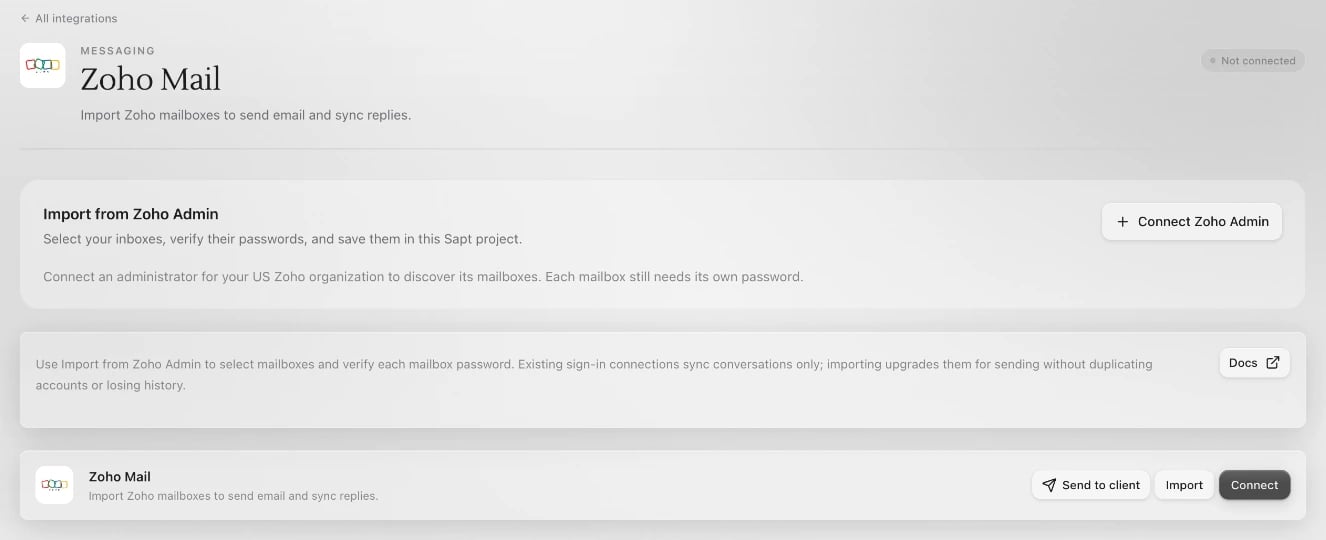 In **Import from Zoho Admin**, click **Connect Zoho Admin**, not the **Connect** button on the card below it. Zoho opens in a new window. Sign in as an administrator and approve access. Back in Sapt, your organization shows under **Zoho organization**.
Fill in **Sender name** and **Company**. They go into the signature on every email. Open **Sapt signature preview** to see it.
Tick each inbox you want. Type its password in the **Password** column. Where the inbox says **MFA on**, use its app password.
Click the import button. It shows how many inboxes you picked, like **Import 3 inboxes**. Sapt turns on IMAP where needed, checks each password with Zoho and saves the inbox. Each one reads **Sending ready** when it can send.
## Check an inbox
Each imported inbox has three buttons:
* **Test login** checks its password with Zoho. It does not send a test email.
* **Update password** takes you back to the import panel. Pick the inbox there and enter its new password. Its history stays.
* **Disconnect** stops sending and syncing for that one inbox. Its conversation history stays saved.
## What Sapt does and does not do
* Sapt brings in only replies to email it sent. It leaves your other mail in Zoho.
* Sapt keeps imported passwords encrypted. Passwords you type stay on the page for up to 15 minutes, until you import, leave the page or click **Clear passwords**.
* An inbox you connected earlier by signing in to Zoho only syncs conversations. Import it here to send from it too. Its history stays.
## Disconnect
* **One inbox:** click **Disconnect** next to it and confirm.
* **Everything:** on the Zoho Mail page, open the **...** menu and click **Disconnect all**.
## Keep going
This documentation is built and hosted on [Mintlify](https://mintlify.com), a developer documentation platform.
In **Import from Zoho Admin**, click **Connect Zoho Admin**, not the **Connect** button on the card below it. Zoho opens in a new window. Sign in as an administrator and approve access. Back in Sapt, your organization shows under **Zoho organization**.
Fill in **Sender name** and **Company**. They go into the signature on every email. Open **Sapt signature preview** to see it.
Tick each inbox you want. Type its password in the **Password** column. Where the inbox says **MFA on**, use its app password.
Click the import button. It shows how many inboxes you picked, like **Import 3 inboxes**. Sapt turns on IMAP where needed, checks each password with Zoho and saves the inbox. Each one reads **Sending ready** when it can send.
## Check an inbox
Each imported inbox has three buttons:
* **Test login** checks its password with Zoho. It does not send a test email.
* **Update password** takes you back to the import panel. Pick the inbox there and enter its new password. Its history stays.
* **Disconnect** stops sending and syncing for that one inbox. Its conversation history stays saved.
## What Sapt does and does not do
* Sapt brings in only replies to email it sent. It leaves your other mail in Zoho.
* Sapt keeps imported passwords encrypted. Passwords you type stay on the page for up to 15 minutes, until you import, leave the page or click **Clear passwords**.
* An inbox you connected earlier by signing in to Zoho only syncs conversations. Import it here to send from it too. Its history stays.
## Disconnect
* **One inbox:** click **Disconnect** next to it and confirm.
* **Everything:** on the Zoho Mail page, open the **...** menu and click **Disconnect all**.
## Keep going
This documentation is built and hosted on [Mintlify](https://mintlify.com), a developer documentation platform.