> ## Documentation Index
> Fetch the complete documentation index at: https://docs.sapt.ai/llms.txt
> Use this file to discover all available pages before exploring further.
# Get lead alerts on your phone
> Turn on text alerts and notifications so you hear about new leads, bookings, voicemails and unhappy customers, and choose what can interrupt you.
Sapt tells you when a customer needs you. Alerts come two ways: **texts** to your cell, and **notifications** on a device where you turned them on.
## Get texts on your cell
Texts need no app on your phone, so turn these on first.
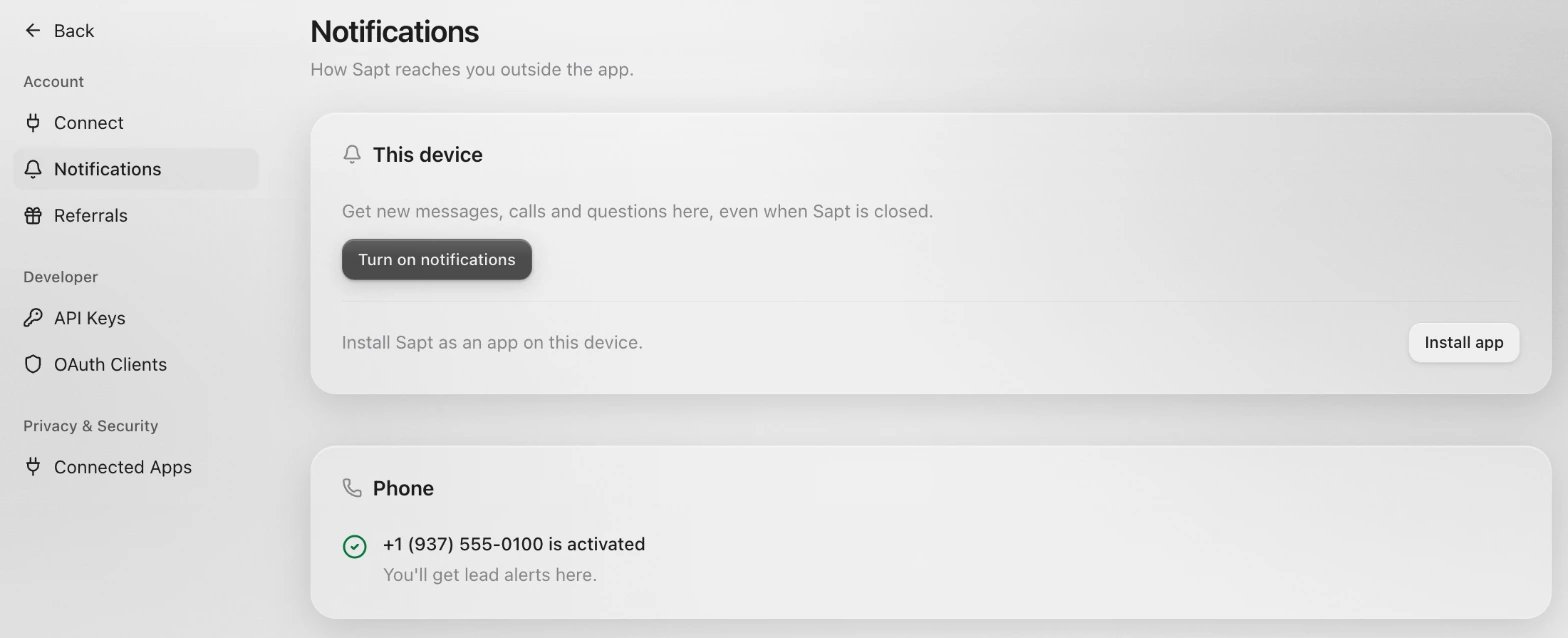
In the web app, click the circle with your initials in the top bar and choose **Account**. Then click **Notifications**.
Under **Get lead alerts on your phone**, type your mobile number and click **Send code**.
Sapt texts you a code. Type it after **SAPT-** and click **Verify**. The code expires in 15 minutes.
Sapt shows that your number is activated and that you'll get lead alerts there.
 Alert texts come from Sapt's number, not your shop's number. Save it in your contacts.
To stop the texts, reply **STOP** to that number. To start them again, reply **START**. While you get no texts, Sapt emails most alerts to you instead.
## Get notifications
In the web app at app.sapt.ai, open **Account** > **Notifications**. Under **This device**, click **Turn on notifications** and allow them when your browser asks. Click **Send a test** to check.
On an iPhone, tap **Share**, then **Add to Home Screen** first. Open Sapt from there to turn on notifications.
Tap **Shop** > **Notifications** to choose what alerts you. See below.
The phone app in your browser at dash.sapt.ai cannot show notifications yet. Turn them on in the web app at app.sapt.ai, or rely on texts.
## Choose what alerts you
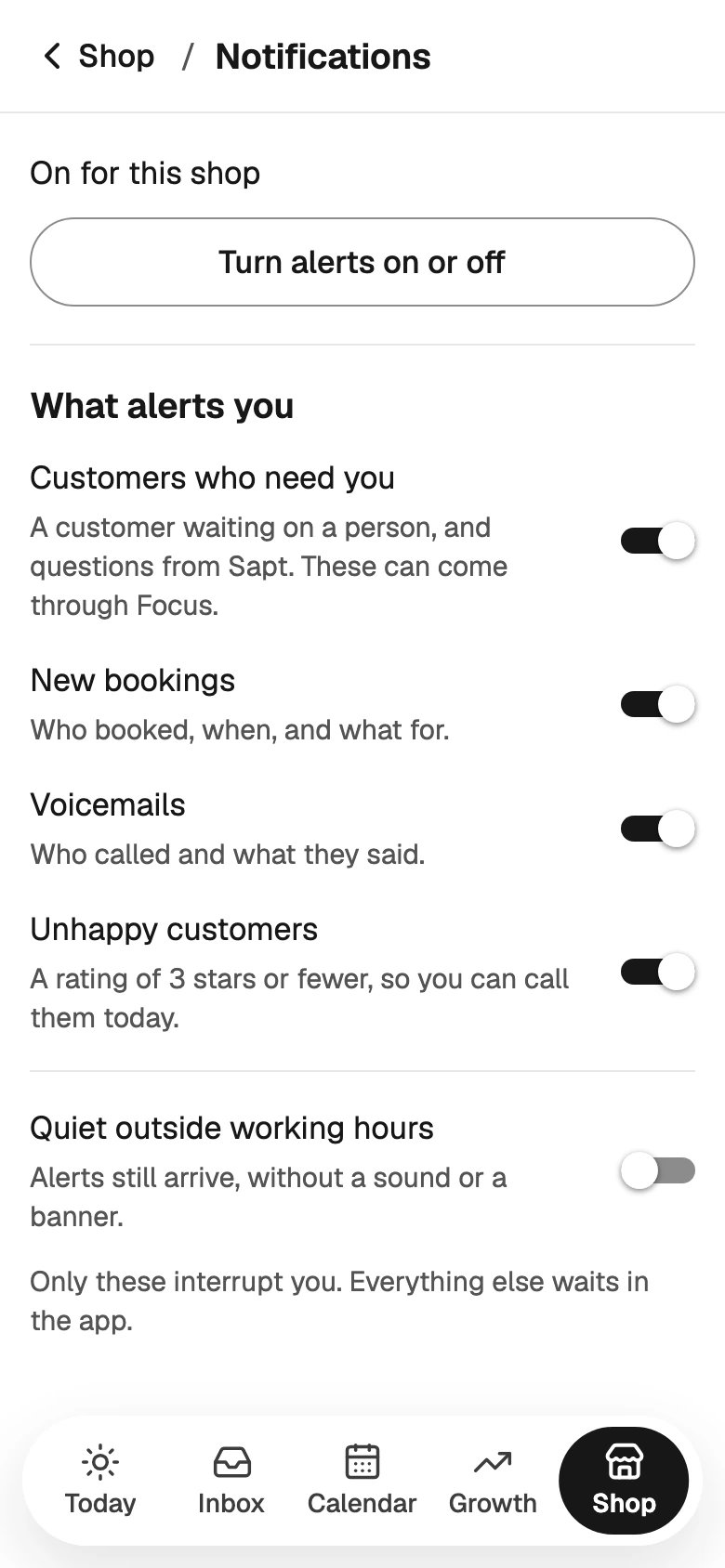
On your phone, tap **Shop** > **Notifications**. Under **What alerts you**, turn each one on or off:
* **Customers who need you**: a customer waiting on a person, and questions from Sapt.
* **New bookings**: who booked, when, and what for.
* **Voicemails**: who called and what they said.
* **Unhappy customers**: a rating of 3 stars or fewer, so you can call them today.
Turn on **Quiet outside working hours** to keep alerts silent outside the days and times you pick. They still arrive, without a sound or a banner. Once you change something, **Save changes** shows up. Tap it.
Alert texts come from Sapt's number, not your shop's number. Save it in your contacts.
To stop the texts, reply **STOP** to that number. To start them again, reply **START**. While you get no texts, Sapt emails most alerts to you instead.
## Get notifications
In the web app at app.sapt.ai, open **Account** > **Notifications**. Under **This device**, click **Turn on notifications** and allow them when your browser asks. Click **Send a test** to check.
On an iPhone, tap **Share**, then **Add to Home Screen** first. Open Sapt from there to turn on notifications.
Tap **Shop** > **Notifications** to choose what alerts you. See below.
The phone app in your browser at dash.sapt.ai cannot show notifications yet. Turn them on in the web app at app.sapt.ai, or rely on texts.
## Choose what alerts you
On your phone, tap **Shop** > **Notifications**. Under **What alerts you**, turn each one on or off:
* **Customers who need you**: a customer waiting on a person, and questions from Sapt.
* **New bookings**: who booked, when, and what for.
* **Voicemails**: who called and what they said.
* **Unhappy customers**: a rating of 3 stars or fewer, so you can call them today.
Turn on **Quiet outside working hours** to keep alerts silent outside the days and times you pick. They still arrive, without a sound or a banner. Once you change something, **Save changes** shows up. Tap it.
 These switches and quiet hours change notifications only. Texts to your cell arrive at any hour.
## Which alerts Sapt sends
| What happened | Text | Notification |
| - | - | - |
| A customer needs a person, or the AI stepped back | Yes | Yes |
| The AI took a request for you | Yes | No |
| A new website request | Yes | No |
| A new booking | Yes | Yes |
| A voicemail, with what they said | Yes | Yes |
| A Google review or a rating on your review page of 3 stars or fewer | Yes | Yes |
| The AI asks you a question, or wants your OK on a reply | Yes | Yes |
| A call is ringing | No | Yes |
A missed call with no voicemail sends you no alert. The caller gets the [text back](/docs/mintlify/leads/missed-call-text-back), and the call shows in your [Inbox](/docs/mintlify/leads/inbox).
Every Monday at 7 AM, Sapt also emails you a report on your week.
## Answer an alert by text
* **The AI asked you a question.** Reply with your answer. The AI uses it with the customer, and Sapt texts back that your answer is saved.
* **The alert ends with "Reply to this text to answer them".** Your reply goes to the customer, and Sapt texts back **Sent to** and their name. If Sapt says **Couldn’t send that. Reply in the Sapt app.**, answer from your [Inbox](/docs/mintlify/leads/inbox).
## If alerts do not come
* **No texts.** Check that your number shows as activated under **Account** > **Notifications**. If you replied STOP, reply START.
* **No notifications on the web.** Your browser may be blocking them. Allow notifications for Sapt in the browser's site settings, then reload.
* **No notifications on your phone.** Check **Shop** > **Notifications**, and that notifications for Sapt are allowed in your phone's settings.
## Keep going
Answer every customer from one place.
Decide what the AI does on its own.
This documentation is built and hosted on [Mintlify](https://mintlify.com), a developer documentation platform.
These switches and quiet hours change notifications only. Texts to your cell arrive at any hour.
## Which alerts Sapt sends
| What happened | Text | Notification |
| - | - | - |
| A customer needs a person, or the AI stepped back | Yes | Yes |
| The AI took a request for you | Yes | No |
| A new website request | Yes | No |
| A new booking | Yes | Yes |
| A voicemail, with what they said | Yes | Yes |
| A Google review or a rating on your review page of 3 stars or fewer | Yes | Yes |
| The AI asks you a question, or wants your OK on a reply | Yes | Yes |
| A call is ringing | No | Yes |
A missed call with no voicemail sends you no alert. The caller gets the [text back](/docs/mintlify/leads/missed-call-text-back), and the call shows in your [Inbox](/docs/mintlify/leads/inbox).
Every Monday at 7 AM, Sapt also emails you a report on your week.
## Answer an alert by text
* **The AI asked you a question.** Reply with your answer. The AI uses it with the customer, and Sapt texts back that your answer is saved.
* **The alert ends with "Reply to this text to answer them".** Your reply goes to the customer, and Sapt texts back **Sent to** and their name. If Sapt says **Couldn’t send that. Reply in the Sapt app.**, answer from your [Inbox](/docs/mintlify/leads/inbox).
## If alerts do not come
* **No texts.** Check that your number shows as activated under **Account** > **Notifications**. If you replied STOP, reply START.
* **No notifications on the web.** Your browser may be blocking them. Allow notifications for Sapt in the browser's site settings, then reload.
* **No notifications on your phone.** Check **Shop** > **Notifications**, and that notifications for Sapt are allowed in your phone's settings.
## Keep going
Answer every customer from one place.
Decide what the AI does on its own.
This documentation is built and hosted on [Mintlify](https://mintlify.com), a developer documentation platform.