> ## Documentation Index
> Fetch the complete documentation index at: https://docs.sapt.ai/llms.txt
> Use this file to discover all available pages before exploring further.
# Text back missed calls
> Get a Sapt number, send the calls nobody answers to it, and text every missed caller back in seconds. Change the text and test it yourself.
When nobody picks up, Sapt texts the caller back from your shop's number. Their reply lands in your [Inbox](/docs/mintlify/leads/inbox), where the AI front desk or you can answer it.
## Before you start
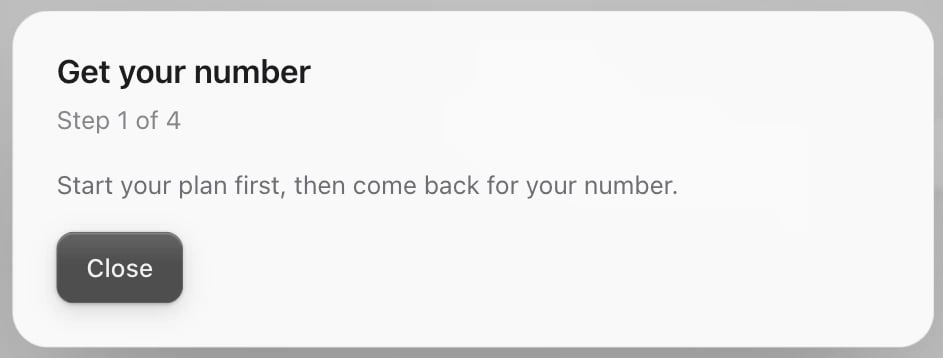
* Your plan has started. Until then, Sapt says **Start your plan first, then come back for your number.**
* You have setup access on the shop. Without it, Sapt says **Someone with setup access on this shop can do this.**
 ## Set it up
Open **Project Settings** in the sidebar, then **Phone**. Under **Get your shop a number**, click **Get your number**.
## Set it up
Open **Project Settings** in the sidebar, then **Phone**. Under **Get your shop a number**, click **Get your number**.
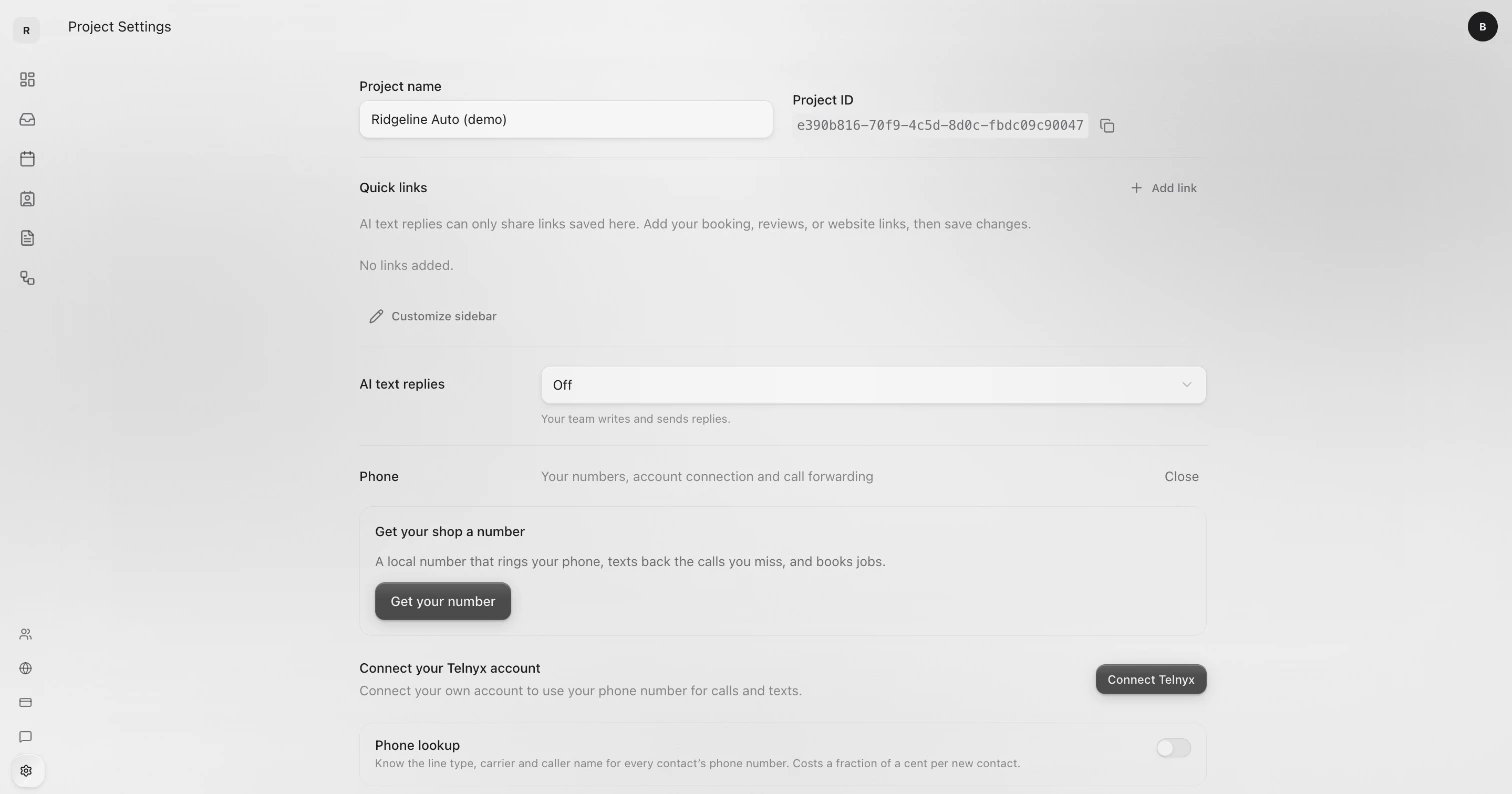 1. Type your **Area code**, pick a number and click **Continue**.
2. Under **Where should calls ring?**, enter the phone that should ring first, usually your cell. Click **Continue**.
3. Check **What callers hear when nobody answers** and pick a **Voice**: **Female (Ava)** or **Male (Brian)**. Click **Continue**.
4. Check the box that says you text only customers who gave you their number. Click the **Get** button with your new number on it.
Sapt shows **Your number is live** and what your shop does now.
New shops get their number in setup, step 2. See [Get your number](/docs/mintlify/owners/get-started#your-number). Later, find it under **Shop** > **Phones and ringing**.
Calls work right away. Carriers take about 4 days to fully approve texting from a new number.
In **Project Settings** > **Phone**, find **Incoming calls**. Under **Ring**, pick one:
* **The Sapt app**
* **A phone**
* **The Sapt app and a phone**
* **A phone, without Sapt**
Then click **Save changes**.
Tap **Shop** > **Phones and ringing**. Under **Incoming calls**, enter **Ring this phone**. Turn on **Also ring Sapt** to ring teammates signed in to Sapt calling too.
To ring a different phone in the evening or on weekends, tap **Add schedule**.
**A phone, without Sapt** sends calls straight to that phone. Sapt never sees them: no Inbox record, no voicemail and no text back.
Under **Incoming calls**, turn on **Take a message when nobody answers** and edit the **Greeting**. Click **Save changes**.
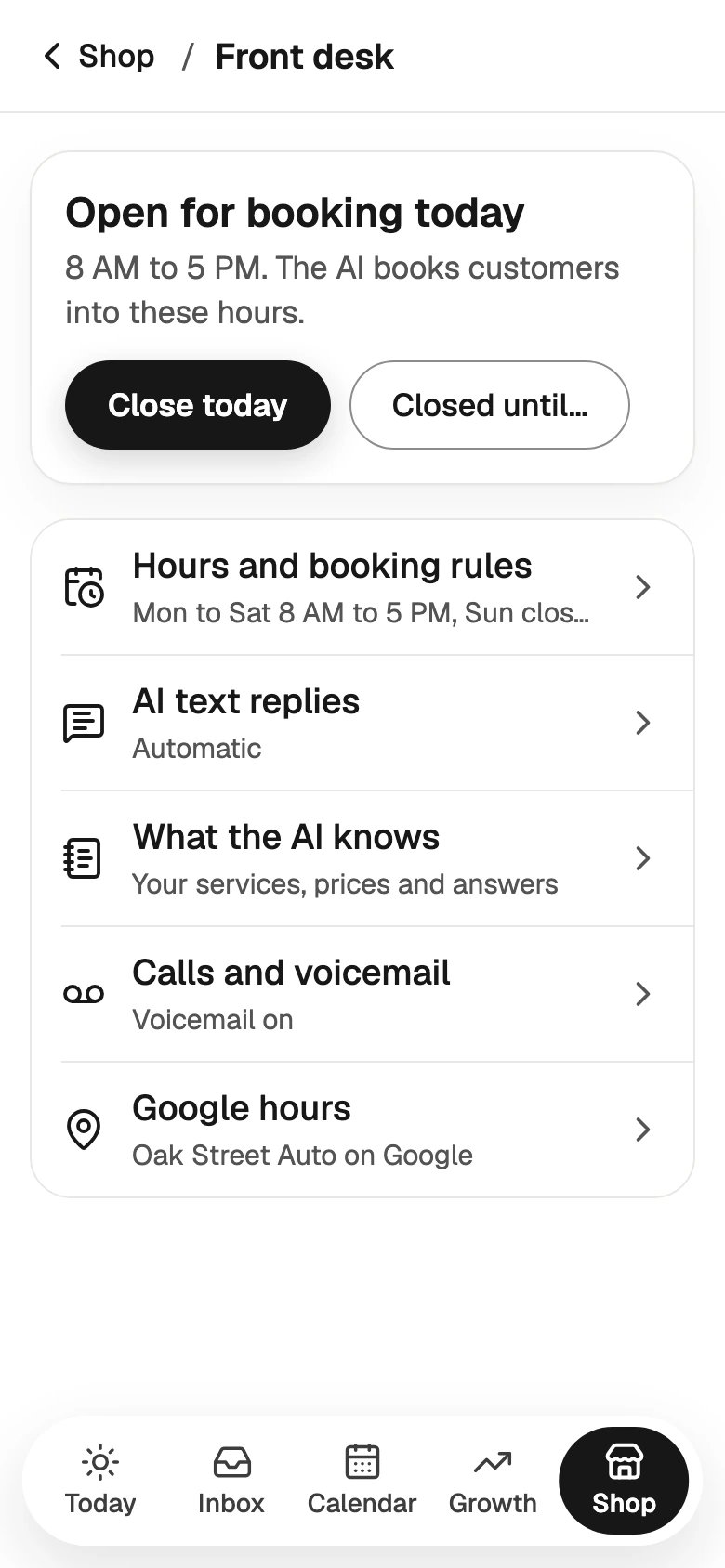
Tap **Shop** > **Front desk** > **Calls and voicemail**. Turn on **Voicemail**. Tap **Change greeting** to change what callers hear.
1. Type your **Area code**, pick a number and click **Continue**.
2. Under **Where should calls ring?**, enter the phone that should ring first, usually your cell. Click **Continue**.
3. Check **What callers hear when nobody answers** and pick a **Voice**: **Female (Ava)** or **Male (Brian)**. Click **Continue**.
4. Check the box that says you text only customers who gave you their number. Click the **Get** button with your new number on it.
Sapt shows **Your number is live** and what your shop does now.
New shops get their number in setup, step 2. See [Get your number](/docs/mintlify/owners/get-started#your-number). Later, find it under **Shop** > **Phones and ringing**.
Calls work right away. Carriers take about 4 days to fully approve texting from a new number.
In **Project Settings** > **Phone**, find **Incoming calls**. Under **Ring**, pick one:
* **The Sapt app**
* **A phone**
* **The Sapt app and a phone**
* **A phone, without Sapt**
Then click **Save changes**.
Tap **Shop** > **Phones and ringing**. Under **Incoming calls**, enter **Ring this phone**. Turn on **Also ring Sapt** to ring teammates signed in to Sapt calling too.
To ring a different phone in the evening or on weekends, tap **Add schedule**.
**A phone, without Sapt** sends calls straight to that phone. Sapt never sees them: no Inbox record, no voicemail and no text back.
Under **Incoming calls**, turn on **Take a message when nobody answers** and edit the **Greeting**. Click **Save changes**.
Tap **Shop** > **Front desk** > **Calls and voicemail**. Turn on **Voicemail**. Tap **Change greeting** to change what callers hear.
 The text back goes out with or without a message. With voicemail off, unanswered calls just end.
Customers call the number on your sign. Forward the calls nobody answers there to your Sapt number, so they get the text back too.
In **Project Settings** > **Phone**, find **Forward your main line**. Enter **Your main number** and click **Look it up**. Dial the code Sapt shows from that phone. Then call your main number from your cell, type your cell under **Calling from** and click **I called. Check now**.
Tap **Shop** > **Phones and ringing** > **Forward your main line** and follow the same steps.
The codes for each phone company are on [Forward your calls](/docs/mintlify/owners/forward-your-calls). Your Google listing is never changed.
## The text that goes back
New shops start with this text, sent from your shop's number:
> Hey, it's Ridgeline Auto. Sorry we missed you. What can we help you with?
A few rules keep it from going wrong:
* **It goes out at any hour**, because it answers their call. Later texts from your automations wait from 9 PM until 8 AM shop time.
* **One text per caller every 15 minutes.** Someone who calls three times in a row gets one text.
* **No text to a landline**, when Sapt knows the number is one. Call them back instead.
* **No text to calls screened as spam**, and Sapt does not tell you about them.
* **Customers can reply STOP** to any text to opt out.
## Change the text
1. Open **Workflows** in the sidebar.
2. Find **Missed call: text back** and click its pencil to edit it.
3. Click the text step and change the **Message**.
4. Click **Save changes**.
The text back goes out with or without a message. With voicemail off, unanswered calls just end.
Customers call the number on your sign. Forward the calls nobody answers there to your Sapt number, so they get the text back too.
In **Project Settings** > **Phone**, find **Forward your main line**. Enter **Your main number** and click **Look it up**. Dial the code Sapt shows from that phone. Then call your main number from your cell, type your cell under **Calling from** and click **I called. Check now**.
Tap **Shop** > **Phones and ringing** > **Forward your main line** and follow the same steps.
The codes for each phone company are on [Forward your calls](/docs/mintlify/owners/forward-your-calls). Your Google listing is never changed.
## The text that goes back
New shops start with this text, sent from your shop's number:
> Hey, it's Ridgeline Auto. Sorry we missed you. What can we help you with?
A few rules keep it from going wrong:
* **It goes out at any hour**, because it answers their call. Later texts from your automations wait from 9 PM until 8 AM shop time.
* **One text per caller every 15 minutes.** Someone who calls three times in a row gets one text.
* **No text to a landline**, when Sapt knows the number is one. Call them back instead.
* **No text to calls screened as spam**, and Sapt does not tell you about them.
* **Customers can reply STOP** to any text to opt out.
## Change the text
1. Open **Workflows** in the sidebar.
2. Find **Missed call: text back** and click its pencil to edit it.
3. Click the text step and change the **Message**.
4. Click **Save changes**.
 1. Tap **Shop** > **Automations**.
2. Tap **Missed call: text back**, then tap the text step.
3. Change **What it says**. Tap **+ Shop name** to drop in your shop's name. Tap **Done**.
4. Tap **Save changes**.
1. Tap **Shop** > **Automations**.
2. Tap **Missed call: text back**, then tap the text step.
3. Change **What it says**. Tap **+ Shop name** to drop in your shop's name. Tap **Done**.
4. Tap **Save changes**.
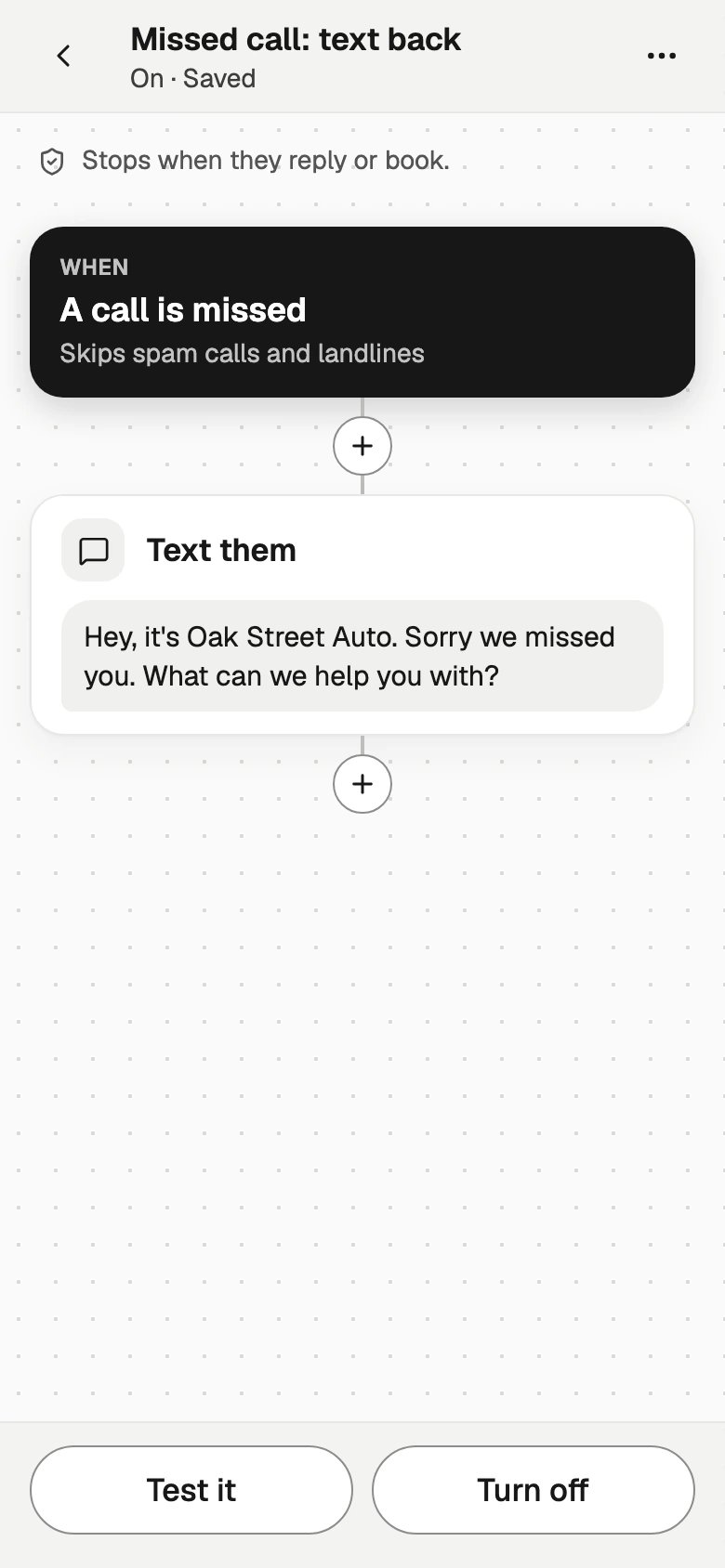 Keep your shop's name in the text and end with one question. See [Best practices](/docs/mintlify/leads/best-practices) for more examples.
## Test it
Call your Sapt number from your cell and let it ring until it ends or Sapt answers. Then hang up. The text arrives on your cell, and the call shows in your [Inbox](/docs/mintlify/leads/inbox).
Tap **Shop** > **Phones and ringing** > **Test your line**. Call the number Sapt shows from your cell, type your cell under **Calling from** and tap **I called. Check now**. Sapt checks off **Your call came in**, then **The text back went out**.
Keep your shop's name in the text and end with one question. See [Best practices](/docs/mintlify/leads/best-practices) for more examples.
## Test it
Call your Sapt number from your cell and let it ring until it ends or Sapt answers. Then hang up. The text arrives on your cell, and the call shows in your [Inbox](/docs/mintlify/leads/inbox).
Tap **Shop** > **Phones and ringing** > **Test your line**. Call the number Sapt shows from your cell, type your cell under **Calling from** and tap **I called. Check now**. Sapt checks off **Your call came in**, then **The text back went out**.
 ## If the text did not come
* **You called from the same phone in the last 15 minutes.** Wait, then call once more.
* **Ring is set to A phone, without Sapt.** Pick another option under **Incoming calls**.
* **The automation is off.** In **Workflows**, or **Shop** > **Automations** on your phone, turn **Missed call: text back** on.
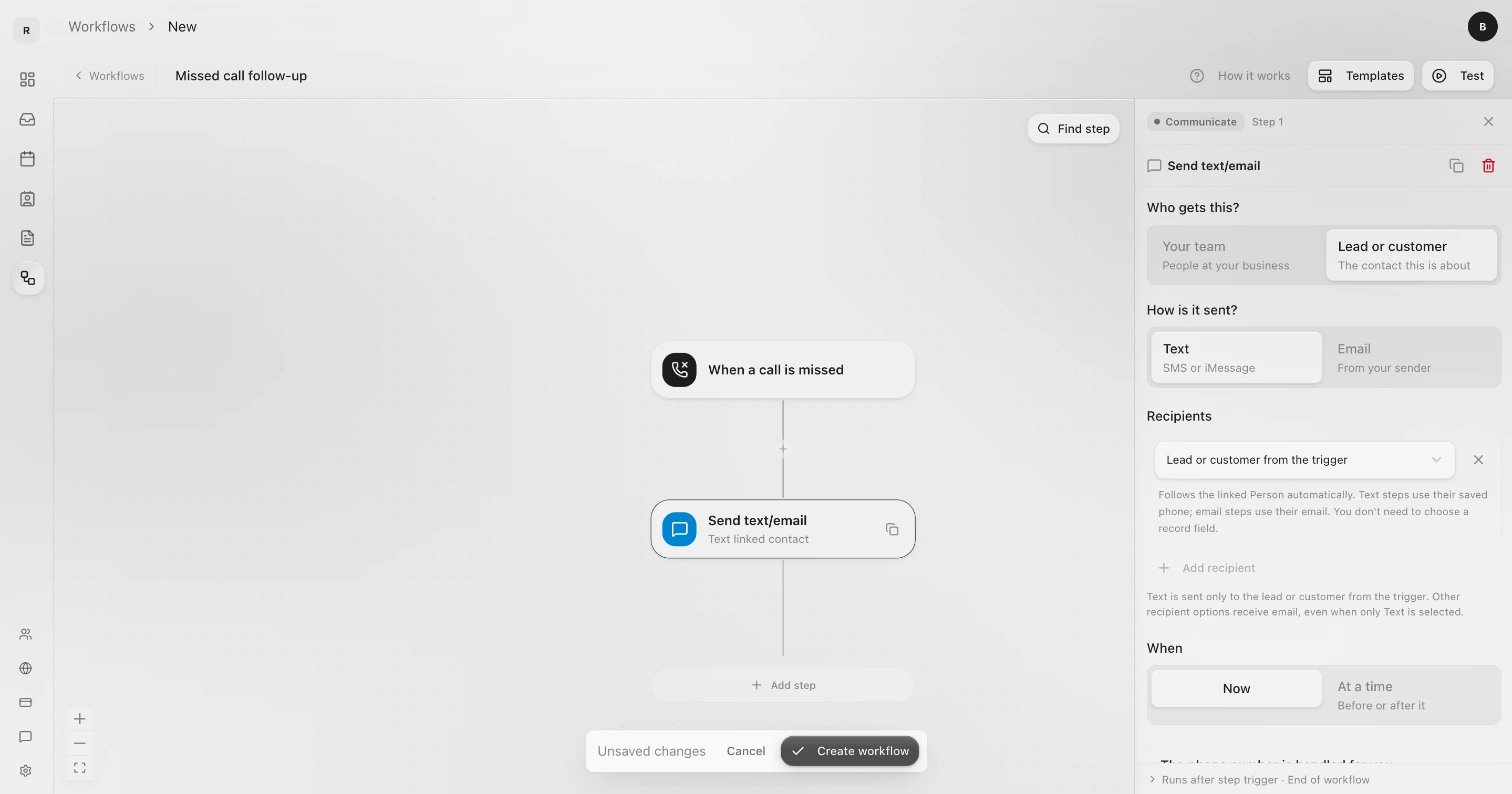
* **There is no text-back automation.** In **Workflows**, click **New**, then **Templates**, and pick **Text back a missed call**. Click **Create workflow** and turn it on. It is saved as **Missed call follow-up**.
* **The number is new.** Carriers take about 4 days to fully approve texting. In **Project Settings** > **Phone**, finish **Texting registration** with **Register my business**.
## Keep going
Set up the AI front desk to reply and book.
Know the moment a customer needs you.
This documentation is built and hosted on [Mintlify](https://mintlify.com), a developer documentation platform.
## If the text did not come
* **You called from the same phone in the last 15 minutes.** Wait, then call once more.
* **Ring is set to A phone, without Sapt.** Pick another option under **Incoming calls**.
* **The automation is off.** In **Workflows**, or **Shop** > **Automations** on your phone, turn **Missed call: text back** on.
* **There is no text-back automation.** In **Workflows**, click **New**, then **Templates**, and pick **Text back a missed call**. Click **Create workflow** and turn it on. It is saved as **Missed call follow-up**.
* **The number is new.** Carriers take about 4 days to fully approve texting. In **Project Settings** > **Phone**, finish **Texting registration** with **Register my business**.
## Keep going
Set up the AI front desk to reply and book.
Know the moment a customer needs you.
This documentation is built and hosted on [Mintlify](https://mintlify.com), a developer documentation platform.