> ## Documentation Index
> Fetch the complete documentation index at: https://docs.sapt.ai/llms.txt
> Use this file to discover all available pages before exploring further.
# Use Sapt on your phone
> Open Sapt at dash.sapt.ai on your iPhone or Android phone, sign in, and add it to your Home Screen so it opens with one tap.
Sapt runs in your phone's web browser at dash.sapt.ai. Add it to your Home Screen and it opens with one tap, like your other apps.
Sapt apps for the App Store and Google Play are on the way. Until they are out, use dash.sapt.ai.
On an iPhone, open Safari. On an Android phone, open Chrome. Go to [dash.sapt.ai](https://dash.sapt.ai).
Tap **Sign in with Google** or **Sign in with Apple**. Or type your email and password and tap **Sign in**. Use the email you signed up with.
If you see **Enter your code**, type the 6-digit code from your authenticator app and tap **Verify**. If you run more than one shop, tap the one you want under **Choose your shop**.
1. In Safari, tap the Share button. If you don't see it, tap the menu button first, then tap **Share**.
2. Scroll down and tap **Add to Home Screen**. Not in the list? Scroll to the bottom, tap **Edit Actions**, then tap **Add to Home Screen**.
3. If you see **Open as Web App**, keep it on. Sapt then opens like an app.
4. Tap **Add**.
The buttons look a little different on each version of iOS. Apple shows them on [Bookmark a website in Safari on iPhone](https://support.apple.com/guide/iphone/bookmark-favorite-webpages-iph42ab2f3a7/ios).
1. In Chrome, tap **More** to the right of the address bar.
2. Tap **Install and create shortcut**, then **Create shortcut**.
3. Keep the name or type a new one, then tap **Add**.
Google shows the same steps on [Create shortcuts for websites in Chrome](https://support.google.com/chrome/answer/15085120?co=GENIE.Platform%3DAndroid).
Open Sapt from the new icon. If it asks you to sign in, sign in the same way as before.
## What's in the app
Five tabs: **Today** for what needs you now, **Inbox** for every conversation, **Calendar** for your bookings, **Growth** for reviews, ads, Google and your website, and **Shop** for your settings. [Find your way](/docs/mintlify/owners/find-your-way#on-your-phone) has the full tour.
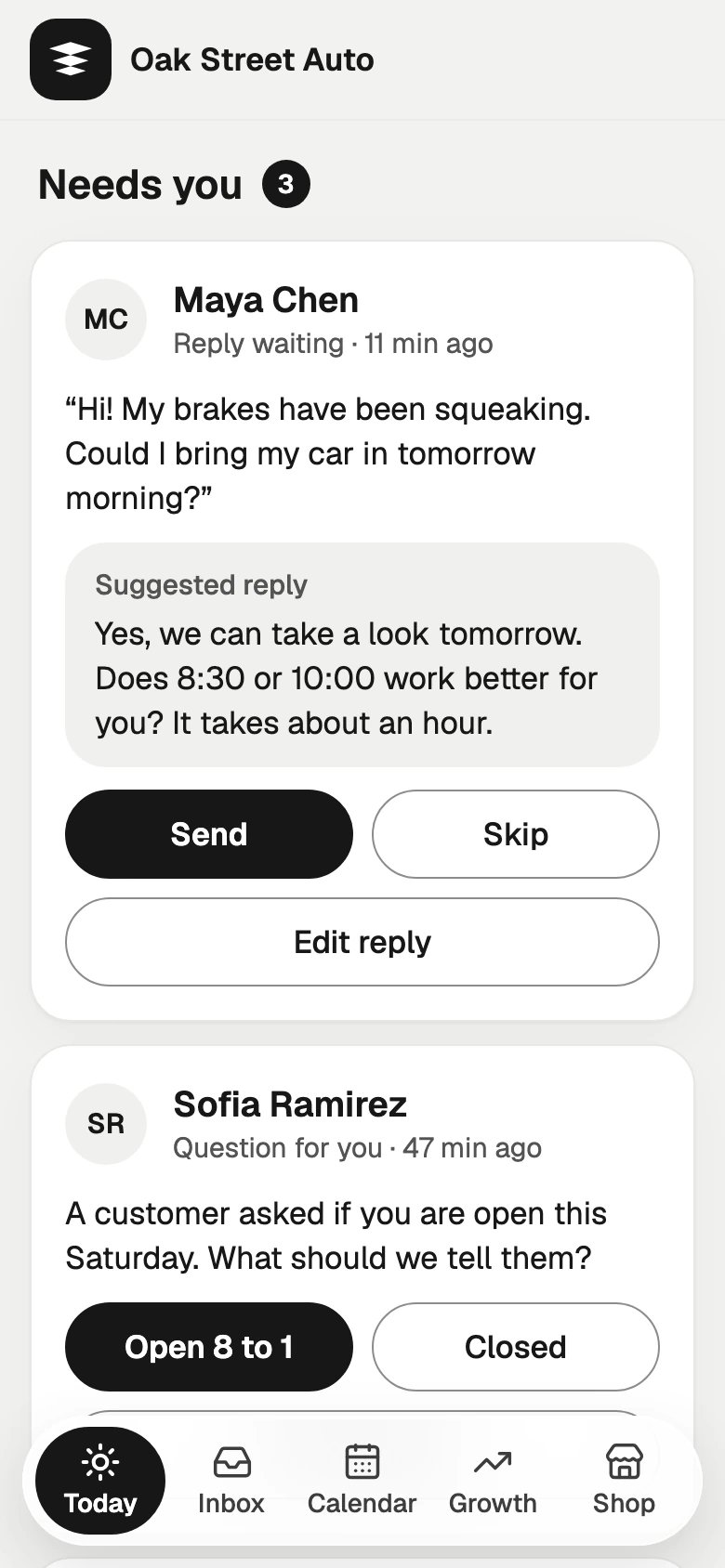
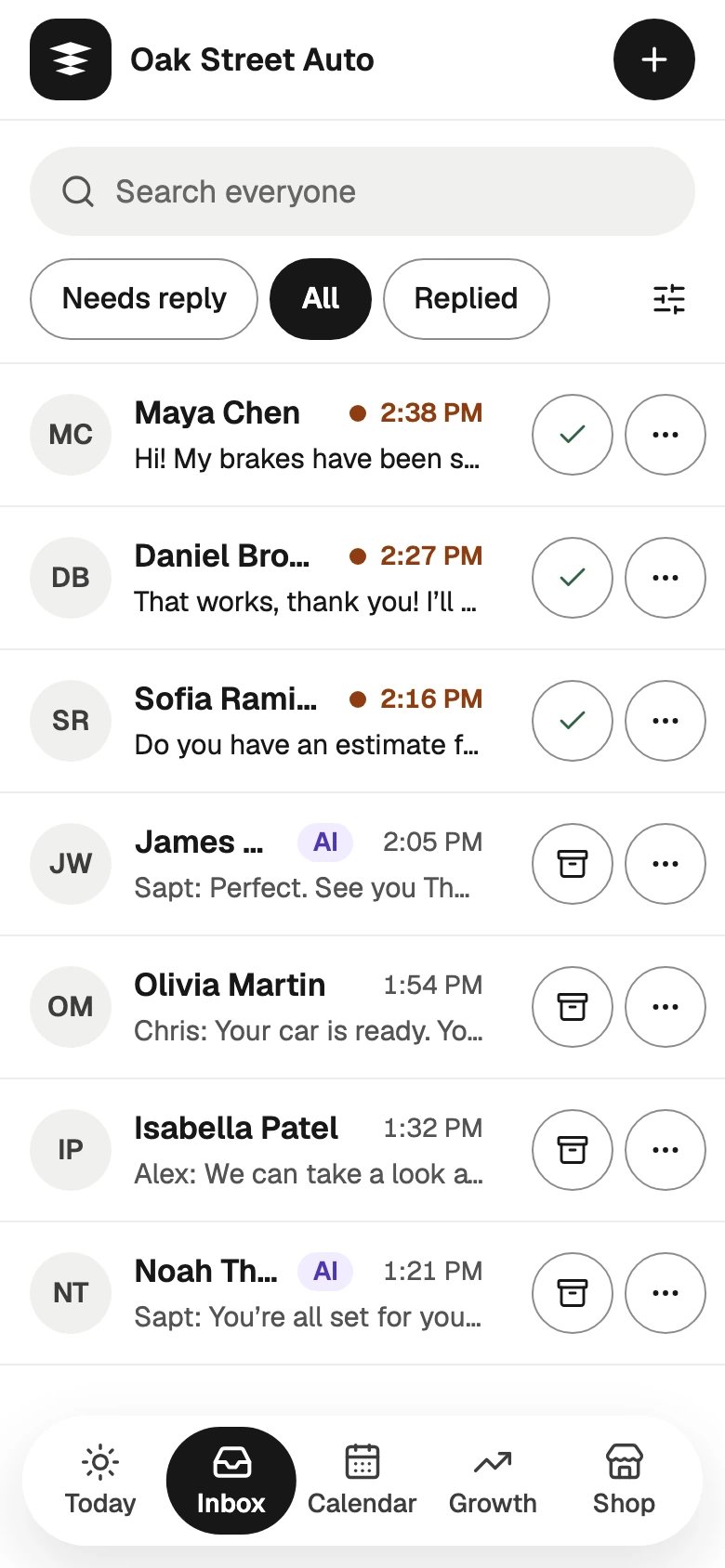
dash.sapt.ai works in a browser on a computer too. The tabs move to the left side.
## Notifications
In a browser, Sapt can't put alerts on your phone's lock screen. Those come with the App Store and Google Play apps. Until then, see [Alerts](/docs/mintlify/leads/alerts) for the alerts Sapt sends by text.
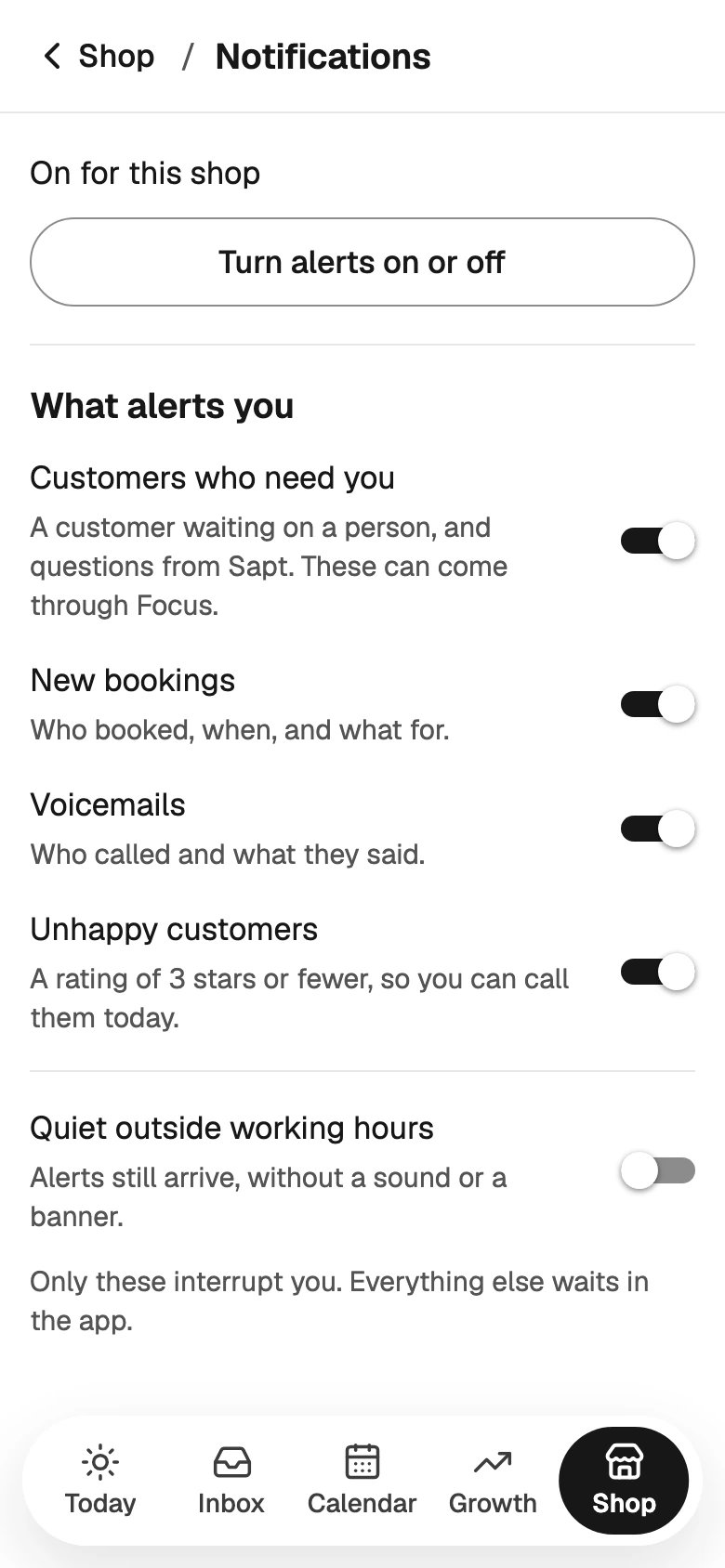
To choose what the phone apps will alert you about, tap **Shop**, then **Notifications**. Under **What alerts you**, turn on the ones you want: **Customers who need you**, **New bookings**, **Voicemails** and **Unhappy customers**. Turn on **Quiet outside working hours** to get them without a sound or a banner after hours. Once you change something, **Save changes** shows up. Tap it.
 ## If something looks wrong
* Forgot your password? Type your email on the sign-in screen and tap **Forgot password**. A reset link comes by email.
* Seeing **No shop yet**? That email has no shop on Sapt. To start one, tap **Create your shop**. To join a shop that is already on Sapt, ask its owner to add you.
## Keep going
What each tab and each part of the web app is for.
How Sapt tells you when a customer needs you.
This documentation is built and hosted on [Mintlify](https://mintlify.com), a developer documentation platform.
## If something looks wrong
* Forgot your password? Type your email on the sign-in screen and tap **Forgot password**. A reset link comes by email.
* Seeing **No shop yet**? That email has no shop on Sapt. To start one, tap **Create your shop**. To join a shop that is already on Sapt, ask its owner to add you.
## Keep going
What each tab and each part of the web app is for.
How Sapt tells you when a customer needs you.
This documentation is built and hosted on [Mintlify](https://mintlify.com), a developer documentation platform.