> ## Documentation Index
> Fetch the complete documentation index at: https://docs.sapt.ai/llms.txt
> Use this file to discover all available pages before exploring further.
# Build your website
> Create your shop's website in Sapt, find your way around the editor, change the look and business details, and publish when you are ready.
Sapt hosts a website for your shop. It uses your business details from Sapt and Google, and every form on it sends requests straight into Sapt.
## Before you start
* You edit your website on the web at [app.sapt.ai](https://app.sapt.ai), on a computer if you can. The phone app shows whether your site is live, but it does not edit it.
* Your role needs permission to manage the website and edit content. If you see **Ask an admin to create it.**, ask whoever runs your Sapt team. See [Your team](/docs/mintlify/account/team).
## Create your site
In the sidebar, click **Website**.
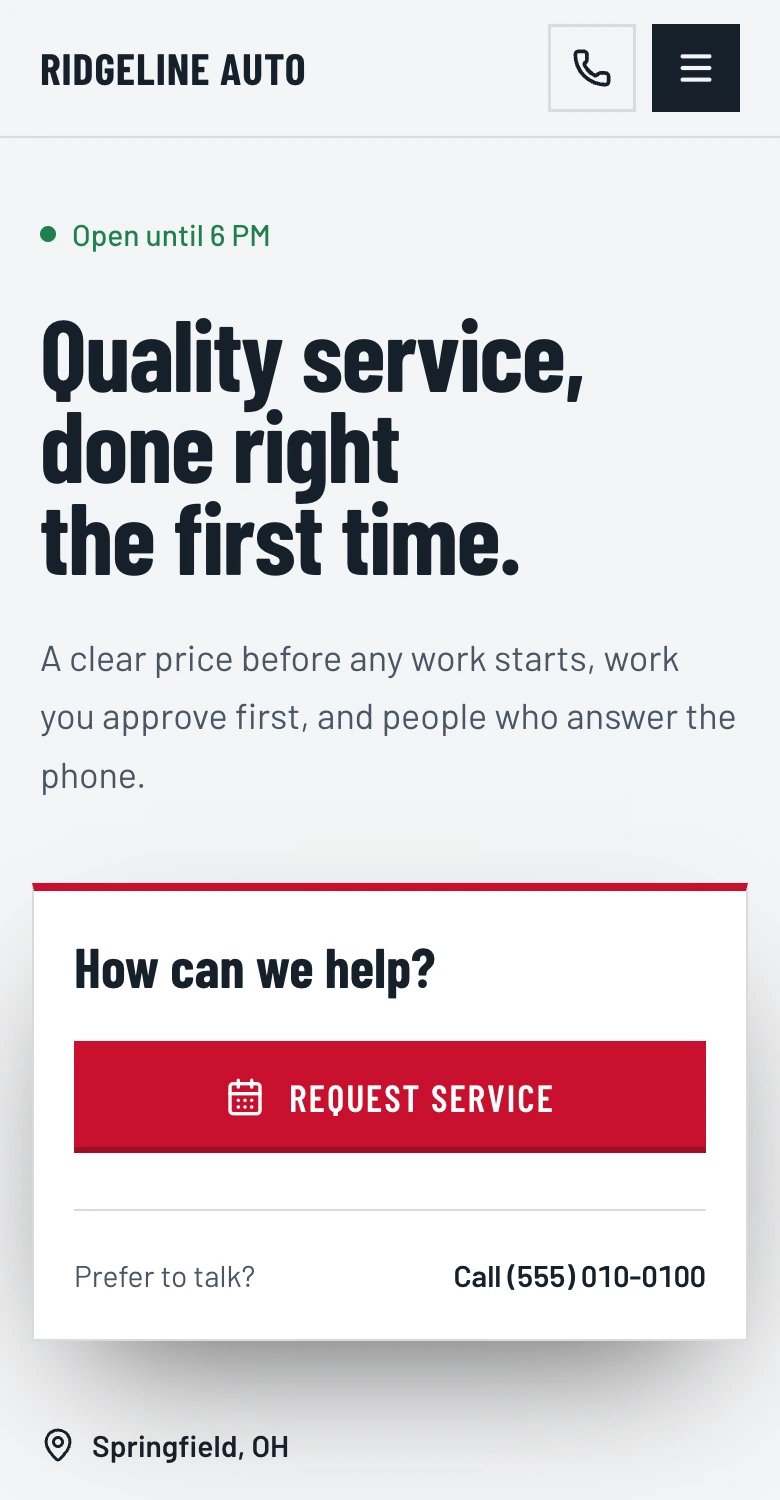
The **Create your website** card shows the address your site will use, such as `ridgeline-auto-demo.sapt.ai`. Click **Create now**. Your site goes live at that address right away, with its forms already connected to Sapt.
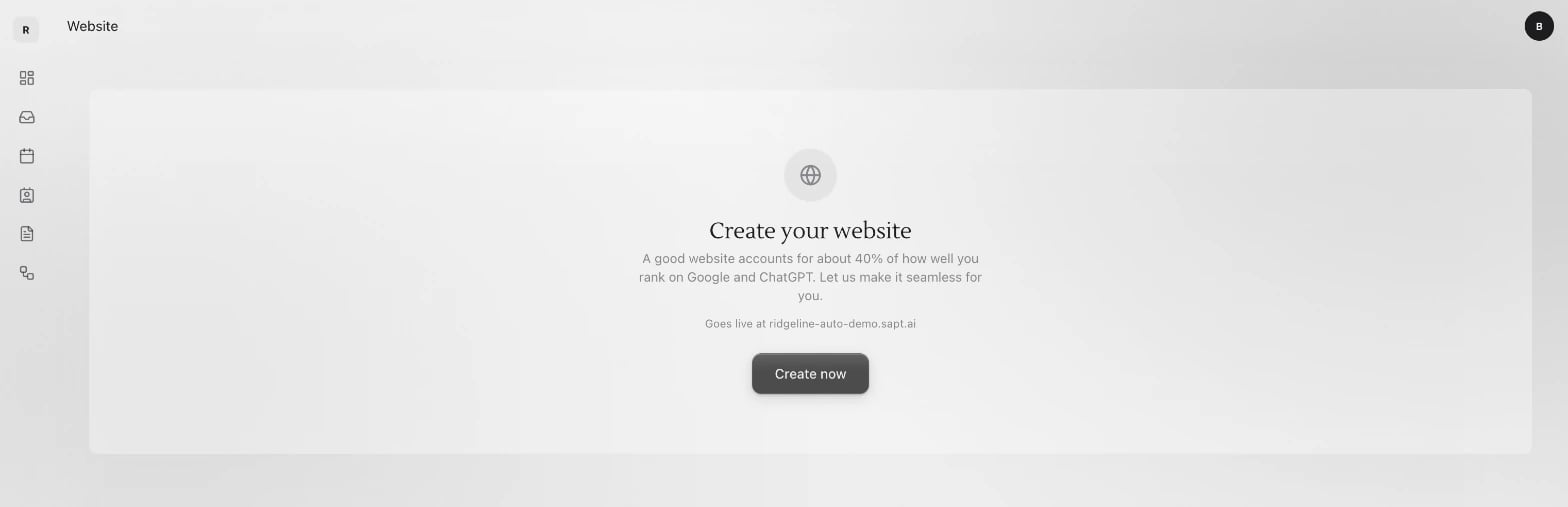 The editor opens full screen. If the left side shows **Make this site yours**, click **Enable editing** once.
## Find your way around the editor
The editor opens full screen. If the left side shows **Make this site yours**, click **Enable editing** once.
## Find your way around the editor
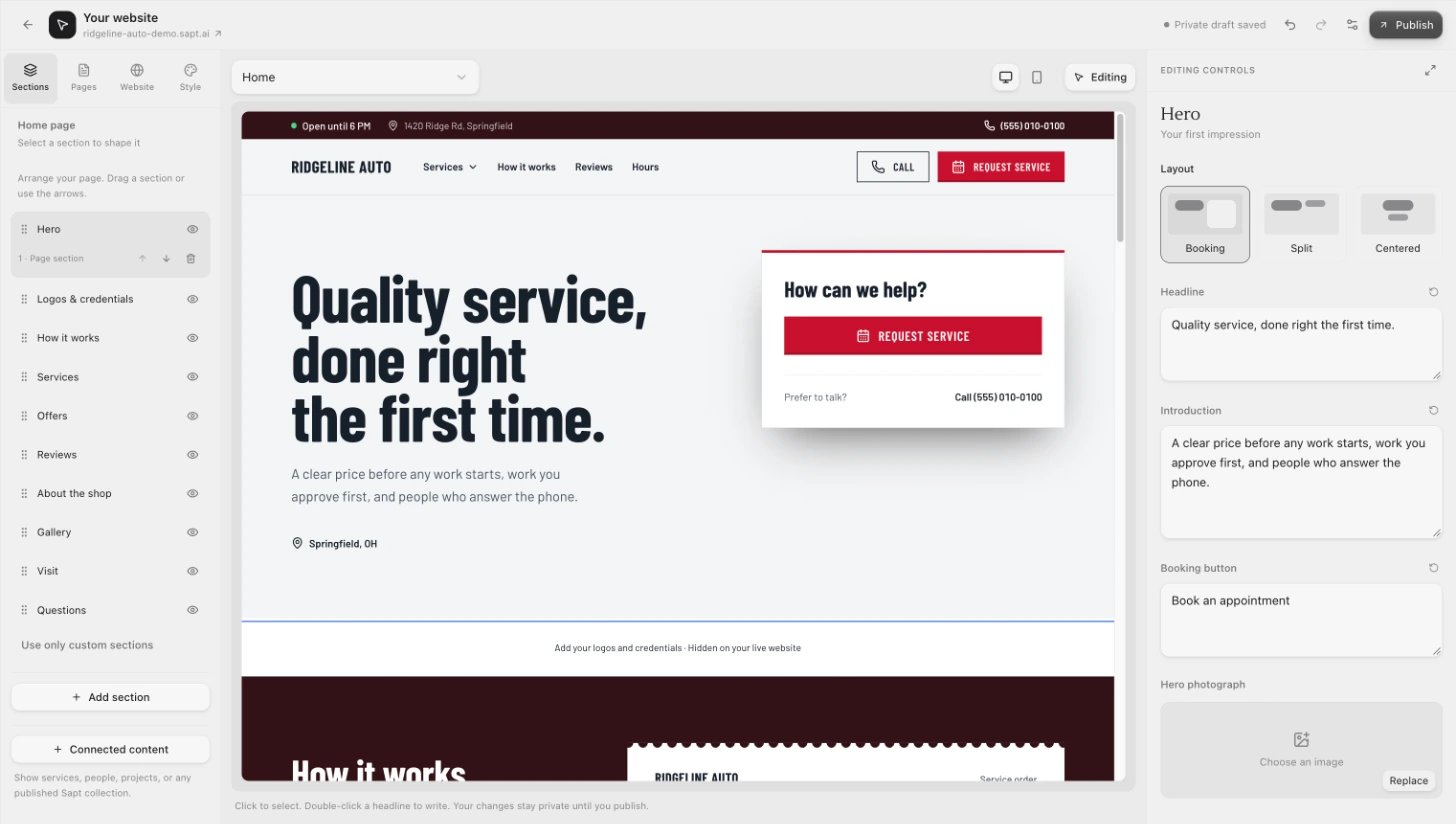 * **Top bar:** your site's address, a status such as **Unsaved changes**, **Private draft saved** or **All changes published**, Undo and Redo, the sliders button for **Website settings**, and **Publish**.
* **Left side:** four tabs. **Sections** arranges the page you are on. **Pages** lists every page. **Website** holds details shared by every page. **Style** sets colors and fonts.
* **Middle:** your page. Pick a page at the top, switch between **Desktop canvas** and **Mobile canvas** (the computer and phone icons), and switch between **Editing** and **Preview**.
* **Right side:** **Editing controls** for whatever you clicked.
To change something, click it on the page and use the controls on the right. Double-click a headline to type right on the page. Then click **Save changes** in the bar at the bottom, or press Ctrl+S (⌘S on a Mac).
Your changes stay private until you publish. Visitors see the old version until then.
* **Top bar:** your site's address, a status such as **Unsaved changes**, **Private draft saved** or **All changes published**, Undo and Redo, the sliders button for **Website settings**, and **Publish**.
* **Left side:** four tabs. **Sections** arranges the page you are on. **Pages** lists every page. **Website** holds details shared by every page. **Style** sets colors and fonts.
* **Middle:** your page. Pick a page at the top, switch between **Desktop canvas** and **Mobile canvas** (the computer and phone icons), and switch between **Editing** and **Preview**.
* **Right side:** **Editing controls** for whatever you clicked.
To change something, click it on the page and use the controls on the right. Double-click a headline to type right on the page. Then click **Save changes** in the bar at the bottom, or press Ctrl+S (⌘S on a Mac).
Your changes stay private until you publish. Visitors see the old version until then.
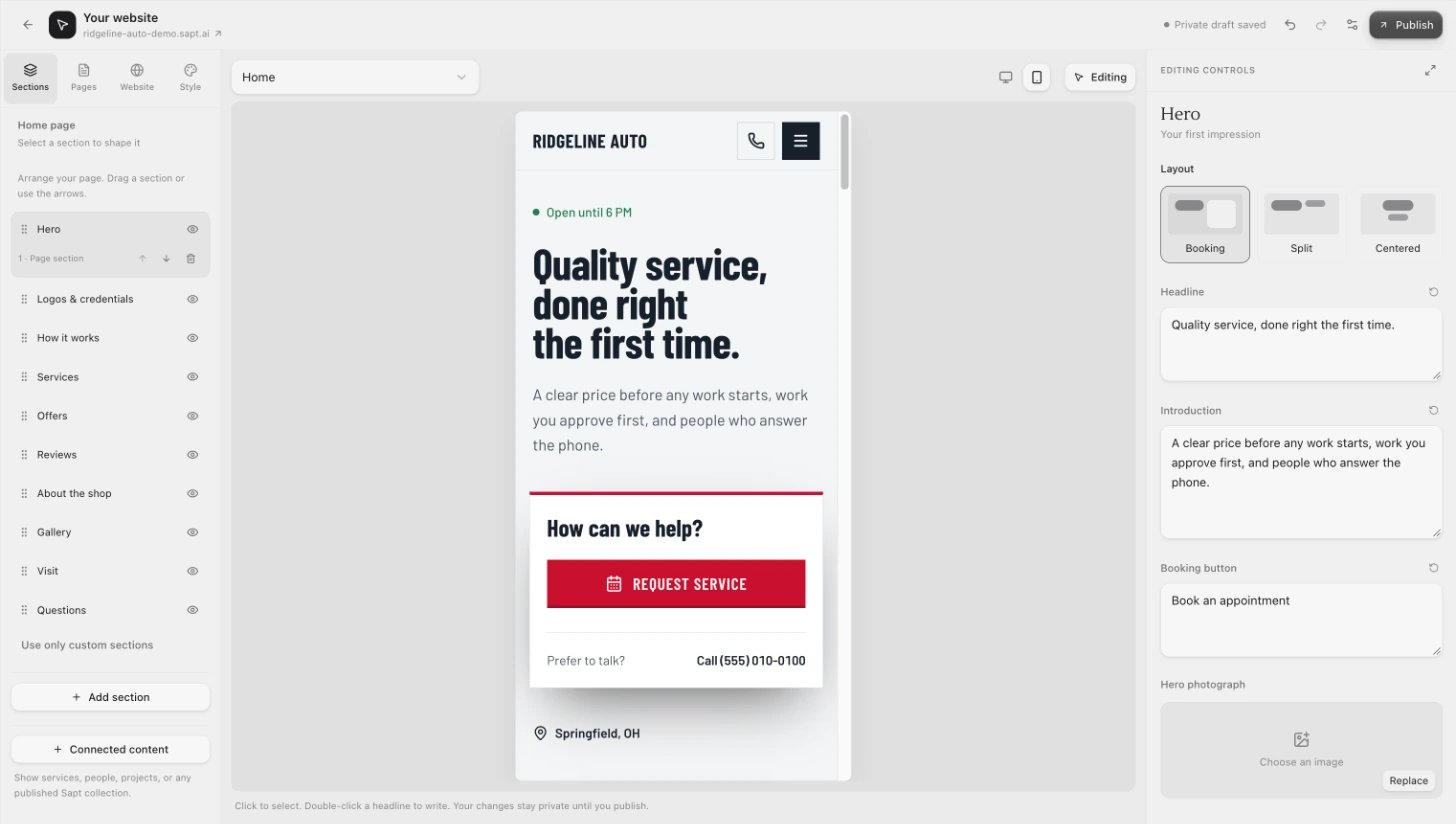 Most of your visitors are on a phone. Click **Mobile canvas** before you publish and check the page there too.
Forms do not send from inside the editor, even in **Preview**. Test them on your live site. See [Test your form](/docs/mintlify/website/forms#test-your-form-before-you-launch).
## Change the look
Click the **Style** tab. The panel on the right is called **Make it yours**.
Most of your visitors are on a phone. Click **Mobile canvas** before you publish and check the page there too.
Forms do not send from inside the editor, even in **Preview**. Test them on your live site. See [Test your form](/docs/mintlify/website/forms#test-your-form-before-you-launch).
## Change the look
Click the **Style** tab. The panel on the right is called **Make it yours**.
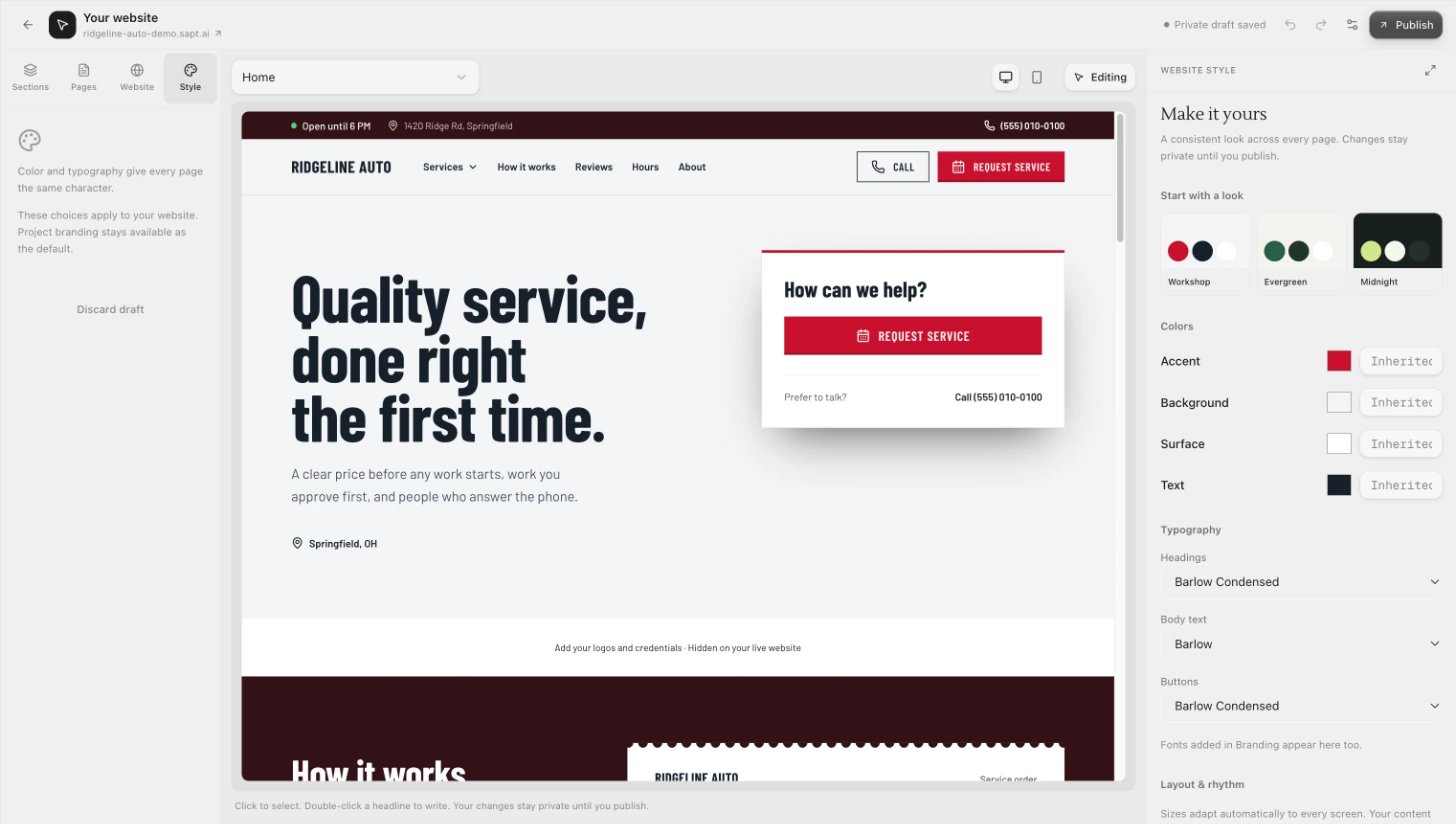 * **Start with a look:** pick a ready-made style, such as Workshop, Evergreen or Midnight. It keeps your brand color if your branding has one.
* **Colors:** Accent, Background, Surface and Text.
* **Typography:** fonts for Headings, Body text and Buttons.
* **Corner radius:** from Sharp to Soft.
* **Use project branding:** go back to the colors and fonts from your Sapt branding.
## Edit your business details
Click the **Website** tab. Under **Across your website** you find what every page shares.
* **Start with a look:** pick a ready-made style, such as Workshop, Evergreen or Midnight. It keeps your brand color if your branding has one.
* **Colors:** Accent, Background, Surface and Text.
* **Typography:** fonts for Headings, Body text and Buttons.
* **Corner radius:** from Sharp to Soft.
* **Use project branding:** go back to the colors and fonts from your Sapt branding.
## Edit your business details
Click the **Website** tab. Under **Across your website** you find what every page shares.
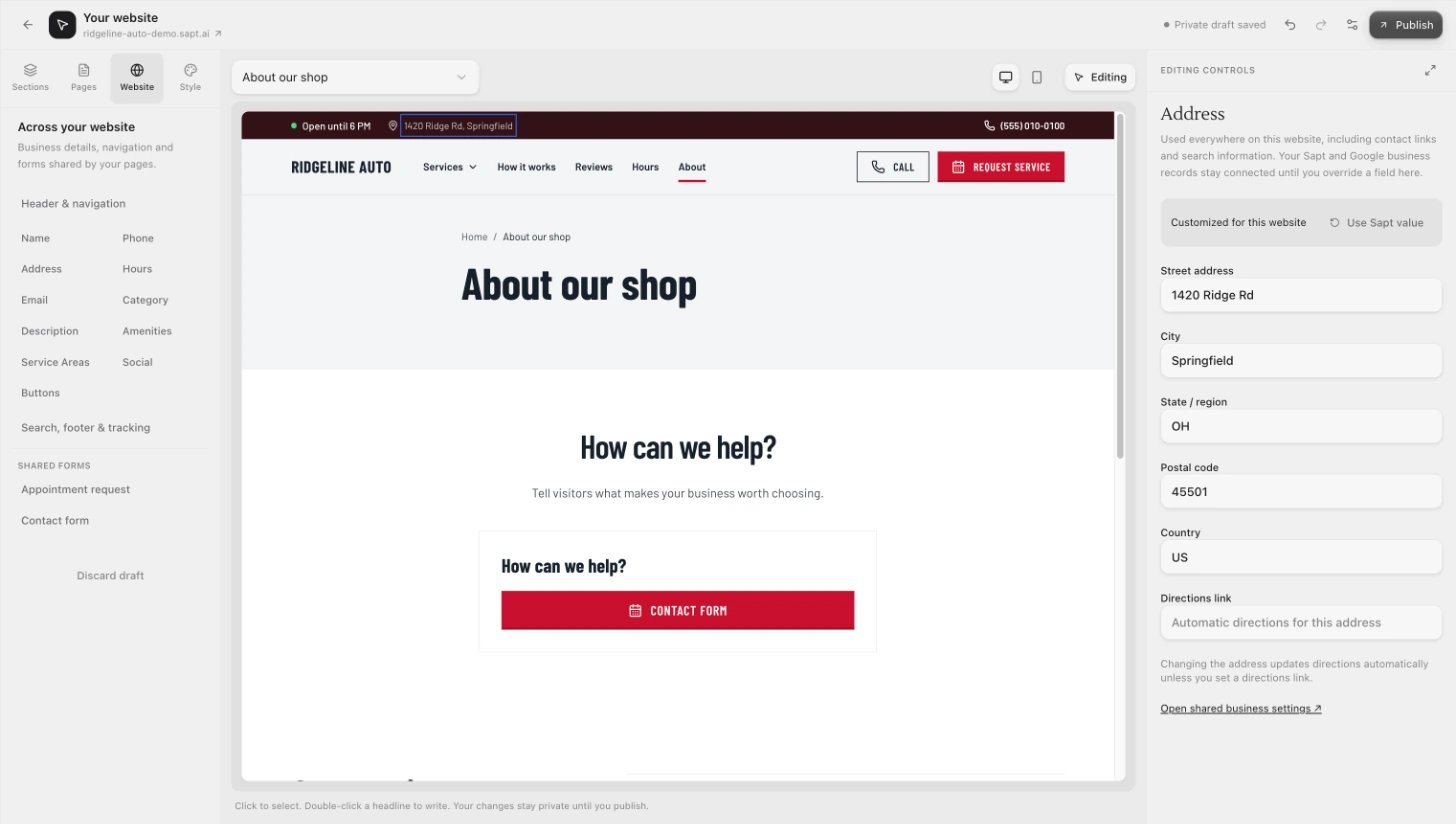 * **Header & navigation:** your logo and name, the menu and its button, and the contact strip.
* **Business details:** name, phone, address, hours, email, category, description, amenities, service areas and social links. Each one follows your Sapt and Google details until you change it here. To go back, click **Use Sapt value**.
* **Buttons:** your main button's label and what it does, such as **Open Sapt booking** or **Call the business**.
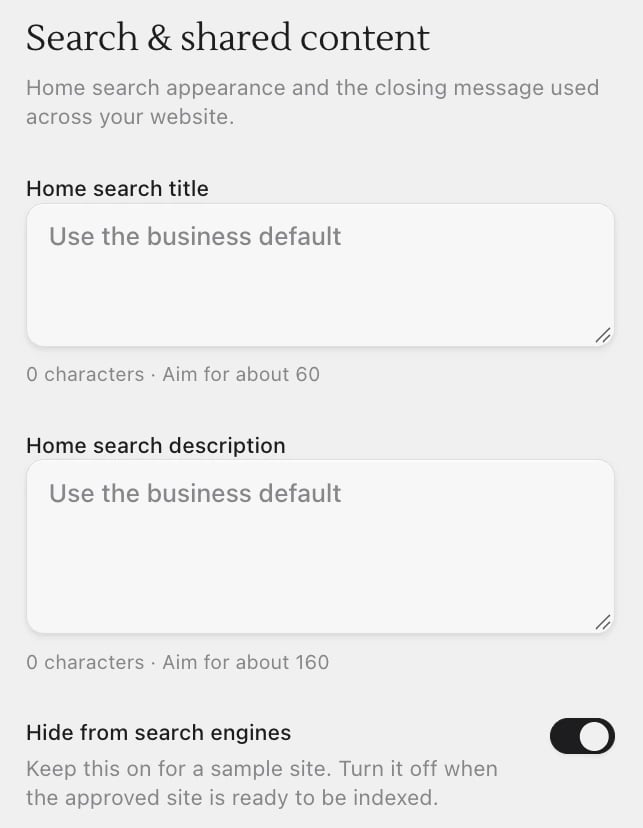
* **Search, footer & tracking:** how your home page looks in search results, the footer, and **Hide from search engines**.
* **Shared forms:** your booking form and any other forms. See [Forms](/docs/mintlify/website/forms).
## Show your site on Google
If the Website page shows **Hidden from search**, your site is asking Google to leave it out. Click **Show on Google**.
If you have changes you have not published yet, Sapt asks you to publish them first. You can also turn it off yourself: **Website** tab, **Search, footer & tracking**, then switch off **Hide from search engines** and publish.
* **Header & navigation:** your logo and name, the menu and its button, and the contact strip.
* **Business details:** name, phone, address, hours, email, category, description, amenities, service areas and social links. Each one follows your Sapt and Google details until you change it here. To go back, click **Use Sapt value**.
* **Buttons:** your main button's label and what it does, such as **Open Sapt booking** or **Call the business**.
* **Search, footer & tracking:** how your home page looks in search results, the footer, and **Hide from search engines**.
* **Shared forms:** your booking form and any other forms. See [Forms](/docs/mintlify/website/forms).
## Show your site on Google
If the Website page shows **Hidden from search**, your site is asking Google to leave it out. Click **Show on Google**.
If you have changes you have not published yet, Sapt asks you to publish them first. You can also turn it off yourself: **Website** tab, **Search, footer & tracking**, then switch off **Hide from search engines** and publish.
 ## Publish
**Publish** is in the top right. It turns on once you have changes. A box called **Ready to go live?** lists what will change.
## Publish
**Publish** is in the top right. It turns on once you have changes. A box called **Ready to go live?** lists what will change.
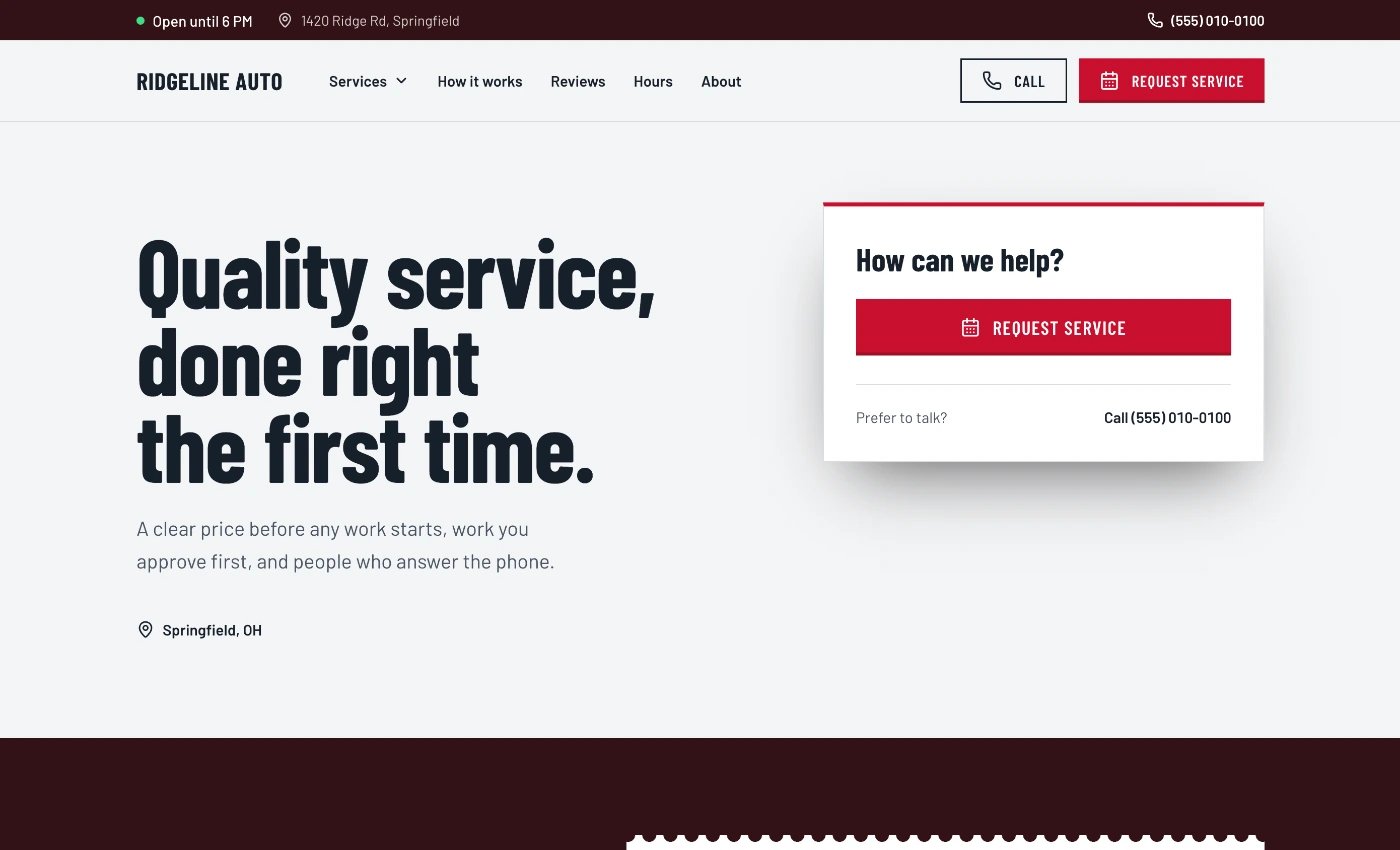
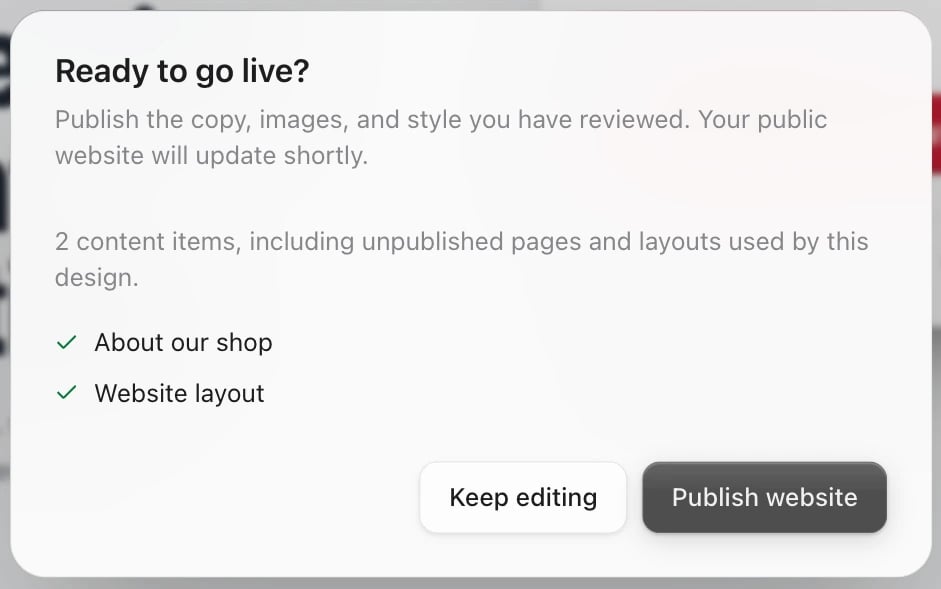 Your live site updates shortly, usually within a minute. Open it from the address under **Your website** in the top bar.
 Changed your mind? Click **Discard draft** at the bottom of the left side, then **Discard draft** again. Your published site stays as it is. New pages you made stay as unpublished pages.
## Your website on your phone
In the phone app, open **Growth** and scroll to **Website** at the bottom. It shows whether your site is **Live**, waiting on your domain, or off, with **Open website** to see it. Editing happens on the web.
Changed your mind? Click **Discard draft** at the bottom of the left side, then **Discard draft** again. Your published site stays as it is. New pages you made stay as unpublished pages.
## Your website on your phone
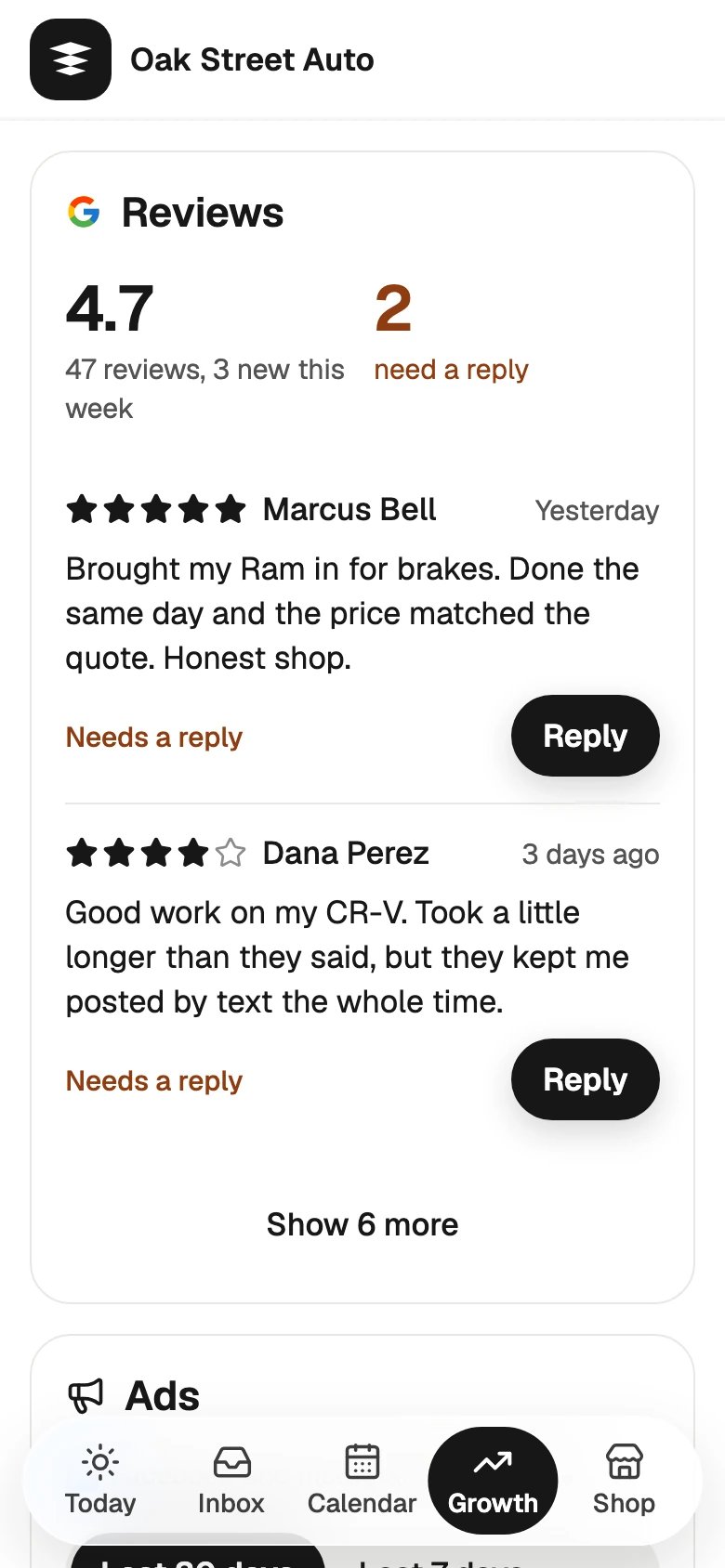
In the phone app, open **Growth** and scroll to **Website** at the bottom. It shows whether your site is **Live**, waiting on your domain, or off, with **Open website** to see it. Editing happens on the web.
 ## If something looks wrong
* **"Your site goes live when your plan starts."** Your site turns on once your Sapt plan has started.
* **You see Pages, Content, Brand and Settings instead of the editor.** Your role can see the site but not use the full editor. Ask whoever runs your Sapt team.
* **A card says Your location.** Sapt found more than one Google location. Click **Choose location** and pick the right one.
* **"The live website may still show the previous version."** Your changes are published. The live site often catches up 10 to 40 seconds later, even with this banner showing. Wait a moment, then click **Check again** or reload your site.
## If something looks wrong
* **"Your site goes live when your plan starts."** Your site turns on once your Sapt plan has started.
* **You see Pages, Content, Brand and Settings instead of the editor.** Your role can see the site but not use the full editor. Ask whoever runs your Sapt team.
* **A card says Your location.** Sapt found more than one Google location. Click **Choose location** and pick the right one.
* **"The live website may still show the previous version."** Your changes are published. The live site often catches up 10 to 40 seconds later, even with this banner showing. Wait a moment, then click **Check again** or reload your site.
 * **Publishing failed.** Your draft is safe. Click **Try publishing again**.
## Keep going
This documentation is built and hosted on [Mintlify](https://mintlify.com), a developer documentation platform.
* **Publishing failed.** Your draft is safe. Click **Try publishing again**.
## Keep going
This documentation is built and hosted on [Mintlify](https://mintlify.com), a developer documentation platform.