> ## Documentation Index
> Fetch the complete documentation index at: https://docs.sapt.ai/llms.txt
> Use this file to discover all available pages before exploring further.
# Connect your own domain to your website
> Move your Sapt website from its sapt.ai address to a domain you own, add the DNS records, and know what each status means while it connects.
Your site starts at an address like `your-shop.sapt.ai`. Connect a domain you own, such as `example.com`, and your site moves there. Once it is live, people who visit the sapt.ai address are sent on to your domain.
## Before you start
* A domain you own, and the login for the company that runs its DNS. That is usually where you bought the domain, or Cloudflare.
* Your Sapt website. See [Build your website](/docs/mintlify/website/build-your-website).
## Open Domains
Either way gets you to the same screen:
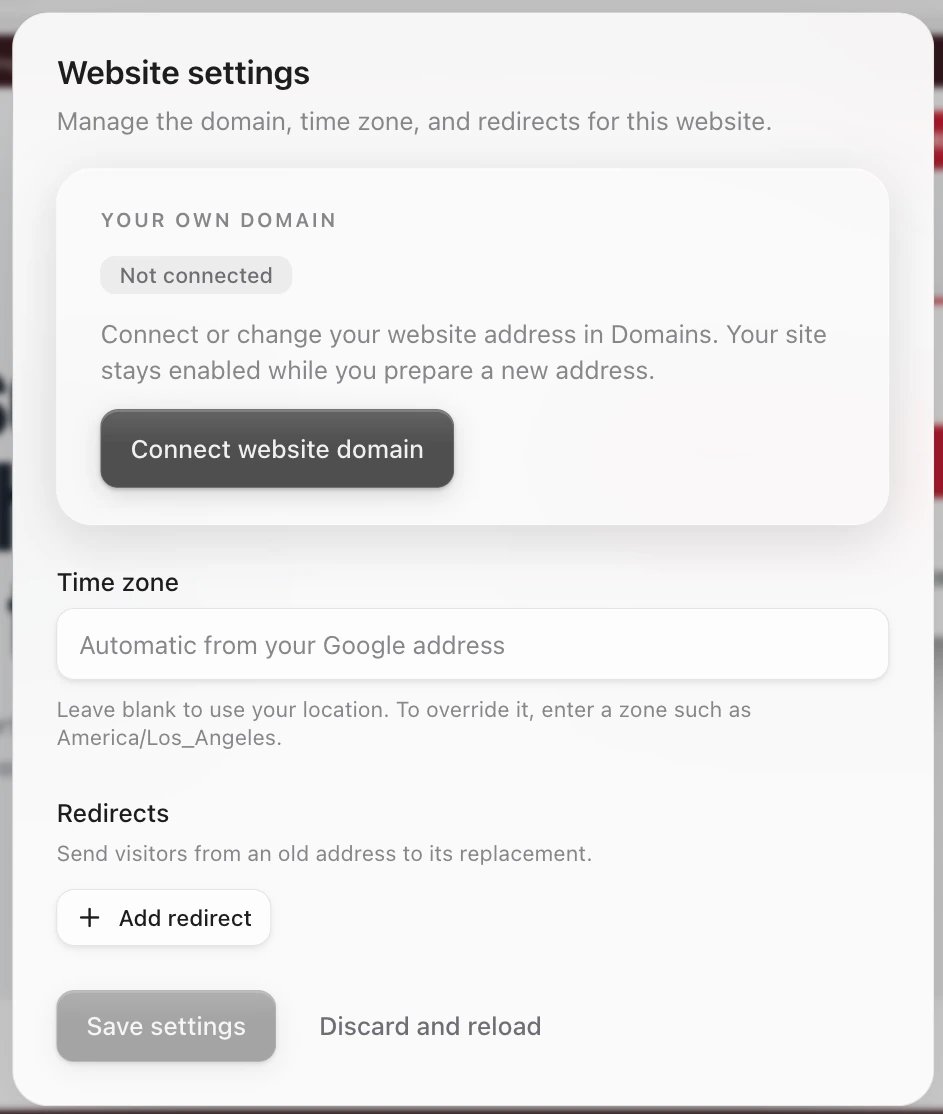
* In the website editor, click the sliders button (**Website settings**) in the top bar. Under **Your own domain**, click **Connect website domain**.
* Or in the sidebar, click **Project Settings**, then **Domains**.
 ## Connect your domain
In **Connect a domain**, type it in **Domain you own**, such as `example.com`.
## Connect your domain
In **Connect a domain**, type it in **Domain you own**, such as `example.com`.
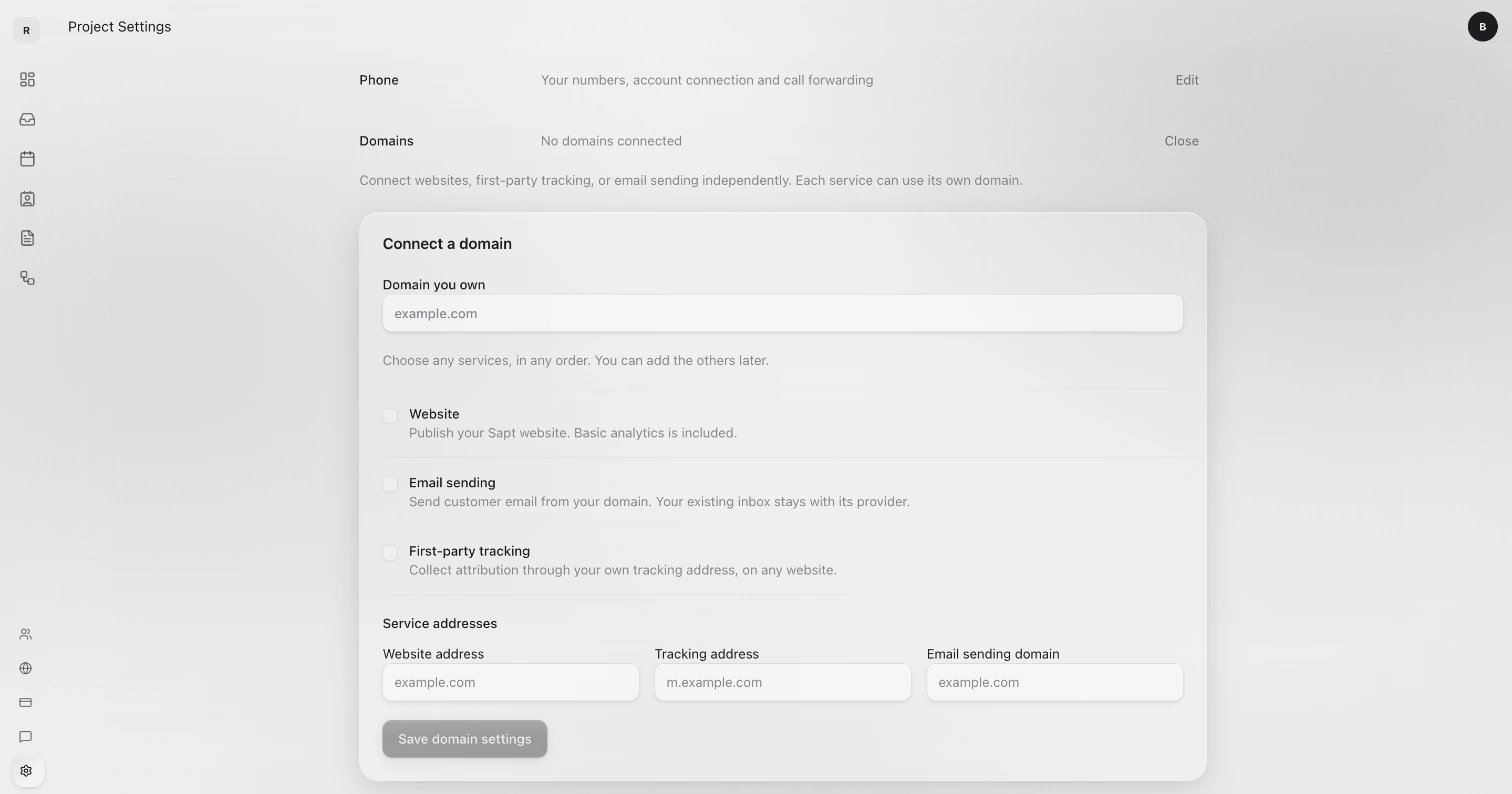 Tick **Website**. You can also tick **Email sending** (send customer email from your domain; your inbox stays where it is) or **First-party tracking** (collect visitor tracking through your own address). You can add these later.
Under **Service addresses**, **Website address** is filled in with your domain. To use the www address, type `www.example.com` instead.
Your domain appears below with the DNS records it needs.
Pick one of the three ways below.
The **Website** row moves from **Waiting for records** to **Issuing certificate** to **Live**. Then your site is on your domain.
## Add the DNS records
Your domain's card says where its DNS is, such as "DNS at GoDaddy", and lists the records under **DNS records**.
### If your DNS is at Cloudflare
Sapt can add the records for you. You see this option only when your DNS is at Cloudflare.
1. Click **Connect Cloudflare DNS access**, then **Open Cloudflare**. Cloudflare's token page opens with the access Sapt needs already filled in.
2. In Cloudflare, make sure the token can reach your domain, click **Continue to summary**, then **Create Token**. Copy the token. Cloudflare shows it only once. [Cloudflare's guide](https://developers.cloudflare.com/fundamentals/api/get-started/create-token/) has the details.
3. Back in Sapt, paste it in **Paste the token** and click **Connect**.
4. Look over the records, then click **Apply DNS records**.
Connecting does not change anything by itself. Records change only when you click **Apply DNS records**. More on the [Cloudflare page](/docs/mintlify/integrations/cloudflare).
### Add the records yourself
This works with any DNS host.
1. Read the line under the records. It says where to add them at your host.
2. Click a **Host** or **Value** to copy it, or click **Copy all**.
3. At your DNS host, add each record exactly as shown. For CNAME records, turn the proxy off (DNS only) and leave TTL on auto.
4. Back in Sapt, click **Check connection**. Checking only looks. It never changes anything at your host.
If your website address is `www.example.com`, Sapt also asks you to forward `example.com` to it at your registrar, so both addresses work.
Each record shows a status: **Live** (found and right), **Add this** (not there yet), **Conflict** (something else is there, and Sapt shows its current value) or **Not checked**.
### Let us do it for you
Click **Text us and we do it for you**. It starts a text to Sapt with your domain filled in, so it works best on your phone. The number we reply from is on the screen.
## What the statuses mean
| Status | What it means |
| - | - |
| **Not connected** | This service does not use the domain yet. |
| **Waiting for records** | Sapt is waiting to see the DNS records. |
| **Issuing certificate** | The records are in. Sapt is setting up the secure (https) connection. |
| **Live** | Your site is on this domain. |
| **Verified** | A second address that works, but is not the one your site uses. |
| **Failed** | Something is wrong. The reason shows in red under the row. |
## While DNS updates
* DNS changes are not instant. While the Domains screen is open, it checks again by itself. You can also close it and click **Check connection** later.
* Your site keeps working at its sapt.ai address the whole time.
* The phone app shows the same progress under **Growth**, **Website**, such as "Waiting on your domain settings for [www.example.com](http://www.example.com)".
## Change to a different domain
1. On the Domains screen, click **Connect another domain** and connect the new one the same way. Your current domain keeps working.
2. When the new address shows **Verified**, click **Manage** on its **Website** row, then **Make primary**.
Making a domain primary also lets Google show your site again if it was set to **Hide from search engines**.
## Disconnect a domain
* **Stop using it for the website:** click **Manage** on the **Website** row, then **Disconnect**. Your site stays up at its sapt.ai address.
* **Remove it completely:** click **Remove domain**. Every Sapt service stops using it. Your DNS records stay at your host until you delete them there.
## If something looks wrong
* **A record shows Conflict.** An old record is in the way. At your DNS host, change it to the value Sapt shows, then click **Check connection**.
* **"Your Cloudflare token cannot see example.com."** Make a new token that includes that domain and paste it in.
* **The record is for the bare domain (`example.com`) and your host will not take a CNAME there.** Use your host's CNAME flattening, ALIAS or ANAME option, and keep your email records. Or use the www address.
* **Still stuck?** Click **Text us and we do it for you**.
## Keep going
This documentation is built and hosted on [Mintlify](https://mintlify.com), a developer documentation platform.
Tick **Website**. You can also tick **Email sending** (send customer email from your domain; your inbox stays where it is) or **First-party tracking** (collect visitor tracking through your own address). You can add these later.
Under **Service addresses**, **Website address** is filled in with your domain. To use the www address, type `www.example.com` instead.
Your domain appears below with the DNS records it needs.
Pick one of the three ways below.
The **Website** row moves from **Waiting for records** to **Issuing certificate** to **Live**. Then your site is on your domain.
## Add the DNS records
Your domain's card says where its DNS is, such as "DNS at GoDaddy", and lists the records under **DNS records**.
### If your DNS is at Cloudflare
Sapt can add the records for you. You see this option only when your DNS is at Cloudflare.
1. Click **Connect Cloudflare DNS access**, then **Open Cloudflare**. Cloudflare's token page opens with the access Sapt needs already filled in.
2. In Cloudflare, make sure the token can reach your domain, click **Continue to summary**, then **Create Token**. Copy the token. Cloudflare shows it only once. [Cloudflare's guide](https://developers.cloudflare.com/fundamentals/api/get-started/create-token/) has the details.
3. Back in Sapt, paste it in **Paste the token** and click **Connect**.
4. Look over the records, then click **Apply DNS records**.
Connecting does not change anything by itself. Records change only when you click **Apply DNS records**. More on the [Cloudflare page](/docs/mintlify/integrations/cloudflare).
### Add the records yourself
This works with any DNS host.
1. Read the line under the records. It says where to add them at your host.
2. Click a **Host** or **Value** to copy it, or click **Copy all**.
3. At your DNS host, add each record exactly as shown. For CNAME records, turn the proxy off (DNS only) and leave TTL on auto.
4. Back in Sapt, click **Check connection**. Checking only looks. It never changes anything at your host.
If your website address is `www.example.com`, Sapt also asks you to forward `example.com` to it at your registrar, so both addresses work.
Each record shows a status: **Live** (found and right), **Add this** (not there yet), **Conflict** (something else is there, and Sapt shows its current value) or **Not checked**.
### Let us do it for you
Click **Text us and we do it for you**. It starts a text to Sapt with your domain filled in, so it works best on your phone. The number we reply from is on the screen.
## What the statuses mean
| Status | What it means |
| - | - |
| **Not connected** | This service does not use the domain yet. |
| **Waiting for records** | Sapt is waiting to see the DNS records. |
| **Issuing certificate** | The records are in. Sapt is setting up the secure (https) connection. |
| **Live** | Your site is on this domain. |
| **Verified** | A second address that works, but is not the one your site uses. |
| **Failed** | Something is wrong. The reason shows in red under the row. |
## While DNS updates
* DNS changes are not instant. While the Domains screen is open, it checks again by itself. You can also close it and click **Check connection** later.
* Your site keeps working at its sapt.ai address the whole time.
* The phone app shows the same progress under **Growth**, **Website**, such as "Waiting on your domain settings for [www.example.com](http://www.example.com)".
## Change to a different domain
1. On the Domains screen, click **Connect another domain** and connect the new one the same way. Your current domain keeps working.
2. When the new address shows **Verified**, click **Manage** on its **Website** row, then **Make primary**.
Making a domain primary also lets Google show your site again if it was set to **Hide from search engines**.
## Disconnect a domain
* **Stop using it for the website:** click **Manage** on the **Website** row, then **Disconnect**. Your site stays up at its sapt.ai address.
* **Remove it completely:** click **Remove domain**. Every Sapt service stops using it. Your DNS records stay at your host until you delete them there.
## If something looks wrong
* **A record shows Conflict.** An old record is in the way. At your DNS host, change it to the value Sapt shows, then click **Check connection**.
* **"Your Cloudflare token cannot see example.com."** Make a new token that includes that domain and paste it in.
* **The record is for the bare domain (`example.com`) and your host will not take a CNAME there.** Use your host's CNAME flattening, ALIAS or ANAME option, and keep your email records. Or use the www address.
* **Still stuck?** Click **Text us and we do it for you**.
## Keep going
This documentation is built and hosted on [Mintlify](https://mintlify.com), a developer documentation platform.