> ## Documentation Index
> Fetch the complete documentation index at: https://docs.sapt.ai/llms.txt
> Use this file to discover all available pages before exploring further.
# Add pages and sections to your website
> Add a page to your Sapt website, put it in the menu, and add, hide, reorder or remove the sections on each page in the editor.
Every page on your site is a stack of sections. You add pages in the **Pages** tab and arrange sections in the **Sections** tab. Open the editor from **Website** in the sidebar.
## The pages you start with
| Page | Address | What it shows |
| - | - | - |
| Home | `/` | Your main page, made of sections you arrange. |
| Services | `/services` | Your published services. Each one also gets its own page at `/services/...`. |
| Blog | `/blog` | Your published articles. Each one gets its own page at `/blog/...`. |
| Reviews | `/reviews` | Reviews from your connected Google profile. |
| Review & feedback | `/review` | A page that asks customers for a rating, saves their feedback in Sapt and links to your Google review page. |
You can add and arrange sections on Home, on pages you add, and on each service and article page.
## Add a page
Click **Pages**. Under **Your pages**, click **New page**.
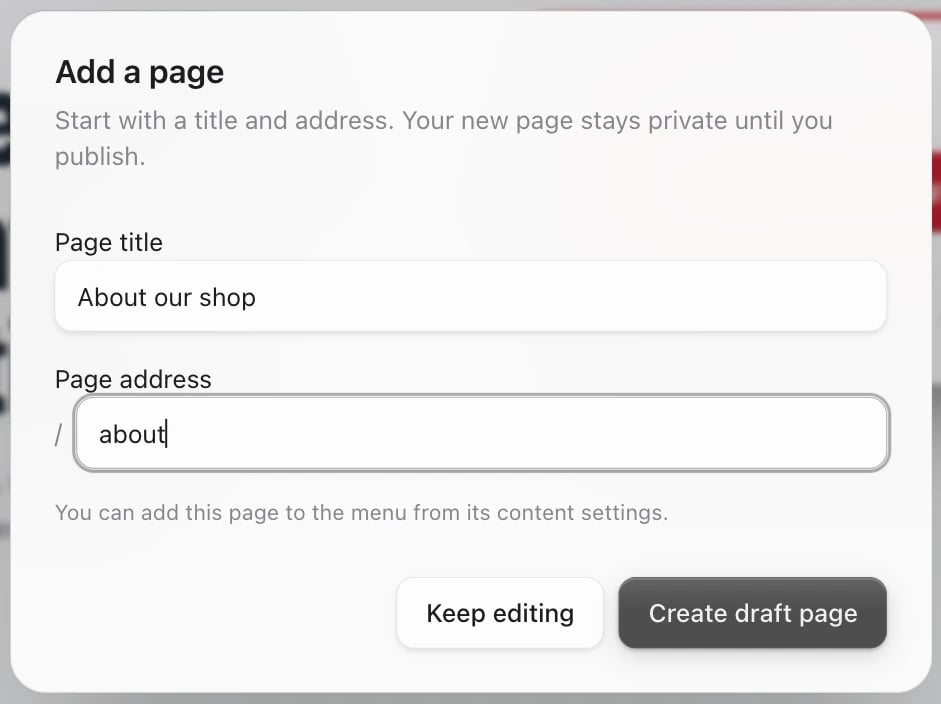
In **Add a page**, type a **Page title**, such as "About our shop". Sapt fills in the **Page address** for you (`about-our-shop`). You can shorten it to `about`. Use lowercase letters, numbers and dashes. Click **Create draft page**.
 The new page opens with its settings on the right: its name, its body, its title and how it looks in search results. Add sections to it too (see below).
In the page's settings, tick **Show in menu**. To use a shorter name in the menu, fill in **Menu label**.
The new page opens with its settings on the right: its name, its body, its title and how it looks in search results. Add sections to it too (see below).
In the page's settings, tick **Show in menu**. To use a shorter name in the menu, fill in **Menu label**.
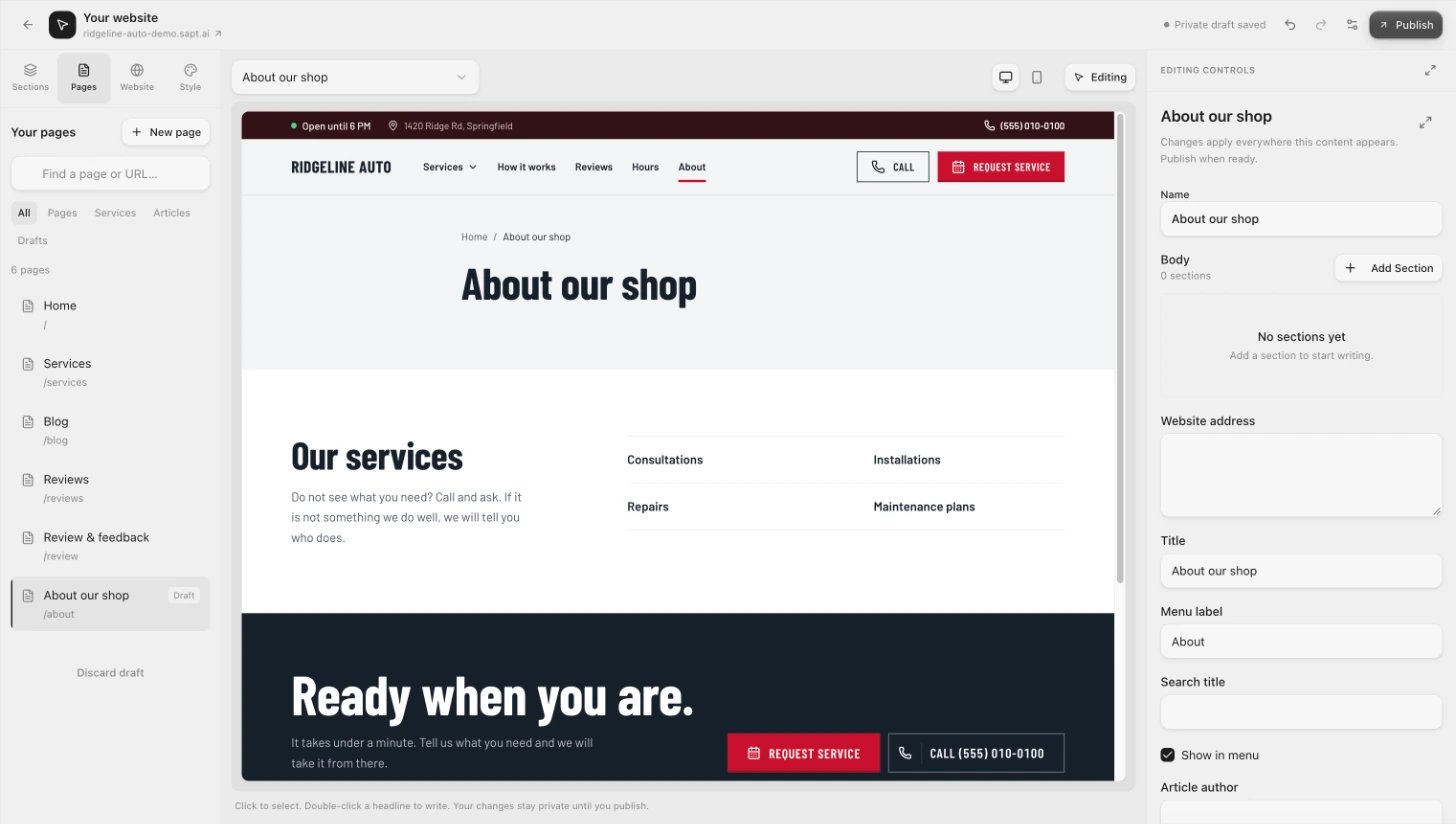 Click **Publish**, then **Publish website**. Until then the page is a draft that only you can see.
If you set your own menu links under **Website**, **Header & navigation**, **Menu & button**, those links replace the automatic menu and **Show in menu** has no effect. Add the page there with **Add link** instead, or click **Use automatic menu**.
To find a page later, type in **Find a page or URL…** or use the filters: **All**, **Pages**, **Services**, **Articles** and **Drafts**.
## Add a section
Choose the page in the picker above your page, or click it in the **Pages** tab. Then click **Sections**.
A box called **Build your page** opens. Click the layout you want. You can search with **Search layouts…**.
Click **Publish**, then **Publish website**. Until then the page is a draft that only you can see.
If you set your own menu links under **Website**, **Header & navigation**, **Menu & button**, those links replace the automatic menu and **Show in menu** has no effect. Add the page there with **Add link** instead, or click **Use automatic menu**.
To find a page later, type in **Find a page or URL…** or use the filters: **All**, **Pages**, **Services**, **Articles** and **Drafts**.
## Add a section
Choose the page in the picker above your page, or click it in the **Pages** tab. Then click **Sections**.
A box called **Build your page** opens. Click the layout you want. You can search with **Search layouts…**.
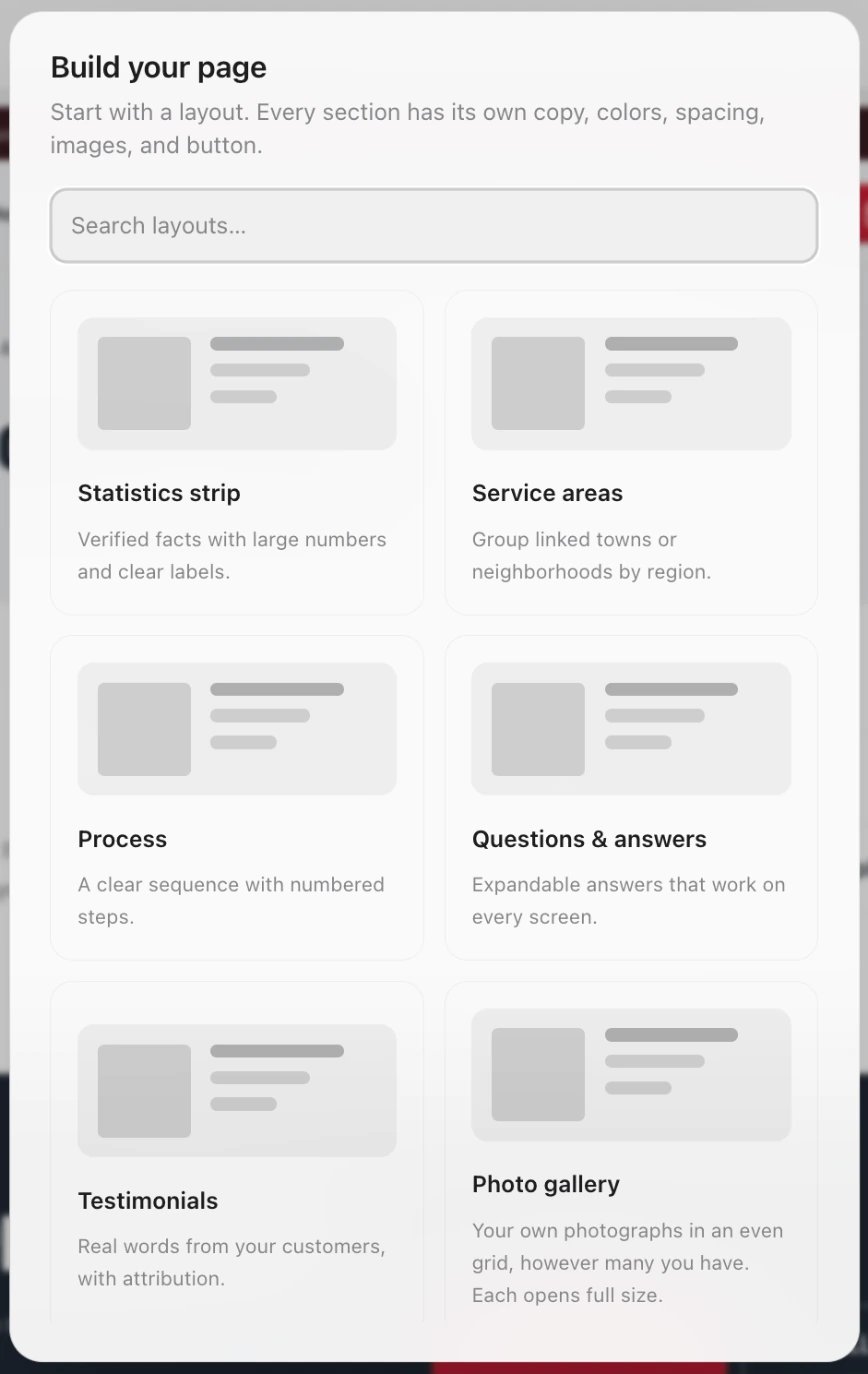 The new section is selected. Change its text, images and button on the right. To try a different design, change **Layout**.
The layouts in **Build your page**:
| Layout | Use it for |
| - | - |
| Statistics strip | A few facts with big numbers. |
| Service areas | The towns or neighborhoods you serve. |
| Process | Steps, numbered in order. |
| Questions & answers | Common questions with answers that open on tap. |
| Testimonials | Customer quotes with their names. |
| Photo gallery | Your photos in an even grid. |
| Photo dome | Your photos on a globe visitors can spin. Heavier than the grid. |
| Logo marquee | Partners, certifications or memberships. |
| Connected form | A form that sends requests into Sapt. See [Forms](/docs/mintlify/website/forms). |
| Image & text | A photo beside your message. |
| Statement | A headline and a short introduction. |
| Feature grid | Benefits, team members, prices or steps. |
| Call to action | One message and a button. |
Your home page also has built-in sections: Hero, Logos & credentials, How it works, Services, Offers, Reviews, About the shop, Gallery, Visit and Questions.
## Hide, move or remove a section
The **Sections** tab lists the sections on the page in order.
* **Hide:** click the eye next to the section. It stays in the list, crossed out, and visitors do not see it.
* **Move:** drag it by the handle on the left, or click it and use the up and down arrows.
* **Remove from the page:** click the section, then the trash can under it. To bring it back, pick it from **Add an existing section**.
* **Delete a section you added:** click it, then the trash can in the controls on the right. If Sapt asks, click **Remove section**.
You can undo any of these with Undo in the top bar before you leave the editor. Nothing changes on your live site until you publish.
On the home page, **Use only custom sections** takes off all the built-in sections at once.
## Show content from Sapt
A **Connected content** section shows items from a collection in [Content](/docs/mintlify/cms/collections), such as your services, team or projects. When you publish a change to those items, the section updates by itself.
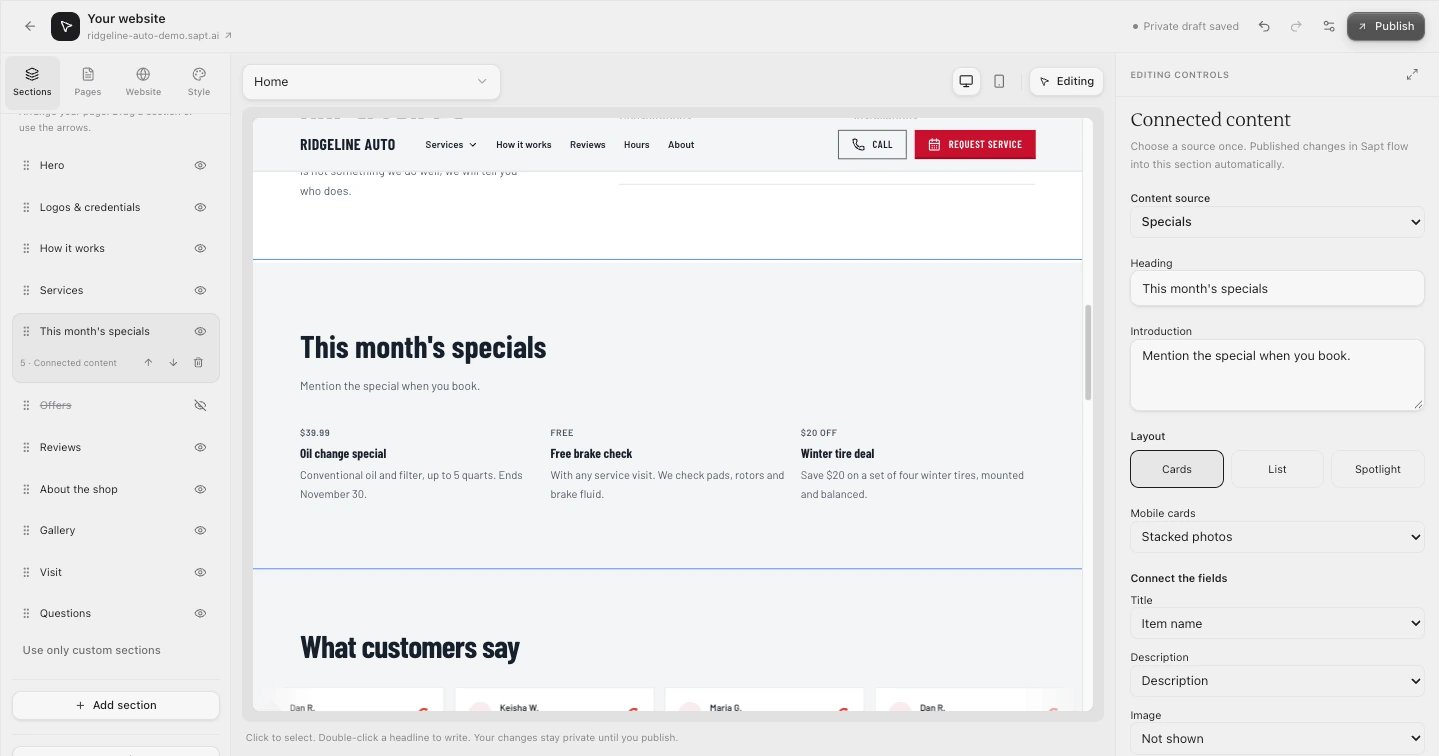
In the **Sections** tab, click **Connected content** and pick a collection, such as **Specials**.
On the right, choose the **Layout** (**Cards**, **List** or **Spotlight**), match the fields under **Connect the fields**, and pick how many **Items to show**.
The new section is selected. Change its text, images and button on the right. To try a different design, change **Layout**.
The layouts in **Build your page**:
| Layout | Use it for |
| - | - |
| Statistics strip | A few facts with big numbers. |
| Service areas | The towns or neighborhoods you serve. |
| Process | Steps, numbered in order. |
| Questions & answers | Common questions with answers that open on tap. |
| Testimonials | Customer quotes with their names. |
| Photo gallery | Your photos in an even grid. |
| Photo dome | Your photos on a globe visitors can spin. Heavier than the grid. |
| Logo marquee | Partners, certifications or memberships. |
| Connected form | A form that sends requests into Sapt. See [Forms](/docs/mintlify/website/forms). |
| Image & text | A photo beside your message. |
| Statement | A headline and a short introduction. |
| Feature grid | Benefits, team members, prices or steps. |
| Call to action | One message and a button. |
Your home page also has built-in sections: Hero, Logos & credentials, How it works, Services, Offers, Reviews, About the shop, Gallery, Visit and Questions.
## Hide, move or remove a section
The **Sections** tab lists the sections on the page in order.
* **Hide:** click the eye next to the section. It stays in the list, crossed out, and visitors do not see it.
* **Move:** drag it by the handle on the left, or click it and use the up and down arrows.
* **Remove from the page:** click the section, then the trash can under it. To bring it back, pick it from **Add an existing section**.
* **Delete a section you added:** click it, then the trash can in the controls on the right. If Sapt asks, click **Remove section**.
You can undo any of these with Undo in the top bar before you leave the editor. Nothing changes on your live site until you publish.
On the home page, **Use only custom sections** takes off all the built-in sections at once.
## Show content from Sapt
A **Connected content** section shows items from a collection in [Content](/docs/mintlify/cms/collections), such as your services, team or projects. When you publish a change to those items, the section updates by itself.
In the **Sections** tab, click **Connected content** and pick a collection, such as **Specials**.
On the right, choose the **Layout** (**Cards**, **List** or **Spotlight**), match the fields under **Connect the fields**, and pick how many **Items to show**.
 To add or change the items themselves, click **Add or manage content in Sapt ↗**. More in [Content on your website](/docs/mintlify/cms/content-on-your-website).
## If something looks wrong
* **Add section is grey.** Click **Enable editing** first if you see **Make this site yours**. A site can have up to 60 sections you added.
* **No sections show for Services, Blog or Reviews.** Those pages are built from your services, articles and reviews. Click the text on the page to edit it.
* **A new page does not show on the live site.** Pages start as drafts. Publish your website.
* **Create draft page stays grey.** Fill in both boxes and use only lowercase letters, numbers and dashes in the address.
## Keep going
This documentation is built and hosted on [Mintlify](https://mintlify.com), a developer documentation platform.
To add or change the items themselves, click **Add or manage content in Sapt ↗**. More in [Content on your website](/docs/mintlify/cms/content-on-your-website).
## If something looks wrong
* **Add section is grey.** Click **Enable editing** first if you see **Make this site yours**. A site can have up to 60 sections you added.
* **No sections show for Services, Blog or Reviews.** Those pages are built from your services, articles and reviews. Click the text on the page to edit it.
* **A new page does not show on the live site.** Pages start as drafts. Publish your website.
* **Create draft page stays grey.** Fill in both boxes and use only lowercase letters, numbers and dashes in the address.
## Keep going
This documentation is built and hosted on [Mintlify](https://mintlify.com), a developer documentation platform.