

How an automation works
Every automation has three parts:- What starts it. One thing that happens, like a missed call, a new website request or a job marked done.
- Steps. What Sapt does next, from top to bottom: text them, wait a day, text you.
- Paths. A step can split in two, like “they replied” and “they did not”. Each path has its own steps.
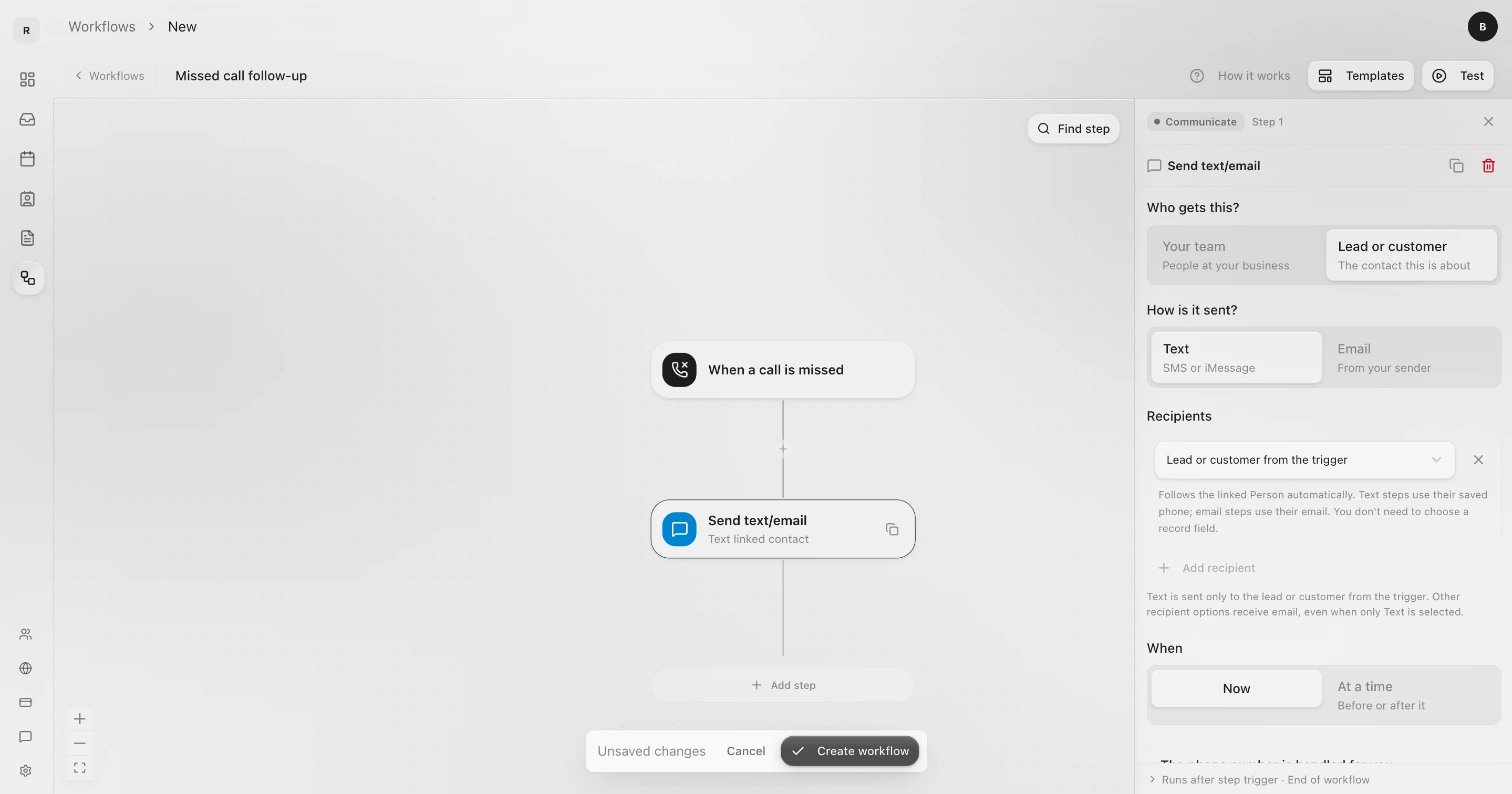
See your automations
- On your phone
- On the web
Open Shop and tap Automations. Each one shows what starts it and how many times it ran in the last 7 days. A note under it says when a text did not go out, and why.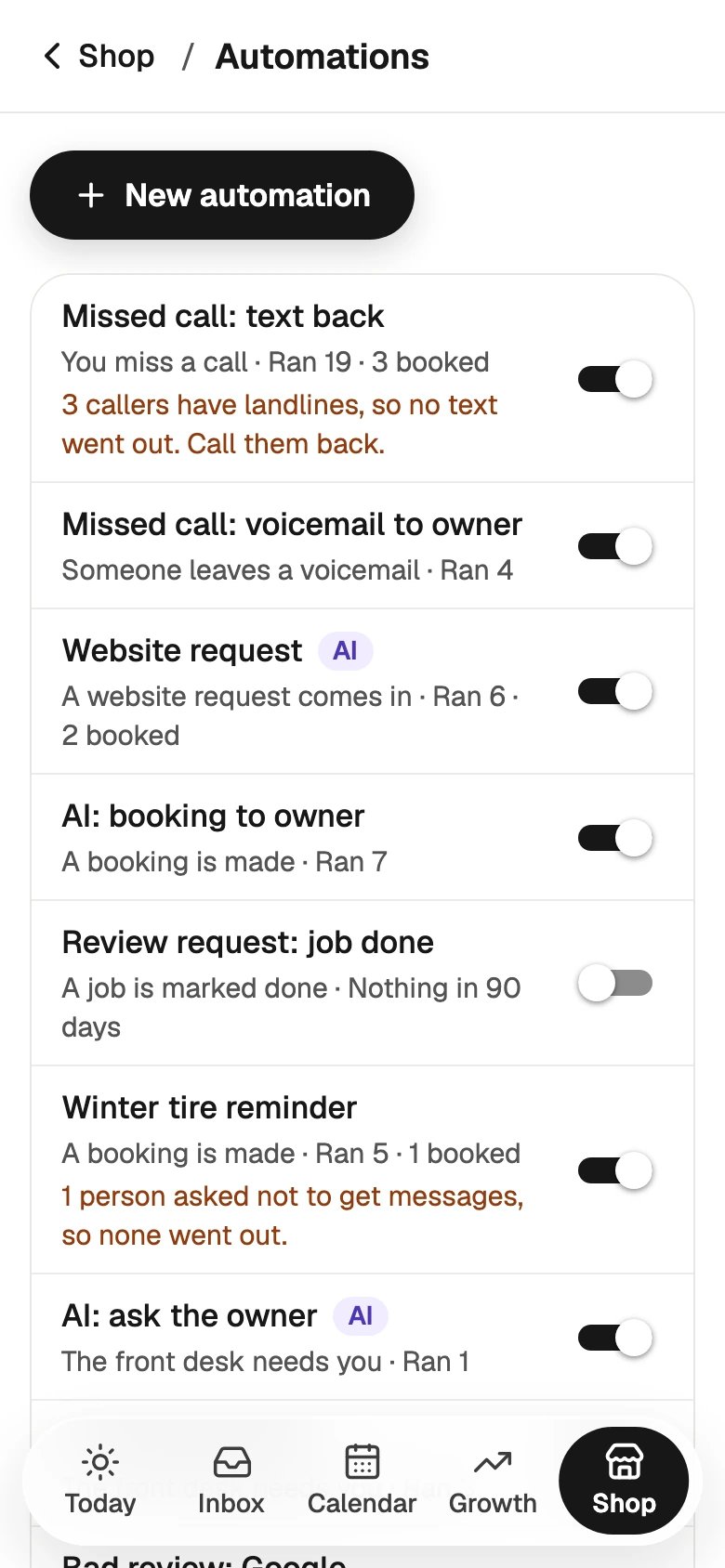

Turn one on or off
- On your phone
- On the web
Flip the switch on its row. To turn one off, Sapt asks Turn this off? and says what stops. Tap Turn off. Anything it was about to send is cancelled.
If you cannot turn automations on or off, your role does not allow it. Ask the shop owner. See Your team.
Make an automation on your phone
1
Tap New automation
In Shop, Automations, tap New automation. It starts off, so nothing goes out until you turn it on.
2
Pick a starting point
Under Start from one of these, pick Missed call follow-up, Website request follow-up, Welcome first-time customers or Thank them after the job.Or under Or start from scratch, pick what starts it, like A call is missed, A booking is made or A job is marked done.
3
Add your steps
Tap + where the step goes. Add a step opens: Text them, Email them, Wait, Wait for a reply, If…, Tell me, Tag them, Ask for a review and Stop. More are under More steps.Tap any step to change its words. If… splits the path on a question like They replied, They booked or They’re a new customer.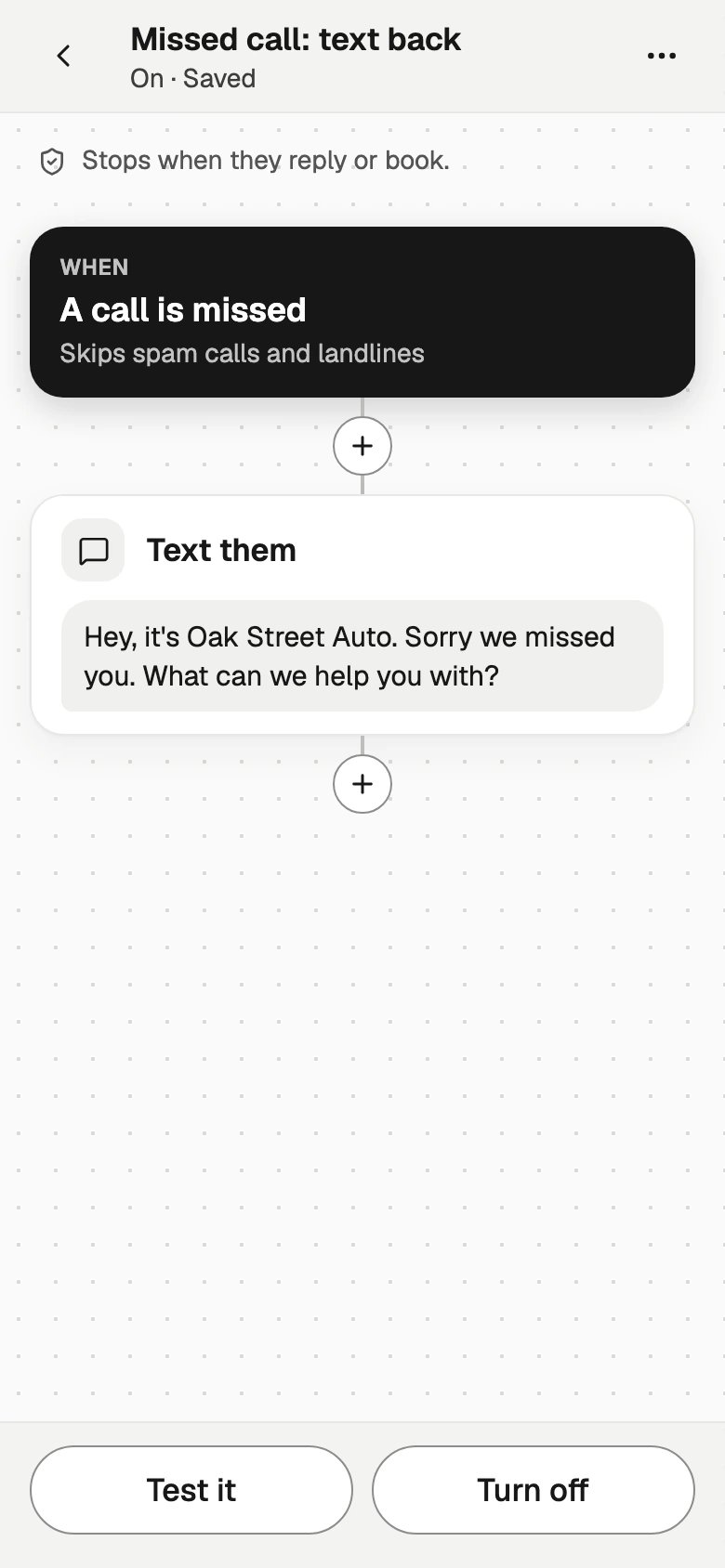
4
Save, test, turn on
Tap Save. Then tap Test it (see Test before you turn it on) and Turn on.
Make a workflow on the web
1
Click New
In Workflows, click New. If you have none yet, click Create your first workflow. A blank workflow opens, starting with When a record is created.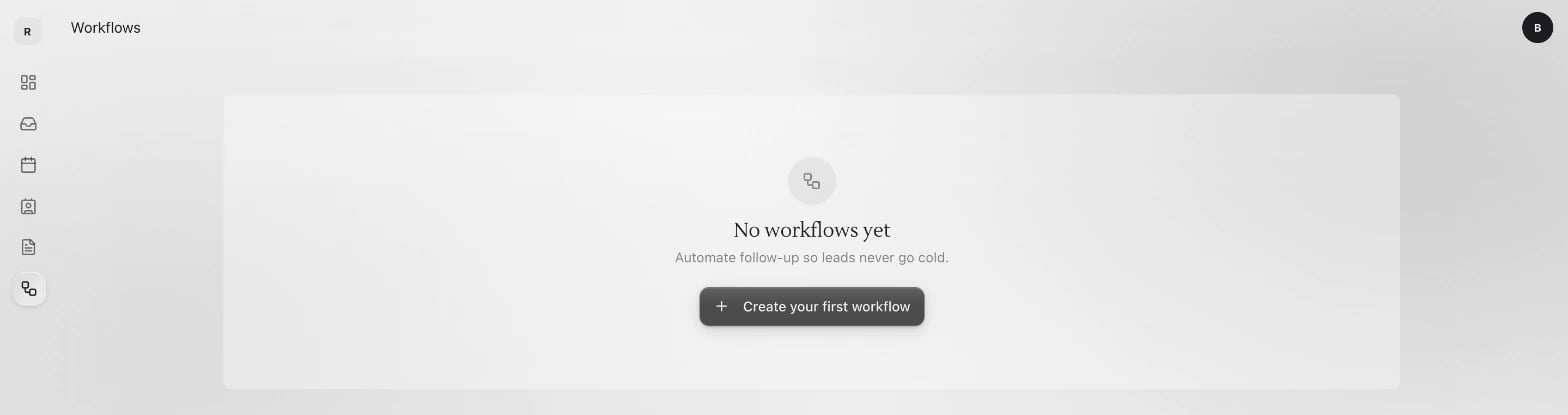
2
Start from a template
Click Templates at the top and pick one, like Text back a missed call. Search, or narrow the list with Messages & follow-up, Team notifications, AI or Connected apps. A template replaces any trigger and steps you already added.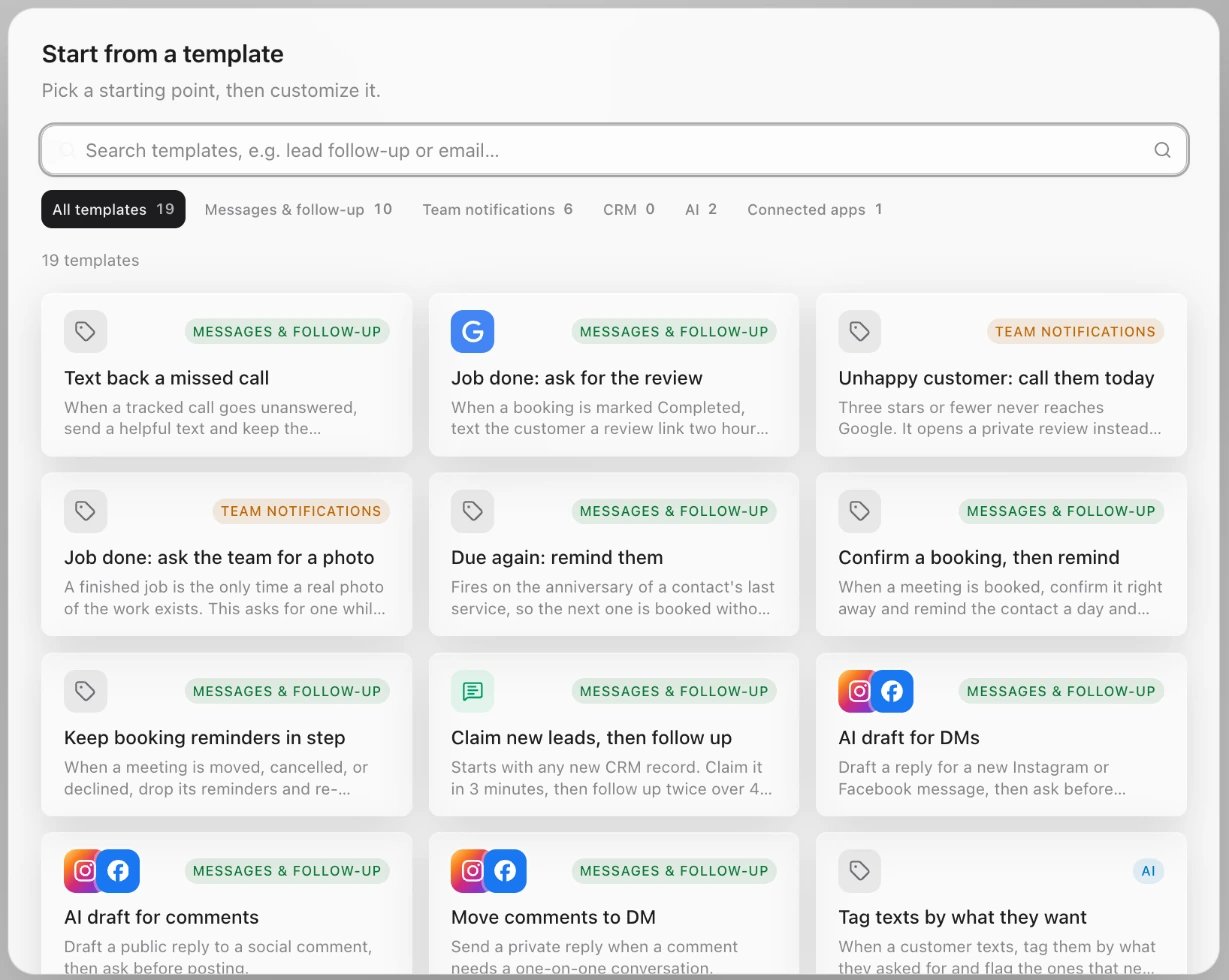
3
Pick what starts it
Click the box at the top of the canvas. Under Trigger, open the list and pick one. Type in Search triggers to find it fast.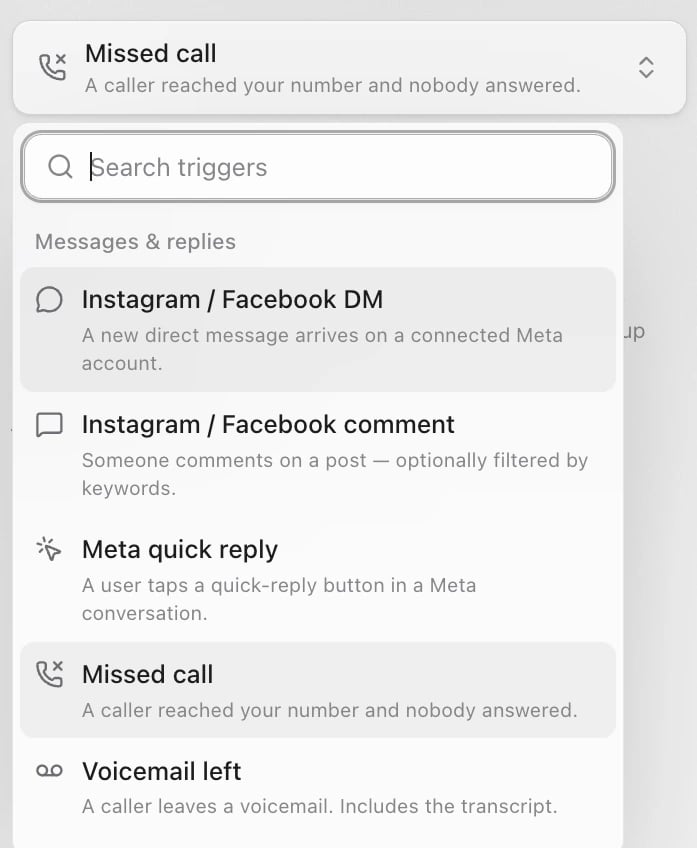
4
Add steps
Click Add step under the last step. Search, or pick from the list. Click any step to change it. The ones a shop uses most:
5
Save it
Click Create workflow. Give it a name in Workflow details if Sapt asks, then click Save. New workflows are saved off. Test it, then turn it on.
Test before you turn it on
A test runs the automation on the last real event that matches, like your last missed call. Nothing is sent and nothing changes.- On your phone
- On the web
Open the automation and tap Test it. Test with a customer shows each step, who it would text, and which path it took. Tap Run again after a change, then Done.If nothing has started it yet, there is no customer to test with. It works the same once one comes in.
Start it for chosen customers
Some workflows start only when you pick the customers, like one that starts with Manually enroll contacts. Turn it on first, then:1
Open the workflow
In Workflows, click its row and click Enroll contacts.
2
Pick the customers
Under Existing contacts, check up to 50 at a time. Or click Add a contact and enter a name and phone number.
3
Start it
Click Enroll. Customers already part-way through are skipped.
See what it did
- On your phone
- On the web
Open the automation, tap More, then Runs. You see who it ran for and whether it is Done, Waiting, Did not finish or Stopped. More also has Make a copy and Delete this automation.