

Make a Vehicle record type
1
Start a new record type
Open CRM. Click the sliders icon at the right end of the tabs, then New record type. The New object type window opens.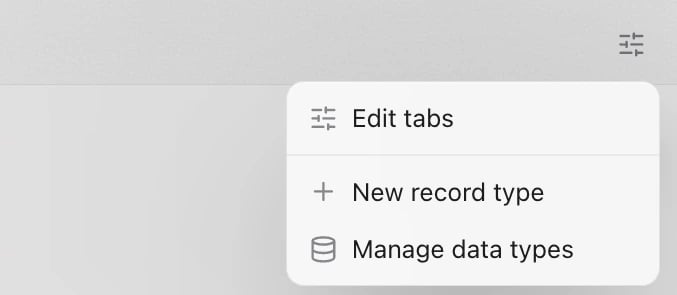
2
Name it
Type 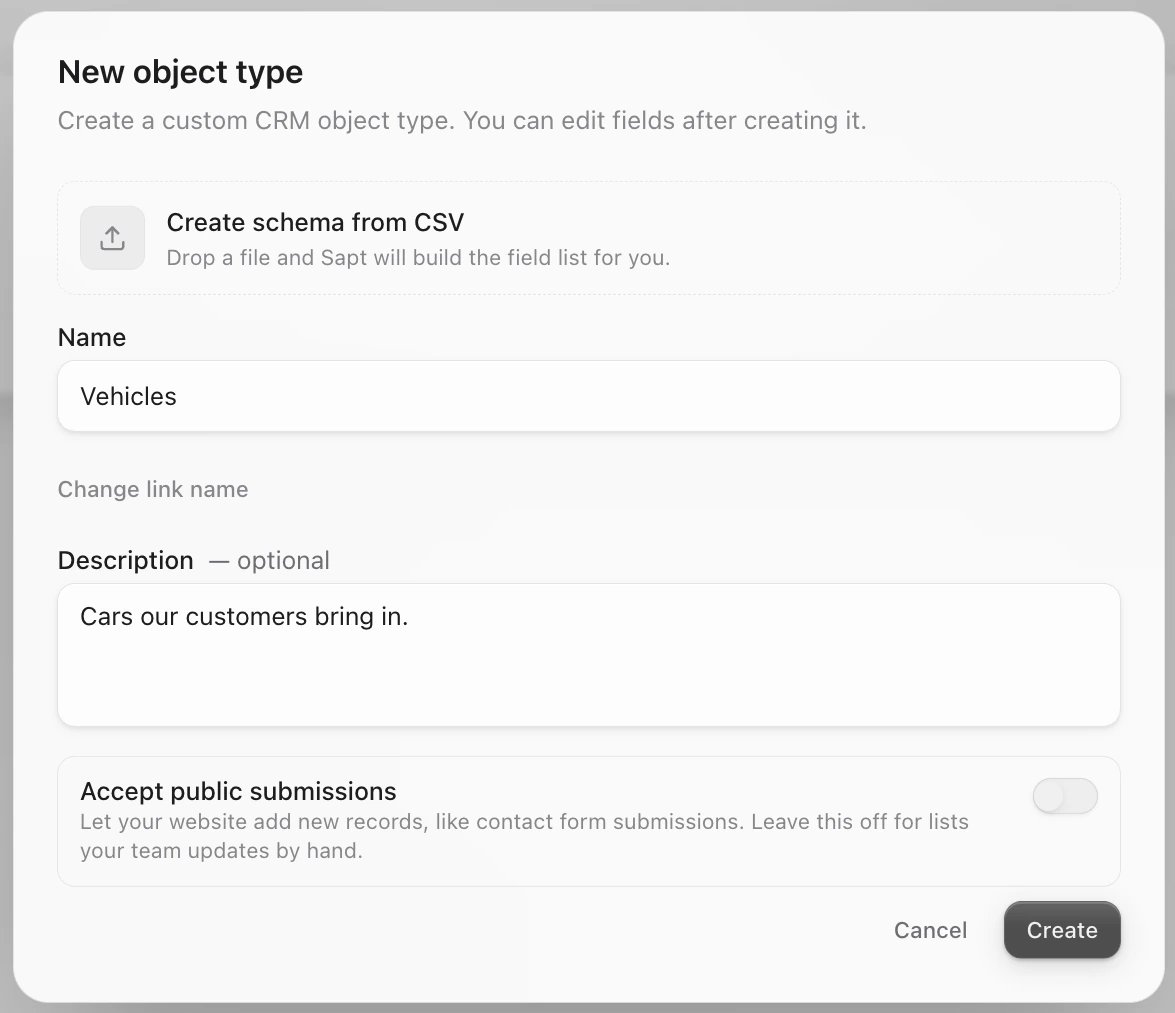
Vehicle in Name. Use one of something, not many: Sapt adds the “s” where it needs one. A Description is optional. Leave Accept public submissions off unless a website form should save here. Click Create.3
Open its settings
Your new Vehicle table opens, empty. Click the pencil next to Vehicle. The Edit type panel opens.
4
Add the fields
Under Fields, click Add field. Type 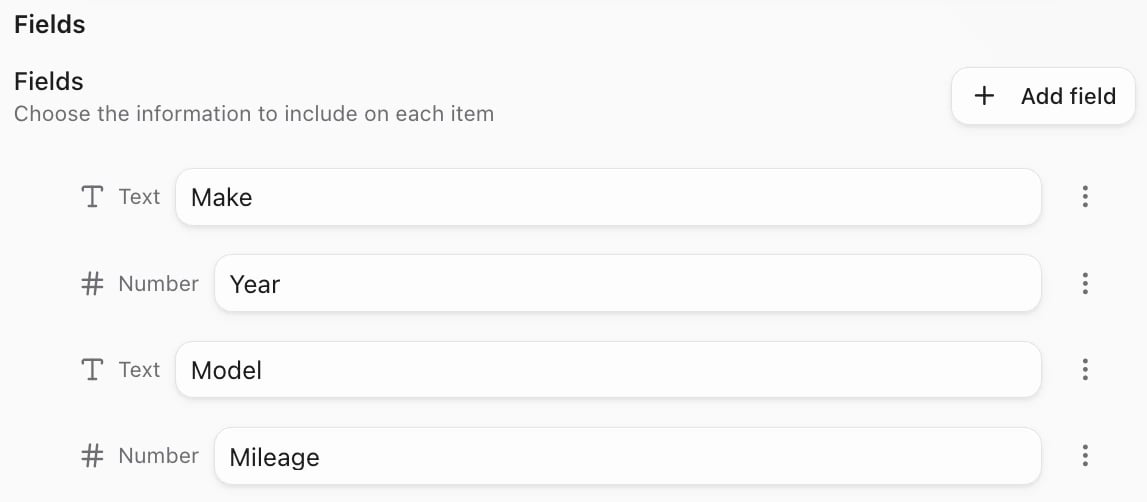
Make in Field name, pick Text and click Add field. Do the same for Year (Number), Model (Text) and Mileage (Number).5
Add a vehicle
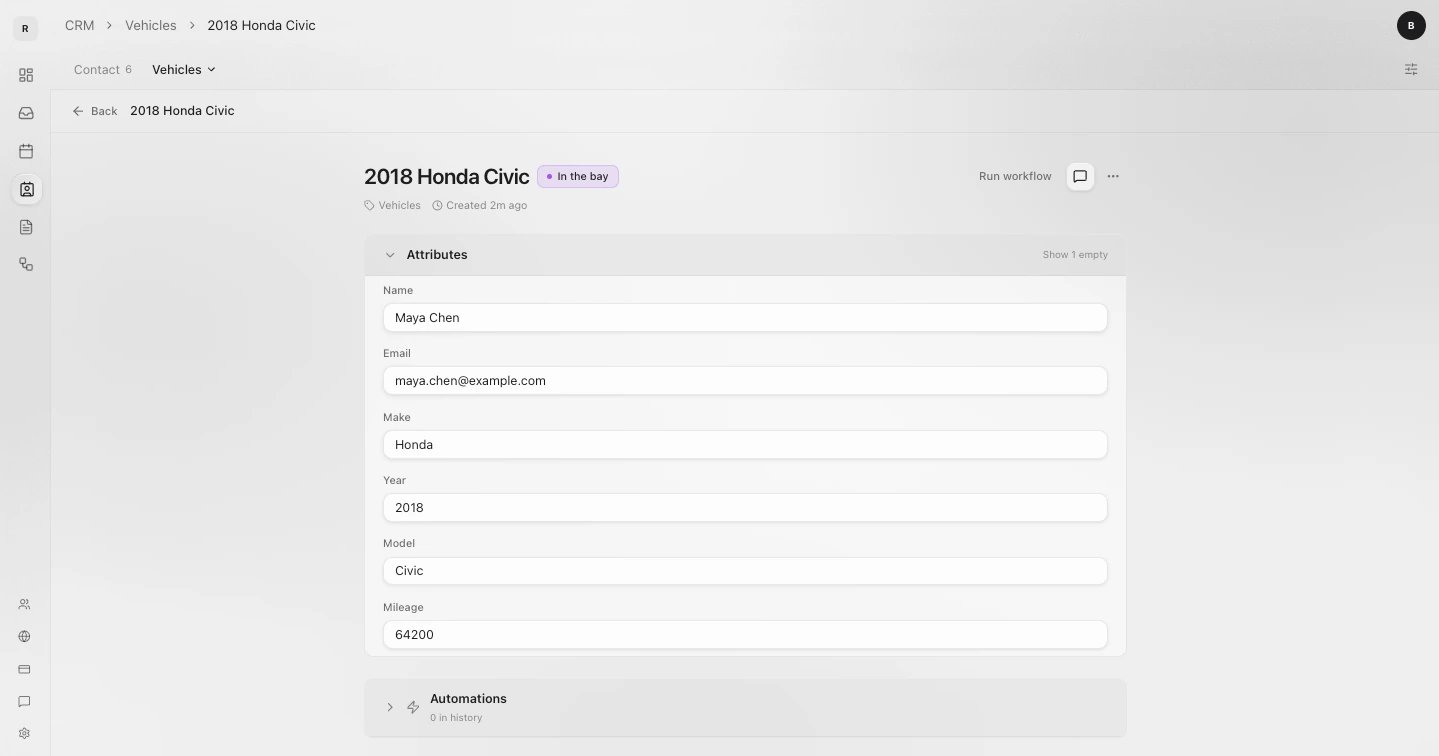
Close the panel and click New. In Create vehicle, Name, Email and Phone belong to the owner. Type Maya Chen and her email, [email protected], then Honda, 2018, Civic and 64200. Click Create.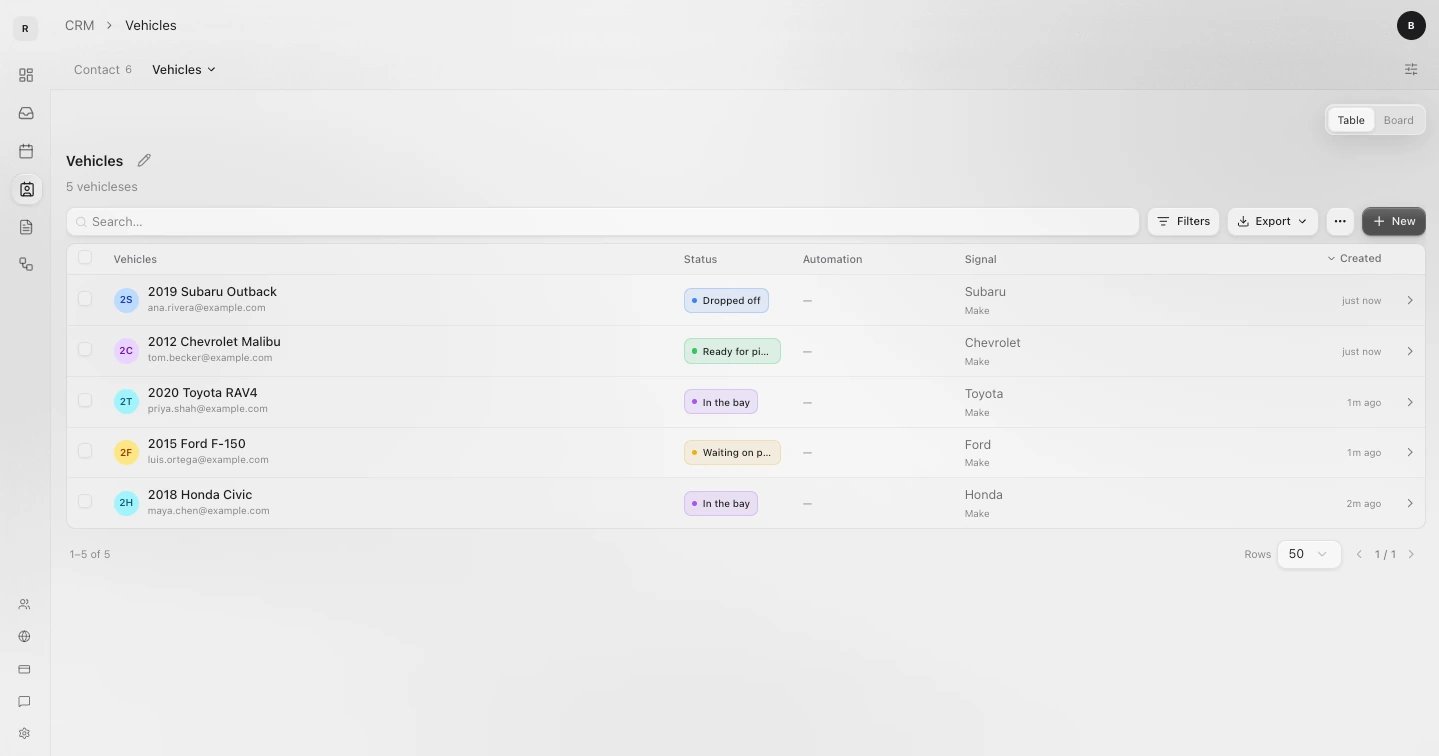
6
Find it on the customer
Open Maya Chen in your contacts. The vehicle is on her Records tab.
Sapt links each record to the contact with the same phone or email. If no contact has it, Sapt adds a new contact with the name you typed, so type the owner’s name, not the vehicle’s. On the vehicle’s own page, Name, Email and Phone show that contact.
Field types
When you click Add field, pick what people will enter: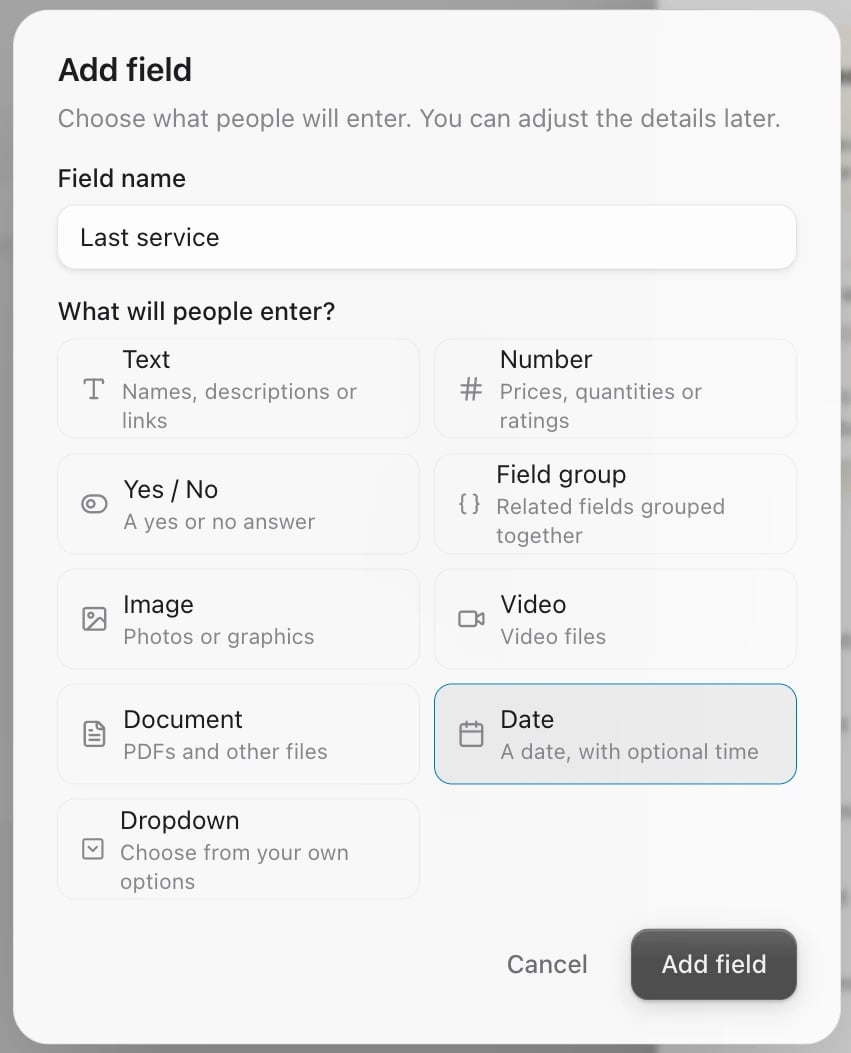
Click a field’s name to rename it. Click the three dots beside it to open Field Settings, where you can tick Required field.
The record type’s settings
Everything below lives in the Edit type panel (the pencil next to the type’s name). Link to Person. For record types you make, this is always on. A record that carries a phone or email links to the contact who has it, and shows on that contact’s Records tab. Accept public submissions. Turn this on when a form on your website should save into this type, like a “Request a quote” form. Leave Strict schema off. Then pick the type under Save inquiries to in the form’s settings. See Forms. Spam moderation. For types that accept public submissions, this holds suspicious ones for review before any workflow runs. Stages. Give the type steps like Booked, In the bay and Paid. See Stages. Danger zone. Click Show, type the type’s name and click Delete. This deletes the type and every record in it. There is no undo.Connections
A connection ties a record type to a content collection, like your Services. Each record then gets a list of the services that go with it.1
Add the connection
In Edit type, under Connections, click Add connection.
2
Pick what to connect
Under Connect to, pick a collection, like Services. Collections are listed under Content collections, and your record types under CRM.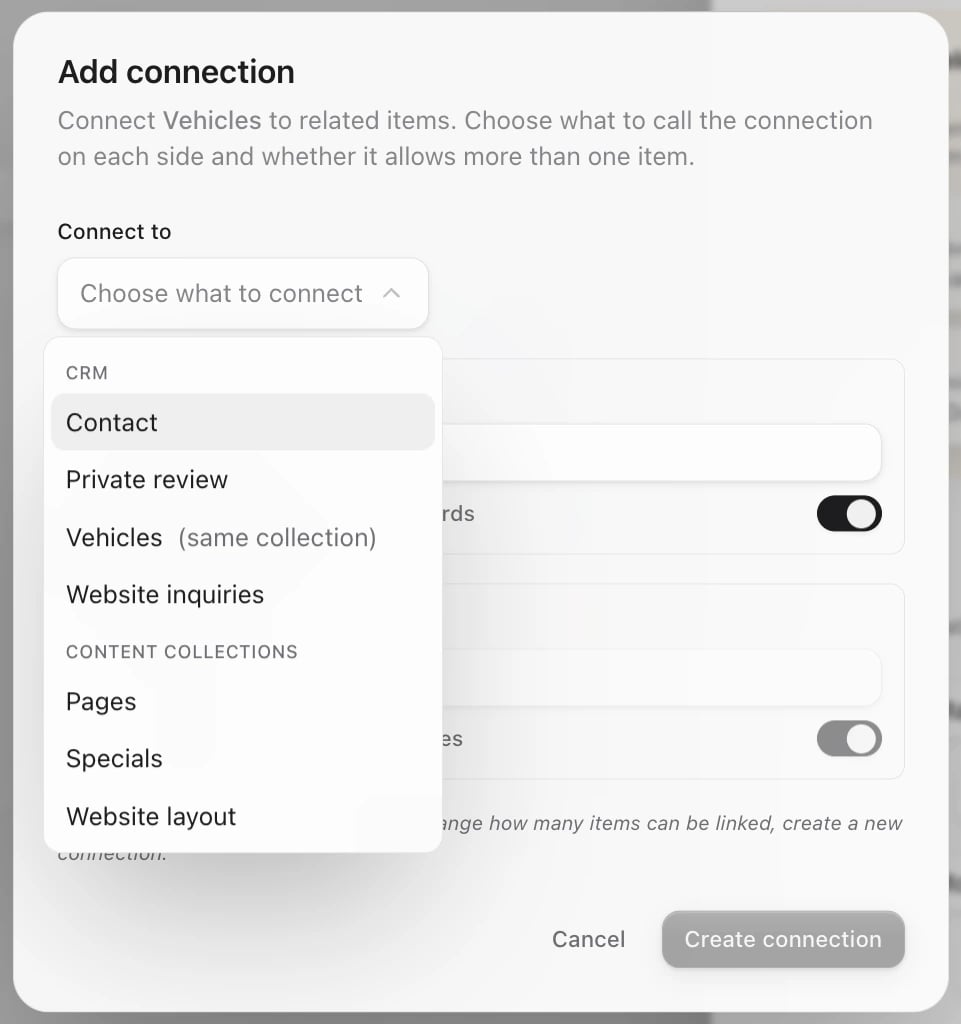
3
Name each side
Give each side a label, for example Services on the Vehicle and Vehicles on the service. Choose whether one can link to many, then click Create connection.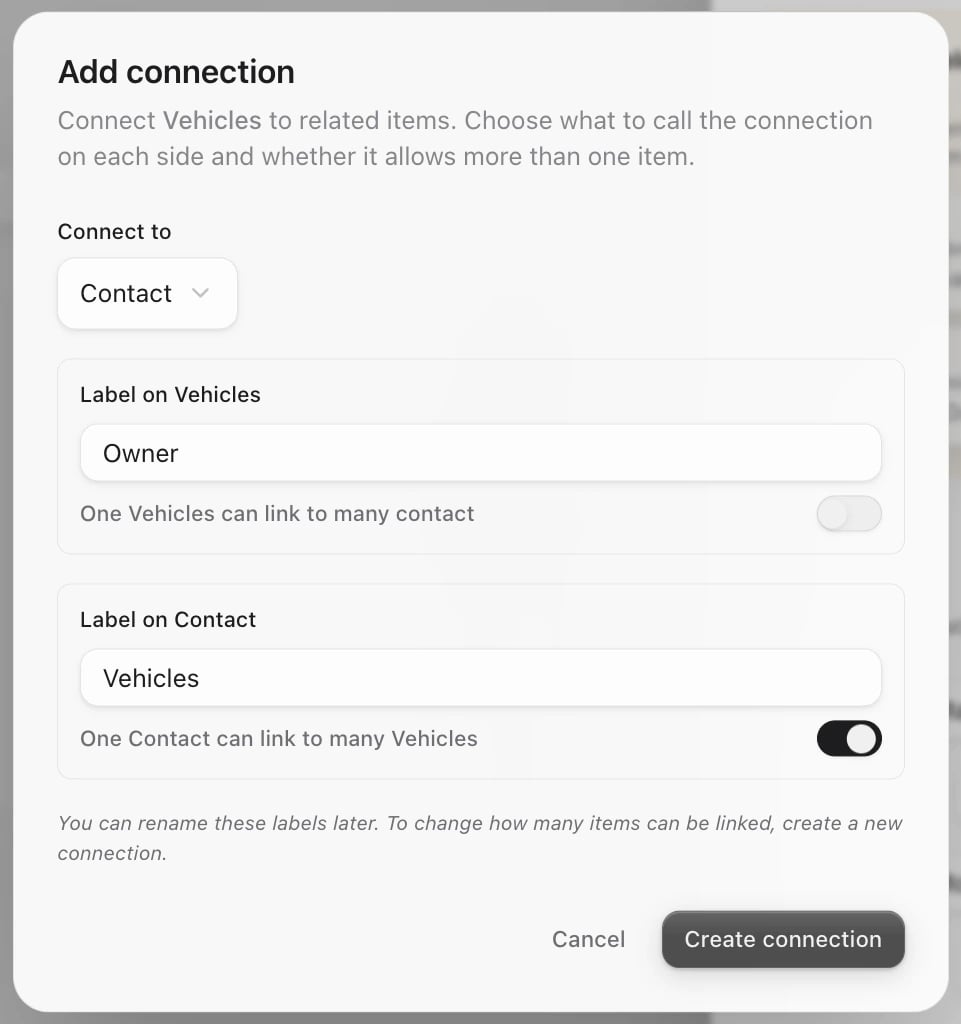
4
Link items on a record
Open a vehicle. Its Services section has an Add button. Tick the services and click Add.
Connect to also lists your other record types, including contacts. Links between two record types show on a record once they exist, but you cannot add them by hand yet. To tie a record to a customer, give it their phone or email.
Your tabs
A new record type sits under More until it has records. To choose the tabs everyone sees, click the sliders icon, then Edit tabs. Tick the types you want, order them with the arrows and click Save.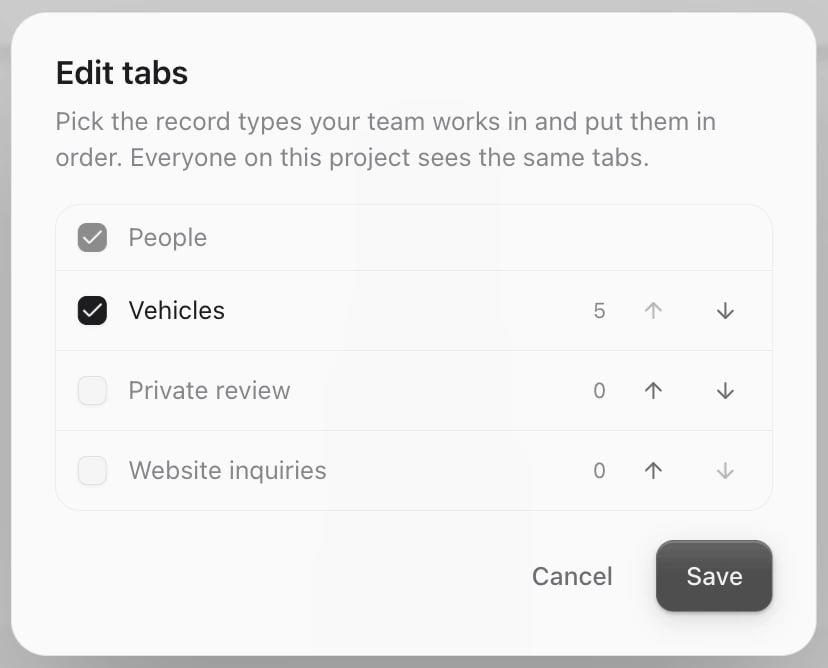
Table and board
Each record type opens as a table. Once it has stages, a Table and Board switch appears above it. The board shows one column per stage. See Stages.Start from a spreadsheet
Already keep vehicles in a spreadsheet? In the New object type window, click Create schema from CSV and drop a CSV file.- Under Review fields, untick columns you do not want, rename fields and fix their type.
- Leave Add matching People automatically on if the file has an email or phone column for the owner.
- Click Create.