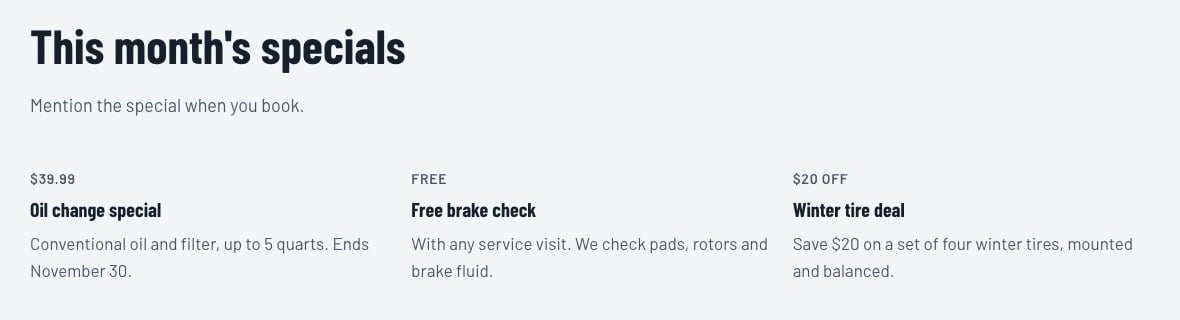
What your website shows on its own
Your collections may have slightly different names, like “Service” instead of “Services”. The website still finds them.
When you publish, update or delete an item in one of these, your website picks up the change on its own. Sapt checks the new version before it goes live, so give it a moment.
Show any other collection
Made a collection of your own, like Team members? Add it to a page with a Connected content section.1
Open the page in the website editor
Open Website and pick the page in the editor. Connected content works on your home page and on your pages, services and articles.
2
Add the section
On the Sections tab, click Connected content. In Add connected content, pick the collection.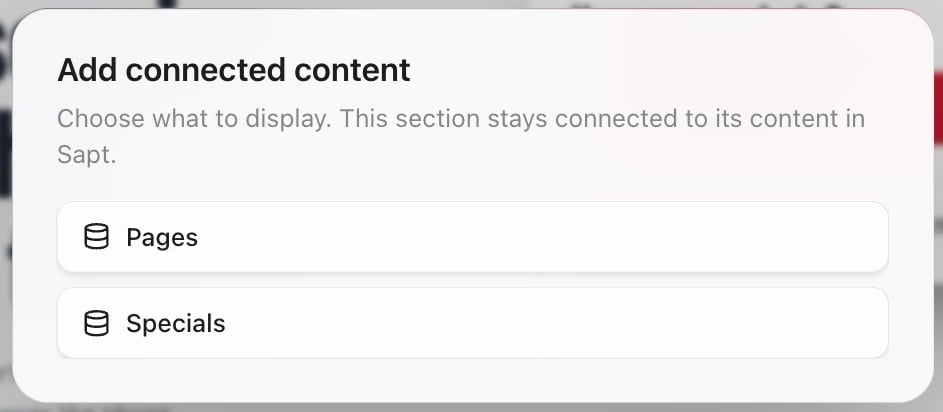
3
Choose how it looks
The section’s settings open on the right.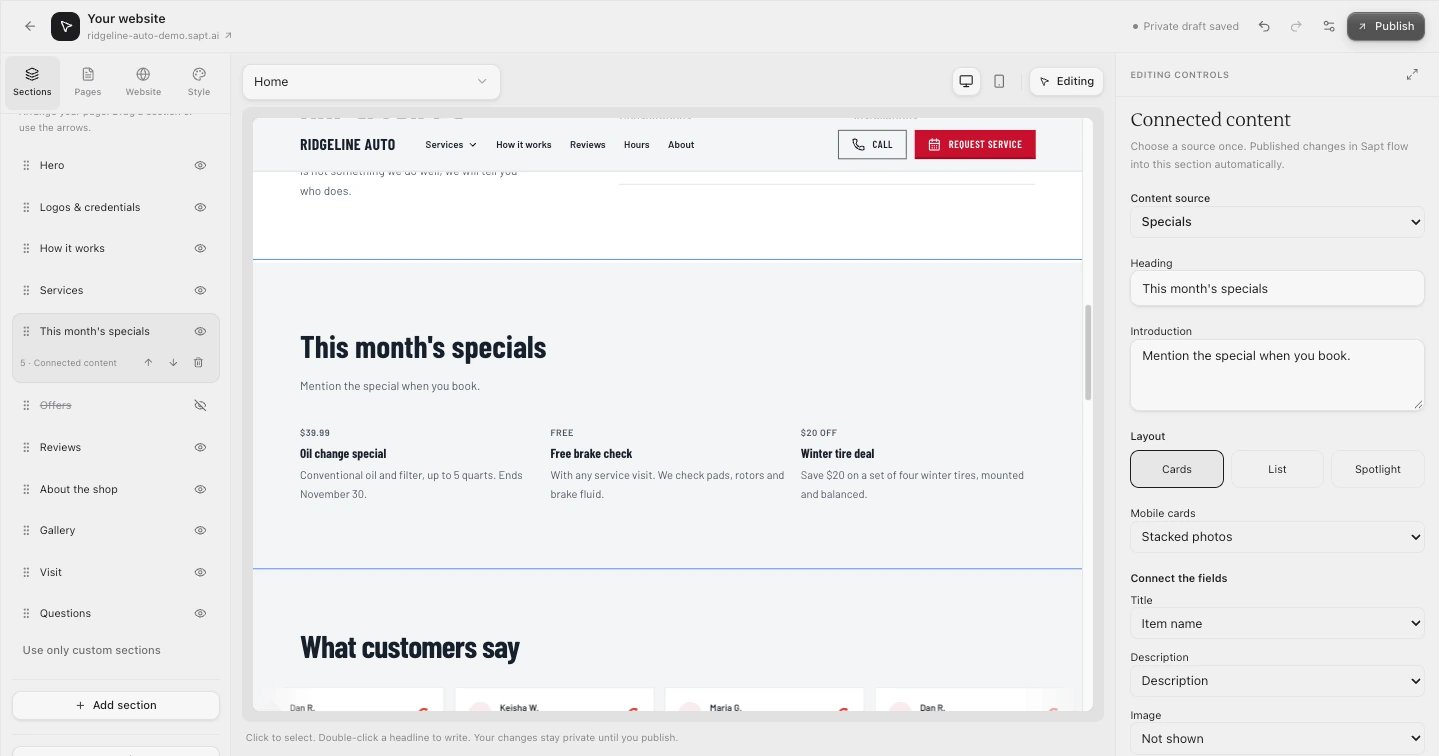
- Heading and Introduction: the words above the section.
- Layout: Cards, List or Spotlight. For cards, Mobile cards picks Stacked photos or Compact photo rows on phones.
- Connect the fields: which field fills the Title, Description, Image and Small label. Image does not offer your collection’s photo field yet, so this section shows no photos. Leave it on Not shown.
- Items to show: up to 24.
4
Publish your website
The new section stays private until you publish the site. See Pages and sections.