

Choose how much it does on its own
- On the web
- On your phone
Open Workflows in the sidebar and click Agents. Turn on the switch next to an agent. In the window that opens, pick Drafts for you or Automatic. To change it later, open the agent and pick a mode at the top.
In Automatic, the agent’s Can section shows Sends itself or Asks you first for replies and bookings. Asks you first makes the AI wait for your OK, even in Automatic. This setting is shared by every agent.
Send or skip a draft
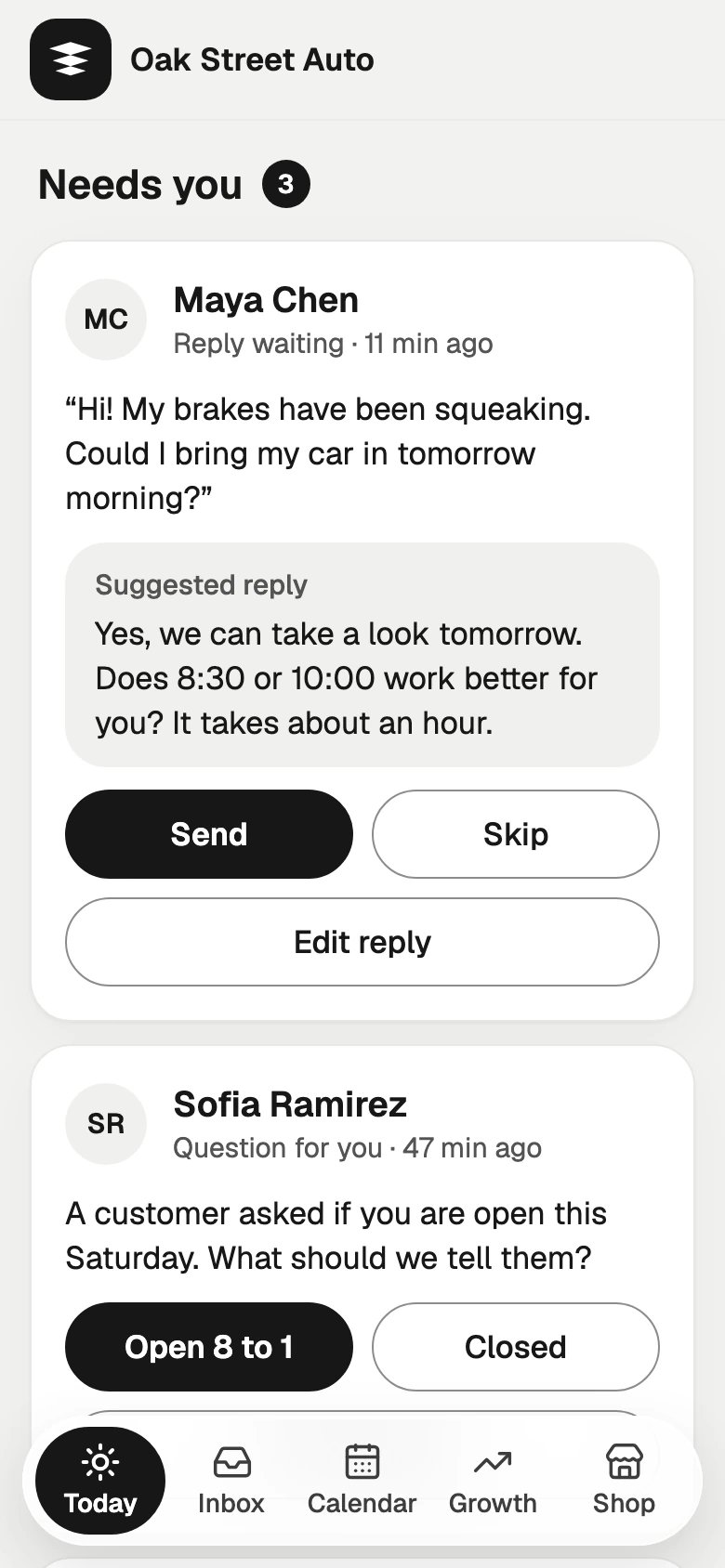
In Drafts for you, each reply waits for you, and Sapt texts you the suggested reply.- On the web
- On your phone
Open the conversation in your Inbox. On Reply ready to review, click Approve & send, or Edit to change it first, or Dismiss.
Create or change an agent
Agents are set up on the web.1
Open Agents
Open Workflows and click Agents. With no agents yet, pick a starting point: Answer every text, Book appointments or Follow up on ad leads. Otherwise click New agent, or click an agent to change it.If Sapt says Connect a text number or an inbox first, click Phone numbers and get your number.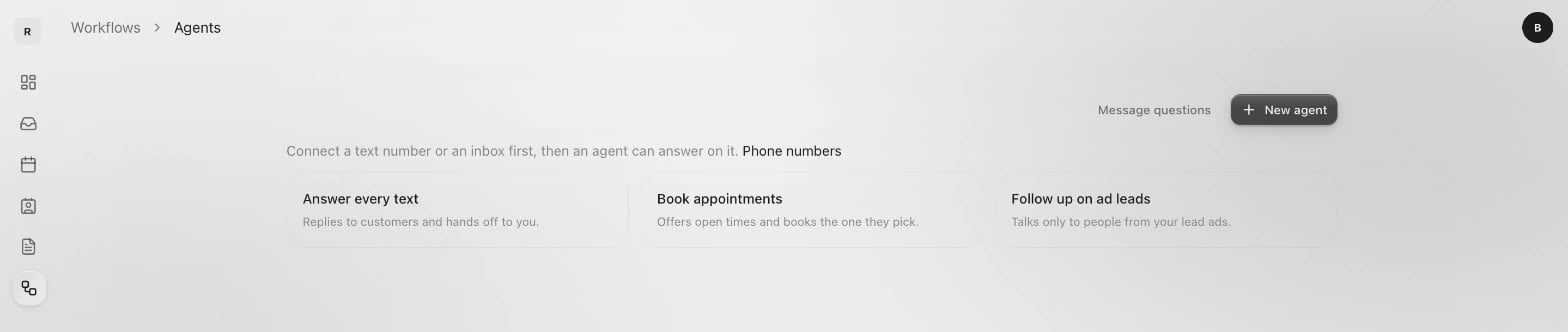
2
Fill in each section
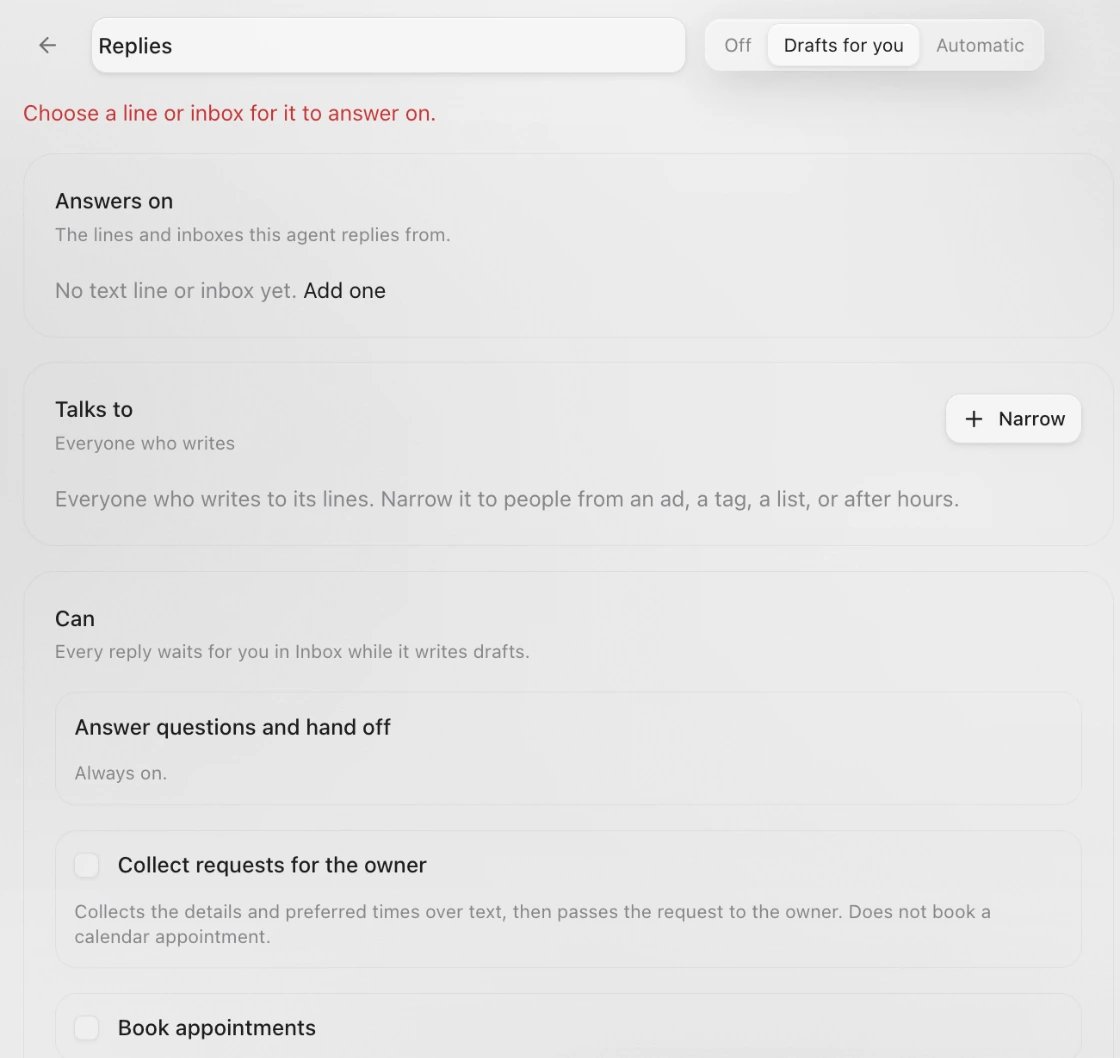
- Answers on: the lines and inboxes it replies from. Until it has one, Sapt says Choose a line or inbox for it to answer on.
- Talks to: everyone, or click Narrow to pick who, such as Where they came from or When they write.
- Can: Answer questions and hand off is always on. Add Collect requests for the owner or Book appointments, not both. For booking, pick the Schedule and check the Hours. Add Change existing appointments to let it move or cancel a customer’s appointment.
- Knows: the notes it may use, and its Instructions. Type a change under Change it with a sentence and click Suggest.
- Hands off: set Replies to one customer in a day, at most. Past that, it hands the customer to you.
3
Try it
The Try it panel uses your unsaved changes and sends nothing. Under Start from, pick Missed call, Website request or Fresh conversation, then write what a customer would. Each reply says what the AI would do, such as Would send or Would hand off to you.On a smaller screen, click Try it at the top to open Practice conversation.
4
Save it
Click Create agent for a new one, or Save changes.
What the AI knows
The AI answers only from what you tell it.- On your phone
- On the web
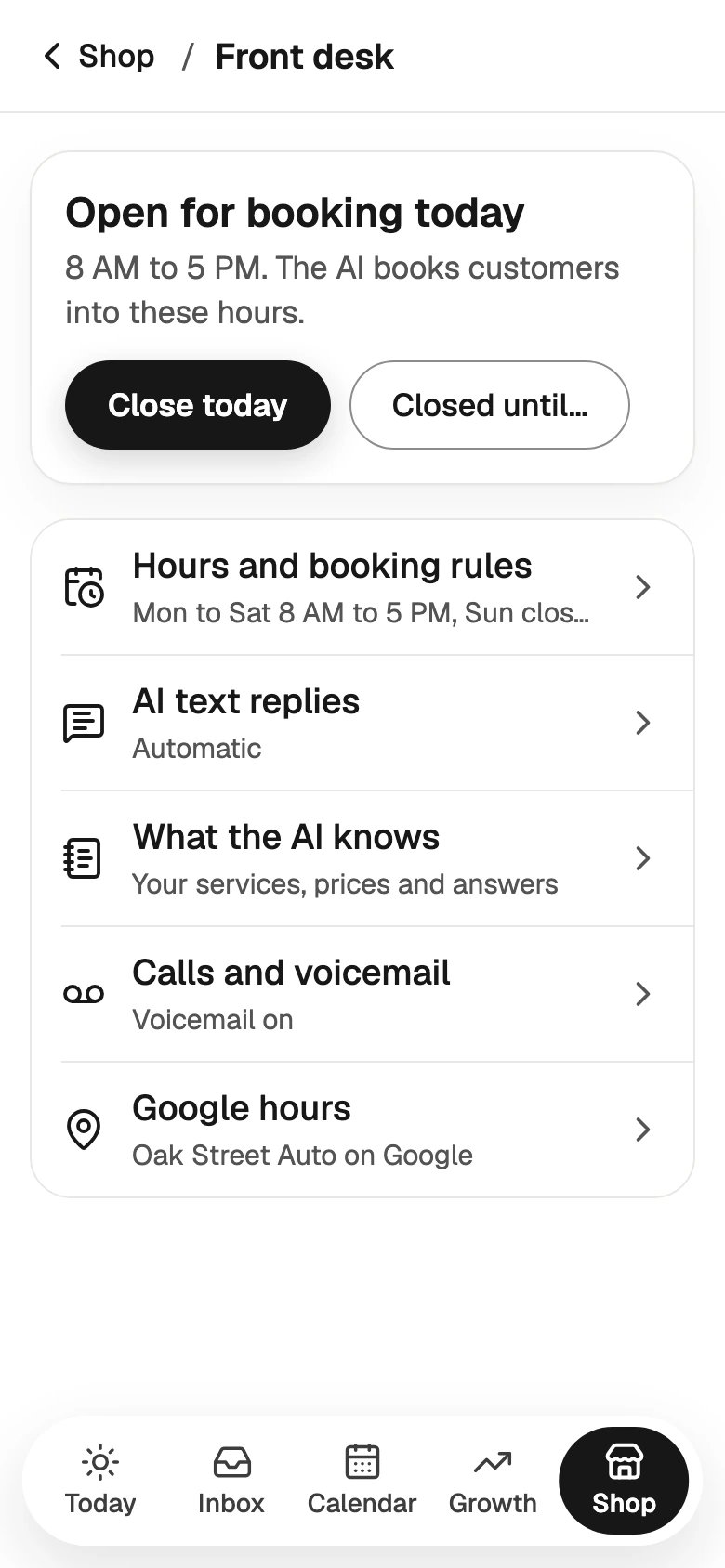
Tap Shop > Front desk > What the AI knows, then Your services. Write the work you do and the work you don’t, the way you would tell a new hire. Tap Save note.
- Booking hours tell it when it can book, not when you are open. Write your opening hours in a note, so it can answer “Are you open Saturday?”. See Booking.
- Services in your booking schedule tell it how each kind of work gets booked, such as walk-ins for tires.
- Prices: the AI never quotes a price, an estimate, a diagnosis or how long a job takes. It says it depends on what the shop finds, and offers times.
What it can and cannot do
It can:- Answer texts, WhatsApp and email on its lines, at any hour.
- Offer one or two real open times and book the one the customer picks. It needs their first name first.
- Collect a request for you: what is wrong and when they are free. Then it texts you the rundown.
- Move or cancel an appointment the customer already has, after they confirm.
- Reply in Spanish when the customer writes in Spanish.
- Text someone first. It only answers. The one exception: in Automatic, it writes the first text to a website request that gave texting consent.
- Quote prices or diagnose a problem.
- See photos customers send.
- Take payments.
- Book over email. Booking works over text or WhatsApp.
- Answer on WhatsApp more than 24 hours after the customer’s last message.
- Write replies without credits. The Agents page says Add credits before agents can write replies. when you are out.
When the AI hands off to you
The AI steps back, without texting the customer, when they:- ask for a person or a call,
- complain about the shop,
- want to change an appointment it cannot handle,
- or have an emergency right now, like an accident, smoke or someone hurt.
- On the web
- On your phone
In the conversation, click the agent chip at the top, such as Agent answering, and choose Turn off for this person. Choose Turn on for this person to hand it back.
AI text replies in Project Settings
Project Settings also has AI text replies, with Off, Draft replies for review and Send replies automatically.
This setting applies only to texts on Sapt’s shared iMessage line. For texts to your own Sapt number, the agent’s mode decides, as set above.
Keep going
Set your booking hours
The hours the AI books into.
Use the Inbox
See every conversation the AI and you handle.