

The pages you start with
You can add and arrange sections on Home, on pages you add, and on each service and article page.
Add a page
1
Open the Pages tab
Click Pages. Under Your pages, click New page.
2
Name the page
In Add a page, type a Page title, such as “About our shop”. Sapt fills in the Page address for you (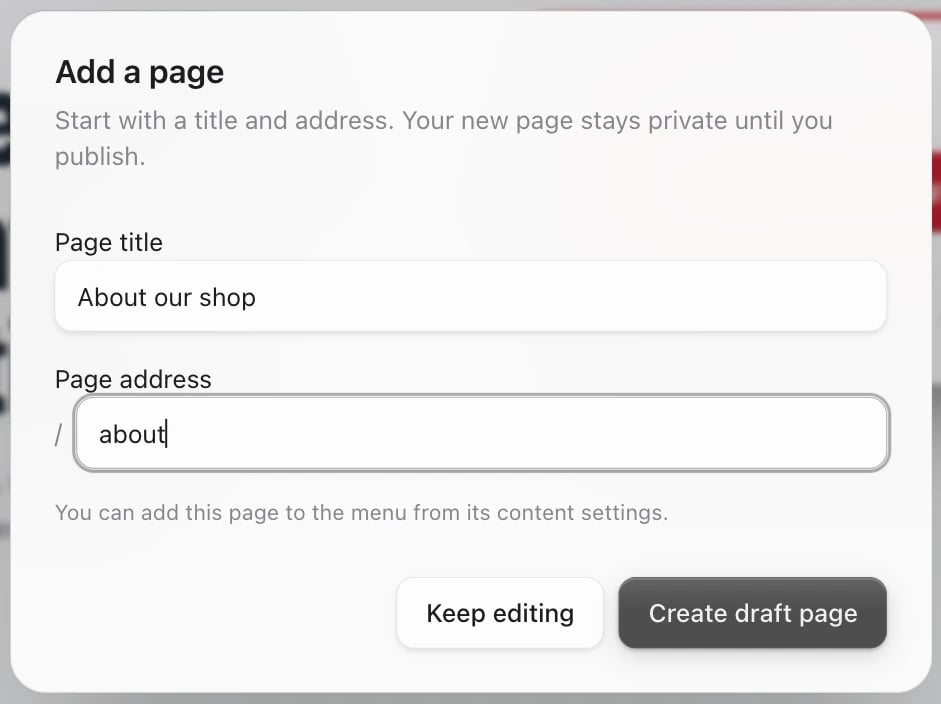
about-our-shop). You can shorten it to about. Use lowercase letters, numbers and dashes. Click Create draft page.3
Write the page
The new page opens with its settings on the right: its name, its body, its title and how it looks in search results. Add sections to it too (see below).
4
Put it in the menu
In the page’s settings, tick Show in menu. To use a shorter name in the menu, fill in Menu label.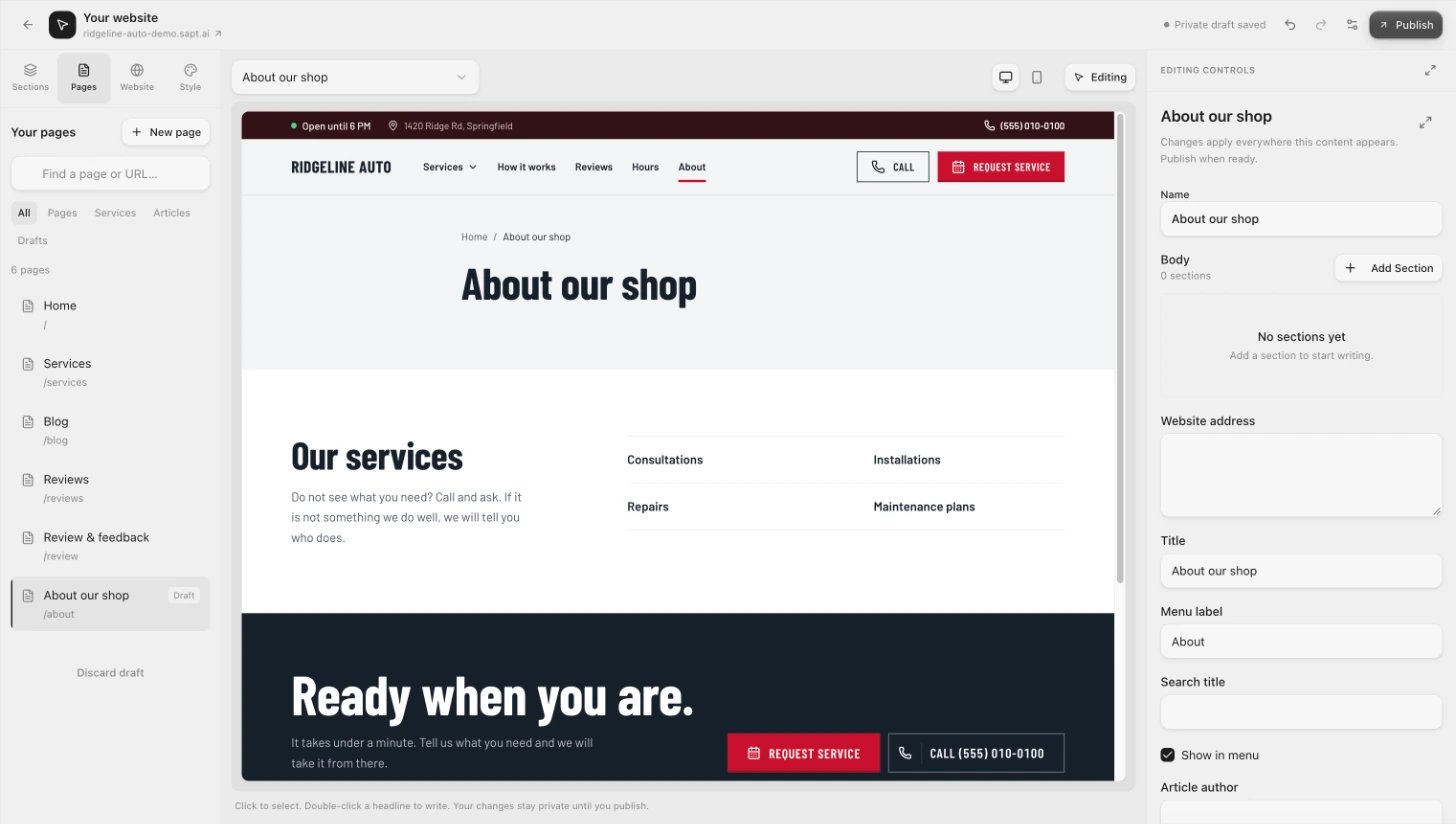
5
Publish
Click Publish, then Publish website. Until then the page is a draft that only you can see.
If you set your own menu links under Website, Header & navigation, Menu & button, those links replace the automatic menu and Show in menu has no effect. Add the page there with Add link instead, or click Use automatic menu.
Add a section
1
Pick the page
Choose the page in the picker above your page, or click it in the Pages tab. Then click Sections.
2
Click Add section
A box called Build your page opens. Click the layout you want. You can search with Search layouts….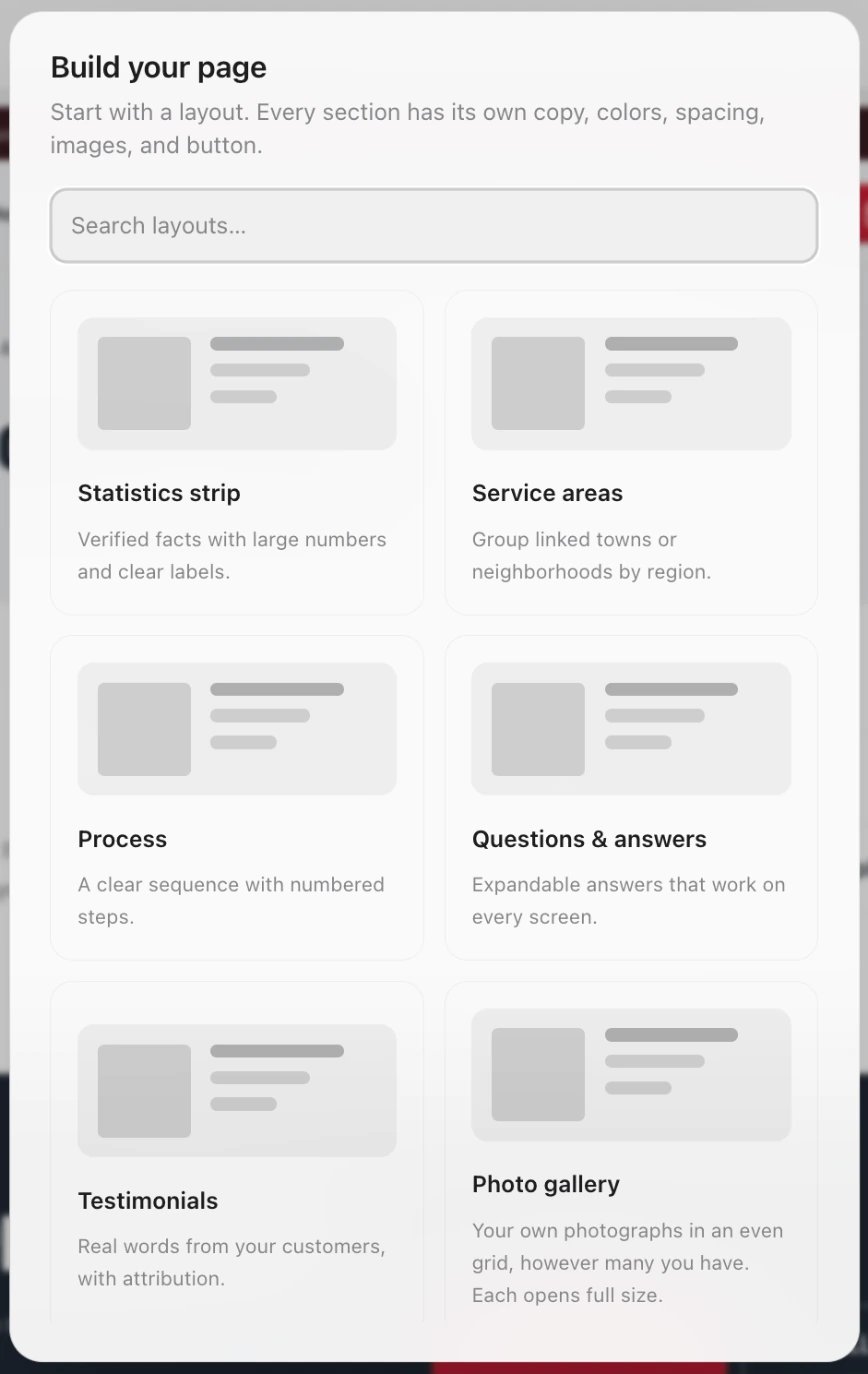
3
Fill it in
The new section is selected. Change its text, images and button on the right. To try a different design, change Layout.
Your home page also has built-in sections: Hero, Logos & credentials, How it works, Services, Offers, Reviews, About the shop, Gallery, Visit and Questions.
Hide, move or remove a section
The Sections tab lists the sections on the page in order.- Hide: click the eye next to the section. It stays in the list, crossed out, and visitors do not see it.
- Move: drag it by the handle on the left, or click it and use the up and down arrows.
- Remove from the page: click the section, then the trash can under it. To bring it back, pick it from Add an existing section.
- Delete a section you added: click it, then the trash can in the controls on the right. If Sapt asks, click Remove section.
Show content from Sapt
A Connected content section shows items from a collection in Content, such as your services, team or projects. When you publish a change to those items, the section updates by itself.1
Add the section
In the Sections tab, click Connected content and pick a collection, such as Specials.
2
Set it up
On the right, choose the Layout (Cards, List or Spotlight), match the fields under Connect the fields, and pick how many Items to show.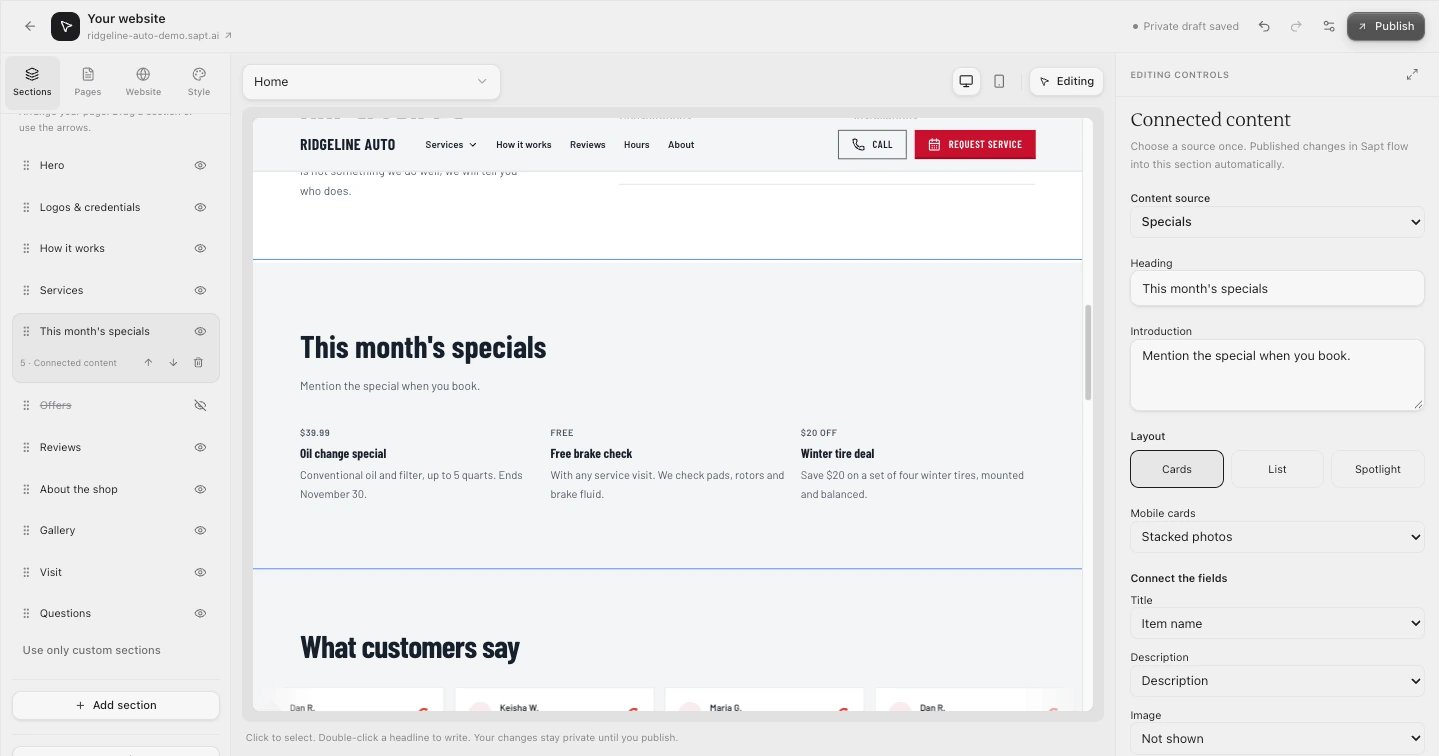
If something looks wrong
- Add section is grey. Click Enable editing first if you see Make this site yours. A site can have up to 60 sections you added.
- No sections show for Services, Blog or Reviews. Those pages are built from your services, articles and reviews. Click the text on the page to edit it.
- A new page does not show on the live site. Pages start as drafts. Publish your website.
- Create draft page stays grey. Fill in both boxes and use only lowercase letters, numbers and dashes in the address.