

Set your hours and booking rules
- On the web
- On your phone
Open Calendar in the sidebar. In the Month, Week or Day view, click Availability. Pick your schedule at the top, or New schedule.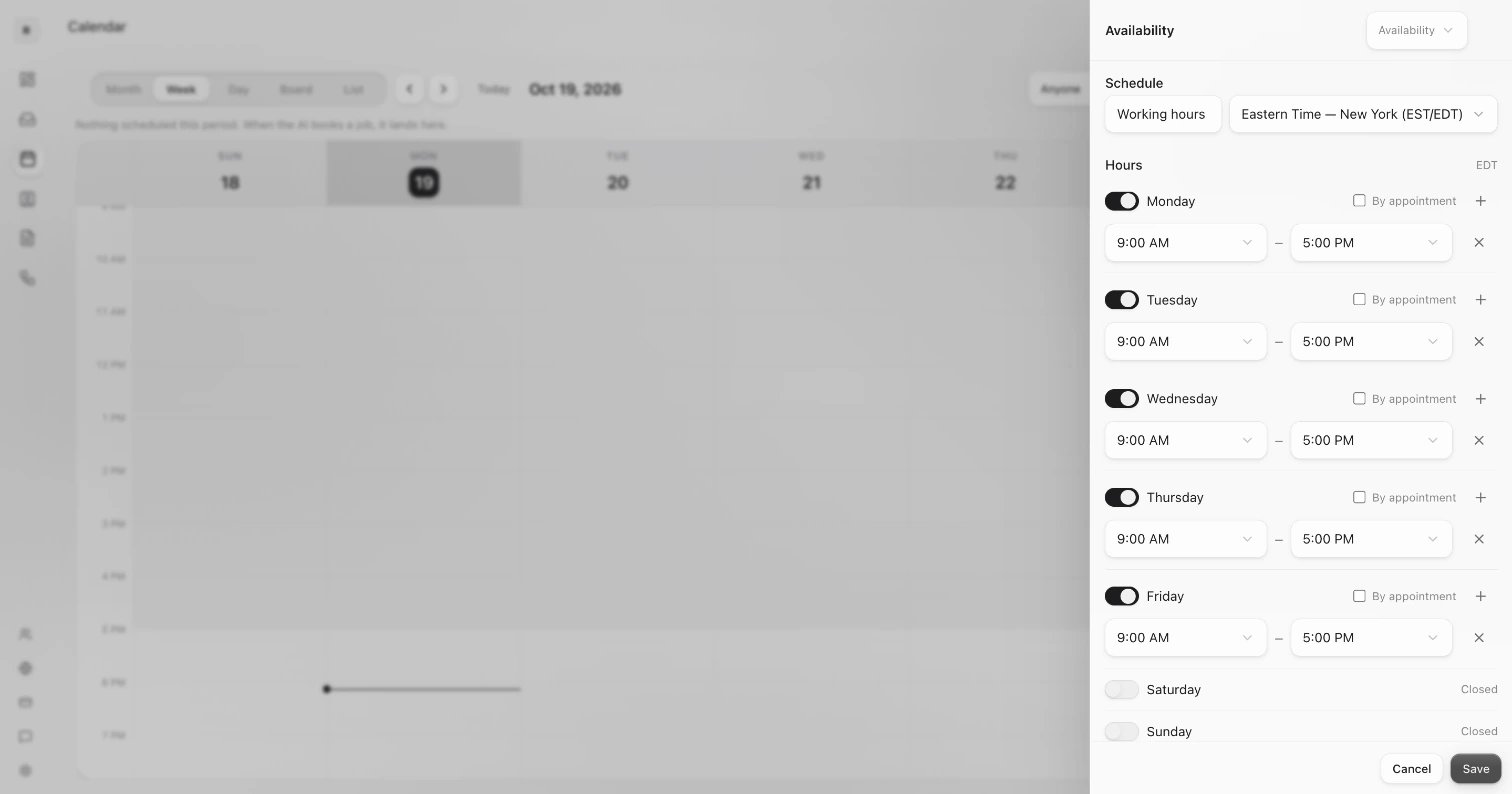
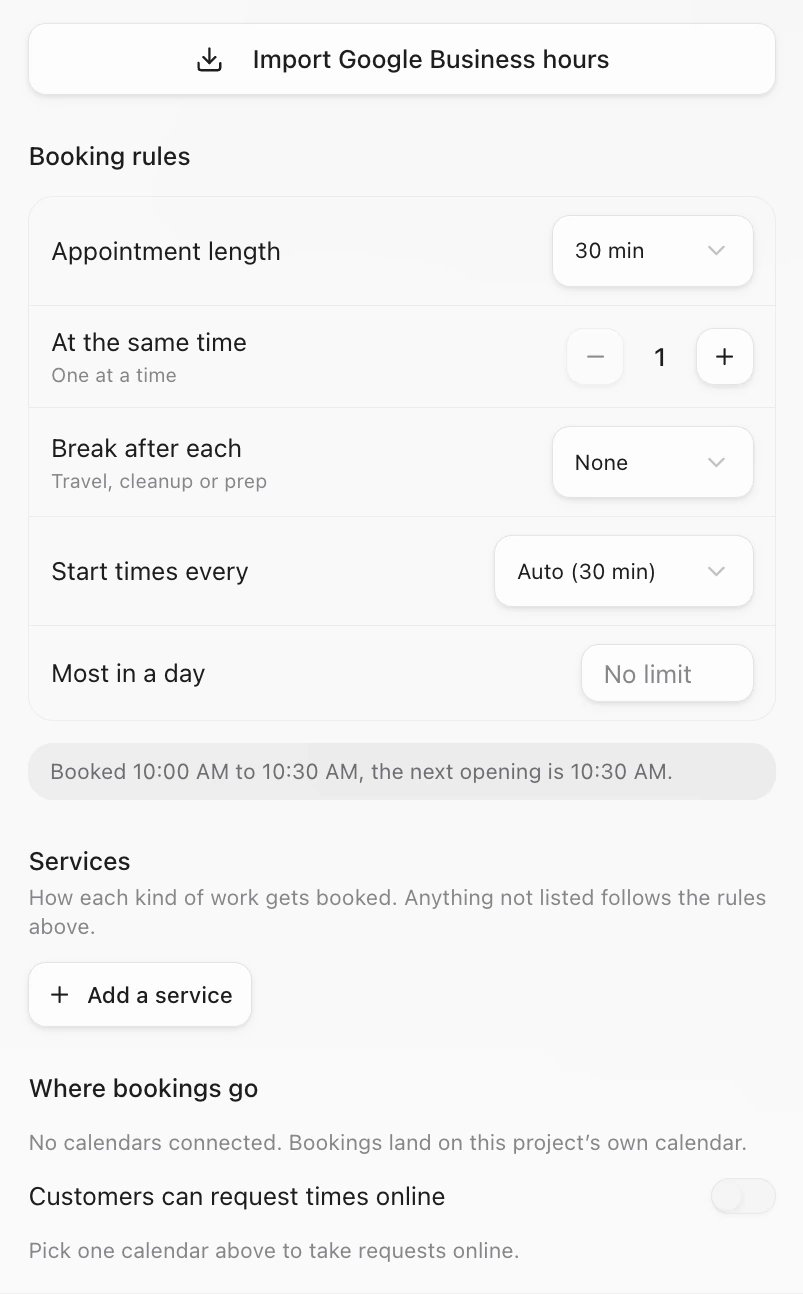
- Hours: turn each day on or off and set its times. Click Import Google Business hours to copy your Google hours. Holiday hours are not copied.
- Booking rules: Appointment length, At the same time, Break after each, Start times every and Most in a day.
- Services: click Add a service to say how each kind of work gets booked: Book a time, Walk-ins welcome, Owner schedules or Not taking now.
New shops start with the hours on their Google listing. With no listing, they start at 8 AM to 5 PM on weekdays.
Close today or take a few days off
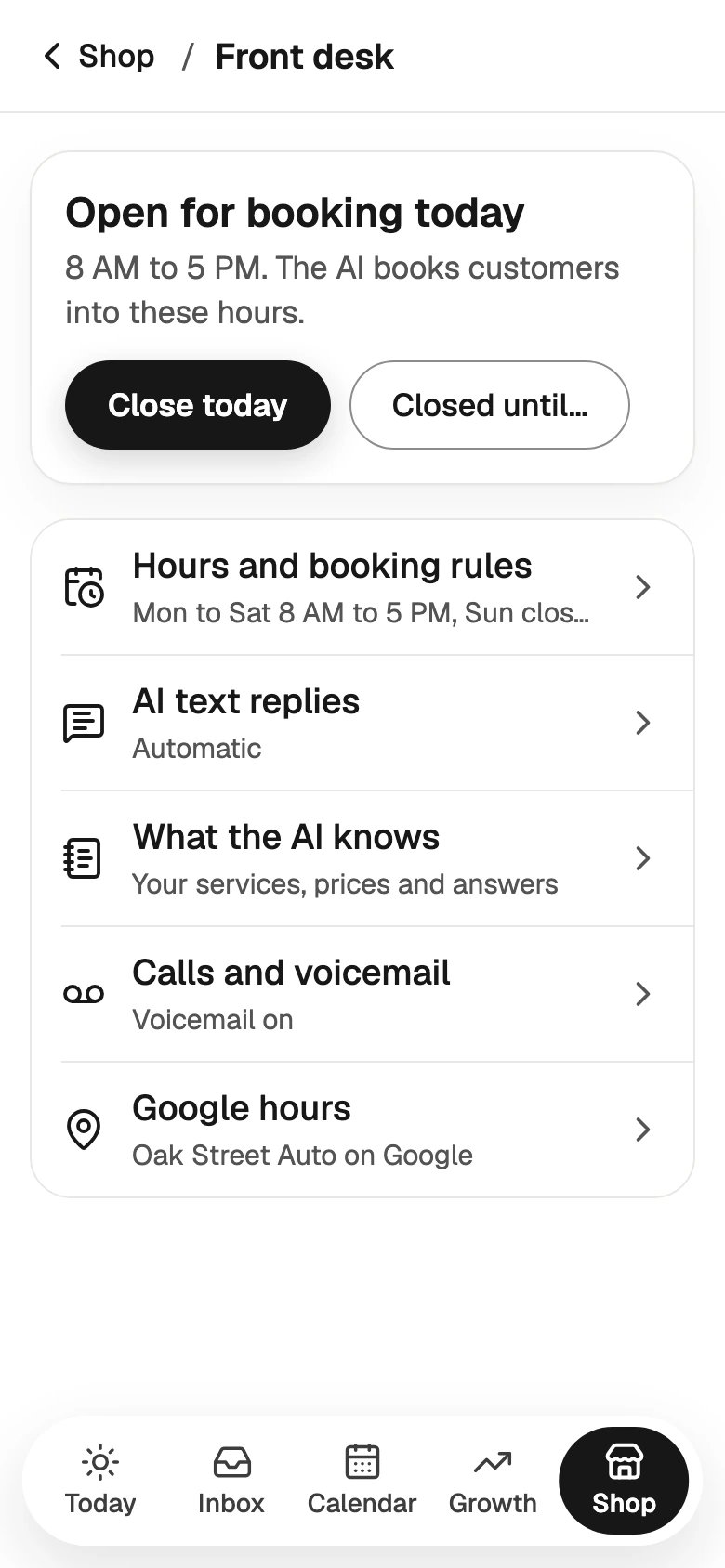
On your phone, tap Shop > Front desk. The card at the top says whether you are open for booking today.- Tap Close today, and the AI books no one today.
- Tap Closed until… and pick the day you open again.
Let the AI and your website book
Under Where bookings go on the web, turn on Customers can request times online. Two more rules appear:- Notice needed: how soon a customer can book. It starts at 2 hours.
- Days ahead: how far out a customer can book. It starts at 30 days.
The switch works with exactly one calendar picked. If Sapt says Pick one calendar above to take requests online., tick one calendar and try again.
How a booking happens
- By the AI, over text. The AI offers open times. When the customer picks one, it books it right away. With Asks you first set for booking in your agent, it asks you before it books. See AI front desk.
- From your website. A customer requests a time. It waits for your OK. See below.
- By you, on your phone. Open Calendar and tap Book. Pick the customer, the work and the time, then tap Yes, book it. You can book outside your hours if you need to.
Confirm website requests
A time requested on your website is not booked until you say yes. The customer sees Request received and that the time is not confirmed yet.- On your phone
- On the web
Open Calendar. Each request shows as Website request · Needs your OK.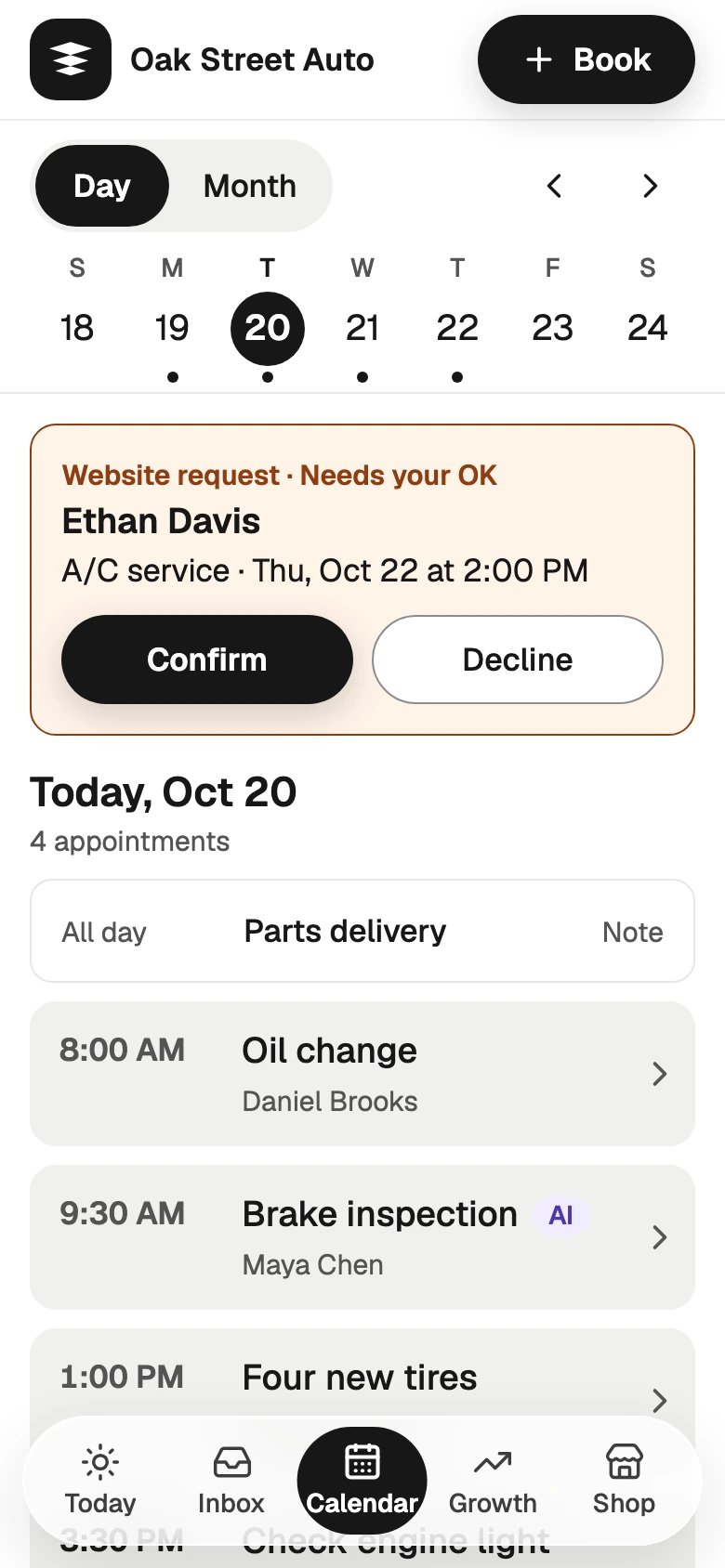
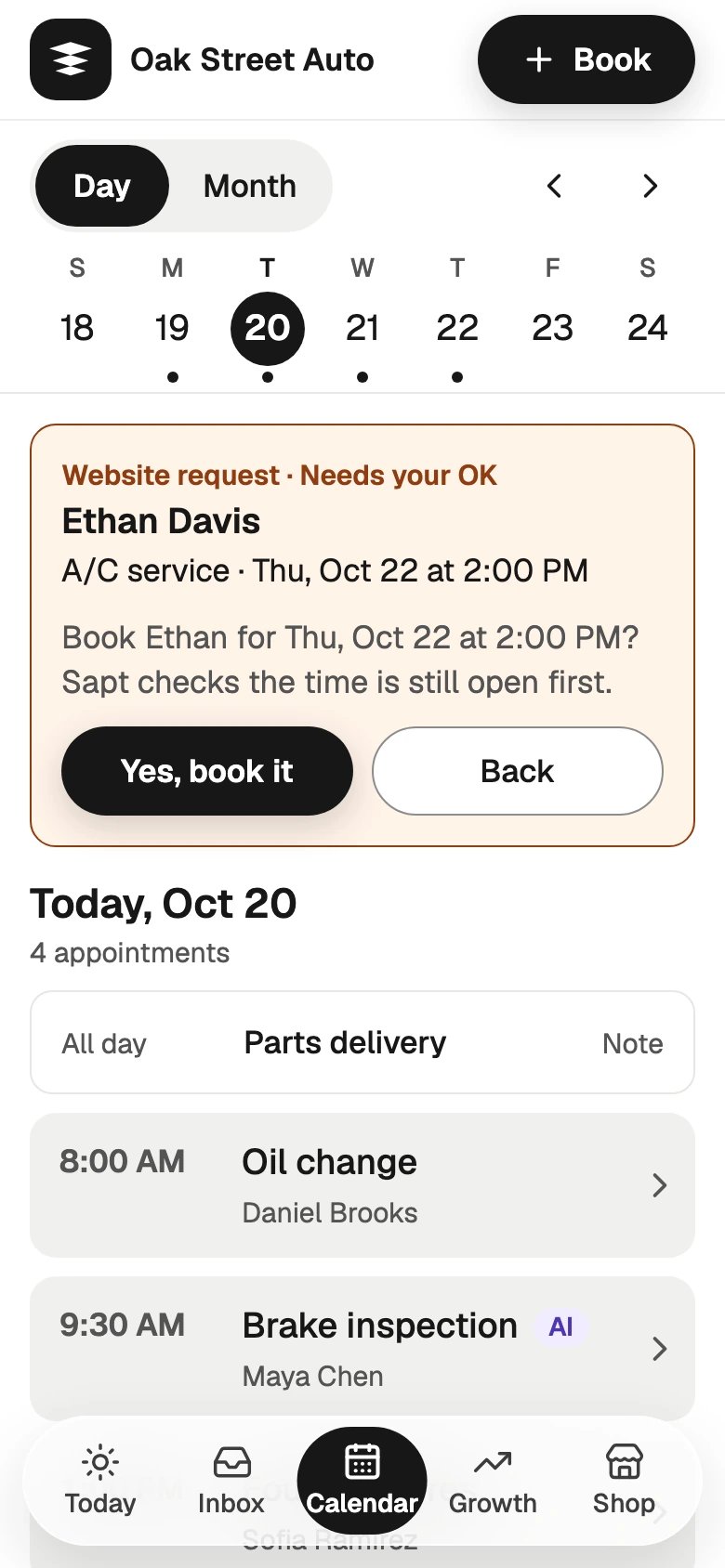
- Tap Confirm, then Yes, book it. Sapt checks the time is still open first.
- Tap Decline, then Yes, decline.
Where bookings land
To choose, connect Google Calendar or ShopMonkey first. Then, under Availability on the web, tick it under Where bookings go and click Save.
Before it offers a time, Sapt checks the calendar bookings go to and any connected ShopMonkey location. Events on a Google calendar block a time only when bookings go to that Google calendar.
Move or cancel a booking
- On the web
- On your phone
Click the booking on your Calendar. Click Move, pick the New time and click Save new time. Or click Cancel appointment, then Yes, cancel it.
Keep going
Set up the AI front desk
Let the AI offer times and book.
Owner alerts
Get a text for every new booking.