

Get texts on your cell
Texts need no app on your phone, so turn these on first.1
Open Notifications
In the web app, click the circle with your initials in the top bar and choose Account. Then click Notifications.
2
Add your cell
Under Get lead alerts on your phone, type your mobile number and click Send code.
3
Enter the code
Sapt texts you a code. Type it after SAPT- and click Verify. The code expires in 15 minutes.Sapt shows that your number is activated and that you’ll get lead alerts there.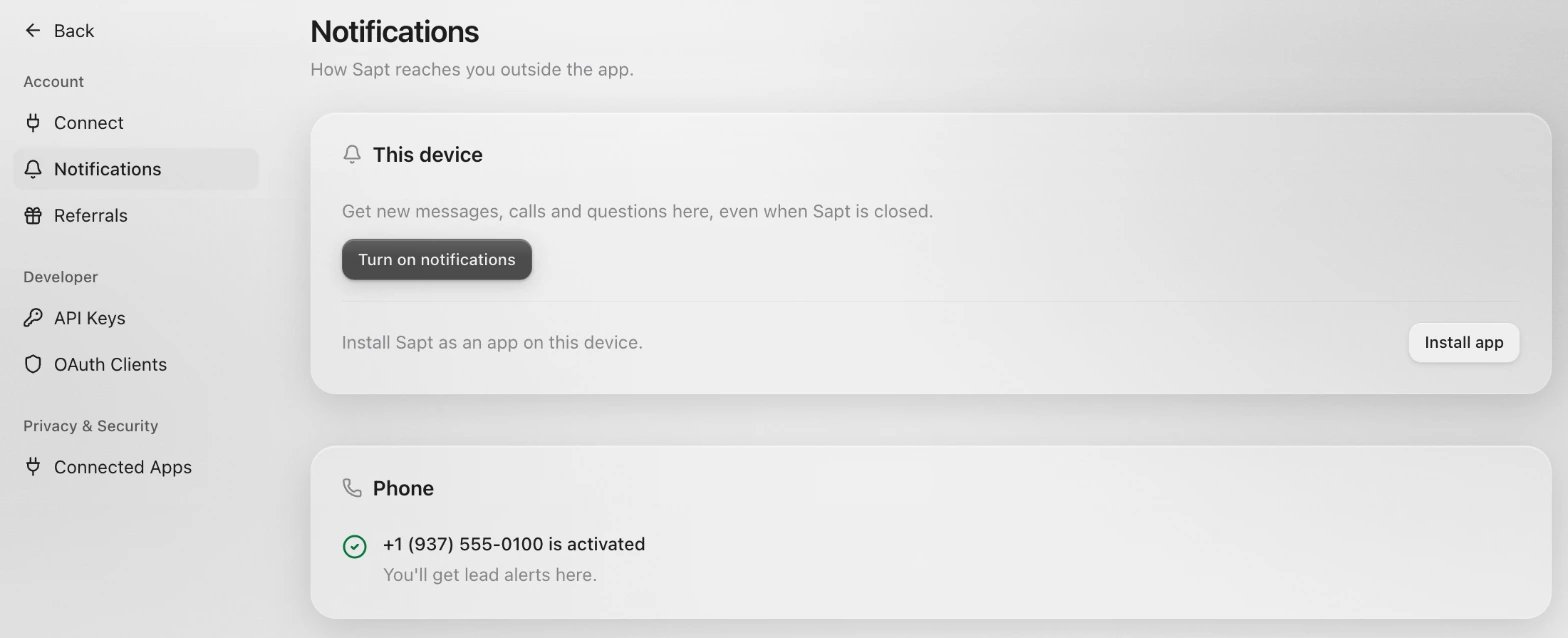
Get notifications
- On the web
- On your phone
In the web app at app.sapt.ai, open Account > Notifications. Under This device, click Turn on notifications and allow them when your browser asks. Click Send a test to check.On an iPhone, tap Share, then Add to Home Screen first. Open Sapt from there to turn on notifications.
Choose what alerts you
On your phone, tap Shop > Notifications. Under What alerts you, turn each one on or off:- Customers who need you: a customer waiting on a person, and questions from Sapt.
- New bookings: who booked, when, and what for.
- Voicemails: who called and what they said.
- Unhappy customers: a rating of 3 stars or fewer, so you can call them today.
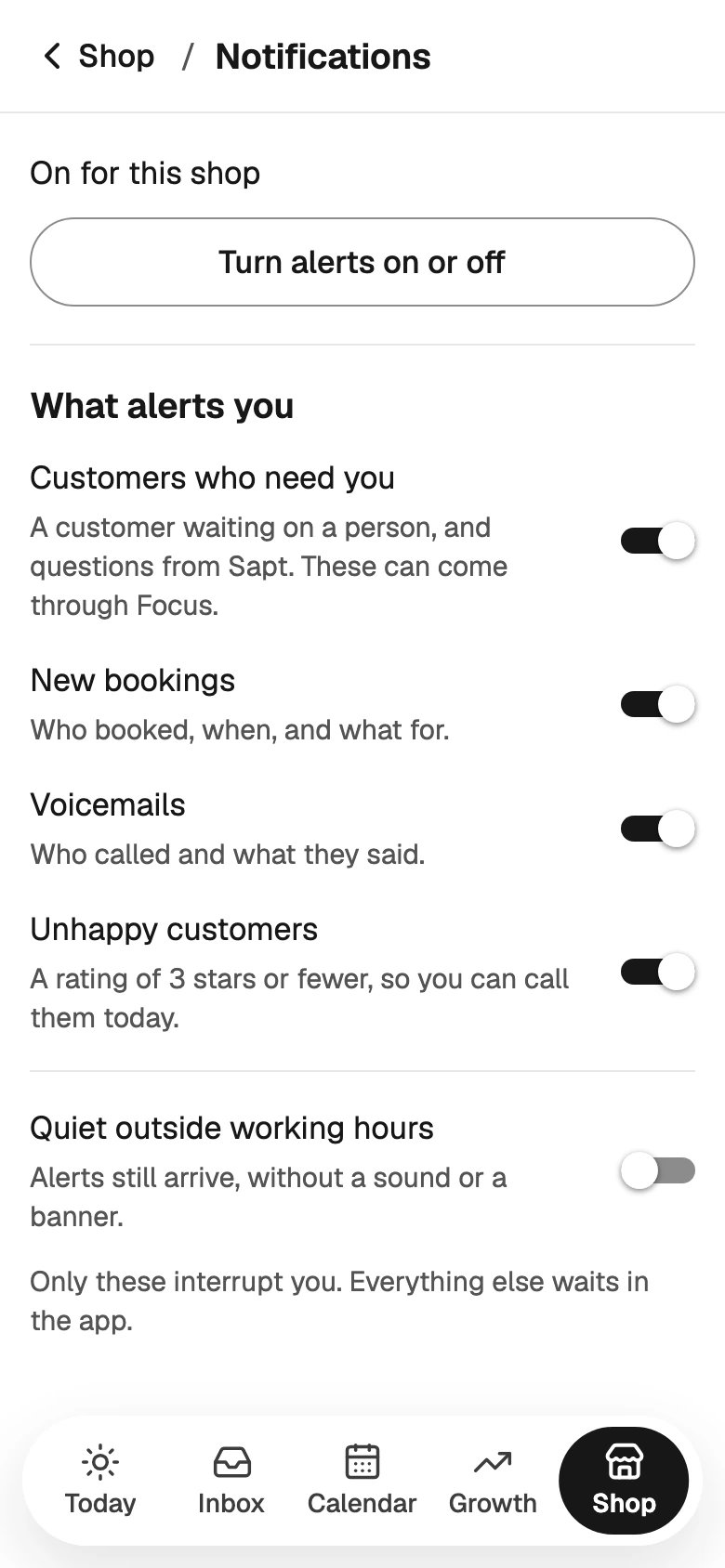
These switches and quiet hours change notifications only. Texts to your cell arrive at any hour.
Which alerts Sapt sends
A missed call with no voicemail sends you no alert. The caller gets the text back, and the call shows in your Inbox.
Every Monday at 7 AM, Sapt also emails you a report on your week.
Answer an alert by text
- The AI asked you a question. Reply with your answer. The AI uses it with the customer, and Sapt texts back that your answer is saved.
- The alert ends with “Reply to this text to answer them”. Your reply goes to the customer, and Sapt texts back Sent to and their name. If Sapt says Couldn’t send that. Reply in the Sapt app., answer from your Inbox.
If alerts do not come
- No texts. Check that your number shows as activated under Account > Notifications. If you replied STOP, reply START.
- No notifications on the web. Your browser may be blocking them. Allow notifications for Sapt in the browser’s site settings, then reload.
- No notifications on your phone. Check Shop > Notifications, and that notifications for Sapt are allowed in your phone’s settings.
Keep going
Your Inbox
Answer every customer from one place.
Set up the AI front desk
Decide what the AI does on its own.