

Before you start
- You edit your website on the web at app.sapt.ai, on a computer if you can. The phone app shows whether your site is live, but it does not edit it.
- Your role needs permission to manage the website and edit content. If you see Ask an admin to create it., ask whoever runs your Sapt team. See Your team.
Create your site
1
Open Website
In the sidebar, click Website.
2
Click Create now
The Create your website card shows the address your site will use, such as 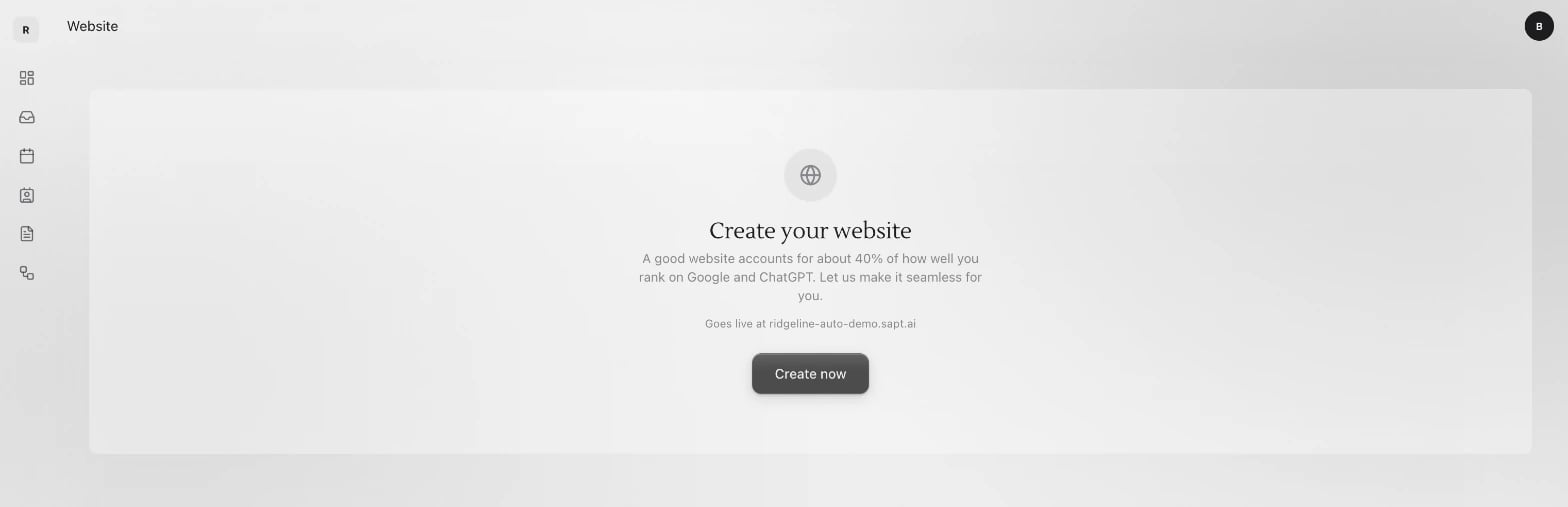
ridgeline-auto-demo.sapt.ai. Click Create now. Your site goes live at that address right away, with its forms already connected to Sapt.3
Turn on editing
The editor opens full screen. If the left side shows Make this site yours, click Enable editing once.
Find your way around the editor
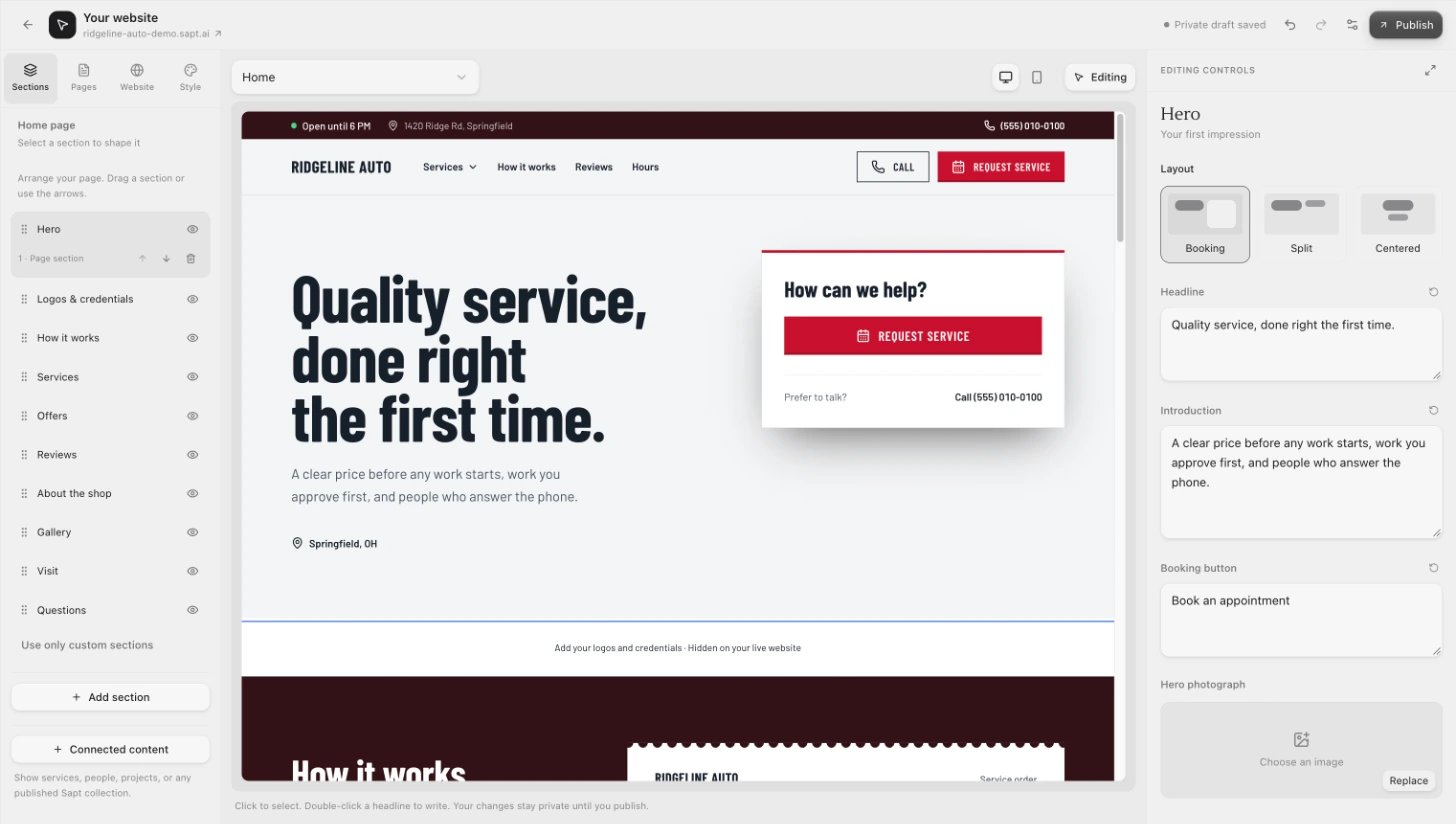
- Top bar: your site’s address, a status such as Unsaved changes, Private draft saved or All changes published, Undo and Redo, the sliders button for Website settings, and Publish.
- Left side: four tabs. Sections arranges the page you are on. Pages lists every page. Website holds details shared by every page. Style sets colors and fonts.
- Middle: your page. Pick a page at the top, switch between Desktop canvas and Mobile canvas (the computer and phone icons), and switch between Editing and Preview.
- Right side: Editing controls for whatever you clicked.
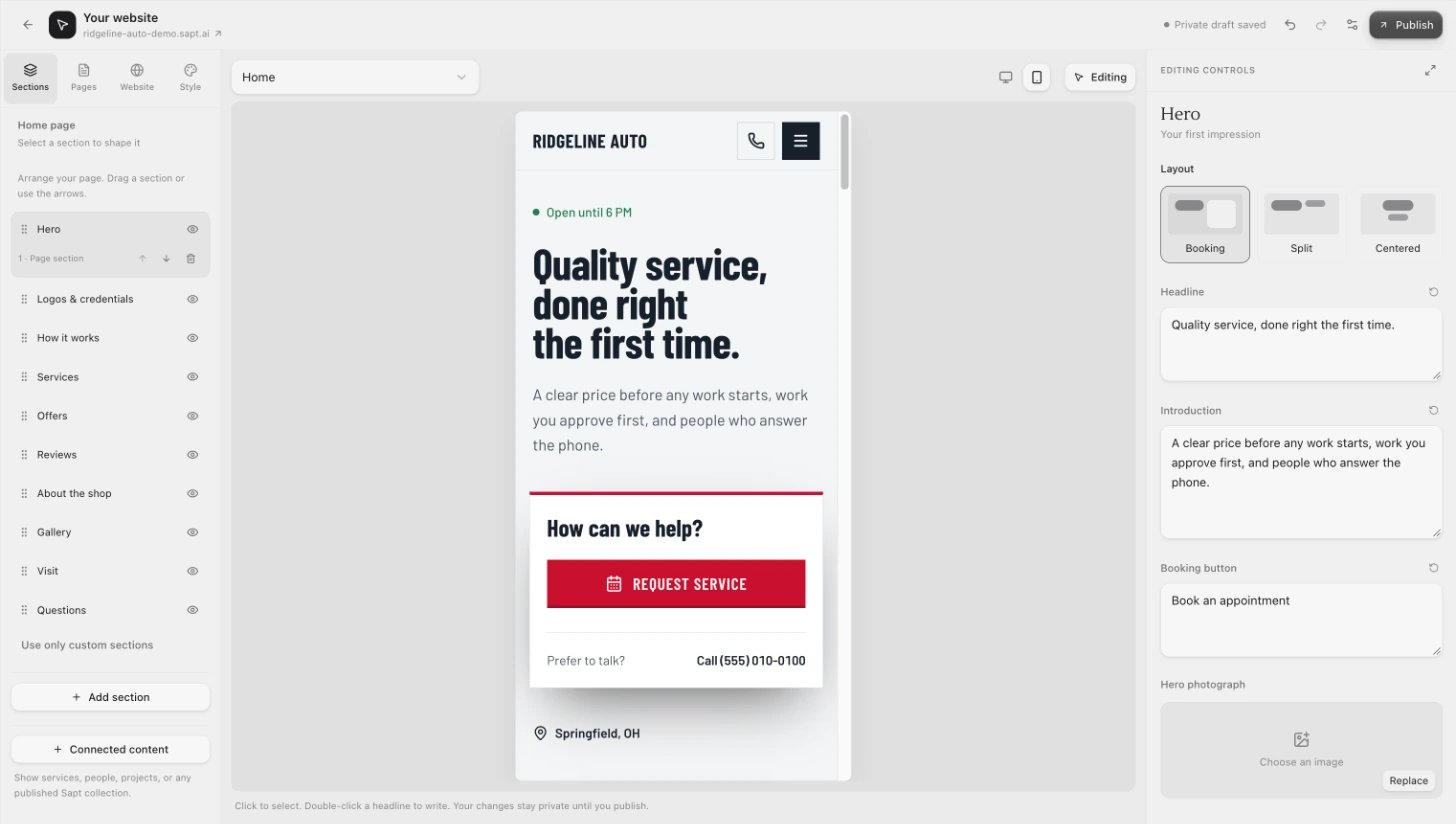
Forms do not send from inside the editor, even in Preview. Test them on your live site. See Test your form.
Change the look
Click the Style tab. The panel on the right is called Make it yours.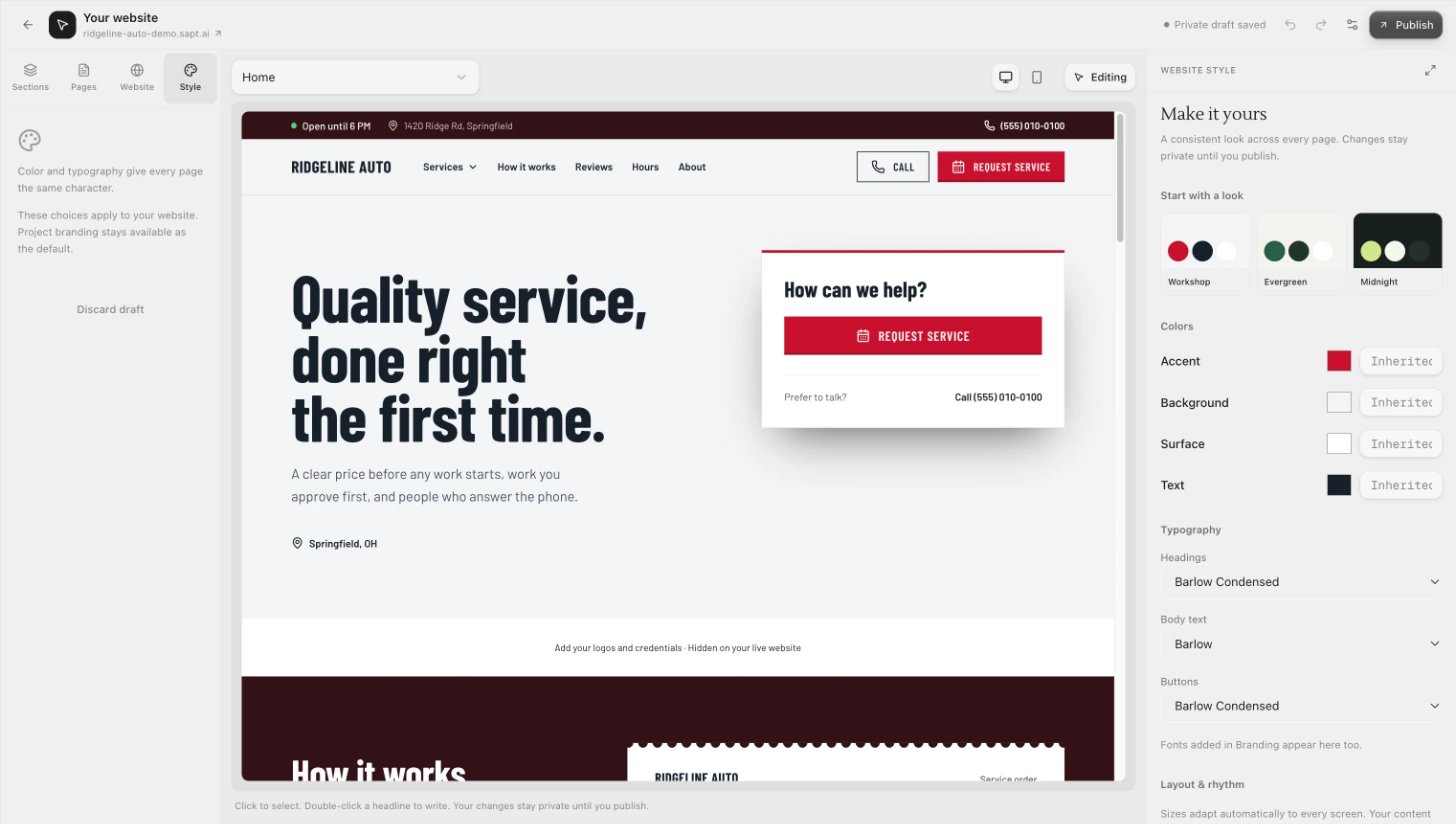
- Start with a look: pick a ready-made style, such as Workshop, Evergreen or Midnight. It keeps your brand color if your branding has one.
- Colors: Accent, Background, Surface and Text.
- Typography: fonts for Headings, Body text and Buttons.
- Corner radius: from Sharp to Soft.
- Use project branding: go back to the colors and fonts from your Sapt branding.
Edit your business details
Click the Website tab. Under Across your website you find what every page shares.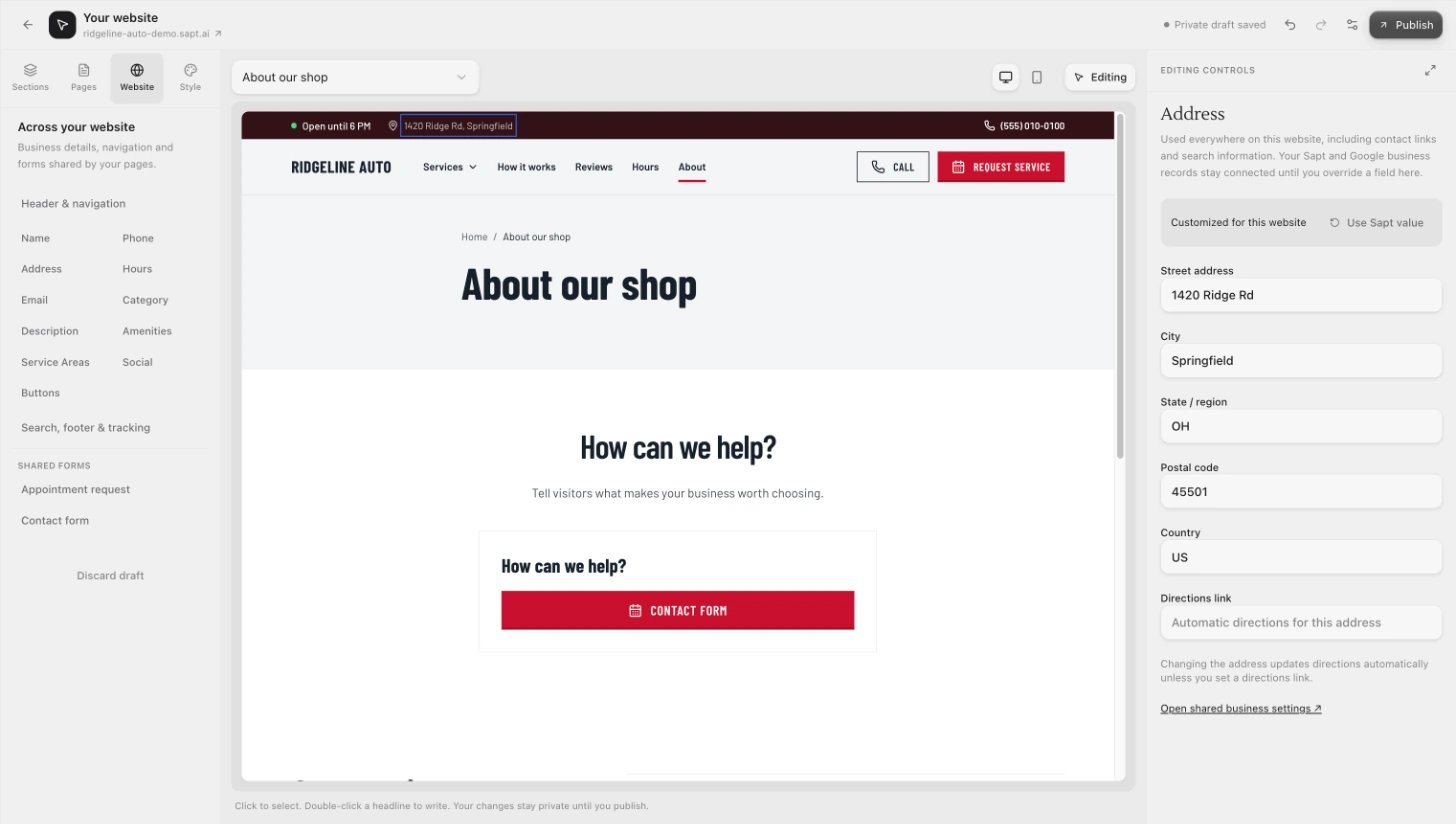
- Header & navigation: your logo and name, the menu and its button, and the contact strip.
- Business details: name, phone, address, hours, email, category, description, amenities, service areas and social links. Each one follows your Sapt and Google details until you change it here. To go back, click Use Sapt value.
- Buttons: your main button’s label and what it does, such as Open Sapt booking or Call the business.
- Search, footer & tracking: how your home page looks in search results, the footer, and Hide from search engines.
- Shared forms: your booking form and any other forms. See Forms.
Show your site on Google
If the Website page shows Hidden from search, your site is asking Google to leave it out. Click Show on Google. If you have changes you have not published yet, Sapt asks you to publish them first. You can also turn it off yourself: Website tab, Search, footer & tracking, then switch off Hide from search engines and publish.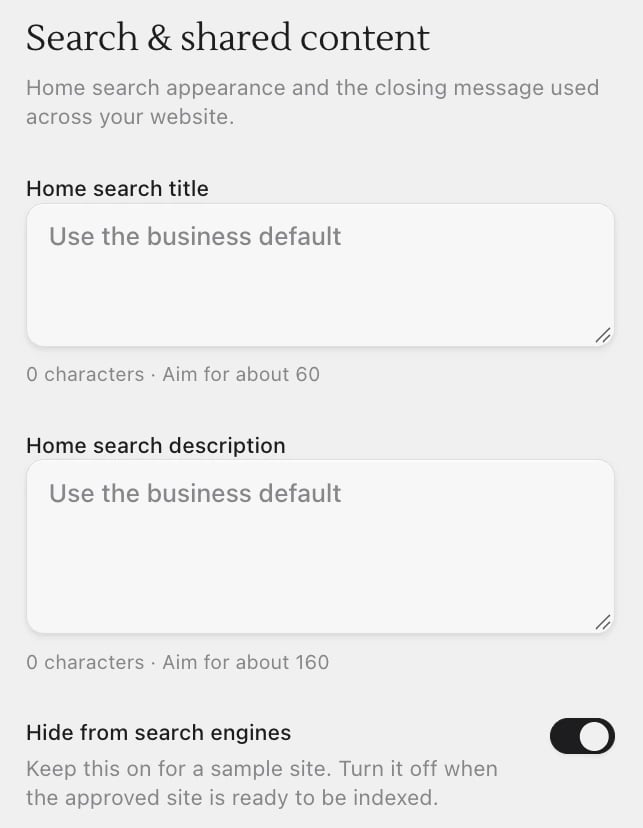
Publish
1
Click Publish
Publish is in the top right. It turns on once you have changes. A box called Ready to go live? lists what will change.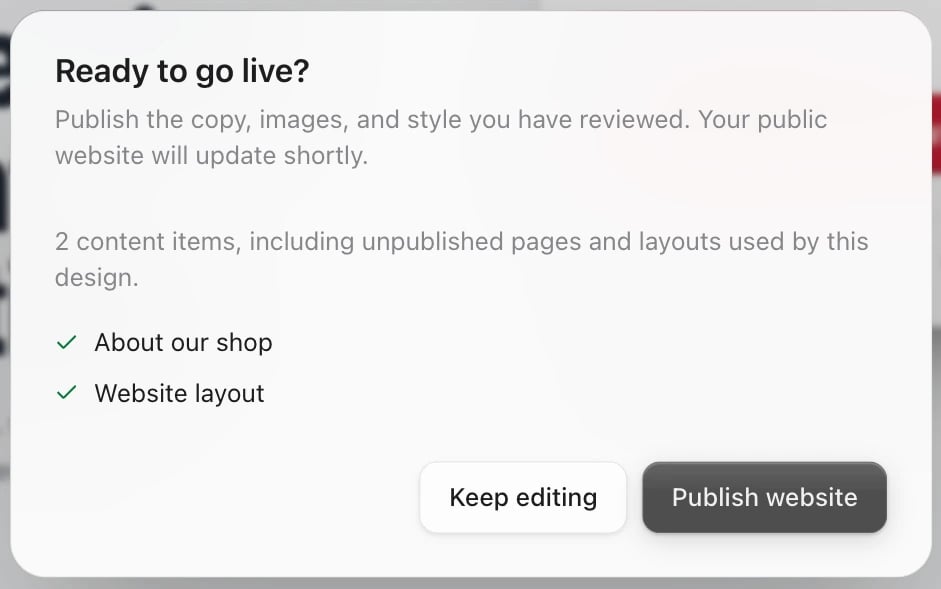
2
Click Publish website
Your live site updates shortly, usually within a minute. Open it from the address under Your website in the top bar.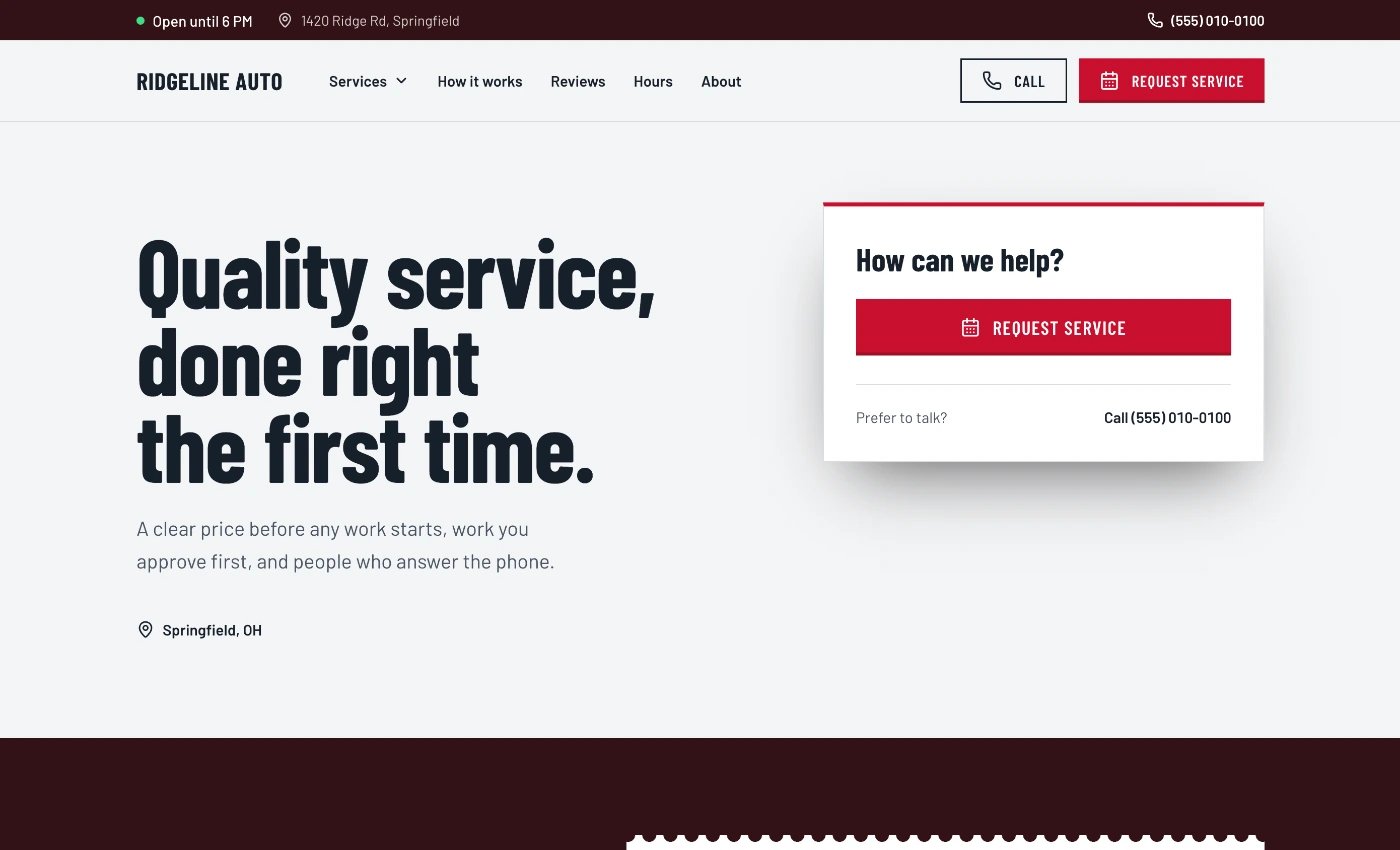
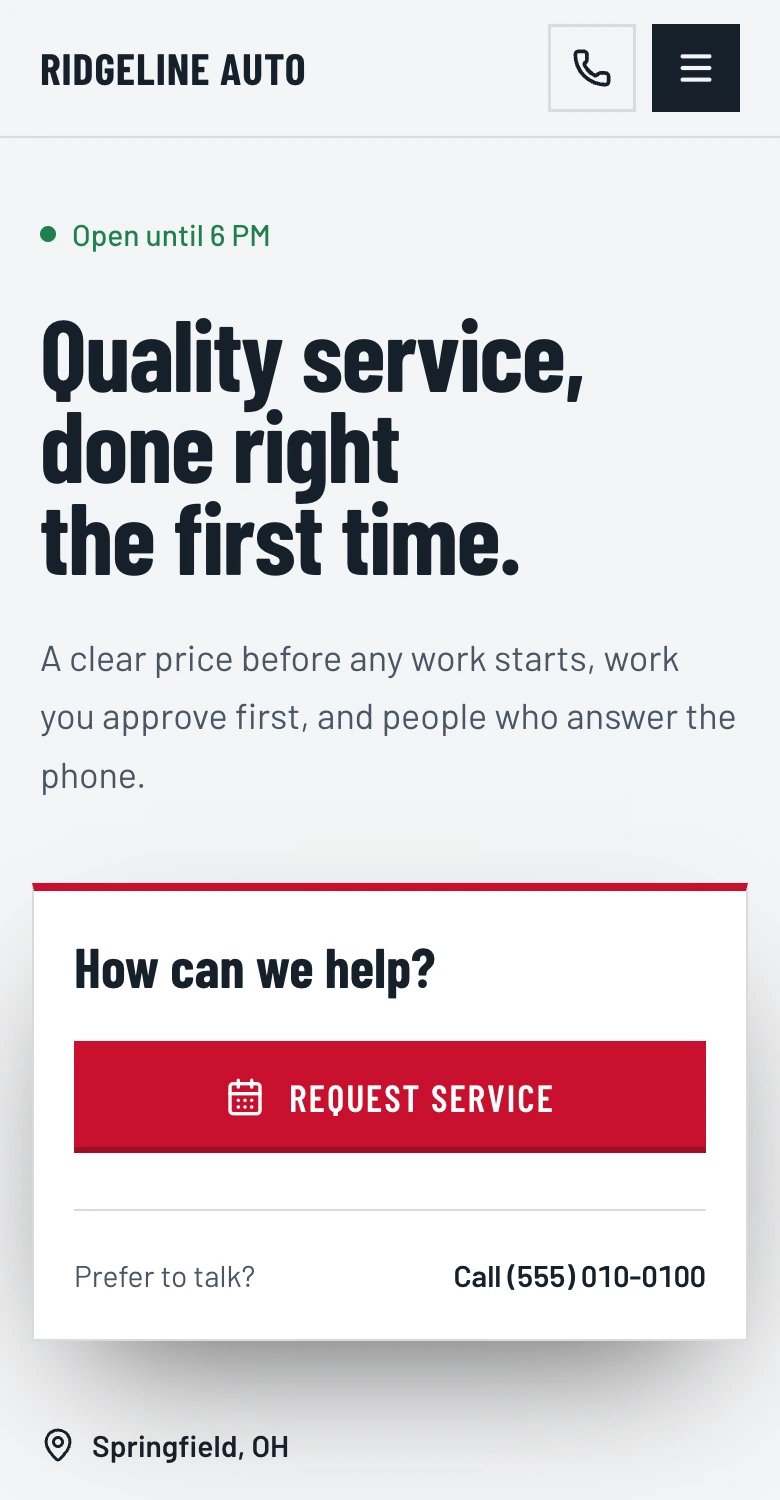
Your website on your phone
In the phone app, open Growth and scroll to Website at the bottom. It shows whether your site is Live, waiting on your domain, or off, with Open website to see it. Editing happens on the web.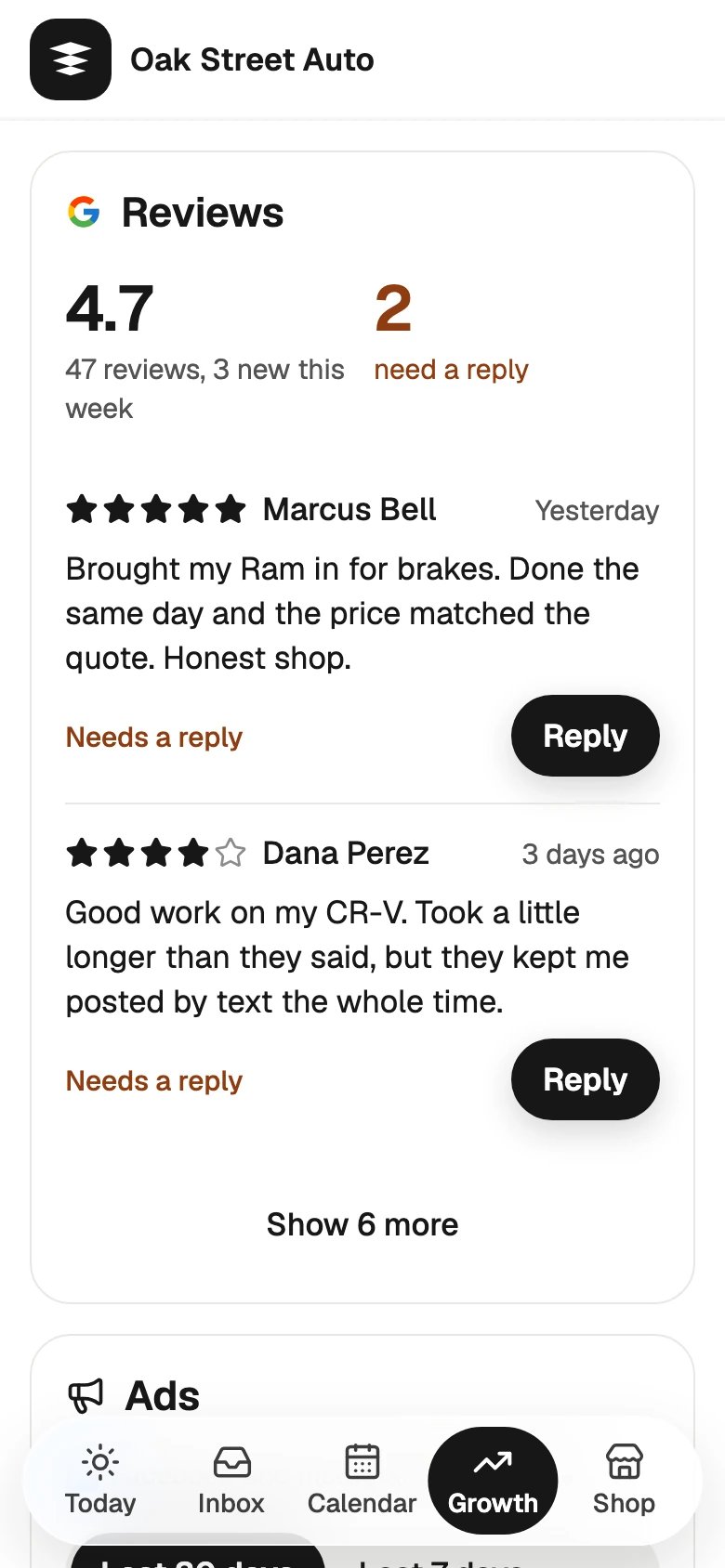
If something looks wrong
- “Your site goes live when your plan starts.” Your site turns on once your Sapt plan has started.
- You see Pages, Content, Brand and Settings instead of the editor. Your role can see the site but not use the full editor. Ask whoever runs your Sapt team.
- A card says Your location. Sapt found more than one Google location. Click Choose location and pick the right one.
-
“The live website may still show the previous version.” Your changes are published. The live site often catches up 10 to 40 seconds later, even with this banner showing. Wait a moment, then click Check again or reload your site.

- Publishing failed. Your draft is safe. Click Try publishing again.