

your-shop.sapt.ai. Connect a domain you own, such as example.com, and your site moves there. Once it is live, people who visit the sapt.ai address are sent on to your domain.
Before you start
- A domain you own, and the login for the company that runs its DNS. That is usually where you bought the domain, or Cloudflare.
- Your Sapt website. See Build your website.
Open Domains
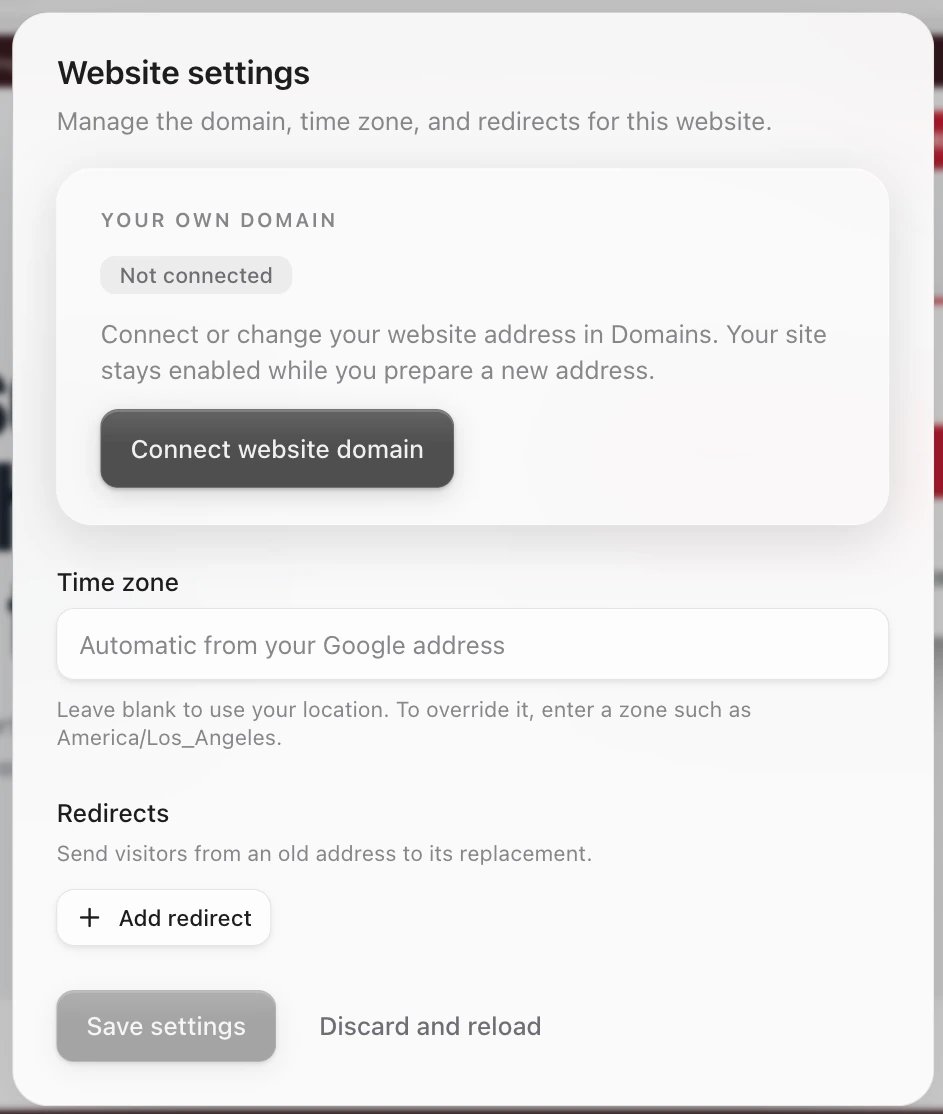
Either way gets you to the same screen:- In the website editor, click the sliders button (Website settings) in the top bar. Under Your own domain, click Connect website domain.
- Or in the sidebar, click Project Settings, then Domains.
Connect your domain
1
Type your domain
In Connect a domain, type it in Domain you own, such as 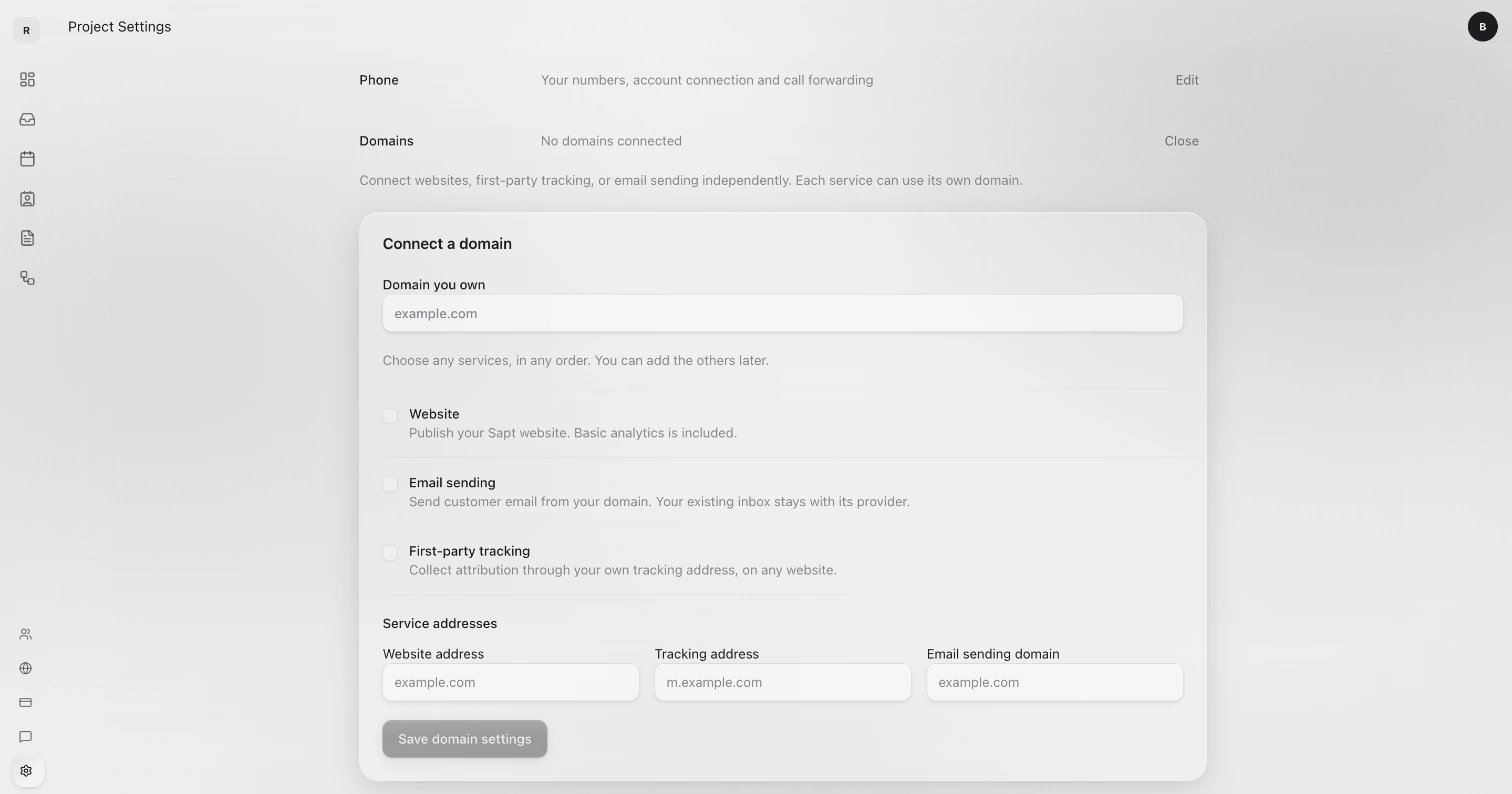
example.com.2
Choose what it is for
Tick Website. You can also tick Email sending (send customer email from your domain; your inbox stays where it is) or First-party tracking (collect visitor tracking through your own address). You can add these later.
3
Check the address
Under Service addresses, Website address is filled in with your domain. To use the www address, type
www.example.com instead.4
Click Save domain settings
Your domain appears below with the DNS records it needs.
5
Add the DNS records
Pick one of the three ways below.
6
Wait for Live
The Website row moves from Waiting for records to Issuing certificate to Live. Then your site is on your domain.
Add the DNS records
Your domain’s card says where its DNS is, such as “DNS at GoDaddy”, and lists the records under DNS records.If your DNS is at Cloudflare
Sapt can add the records for you. You see this option only when your DNS is at Cloudflare.- Click Connect Cloudflare DNS access, then Open Cloudflare. Cloudflare’s token page opens with the access Sapt needs already filled in.
- In Cloudflare, make sure the token can reach your domain, click Continue to summary, then Create Token. Copy the token. Cloudflare shows it only once. Cloudflare’s guide has the details.
- Back in Sapt, paste it in Paste the token and click Connect.
- Look over the records, then click Apply DNS records.
Add the records yourself
This works with any DNS host.- Read the line under the records. It says where to add them at your host.
- Click a Host or Value to copy it, or click Copy all.
- At your DNS host, add each record exactly as shown. For CNAME records, turn the proxy off (DNS only) and leave TTL on auto.
- Back in Sapt, click Check connection. Checking only looks. It never changes anything at your host.
Let us do it for you
Click Text us and we do it for you. It starts a text to Sapt with your domain filled in, so it works best on your phone. The number we reply from is on the screen.What the statuses mean
While DNS updates
- DNS changes are not instant. While the Domains screen is open, it checks again by itself. You can also close it and click Check connection later.
- Your site keeps working at its sapt.ai address the whole time.
- The phone app shows the same progress under Growth, Website, such as “Waiting on your domain settings for www.example.com”.
Change to a different domain
- On the Domains screen, click Connect another domain and connect the new one the same way. Your current domain keeps working.
- When the new address shows Verified, click Manage on its Website row, then Make primary.
Disconnect a domain
- Stop using it for the website: click Manage on the Website row, then Disconnect. Your site stays up at its sapt.ai address.
- Remove it completely: click Remove domain. Every Sapt service stops using it. Your DNS records stay at your host until you delete them there.
If something looks wrong
- A record shows Conflict. An old record is in the way. At your DNS host, change it to the value Sapt shows, then click Check connection.
- “Your Cloudflare token cannot see example.com.” Make a new token that includes that domain and paste it in.
- The record is for the bare domain (
example.com) and your host will not take a CNAME there. Use your host’s CNAME flattening, ALIAS or ANAME option, and keep your email records. Or use the www address. - Still stuck? Click Text us and we do it for you.