

Add an item
1
Open the collection
Open Content and pick the collection on the left.
2
Click New
Click the New button at the top right. It carries the collection’s name, like New specials.
3
Fill it in
Type the Name and fill in the fields. For a special, that could be “Oil change special” with a price, a short description and a photo.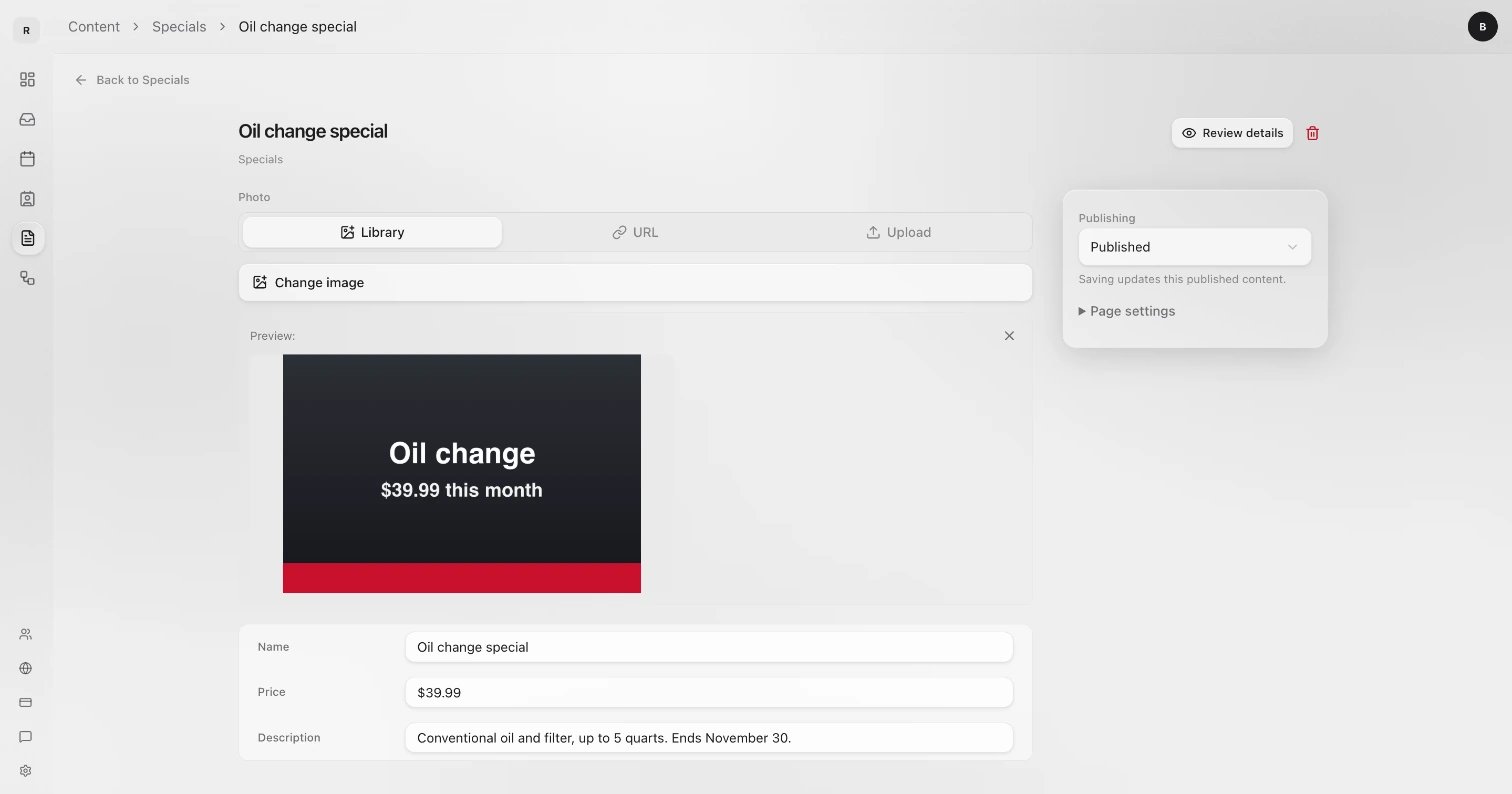
4
Choose when it goes live
On the right, set Publishing (see below). Then click the button in the bar at the bottom. It reads Save draft, Publish, Save schedule or Archive content, to match.
Statuses
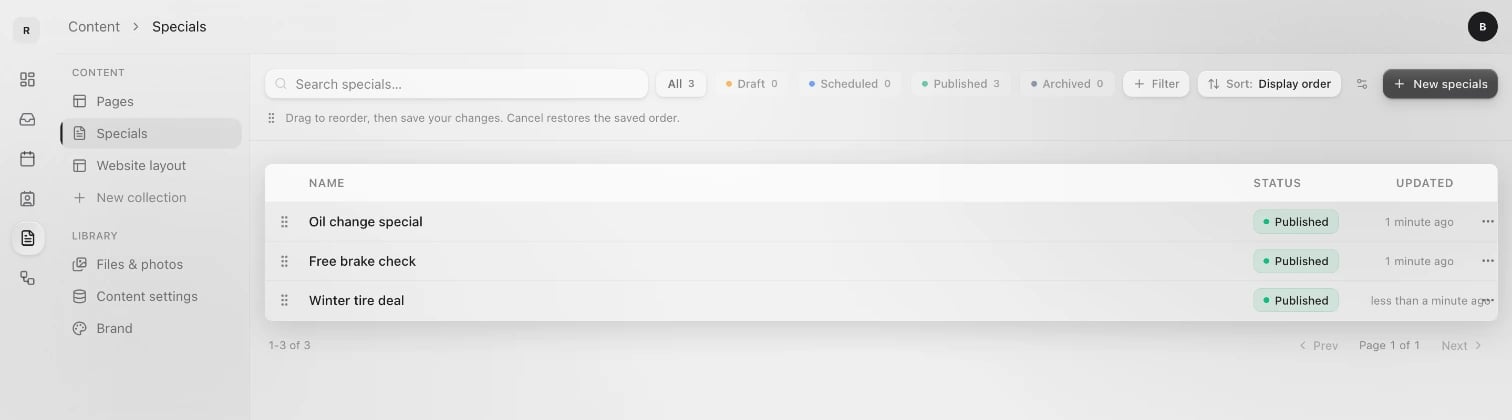
The filters above the list (All, Draft, Scheduled, Published, Archived) show how many items are in each.
Publish on a schedule
- In the item, set Publishing to Scheduled.
- Under Publishes automatically, pick the Date, Time and Timezone. Sapt shows when it goes live.
- Click Save schedule.
Change the status from the list
Click an item’s status in the list and pick another under Move to. No need to open it.Page settings
Open Page settings on the right of an item:- URL identifier is the end of the item’s web address, like
brake-inspection. Sapt makes it from the name. Changing it later can break links people already have. - Tags help you sort and filter items.
Preview before you publish
Click Review details at the top of an item to check how it reads. Articles have Preview article instead. If the article is not live yet, the preview has Publish now (or Save & publish if you changed something) right there.Put items in order
- Check that Sort shows Display order, as it does at first. If you sorted by something else, click Reorder above the list.
- Drag items by their handle, or use the menu on a row for Move to top or Move to bottom.
- Click Save changes, or Cancel to keep the old order.