Sapt forms work on your Sapt website. There is no embed code to put them on a website Sapt does not host. If a developer built your site, they can send form entries to Sapt themselves. See Starter website.
Find your forms
Open the editor from Website in the sidebar.- Your booking form: click the Website tab. Under Shared forms, click Appointment request. Every site has it.
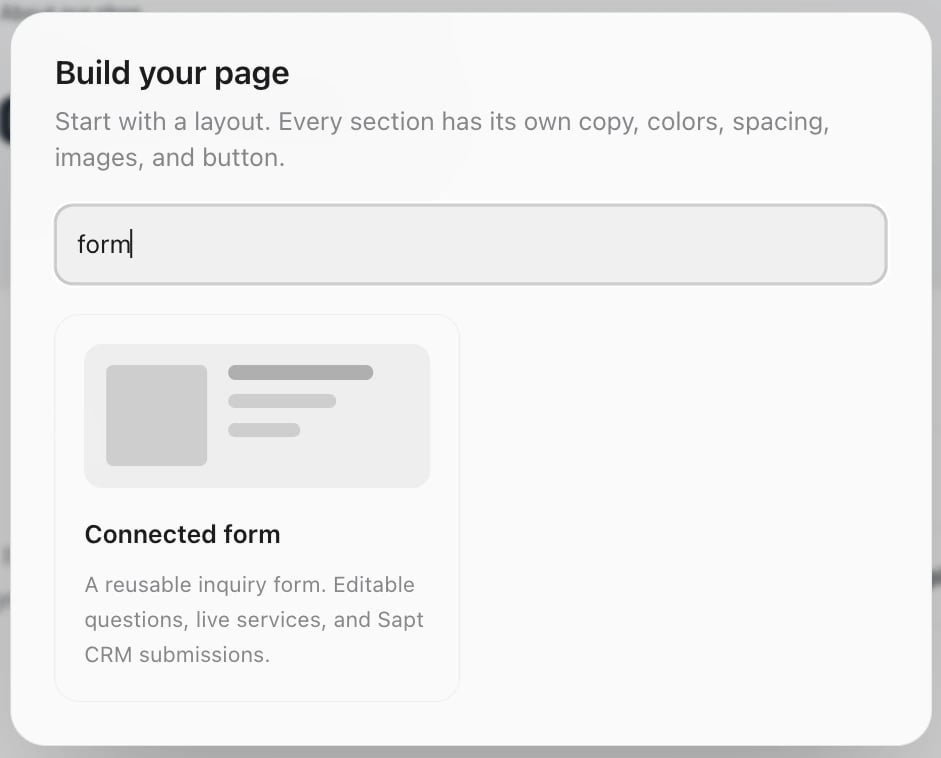
- A new form: click the Sections tab, then Add section, then Connected form. Type “form” in Search layouts… to find it fast. Sapt adds the section and a new form, and opens the form.
- The same form in another place: add a Connected form section, then pick the form under Reusable form. Click Edit questions & fields to open it.
Edit the questions
Under Questions, click a question to open it. Change the Question and the Supporting text under it. Use the arrows to move it and the trash can to remove it.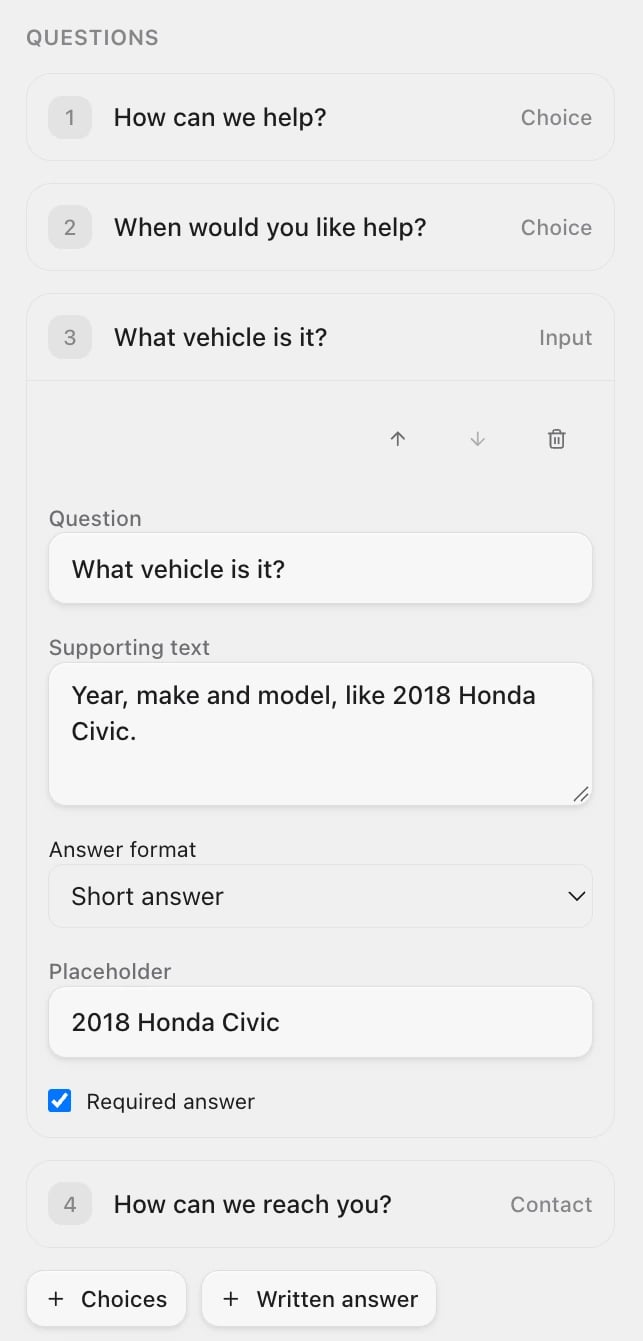
- Answer source: My own choices lets you type the answers. Click Add option for more. Live project services lists your published services and stays up to date by itself.
- Allow multiple answers: the customer can pick more than one.
- Allow an additional note: adds a box under an answer for the customer to explain.
- Skip when a service is already selected: skips the question when the customer already picked a service.
- Answer format: Short answer, Long answer, Date or Number.
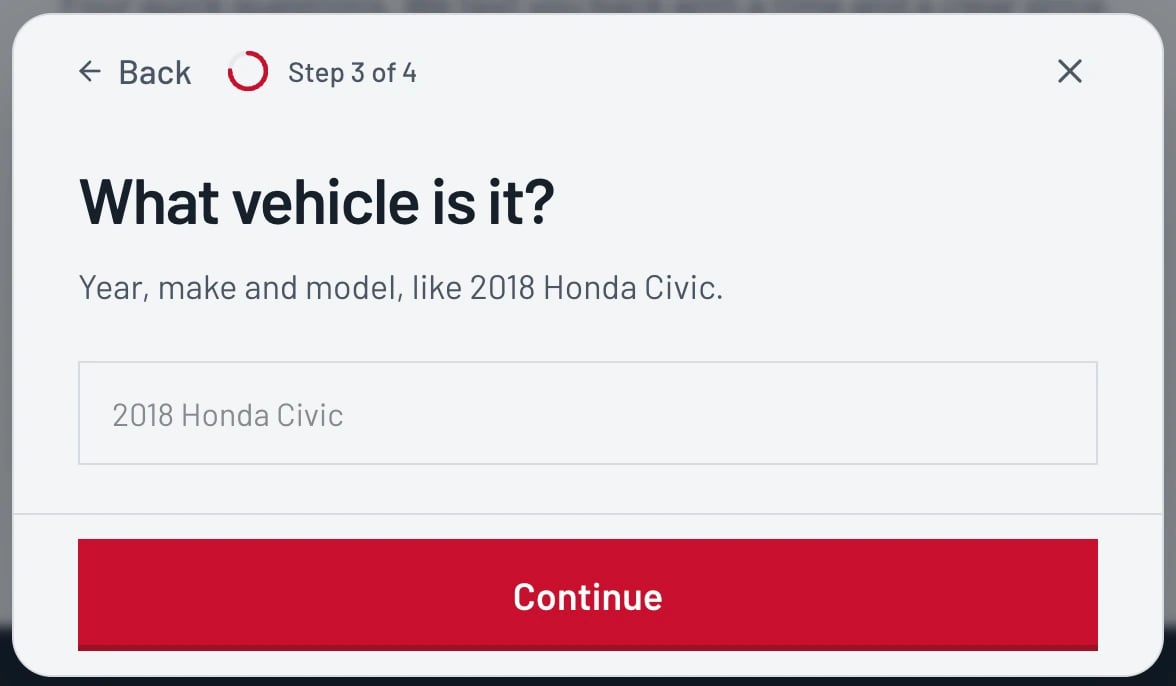
- Placeholder: example text in the empty box, like “2018 Honda Civic”.
- Required answer: the customer cannot skip it.
Choose where requests are saved
At the top of the form, under Connected to Sapt CRM, pick a record type in Save inquiries to.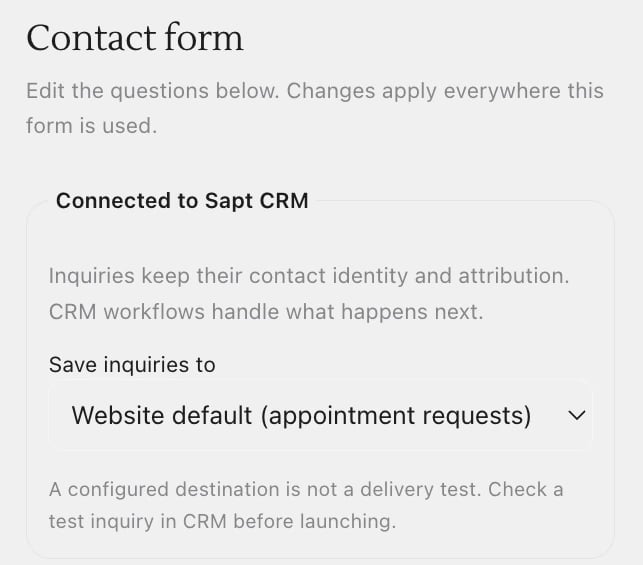
- Website default (appointment requests) saves each request as a Website inquiries record in your CRM. This is the right choice for most shops.
- Any other record type works if it has Accept public submissions turned on and Strict schema turned off. See Record types.
- If the list is empty, click Set up website inquiries.
Let customers pick a time
Under Choose a time with Google Calendar, pick a schedule in Appointment schedule. Customers then request an open time. When you confirm the request in CRM or in the phone app, the customer gets a Google Calendar invitation. Only schedules with Customers can request times online turned on show up. Click Manage schedules in Calendar to set one up, or see Booking. Picking a schedule makes email required, because the invitation goes by email. To send customers to a booking page somewhere else instead, open Online scheduling and paste the link in Public booking link. You can use a schedule or a booking link, not both.Change the wording
Each of these opens with a click, below the questions.- Form settings & Sapt connection: Form name, and Duplicate to copy the form. Use general business questions replaces your questions with a standard set, so use it only to start over.
- Reassurance & consent: short lines that put the customer at ease, and the Consent checkbox text customers tick to agree to calls and texts. It comes filled in with your business name.
- After submission: the Confirmation title and Confirmation message the customer sees once it sends.
- Buttons & messages: the words on the form’s buttons and notes.
Test your form before you launch
The editor says it plainly: “A configured destination is not a delivery test. Check a test inquiry in CRM before launching.” Forms do not send from inside the editor, so test on your live site.1
Publish
Click Publish, then Publish website.
2
Send a test request
Open your live site, fill in the form with your own name and number, and send it. Use a test name you will recognize, such as “Test Maya Chen”.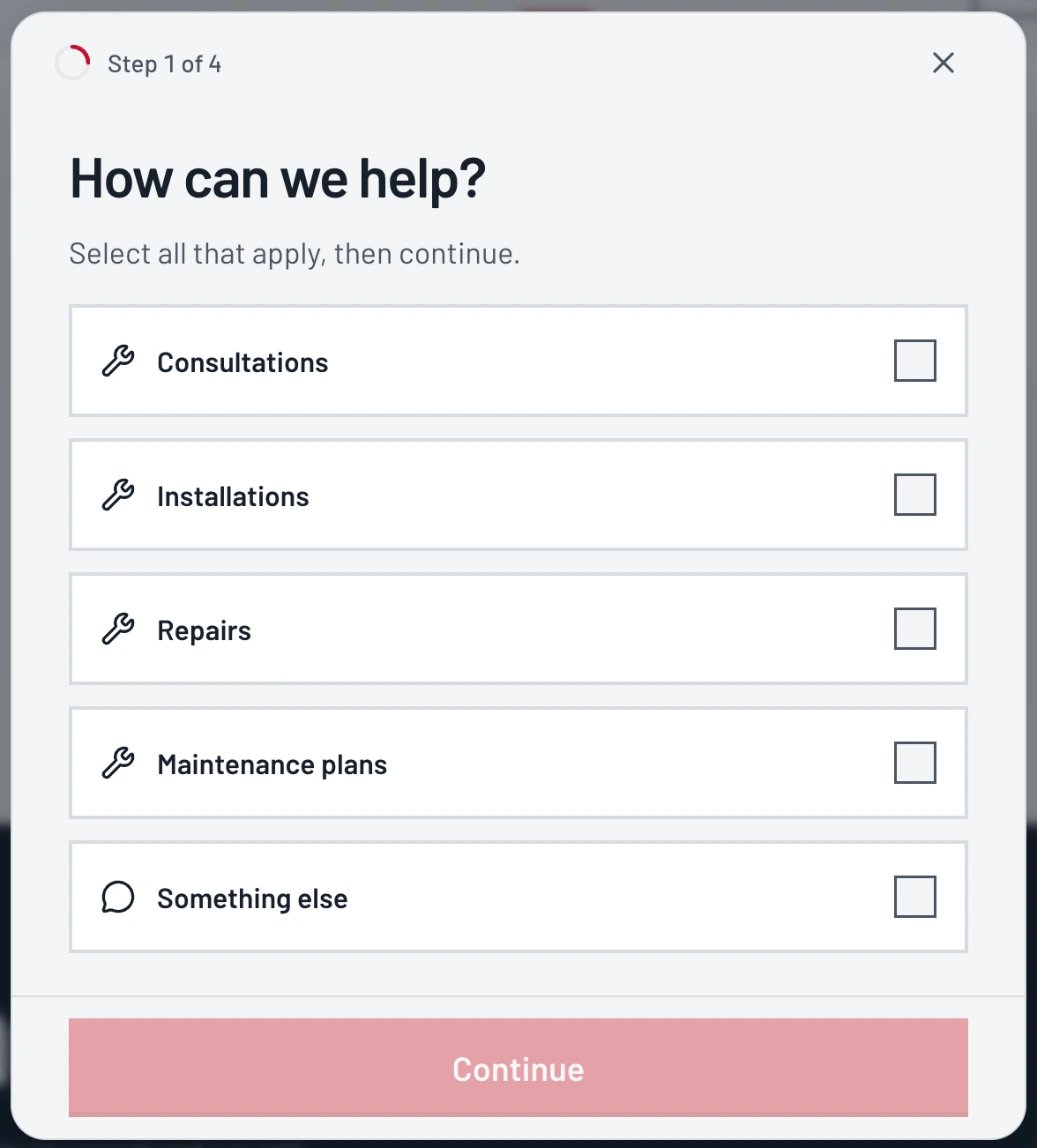
3
Find it in Sapt
Open CRM and the record type you chose (Website inquiries unless you changed it). Your test should be there. If a workflow starts on new requests, it runs for your test too, so you see what customers get.
Where requests show up
- CRM: in the record type you chose, linked to the customer.
- Inbox: filter by Forms. The conversation carries a Submission tag. See Inbox.
- Workflows: start a workflow with the New CRM record trigger for that record type, for example to text the customer back. See Workflows.
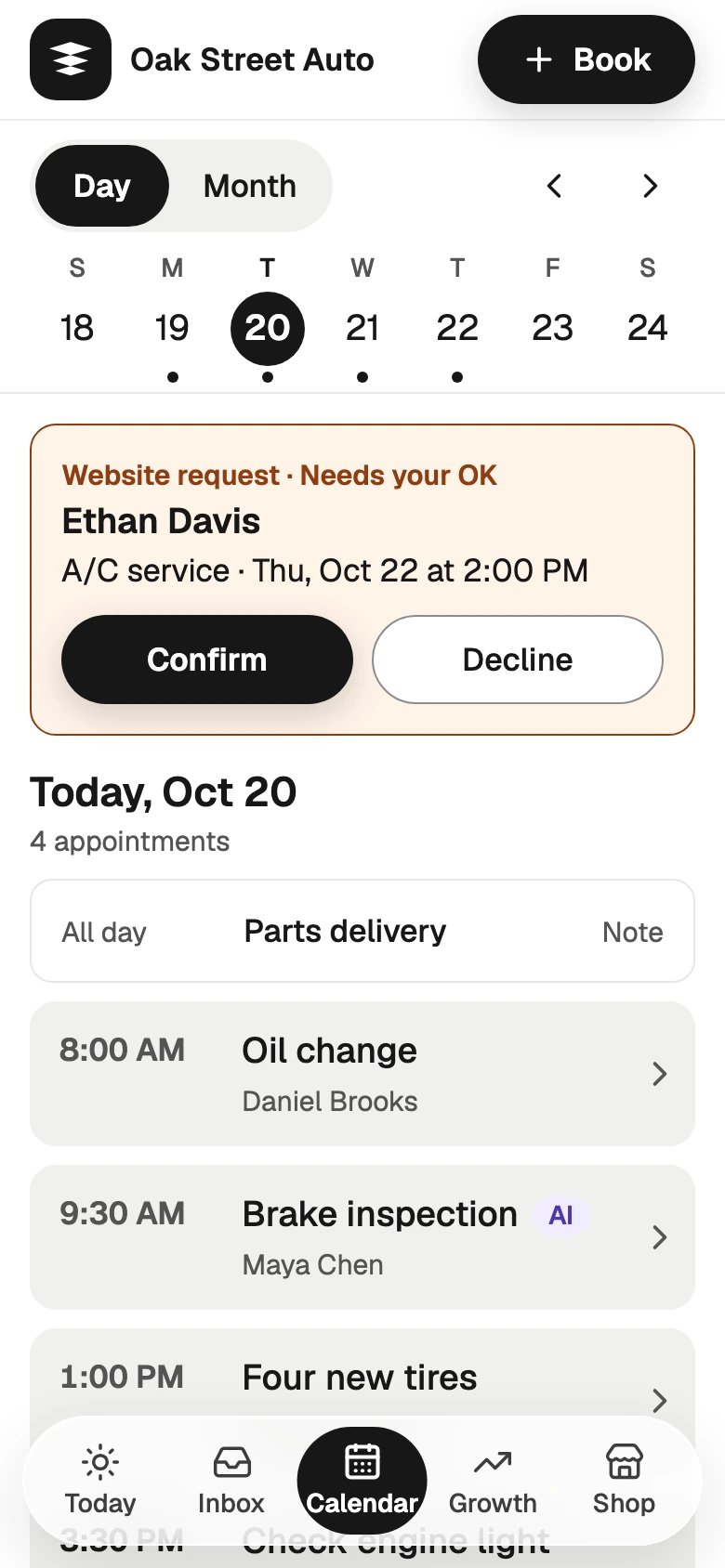
- Phone app: a request for a time shows at the top of Calendar as Website request · Needs your OK, with Confirm and Decline.