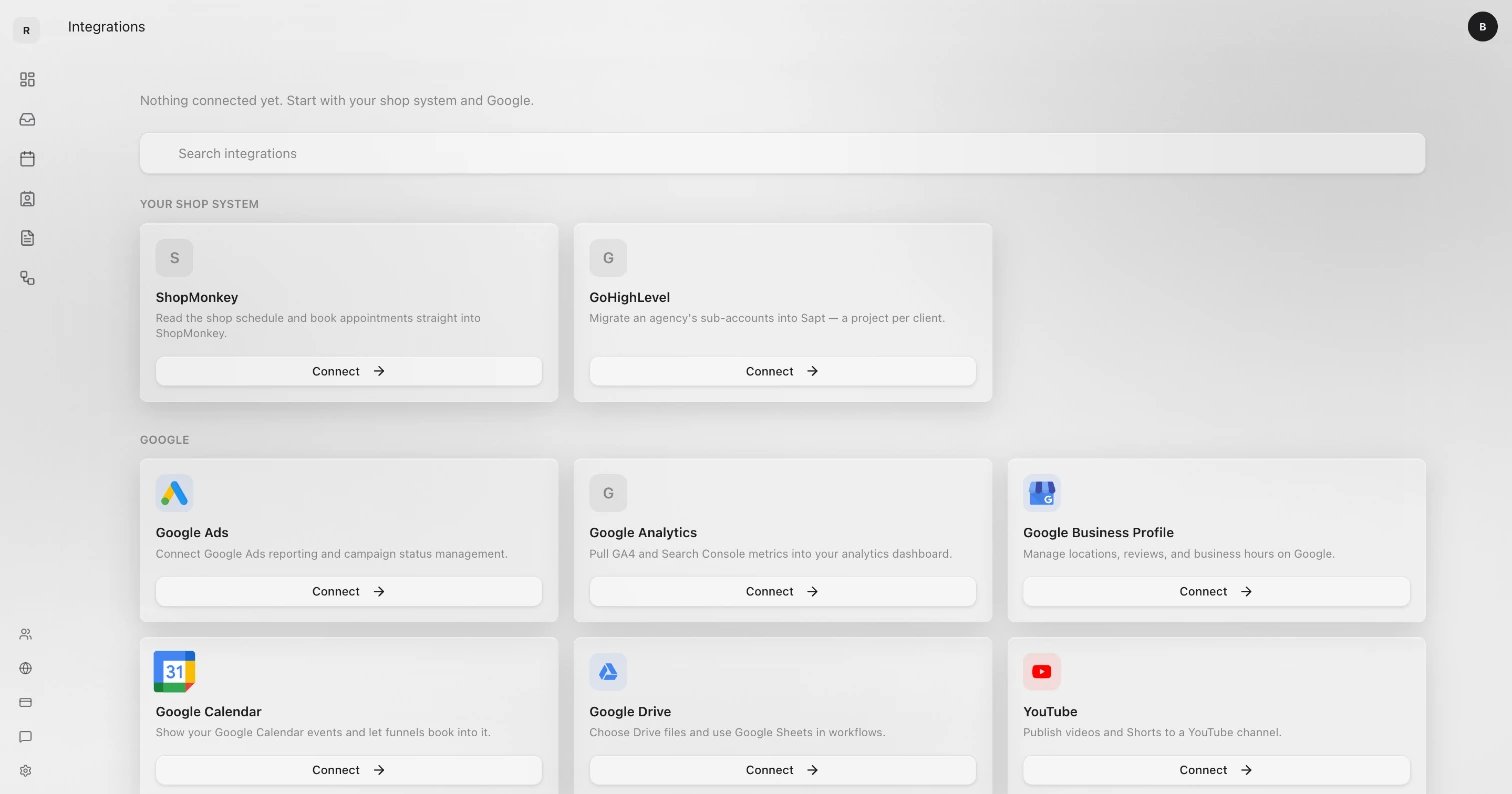
Where to find them
On the web, click Project Settings in the sidebar, then Connected apps. The same list is at app.sapt.ai/integrations, or press ⌘K (Ctrl+K on Windows) and type Integrations. Apps are grouped under Your shop system, Google, Money, Marketing and Other, with connected apps first. Type in Search integrations to find one. On your phone, the Sapt app connects Google only: open Growth and tap Connect Google. Connect everything else on the web. A few connections live in other places: your phone line under Project Settings, Phone, Cloudflare under Project Settings, Domains, and Claude or ChatGPT under Account, Connect.Connecting and disconnecting needs a Sapt role that can manage integrations. The project owner always can.
How connecting works
1
Open the app's page
Click Connect on the app’s tile. Its page says what Sapt does with it.
2
Click Connect
Most apps open their own sign-in window. Sign in and allow what it asks. A few, like ShopMonkey, ask you to paste a key from that app instead. Each app’s guide below shows where to get it.
3
Check it worked
The window says Account Connected and closes. The tile now says Connected.
Connect a client’s account
Agencies can let a client connect their own account. On the app’s page, click Send to client, then Copy, and send the link. Your client signs in with their own account. They don’t need a Sapt login. The link works until your client uses it, and the refresh button makes a new link and turns off the old one. This works for every app you connect by signing in. If you run more than one Sapt project, Import copies a connection from another of your projects, so you don’t sign in again.Keep it working
On a connected app’s page, the … menu has:
- Add another account: connect one more login, like a second Google account.
- Reconnect: sign in again. Apps with several accounts show Reconnect all.
- Test connection: check that the app still answers.
- Disconnect: stop Sapt using the app. Apps with several accounts show Disconnect all.
Your account’s Connected Apps tab is something else. It lists AI apps, like Claude or ChatGPT, signed in to your Sapt account.