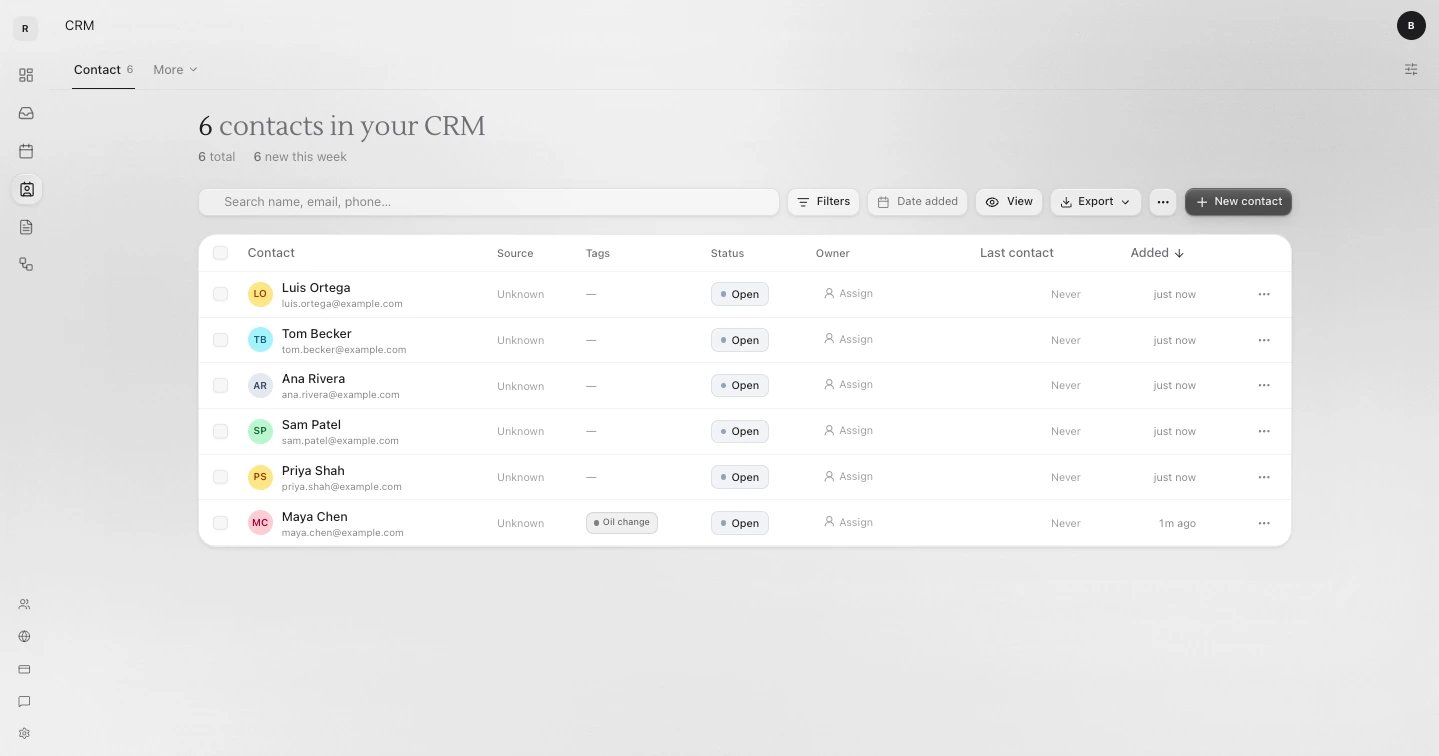
Find someone
Type in Search name, email, phone…. Click Filters to narrow the table by list, tag, stage or any field. Click a row to open that person.Add a contact
1
Click New contact
Click New contact at the top right. The Create contact window opens.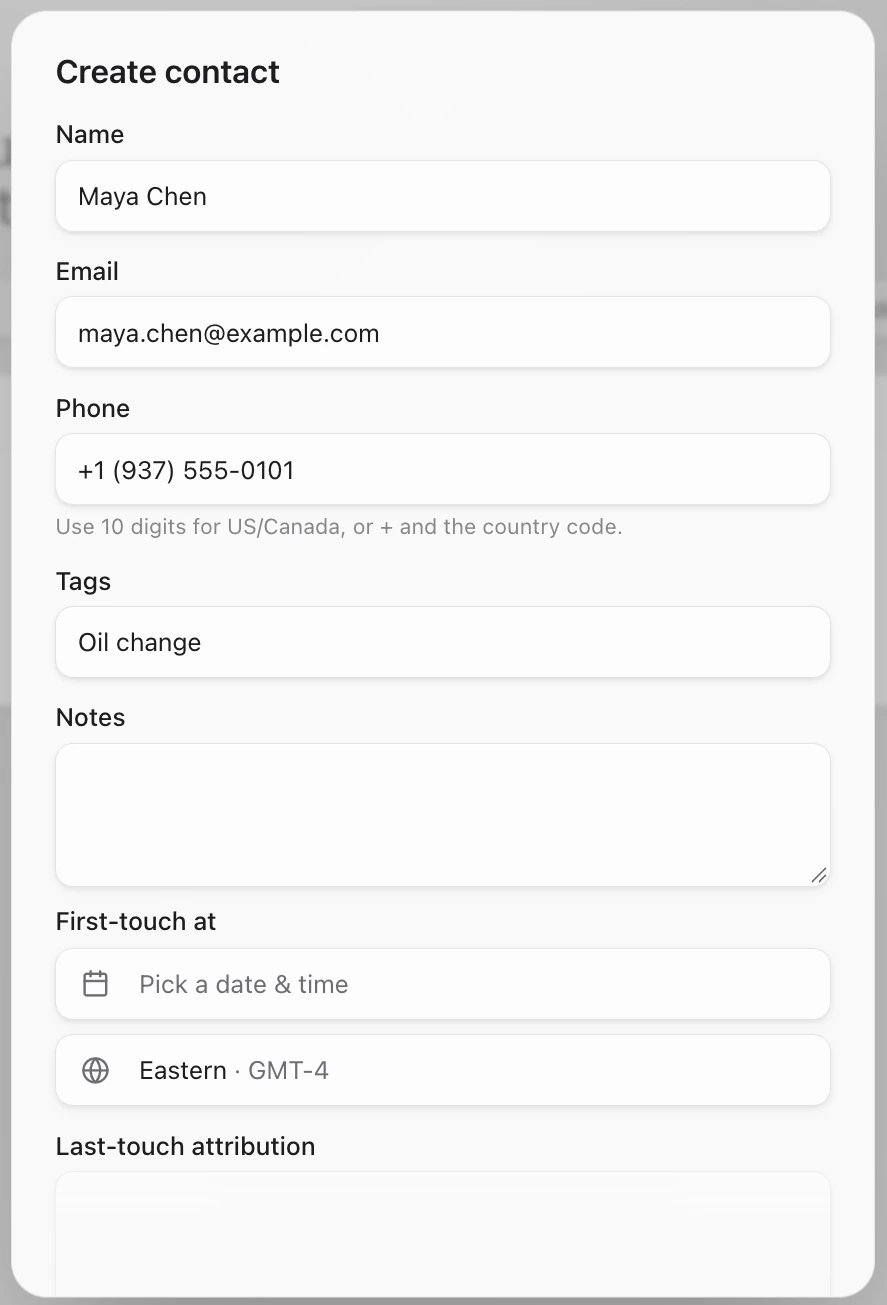
2
Fill in what you know
Add their name and a phone or email, for example Maya Chen and (937) 555-0101. For the phone, use 10 digits, or + and the country code. Click Create. Their record opens.
Import contacts from a spreadsheet
You can bring in a CSV or Excel file (.csv or .xlsx) with up to 5,000 rows at a time. Importing uses no credits.1
Open the importer
Click the More actions button (three dots) next to New contact, then Import contacts.
2
Drop your file
Drop the file in the box, or click it to choose one. Sapt shows how many rows and columns it found.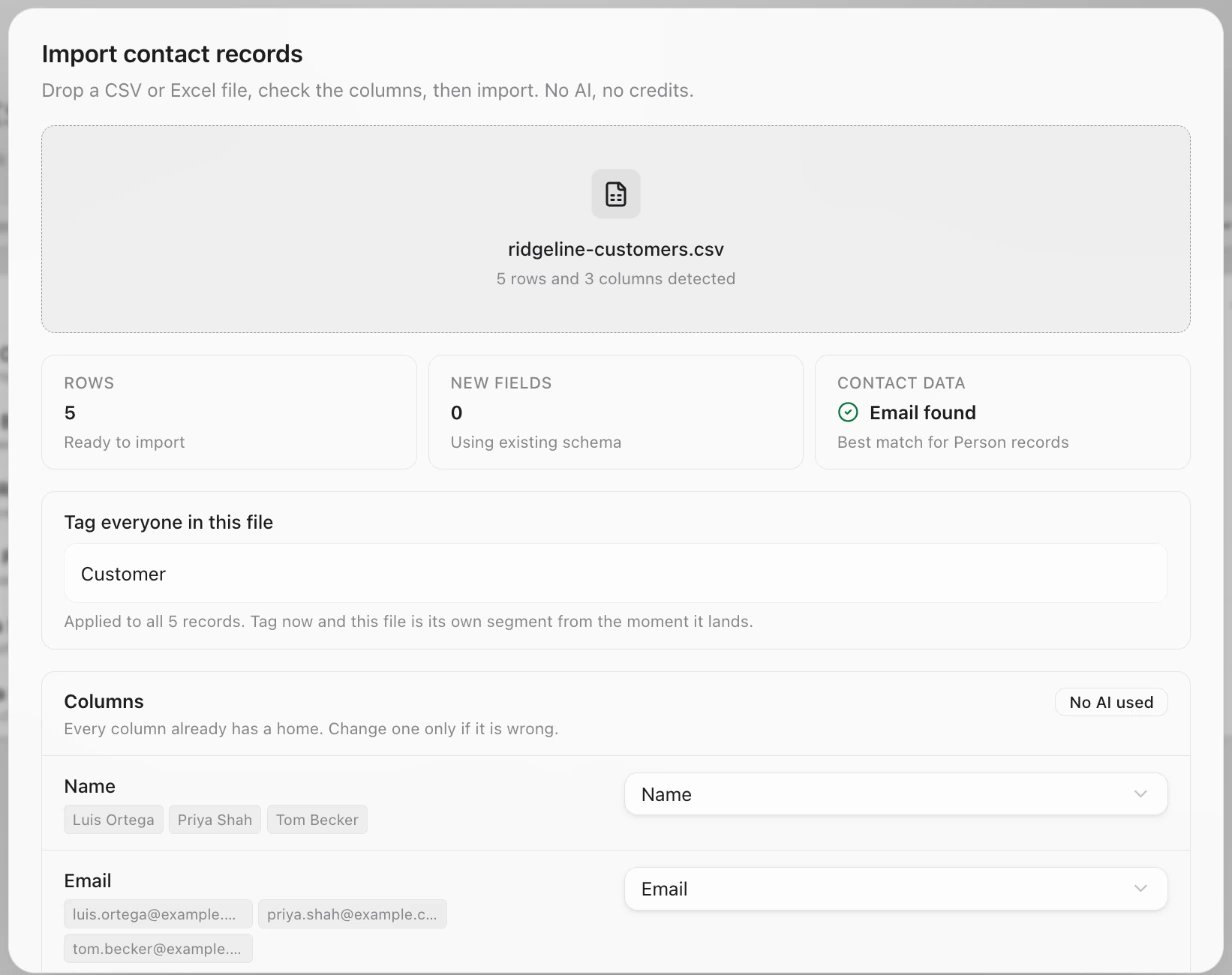
3
Check the columns
Under Columns, every column already has a place to go. Change one only if it is wrong: pick another field, Create a new field, or Do not import.
4
Tag the file, if you like
You can type a tag under Tag everyone in this file, like
referral. Check the contacts after the import: if the tag is missing, tick them and click Add tag.If the file has divider rows (a row with one word, like “Fleet customers”), Sapt offers to skip them. Leave that switch on.5
Import
Click Import records.
- Columns named like a field you already have land in that field. So do common names such as Customer Name, Phone Number or Email Address.
- Rows with the same email become one contact. With no email, Sapt uses the phone, then the name.
- Import again later and a row with the same email (or phone) updates the contact from your earlier import instead of adding a second one.
- A value that does not fit its field, like “n/a” in an email column, is left blank. The rest of the row still comes in.
Lists and tags
Lists group people you want to reach together, like everyone due for a spring tune-up. Tags are short labels, likefleet or referral.
- Make a list: click More actions, then Manage lists. Type a name and click Create. You can rename or delete lists there too.
- Add people to a list: tick them in the table and click Add to list.
- Tag people: tick them and click Add tag.
- On one person: open them and use Tags and Lists on the Overview tab, then click Save changes.
- Suggested tags (under More actions) sets the one-click tags your team sees in the inbox.
Do things to many people at once
Tick the boxes on the left of the table. A bar appears at the bottom with:- Add to list and Add tag
- Assign, to give them to a teammate
- Call, when calling is set up for your shop
- Delete
One person’s record
- On the web
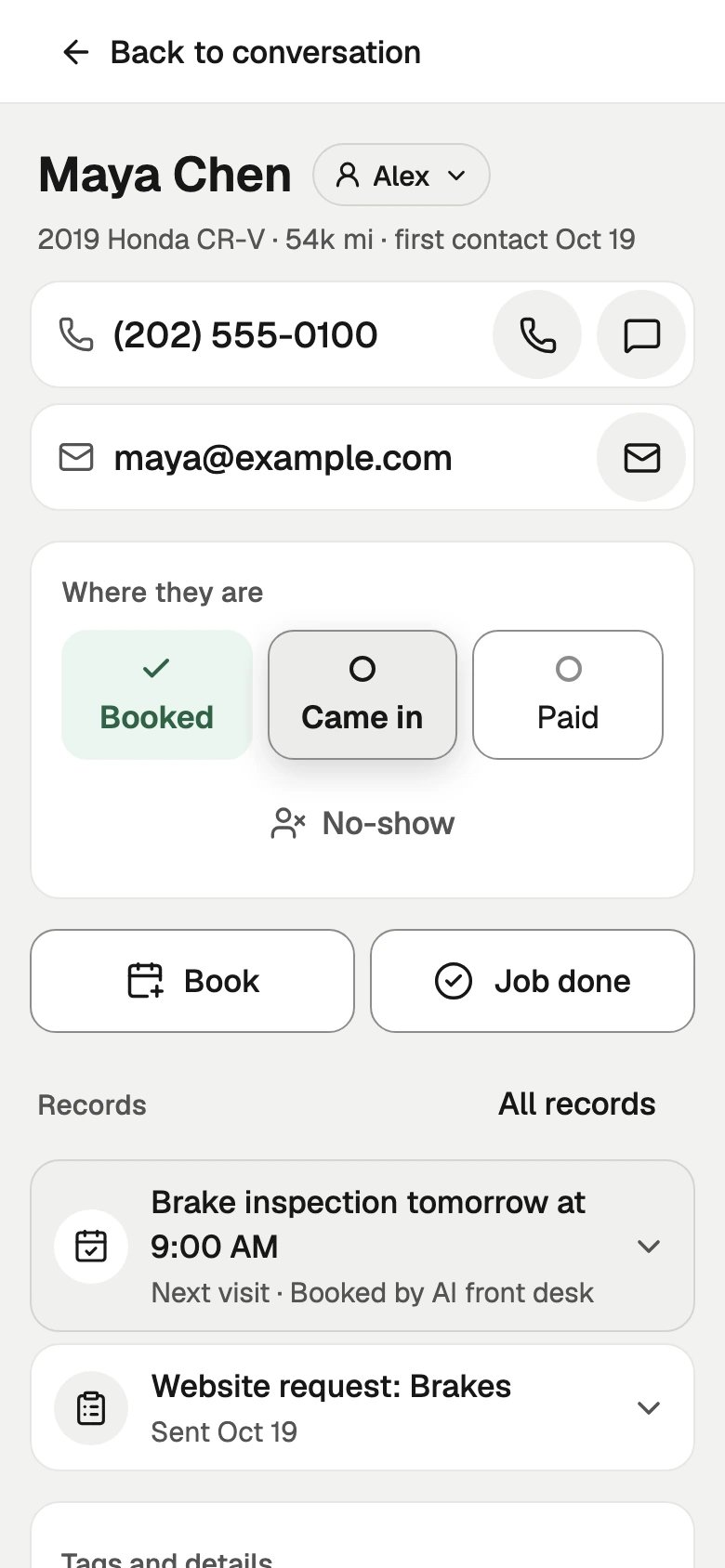
- On your phone
Click a contact to open their record.
- At the top: their name, who has them, their phone and email, and Text, Email, Call and Follow up.
- Overview: Outcome (mark where the lead landed, like Qualified), Notes, Tags and Lists.
- Activity: their timeline. Texts and emails in and out, stage moves, forms and orders, newest first.
- Records: everything linked to them, like a website request or a vehicle.
- Automations: what is running for them.