

Find who needs you
- On the web
- On your phone
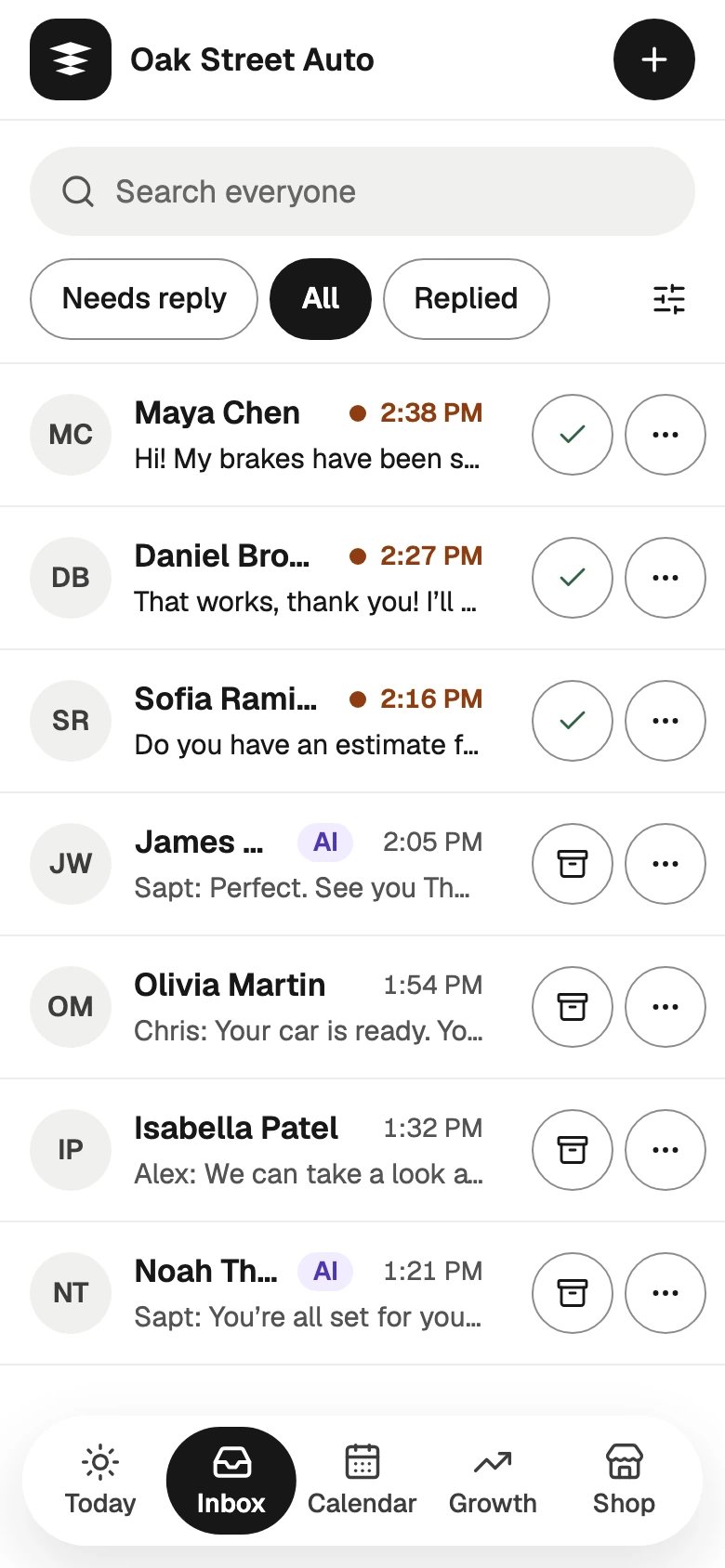
Open Inbox in the sidebar. Pick a tab at the top: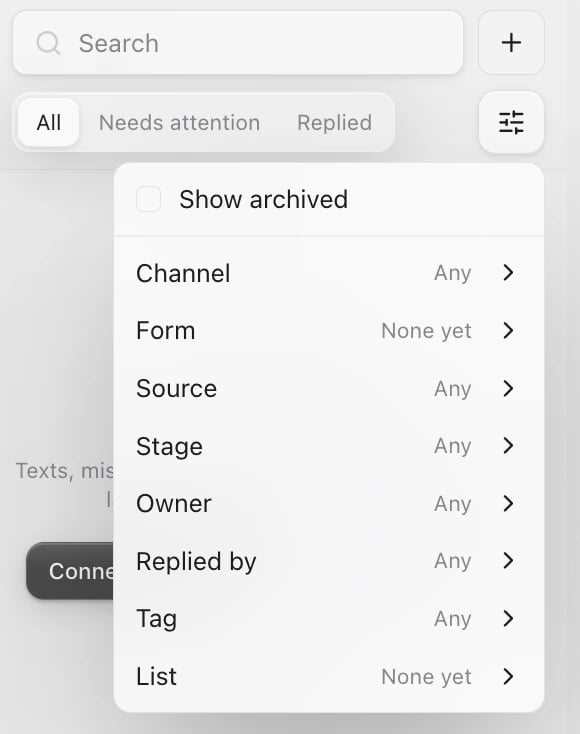
- All: every conversation, newest first.
- Needs attention: a draft waiting for your OK, a customer the AI handed to you, a message nobody answered, a new request or call, or a follow-up that is due.
- Replied: answered by the AI or you, or marked done.
Start your day on Today
On your phone, the Today tab puts the urgent things first:- Needs you: drafts waiting for your OK, questions from the AI, and customers who asked for a person.
- Missed calls: missed calls nobody has returned yet. Tap Call, or mark one Handled.
- Did they come in?: today’s appointments whose time has passed. Tell Sapt whether they showed up.
Reply
- On the web
- On your phone
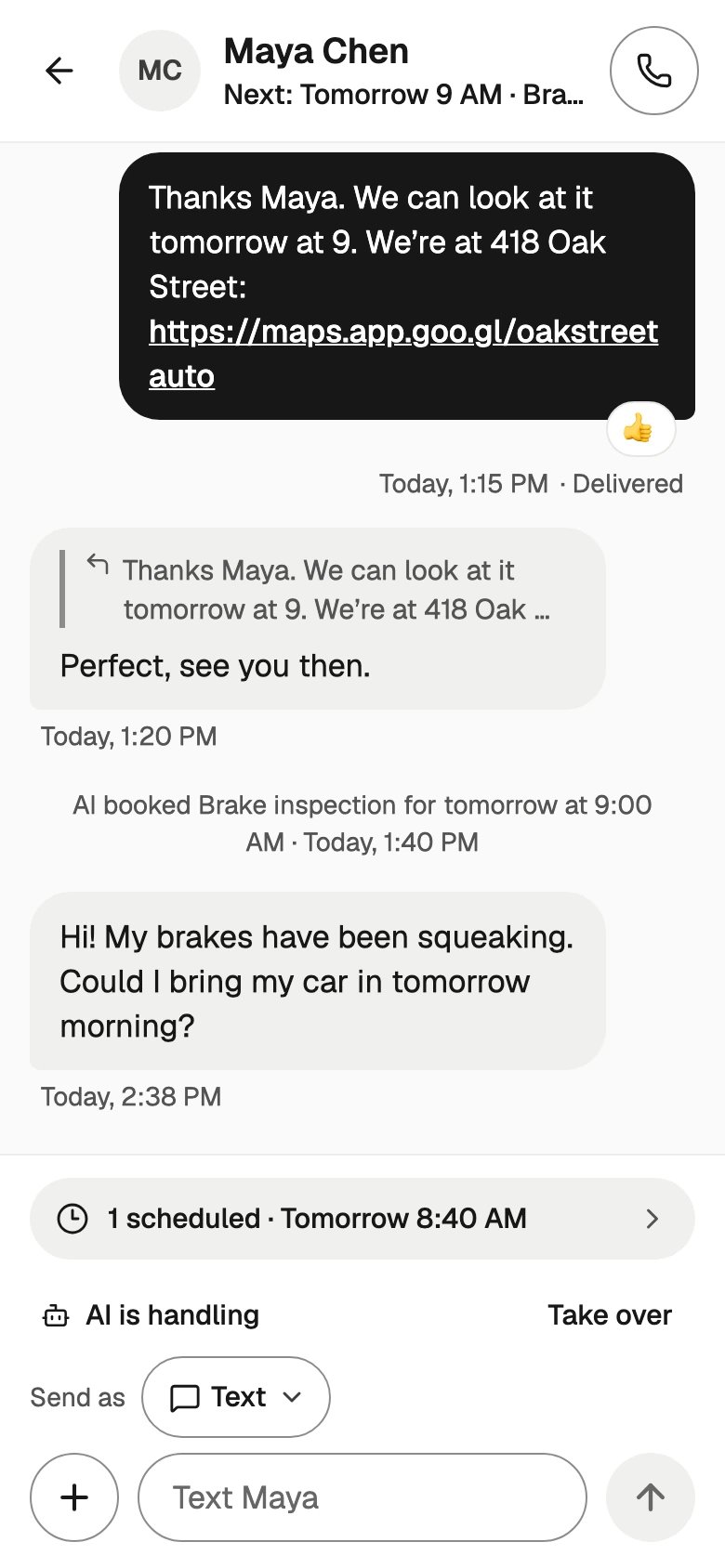
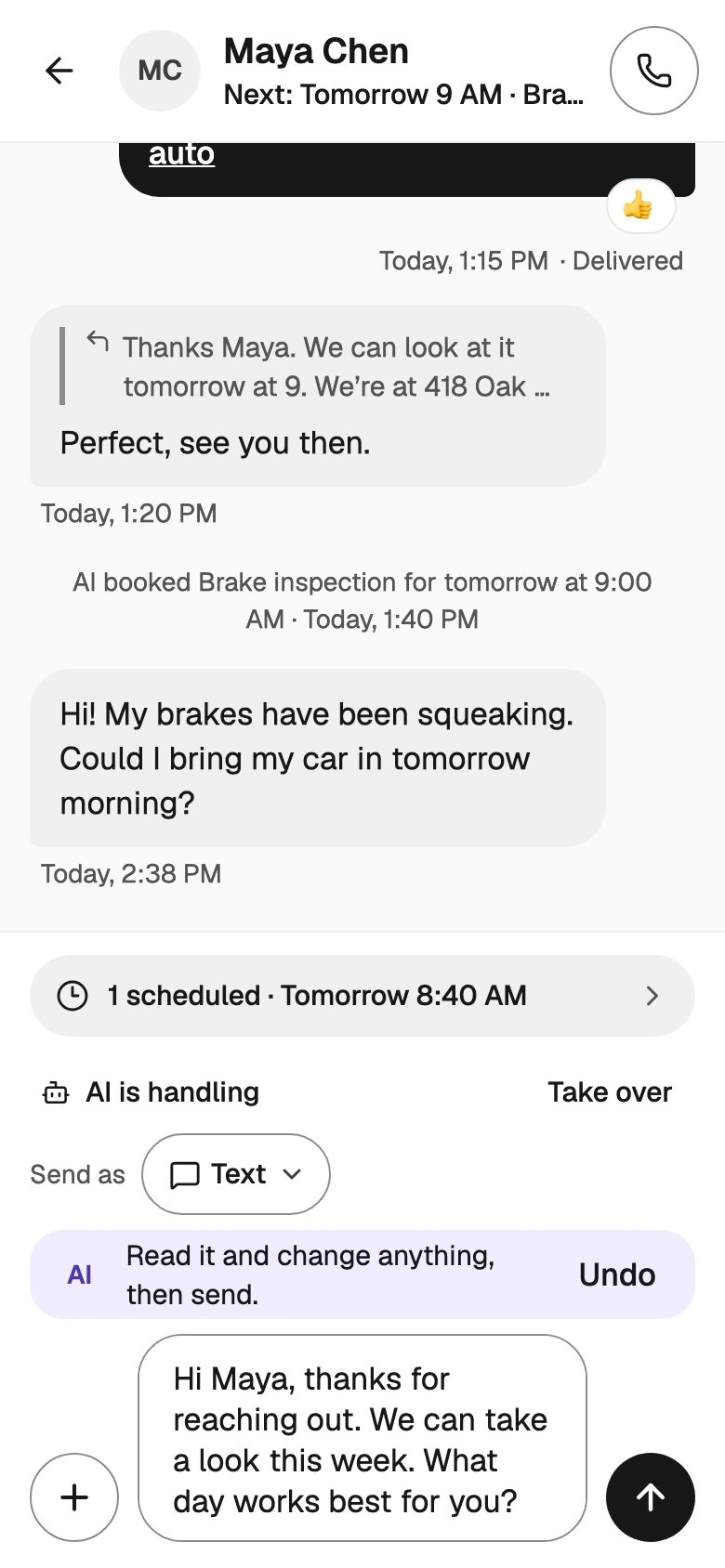
Click a conversation. Sapt picks the channel they last wrote on. To switch, pick another tab above the message box, such as Text, Email or WhatsApp. Type your message and click Send.Click + next to the message box for more:
- Draft reply: the AI writes a reply from the conversation. Nothing sends until you click Send. With text in the box, it says Improve draft.
- Photo, on a text. It sends as a picture message.
- Schedule send, on a text or an email. Pick a date and time up to 30 days ahead, then click Schedule send.
WhatsApp, Instagram and Facebook only let you reply within 24 hours of the customer’s last message. After that, text them instead.
Mark done, archive or follow up
- On the web
- On your phone
At the top of a conversation:
- Mark done clears it from Needs attention and keeps it in your Inbox. It comes back if they write again.
- Archive takes it out of the Inbox for your whole team and keeps the history. It comes back when they write again. Unarchive brings it back now.
See a customer’s details
- On the web
- On your phone
Click the customer’s name at the top of the conversation. You can Text, Email, Call or Follow up, and add notes, tags and lists. Activity shows everything that happened with them.
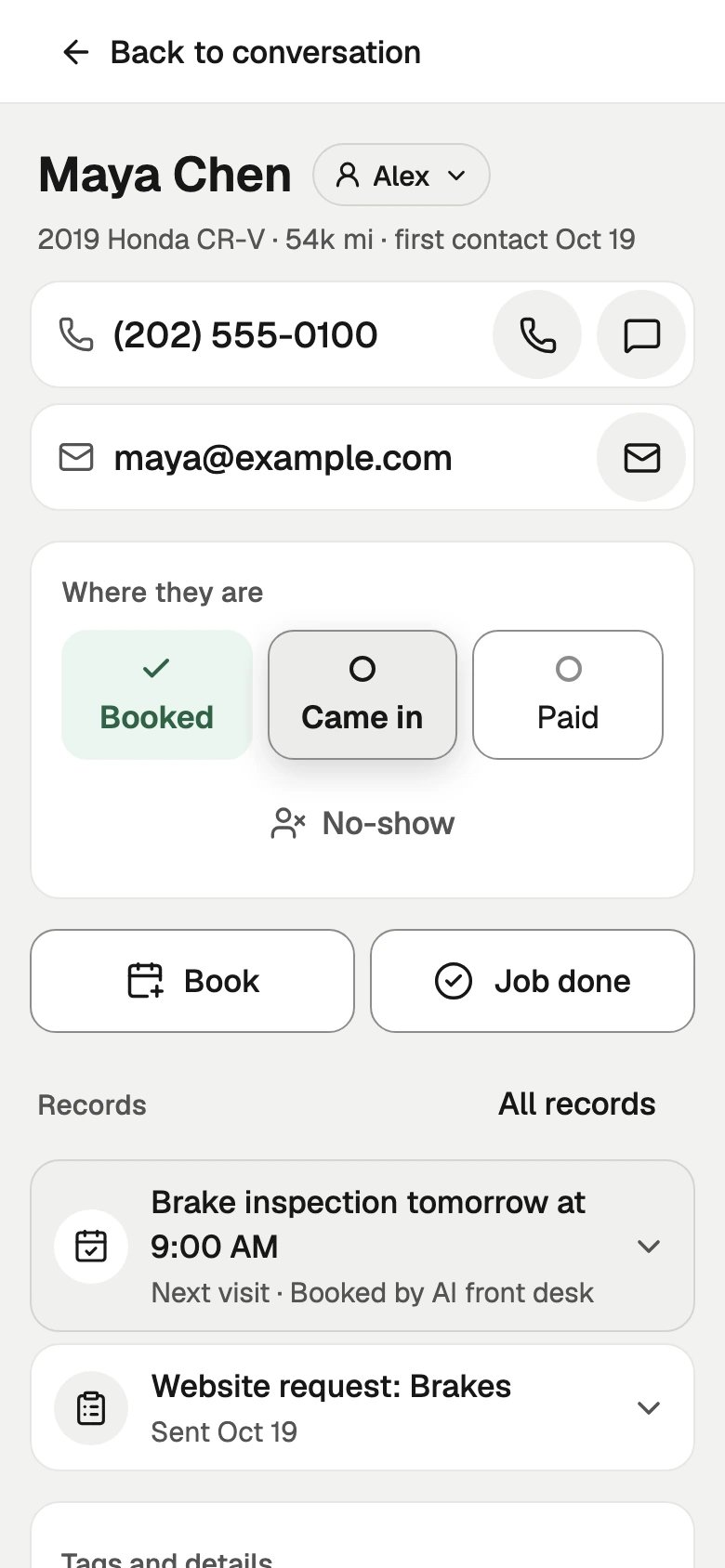
Start a new conversation
- On the web
- On your phone
Click + next to the search box. Add a Name and an Email or Phone, then click Create. If they are already a customer, Sapt opens their conversation.
Connect your channels
An empty Inbox says No conversations yet. Click Connect channels to add a channel, or Messaging settings for your Sapt number.
Channels are connected on the web. Comments on your Facebook and Instagram posts do not show in the Inbox.
Keep going
Set up the AI front desk
Let the AI answer and book.
Get lead alerts
Know when someone needs you.