

What you get
- Sapt adds the records your domain needs, for your website, tracking and email, when you click Apply DNS records.
- One token covers every domain the token can see in your Cloudflare account.
Before you start
- Your domain’s DNS on Cloudflare. Sapt shows the Cloudflare option only for a domain whose DNS is there.
- A Cloudflare login that can make API tokens.
- Permission to change Project Settings in Sapt.
Connect Cloudflare
1
Add your domain in Sapt
In Sapt, open Project Settings and then Domains. In Connect a domain, type your domain in Domain you own, tick what it is for and click Save domain settings. Connect your domain has each step.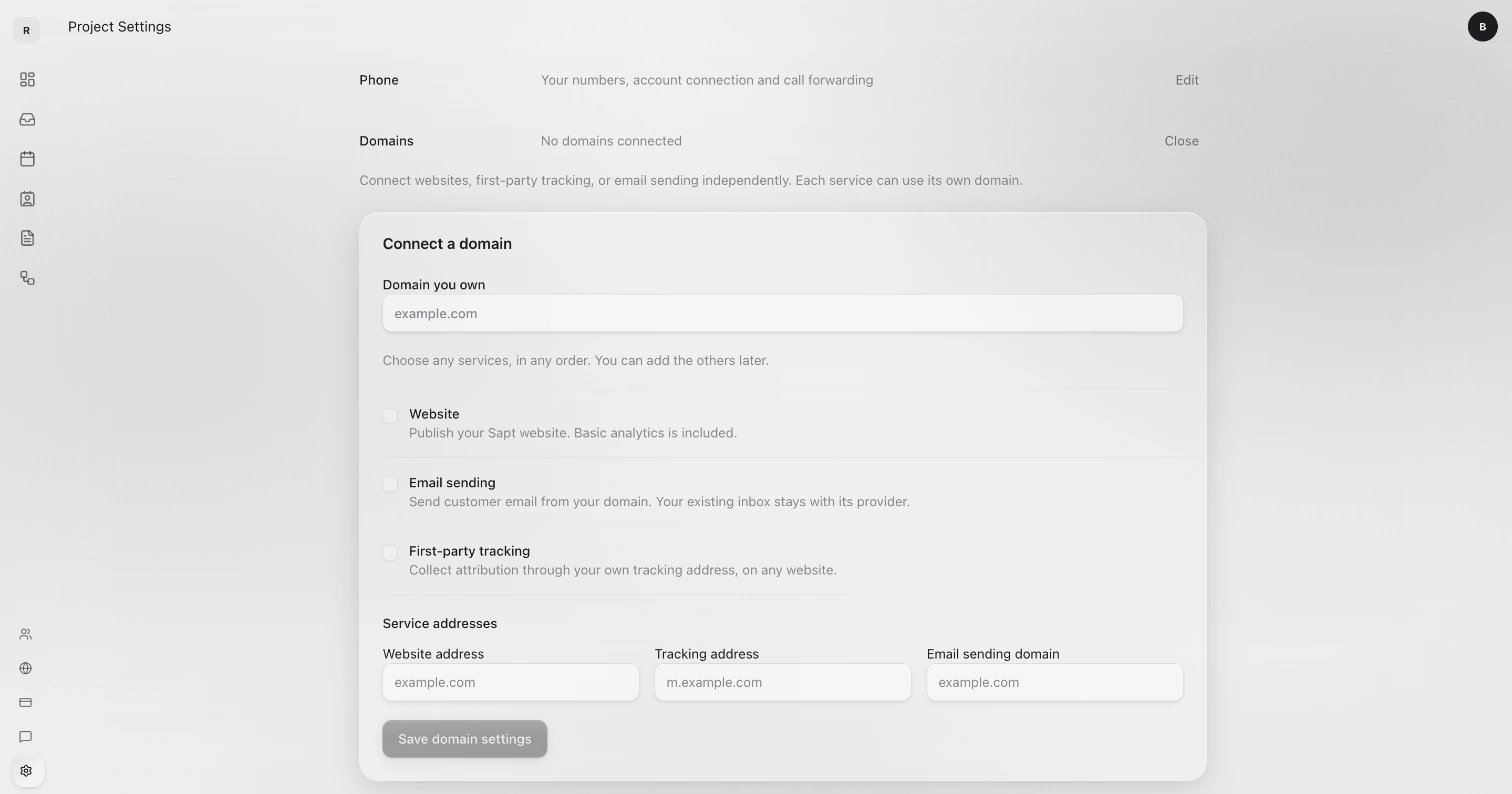
2
Click Connect Cloudflare DNS access
Once your domain is saved, Sapt checks where its DNS is. If it is on Cloudflare, Connect Cloudflare DNS access shows under your domain’s DNS records. Click it.
3
Open Cloudflare
Click Open Cloudflare. Cloudflare’s token page opens with everything filled in: the name Sapt, read access to your zones, edit access to your DNS records, and all of your zones. Sign in if Cloudflare asks.
4
Create the token
Click Continue to summary, check it, then click Create Token. Copy the token. Cloudflare shows it only once. Cloudflare’s steps are in its API token guide.
5
Paste it into Sapt
Back in Sapt, paste the token into Paste the token and click Connect. Sapt checks the token with Cloudflare and makes sure it can see your domain.
6
Apply the records
Look over the records, then click Apply DNS records. Click Check connection to see which records are live.
What Sapt does and does not do
- Connecting changes nothing. Sapt adds records only when you click Apply DNS records.
- Sapt only adds records that are missing. It never replaces or deletes a record that is already there. If a name already has a different record, Sapt tells you and leaves it alone.
- Sapt adds records with the Cloudflare proxy off. If a matching record has the proxy on, Sapt asks you to turn the proxy off.
- Check connection only looks. It never changes anything at Cloudflare.
If something looks wrong
- Sapt says Cloudflare did not accept the token: copy it again from the page Cloudflare shows after Create Token, and paste it again.
- Sapt says the token cannot see your domain: make a new token that includes the domain’s zone, or give the old one access to it in Cloudflare.
Disconnect
In Project Settings > Domains, click Disconnect DNS access. Sapt forgets the token. Records it already added stay. Then delete the token in Cloudflare under My Profile > API Tokens.Keep going
Connect your domain
Put your website on your own address.
All integrations
See what else you can connect.