

What you get
- Send from your own inboxes. Sapt sends outreach email from the Zoho inboxes you import.
- Replies come back. Replies to that email land in Sapt. The rest of your mail stays in Zoho.
- Sending settings. The Zoho Mail page in Sapt also holds your Outreach sending schedule, AI reply classifier, Sequence templates and Do-not-email list.
Before you start
- A Zoho organization hosted in the US. You sign in at accounts.zoho.com. Sapt cannot connect Zoho accounts in other data centers yet, like Europe, India or Australia. Zoho’s data centers.
- A Zoho administrator login for that organization, to connect Zoho Admin. Zoho’s admin roles.
- The password for each inbox. If an inbox has two-factor sign-in on, make an app password for it instead: at accounts.zoho.com, open Security, then App passwords, then Generate New Password. Zoho’s guide.
- A Zoho Mail plan with IMAP. Sapt turns IMAP on for each inbox when it imports it. Zoho’s free plan does not include IMAP for new sign-ups. Zoho’s guide.
- Permission to manage integrations in Sapt.
Import your inboxes
1
Open Zoho Mail in Sapt
In Sapt on the web, open Project Settings, then Connected apps. Under Other, find Zoho Mail and click Connect. The Import from Zoho Admin panel is at the top of the Zoho Mail page.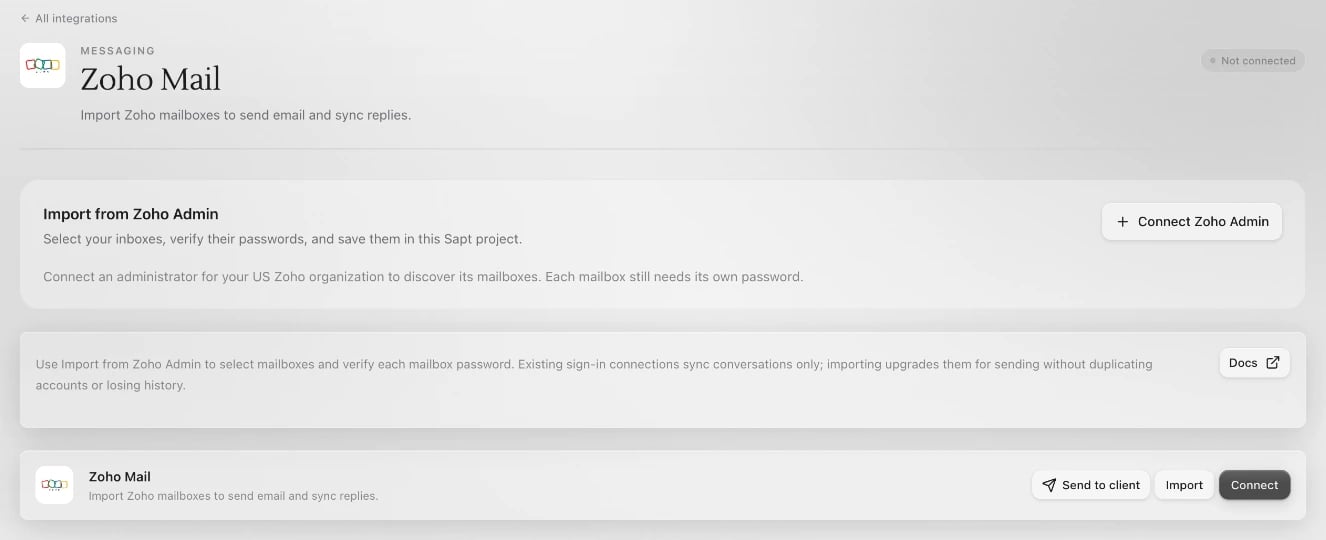
2
Connect Zoho Admin
In Import from Zoho Admin, click Connect Zoho Admin, not the Connect button on the card below it. Zoho opens in a new window. Sign in as an administrator and approve access. Back in Sapt, your organization shows under Zoho organization.
3
Add your name and company
Fill in Sender name and Company. They go into the signature on every email. Open Sapt signature preview to see it.
4
Pick inboxes and enter passwords
Tick each inbox you want. Type its password in the Password column. Where the inbox says MFA on, use its app password.
5
Import
Click the import button. It shows how many inboxes you picked, like Import 3 inboxes. Sapt turns on IMAP where needed, checks each password with Zoho and saves the inbox. Each one reads Sending ready when it can send.
Check an inbox
Each imported inbox has three buttons:- Test login checks its password with Zoho. It does not send a test email.
- Update password takes you back to the import panel. Pick the inbox there and enter its new password. Its history stays.
- Disconnect stops sending and syncing for that one inbox. Its conversation history stays saved.
What Sapt does and does not do
- Sapt brings in only replies to email it sent. It leaves your other mail in Zoho.
- Sapt keeps imported passwords encrypted. Passwords you type stay on the page for up to 15 minutes, until you import, leave the page or click Clear passwords.
- An inbox you connected earlier by signing in to Zoho only syncs conversations. Import it here to send from it too. Its history stays.
Disconnect
- One inbox: click Disconnect next to it and confirm.
- Everything: on the Zoho Mail page, open the … menu and click Disconnect all.