

What you get
- Your Cal.com bookings on your Sapt Calendar.
- The Check for booking workflow step: it checks whether a lead booked, so the workflow can follow up only with people who did not.
- For developers: the Sapt API can find open times and create, move and cancel Cal.com bookings.
Before you start
- A Cal.com account and its login.
Connect Cal.com
1
Open Cal.com in Sapt
In Sapt on the web, open Project Settings, then Connected apps. Under Other, find Cal.com and click Connect.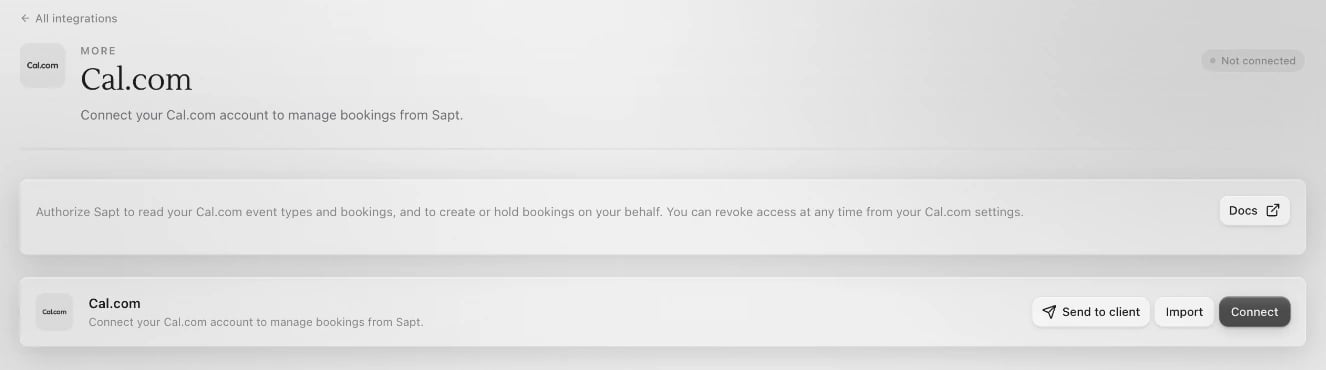
2
Allow Sapt in Cal.com
Click Connect on the Cal.com page. Cal.com opens in a new window. Sign in and click Allow.
3
Check your calendar
Back in Sapt, Cal.com shows Connected. Open Calendar to see your bookings.
What Sapt does and does not do
- Sapt reads your event types and bookings.
- Sapt creates a booking in Cal.com only when someone asks it to, through the Sapt API or a tool built on it.
- Cal.com logins sometimes expire. If the Cal.com card says Reconnect required, click Reconnect and sign in again.