

What you get
- Your Google Calendar events show on the Sapt Calendar.
- The AI reads this calendar for open times, so it books only when you’re free.
- Appointments the AI books land in Google Calendar.
- Moves and cancels in Google Calendar update Sapt every 30 minutes, so reminders go out for the right time.
- Cal.com and Calendly bookings show up too, once they reach your Google calendars.
Before you start
You need the Google account that has your shop’s calendar. Calendars other people share with that account count too. One shared as See only free/busy (hide details) blocks those times, but its events stay hidden. See Google’s sharing options.Connect Google Calendar
1
Open Google Calendar in Sapt
Click Project Settings, then Connected apps. Under Google, click Connect on Google Calendar.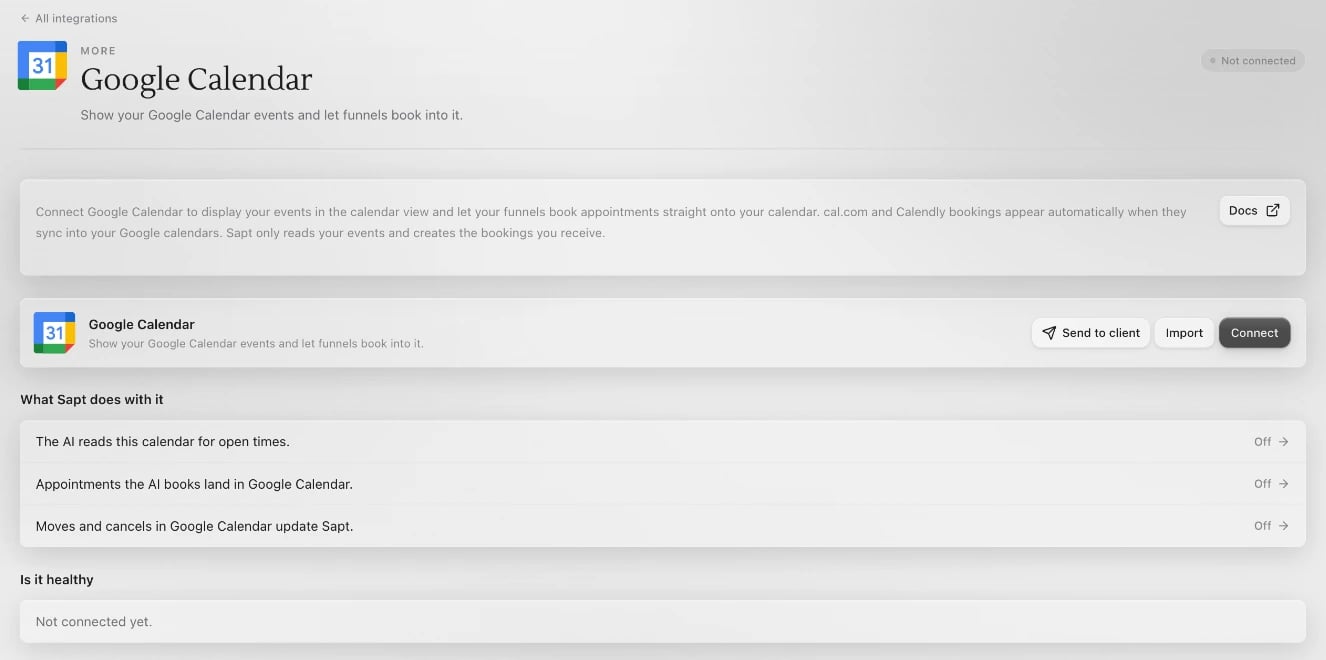
2
Click Connect
A Google window opens.
3
Choose your account and allow access
Pick the account with your calendar, then allow what Google asks:
- See and download any calendar you can access using your Google Calendar, so the AI knows when you’re busy.
- View and edit events on all your calendars, so bookings can land on your calendar.
- Your email address, so Sapt knows which account is connected.
4
Pick your calendars
Under Calendars, tick the calendars that belong to this shop. Sapt reads these to tell whether a lead booked. If you connected more than one account, choose which one says New bookings land here. Click Save changes.
5
Book into Google Calendar
Open Calendar and click Availability. Under Where bookings go, tick the Google calendar and click Save.
What Sapt does and does not do
- It reads your events and creates the bookings you receive. It doesn’t touch your other events.
- It checks for moves and cancels every 30 minutes.
- A calendar shown as Busy only blocks times, but Sapt can’t see what’s on it.
- Unticking a calendar under Calendars stops Sapt reading it.
Disconnect
In Project Settings, Connected apps, click Configure on Google Calendar. Open the … menu and click Disconnect all. Then pick another calendar under Where bookings go, so the AI keeps booking. Your Google Calendar stays as it is.Keep going
Booking
Set your hours and booking rules.
AI front desk
Let the AI answer and book for you.