

What you get
- Your ShopMonkey appointments show on your Sapt Calendar.
- The AI books here. It skips times ShopMonkey shows as busy, and each booking is a real ShopMonkey appointment. Sapt finds the customer by phone number, or adds them.
- Moves and cancels sync both ways. Sapt checks ShopMonkey for changes every 30 minutes, or within seconds with instant updates.
- Services customers can book online in ShopMonkey can be booked by Sapt the same way, and their prices can show on your Sapt website.
Before you start
- An Admin login in ShopMonkey. Only Admins can make an API key, and the key gets the same access as the person who makes it.
- A Sapt role that can manage integrations. The project owner has it.
Connect ShopMonkey
1
Make an API key in ShopMonkey
In ShopMonkey, go to Settings, then Integration, then API Keys. Click Get Started, or Add New Key if you already have keys, then Create API Key. Copy the key right away: ShopMonkey shows it only once. See ShopMonkey’s guide.
2
Open ShopMonkey in Sapt
In Sapt, click Project Settings, then Connected apps. Under Your shop system, click Connect on ShopMonkey.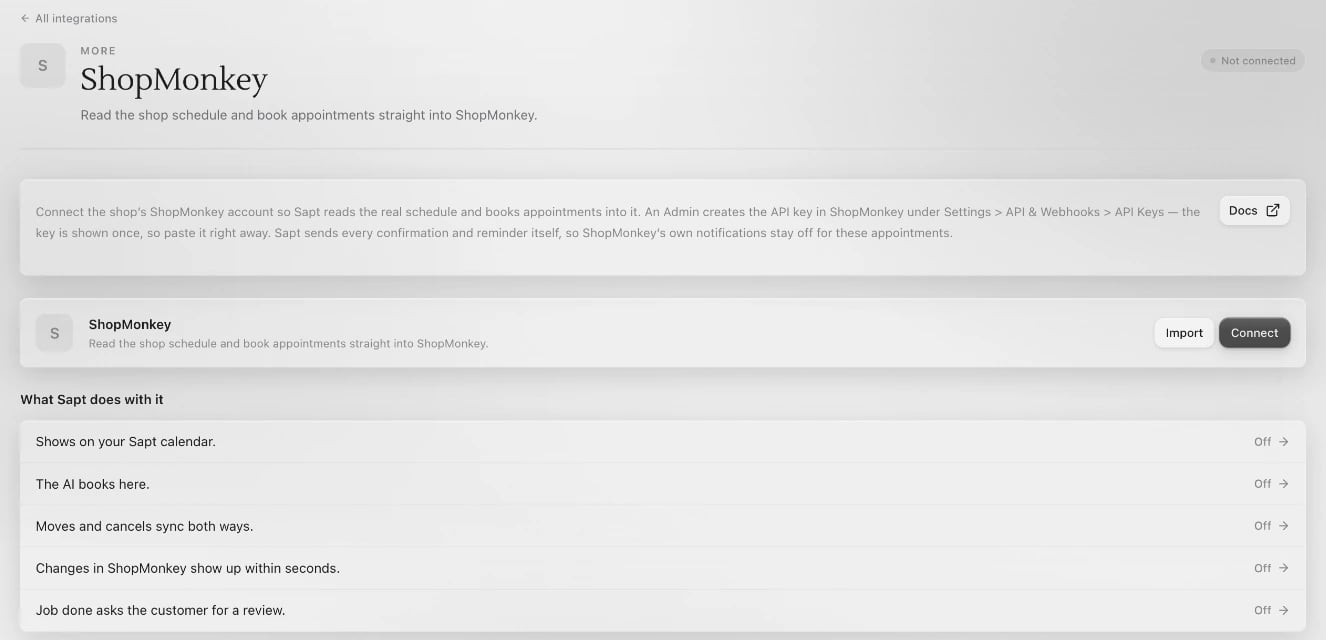
3
Paste the key
On the ShopMonkey page, click Connect. Paste the key into API key and click Connect. Sapt checks the key with ShopMonkey before it saves anything, then adds each of your ShopMonkey locations.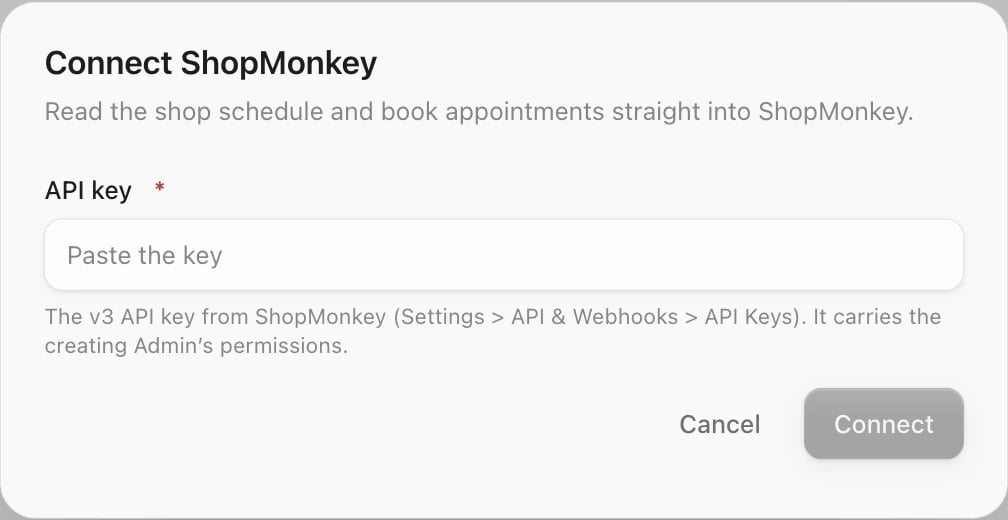
4
Book into ShopMonkey
Open Calendar and click Availability. Under Where bookings go, tick your ShopMonkey location and click Save. Back on the ShopMonkey page, The AI books here. now says On.
Instant updates
Without this, changes you make in ShopMonkey reach Sapt within 30 minutes. With it, they arrive within seconds. It’s optional.1
Copy Sapt's address
On the ShopMonkey page in Sapt, go to Instant updates and click Copy.
2
Add a webhook in ShopMonkey
In ShopMonkey, open Webhooks in Settings. Name the webhook, paste the address and choose the appointment events: create, update and delete. Save it. See ShopMonkey’s webhook guide.
3
Paste the signing secret
Copy the webhook’s signing secret from ShopMonkey. In Sapt, paste it into Paste the signing secret and click Save. Sapt says Secret saved. Waiting on the first delivery from ShopMonkey. until the first change comes in.
Use the address under Instant updates, not the Webhook URL button below it.
Services and prices
Services from ShopMonkey lists what customers can book online in ShopMonkey. Click Add, or Link when you already have a service with that name, and Sapt books it the same way, with the service already on the estimate. The buttons show once a schedule books into ShopMonkey (step 4). Click Show on website to put those prices on your Sapt website, with a Book button. Prices follow ShopMonkey every day.Ask for reviews after the job
Sapt comes with a workflow named Review request: job done. Two hours after a booking in Sapt moves to Completed, it texts the customer your review page. Each customer is asked once. It starts off: turn it on in Workflows.What Sapt does and does not do
- Reads your locations, appointments, customers and vehicles.
- Writes only the appointments the AI books (adding the customer when they’re new), and the moves and cancels you make in Sapt.
- Openings come from your Sapt hours, minus what ShopMonkey shows as busy. Sapt does not read bays.
- Checks for changes every 30 minutes, or within seconds with instant updates.
- Is it healthy on the ShopMonkey page tells you when ShopMonkey stops answering.
If something looks wrong
- Sapt says ShopMonkey rejected the key. Make a new key (step 1) and paste it again.
- Sapt says the account has no locations to book into. Use a key from the ShopMonkey account that has your shop’s location.
- It stopped working after a staff change. The key has the same access as the person who made it. Make a new key from an Admin login, then click Reconnect in the … menu.
Disconnect
In Project Settings, Connected apps, click Configure on ShopMonkey. Open the … menu and click Disconnect. Sapt stops reading and booking into ShopMonkey right away. Then pick another calendar under Where bookings go, so the AI keeps booking. You can also delete the key in ShopMonkey.Keep going
Booking
Set your hours and booking rules.

Google Business Profile
Answer your Google reviews from Sapt.